
Redshift
This settings page only becomes visible once a Substance 3D asset - i.e., an .sbsar file- has been loaded. The following settings then mainly determine the projection of the material onto the surface. For example, you can directly influence the size, type of repetition and rotation of the material on the surface of the object to which it is applied.
Projection
Mode
This setting defines the type of material projection onto the surface. The following modes are available:
- UV - The material is oriented to the UV coordinates of the surface. You can drag a UVW Tag of the object directly from the Object Manager into the UV Channel field. Otherwise, the projection information set by the Material Tag on the object is automatically evaluated.
- TriPlanar Object-Space - The material is projected onto the surface along the three object axis directions. If the object is moved or rotated, the material remains statically fixed to the surface.
- TriPlanar Reference-Space - If a Redshift Object Tag is used on the object, another object can be assigned there as a Reference Object in the Geometry tab. In this mode, the axis system of this object assigned as a reference is used for the projection. As with the TriPlanar Object-Space, the projection is then carried out along the three axis directions on the Reference Object. Please note that the projection will slip if the reference object or the object covered with the material is moved or rotated.
- TriPlanar World-Space - The material is projected onto the surface along the three global world axis directions. If the object covered with the material is moved or rotated, the material projection on the object may shift.
|
|||
| Projection Mode: UV |
TriPlanar Object-Space |
TriPlanar Reference-Space | TriPlanar World-Space |
UV channel
Here you can drag a UVW Tag of the object directly from the Object Manager. Otherwise, the projection information set by the Material Tag on the object is automatically evaluated.
|
|
| UV channel: Example with Cubic Projection |
Example with Spherical Projection |
Tri-planar
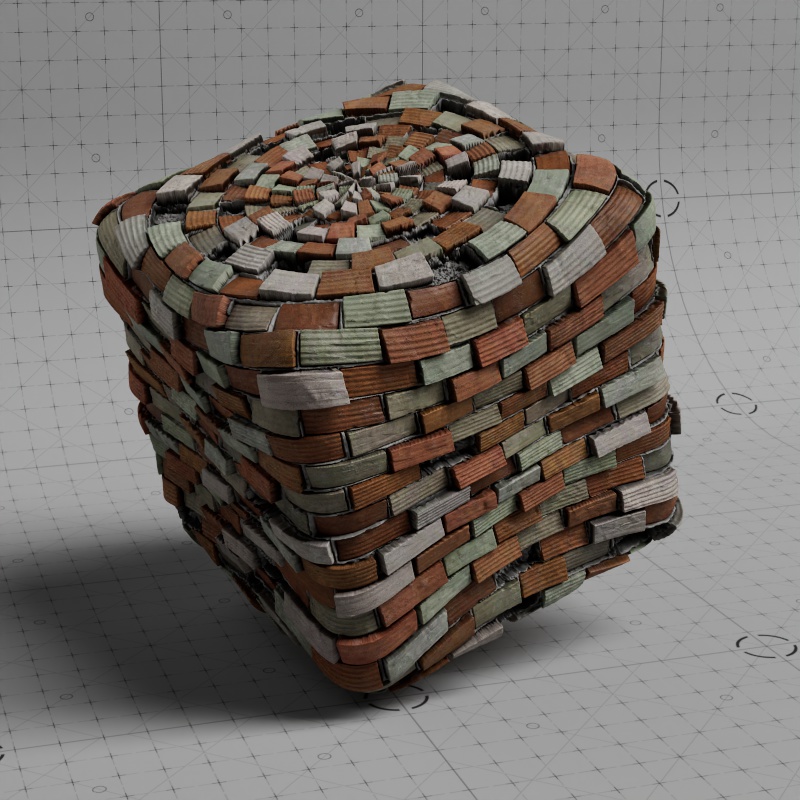
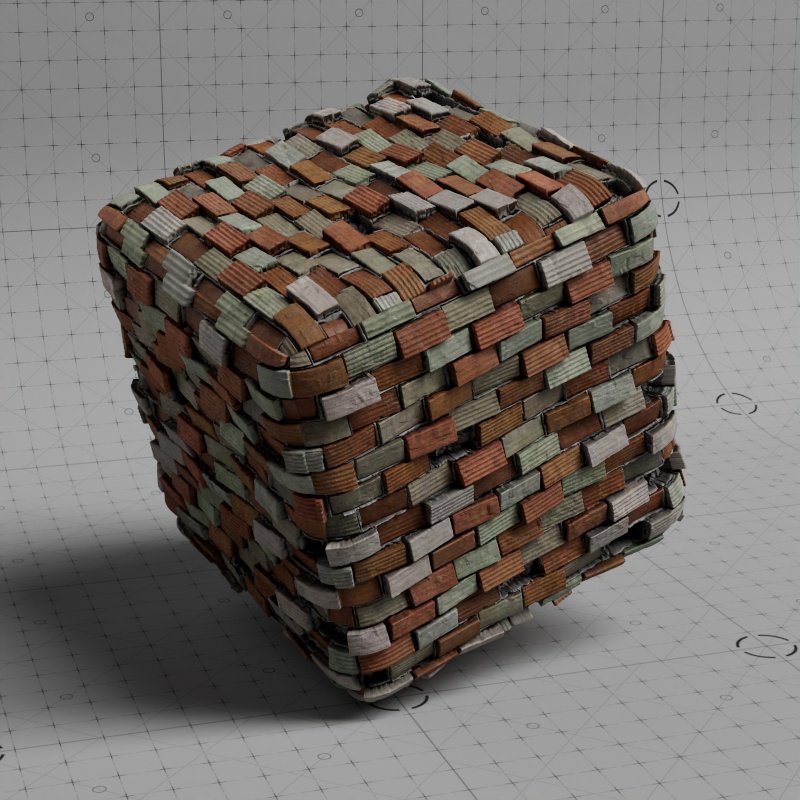
These settings are only available if you have selected one of the Triplanar options in the Projection Mode. With triplanar projections, the Substance material is automatically projected from three directions, each aligned at 90° to the other. This enables a reasonably distortion-free material assignment of a surface, even if the object has no UV coordinates and is organically rounded. You can also find out more about this in the separately available TriPlanar Node in the Redshift material system, which also provides this function for other shaders.
Physical Size
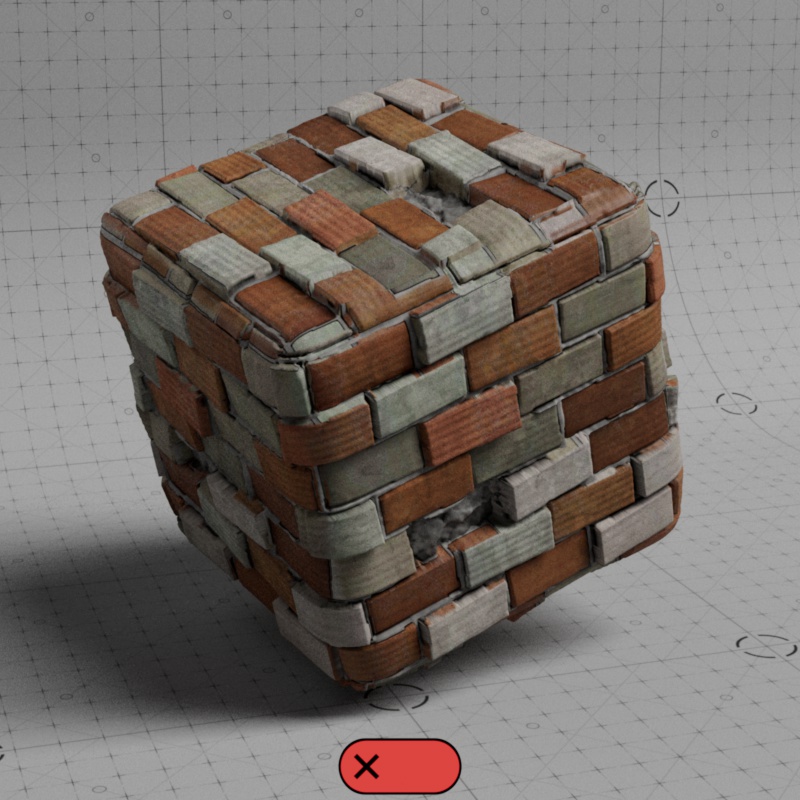
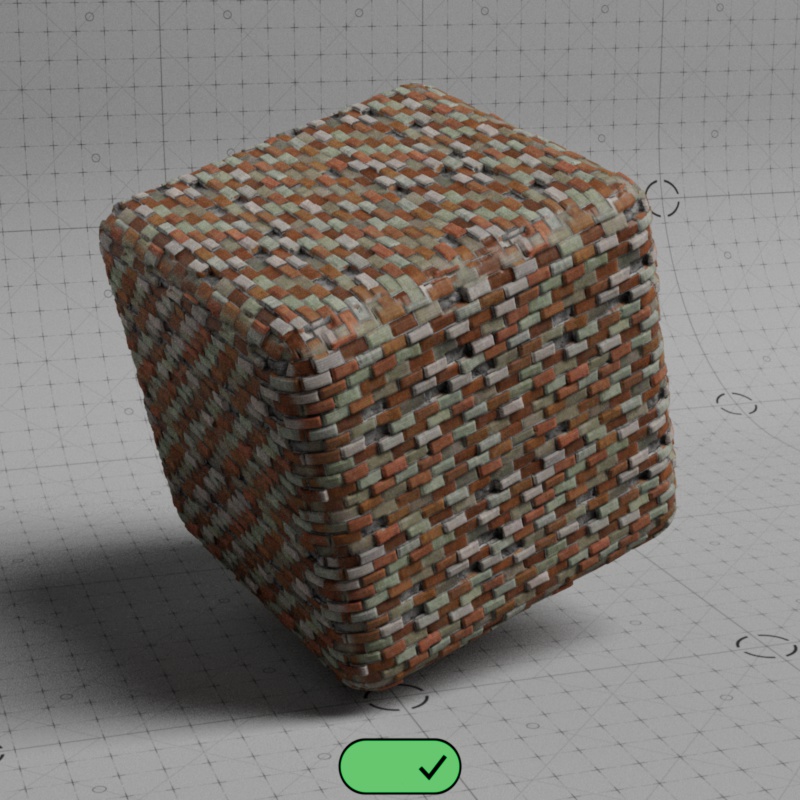
If this option is active, Physical Size is evaluated, which can be found in the Substance 3D Material tab. This value is not available for every loaded Asset. This depends on the creation of the Substance Asset itself.
If no Physical Size has been defined by the author of the Asset, you can recognize this by the default values 0,0,0 for Physical Size. In these cases, you should not activate this option and select the projection size, e.g., via the Material Tag on the object itself, according to visual aspects.
|
|
| Physical Size: Switched off |
Switched on |
Blend Amount
This controls the size of the overlapping material portion, which is softly blended in the TriPlanar projection. The intensity of the mixing along this overlap is controlled by the separate Blend Curve value.
With a value of 1, you get a very smooth transition between the projection directions, whereas smaller values lead to a harder transition between the projection directions.
| Blend Amount: 0 - 1 |
Blend Curve
This can be used to influence the calculation of the transition between the material projections if one of the TriPlanar Projection Modes is used. Smaller values lead to harder, larger values to softer transitions. The distance on which the transition is calculated is specified by the Blend Curve.
The value 0 deactivates all blending and therefore corresponds to the use of a Blend Amount with the value 0.
| Blend Curve: 1 - 25 |
Scal
Adjusts the scale and repetition of the Substance texture along the X-, Y- and Z-axis directions of the TriPlanar Projection.
| Changes the X, Y and Z scale of the TriPlanar Projection. |
Offset
Moves the Substance textures along the X, Y and Z axis directions of the TriPlanar Projection.
| Changing the X, Y and Z offset for the TriPlanar Projection. |
Rotation
Rotates the Substance textures around the X, Y and Z axis directions of the TriPlanar Projection.
| Change in TriPlanar X, Y and Z rotation. |
UV Remap
You can use these settings to adjust the Scale, Offset and Rotation of the material projection.
Scale
This allows you to adjust the scale of the Substance Material along the X and Y (or U and V) axis directions of the selected projection.
| Change in X and Y Scale |
Offset
Use this to move the Substance Material along the X and Y (or U and V) axis directions of the selected projection.
| Change in the X and Y Offset |
Rotation
This is the degree angle by which the projection of the Substance Material should be rotated.
| Rotation: 0° - 90° |
Displacement Scale
This allows you to directly adjust the intensity of the displacement that is output on the Substance 3D Material Node. The default value 1 gives you the exact displacement intensity that was created within the loaded Asset. Accordingly, the output displacement is completely switched off with the value 0. Values above 1 are also possible to further increase the displacement.
| Displacement Scale: 0 - 2 |