
Installation & Setup for Archicad
On this page, we will guide you through the installation of Maxon Redshift and its individual setup in Archicad.
First of all, please note the system requirements and information about supported Archicad versions on this central website. There you will find a summary of all the technical requirements that must be met in order to use the various Maxon products.
Quick Navigation
- Installation
- The Toolbar
- The Maxon Redshift Icon Palette
- Where to Start?
- Things to know about the workflow
- Working on several projects with Maxon Redshift
- Switching Views in Archicad
- Info on Environment settings
- Working with Assets
- How to close Maxon Redshift?
- Undo/Redo Functionality
- Data Integration
Installation
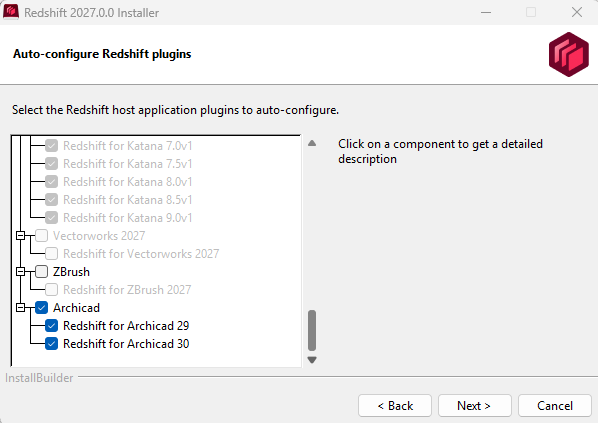
During the Maxon Redshift installation you'll be asked to select all of your host apps that should get a direct connection to it (also see Figure 1 above). In our case at least the Archicad option for the available version have to be activated.
Once the Maxon Redshift installation is complete, you can launch Archicad.
The Maxon Redshift Menu
The main functions for starting, pausing, and defining the synchronization between Archicad and Maxon Redshift can be controlled using the corresponding menu entries (see Figure 2).

Start Connection: This starts Maxon Redshift and loads your current Archicad scene into it. Once the connection is activated, additional menu items get active so that you can pause the connection to Maxon Redshift at any time. Closing the Maxon Redshift window or using Terminate Connection automatically closes the connection, and no data is lost. The following commands from the Maxon Redshift menu determine how changes to the viewport in Archicad or Maxon Redshift are processed while the connection is active.
During first run on macOS you may be asked to allow Archicad to configure Accessibility functionality. If you do not accept this prompt, you must add it manually to ensure that Redshift functions properly:
-> -> -> -> -> -> -> Archicad executable.
Pause/Resume: With Pause, scene changes continue to be synchronized, only camera navigation is paused. You can switch back to a synchronized camera by activating Resume. You can also use this to re-open the Redshift window in case you closed it.
One-Way Camera: Changes made to the camera within Archicad are synchronized with Maxon Redshift. However, synchronization does not occur in the opposite direction. Navigation in Redshift is limited to its viewport.
Bidirectional Camera: Changes made to the camera are automatically synchronized between the two applications. Changes to the perspective in Maxon Redshift are automatically transferred to Archicad. Changes to the perspective in Archicad are automatically visible in Redshift. This is the default mode.
Terminate Connection: This closes Maxon Redshift and stores all specific Redshift data directly in the Archicad model. When the Archicad model is saved, that data is also serialized within its file. The connection between Archicad and Maxon Redshift is also automatically terminated when the Maxon Redshift window is closed. Even then, none of the Redshift data is lost; instead, it is automatically transferred to Archicad.
If you want to remove the native Redshift data from your Archicad project, you'll find an option to do so in the About dialog (see below).
About: This opens the About dialog for Maxon Redshift, which not only provides information on the current version numbers and resource links, but also includes additional features (see Figure 3).
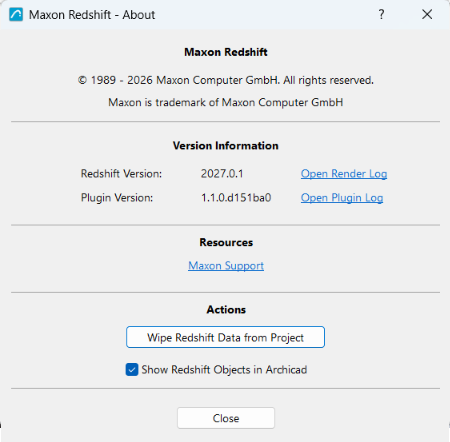
Maxon Support: Here you find access to the Maxon Support Portal.
Open Render Log/Open Plugin Log: Access to diagnostic logs.
Wipe Redshift Data from Project: If you want to remove all Redshift data from the currently open project, e.g., to start over with the original Archicad project in Redshift, you can use this button.
Redshift data includes, for example, Redshift camera and environment settings, saved camera views, as well as materials assigned via Redshift and assets placed in the scene. Deleting this data will therefore change the appearance of the project in Redshift, reverting it to the original Archicad scene.
Before using this command, you should save the project as usual to ensure that no important Redshift elements of the scene are lost and that you can access the project’s Redshift-specific properties at any time. Once the Redshift data has been removed, it cannot be recovered; you will have to recreate it from scratch again in Redshift!
The original content of the Archicad scene remains unchanged. Only the Redshift-specific data is removed.
Show Redshift Objects in Archicad is a toggle which controls the visibility of all proxy representations of Redshift library assets in the Archicad viewport. Note that manually hiding individual Redshift objects in the Redshift viewport automatically hides their poxy preview in Archicad.
The fastest way to get started with Redshift is to begin with the chapter on The Interface of Maxon Redshift. It explains all the functions of the user interface and provides links to related topics, such as Working with Materials, Rendering, or creating animations in The Storyboard.
We've put together some additional videos that will also make it easier for you to work with Maxon Redshift for Architects. You can find a playlist for these videos here.
The Maxon Redshift Icon Palette
The options and modes for launching and synchronizing Maxon Redshift, which were already explained in the previous section, can also be controlled via an icon palette (see Figure 4). You can access this palette by selecting > > , and then drag it to any desired location along the vertical line on the left side of the palette using the mouse.
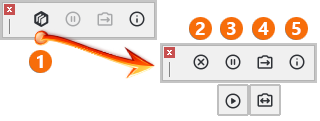
Since the options available in the Icon palette have already been discussed here, we'll only briefly touch on their functions at this point:
1Start Connection establishes a connection to Maxon Redshift and opens the Redshift viewport for the current Archicad scene. An active connection between Archicad and Maxon Redshift also unlocks most of the remaining icons in the palette.
2Terminate Connection closes the Redshift viewport (if it's still open) and the synchronization between Archicad and Maxon Redshift.
3Pause/Start Camera Synchronization You can click this icon multiple times to enable or disable synchronization between Archicad and Maxon Redshift. This applies exclusively to the synchronization of the camera perspective between the applications. In case you closed the Redshift window, but have not terminated the connection, you can also use this to open Redshift again.
4One-Way/Bidirectional Camera Synchronization You can also click this icon multiple times to switch between the different synchronization modes for the camera. In One-Way mode, changes to the perspective in Archicad are transferred to the Redshift viewport, but a change to the perspective in Maxon Redshift is not reflected in Archicad. This is different in Bidirectional mode, where all changes to the camera perspective are always synchronized in both applications.
5Information opens the About dialog, which allows you to configure, among other things, how Redshift-generated data is managed within the Archicad project. Please note this important information about removing Redshift data from your project. More info about the Redshift data can also be found here.
Things to know about the workflow
Working on several projects with Maxon Redshift
Maxon Redshift for Archicad allows you to switch between multiple projects, although this is not recommended. When switching to a view of another project, any live sync with Redshift will be paused until a view of the initial model is reselected. To switch between projects, you must first terminate the Redshift connection, activate the other model, and start a new connection. This ensures that no data can be lost.
Switching Views in Archicad
When switching views within the same model, Archicad automatically sends updated data to the Redshift application. This process may take time depending on model complexity. Be sure to have the Bidirectional Camera mode active in the Maxon Redshift menu so that any change in perspective in Archicad is also reflected in Maxon Redshift
Info on Environment settings
When opening a Archicad scene in Maxon Redshift for the first time (initial sync) the position of the sun, the time of day, and geolocation data are automatically transferred to the Maxon Redshift Environment.
Changes made to these environment settings in Redshift do not change the original Archicad settings. However, the Redshift environment configuration overrides the Archicad environment for rendering.
Working with Assets
All objects added in Maxon Redshift can be edited both in Maxon Redshift and in Archicad. We have summarized everything you need to know about working with assets and the limitations to be aware of on this page.
How to close Maxon Redshift?
In principle, the Maxon Redshift window can remain open throughout. However, if you no longer need a rendered display for other work and do not want to assign any new materials or assets, you should use the Terminate Connection command from the Maxon Redshift menu in Archicad. A dialog box will appear informing you that the Redshift data is now being transferred to the Archicad scene.
If you want to close the Redshift window temporarily and then continue working with it later, you can simply close the Redshift window. This will pause the existing connection, which can be reactivated by selecting Start Camera Synchronization.
Additional options include using the Send to Cinema 4D function to to save the current Archicad project loaded in Maxon Redshift as a Maxon Cinema 4D project file. This is made possible by the internal Cineware conversion of the data to the native Maxon Cinema 4D data format.
Undo/Redo Functionality
Currently this functionality is still work in progress and only partially supported in Archicad.
Data Integration
All data coming from Maxon Redshift is being serialized into the corresponding Archicad document. This doesn't require much additional storage. If you still want to remove the specific Redshift data from the project, you'll find the necessary functions in the About dialog described above. However, before doing so, you should save a complete copy of the scene that still contains all the Redshift data as a backup.
When working on a PC that has no active Maxon Redshift for Architects license, the layers and proxies can still be toggled and manipulated with the CAD app on that machine. Upon loading the document on a machine with the Maxon Redshift viewer and synchronizing the document, the corresponding changes (proxy manipulations) will take effect in the Maxon Redshift viewer.