
Exclusive Features for Vectorworks
As explained in the section on the Library Browser, among others, Maxon Redshift comes with many high-quality materials and ready-made models that can be integrated directly into your projects. These include grasses, flowers, bushes, and trees, which can be used as so-called Plant Objects.
Thanks to special support for Vectorworks, you can also select plants from the Maxon Redshift Library directly within the Vectorworks environment and place them in the scene. You don’t need to open Maxon Redshift separately to do this.
To do so, follow these steps (also documented in Figure 1):
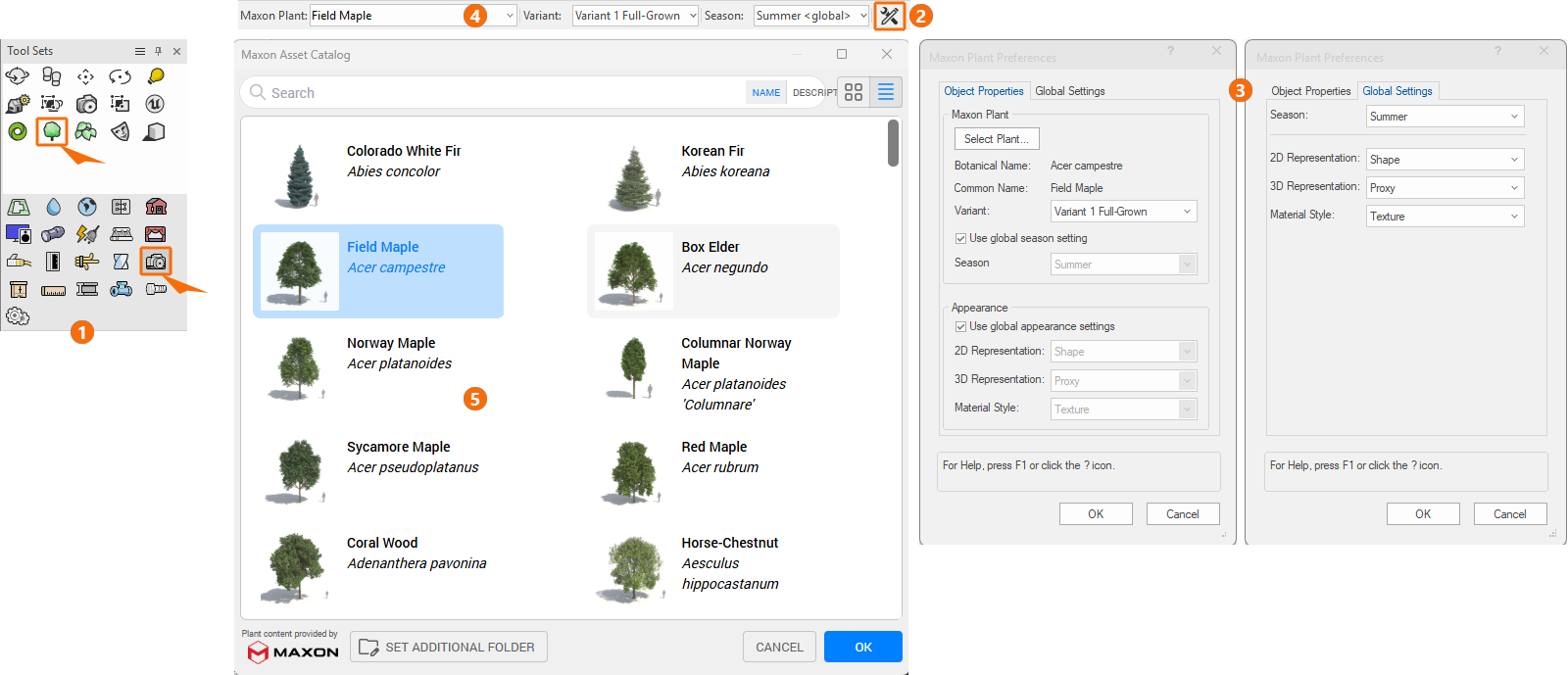
1In the Vectorworks Tool Sets, first select Visualization ("Camera" icon), and then select the Maxon Plant Tool ("Tree" icon) above it. This displays a menu bar above the viewport that allows you to configure the desired Maxon Plant object, as well as its Season and Variant (see 4 in Figure 1). However, when you open the Maxon Plant Tool for the first time, you should first access the global settings for Maxon Plants before selecting the plant to place (see 2 and the corresponding dialog at number 3 in Figure 1).
2Open the Maxon Plant Preferences via the "Tools" icon (see 2 in Figure 1). In the Global Settings section, review the settings for displaying plants in Vectorworks (see 3 in Figure 1). You can also find the settings for the default Season and the Material Style for the plants there.
In the Maxon Redshift Preferences, you will also find an additional option to automatically use high-quality plants in Redshift. Please refer to the description in the Preferences for more details.
3The Maxon Plant Preferences are divided into two sections. The Object Properties section applies to the currently selected Maxon Plant object and provides access to the plant species, variant, season, and their representation in the scene. In this regard, some of the settings available here are duplicates of those already found in the menu bar (see 2 in Figure 1). These options also allow you to use the global presets available in the Global Settings section. You should at least review these Global Settings before using the Maxon Plant Tool for the first time, as this configuration is applied by default to all newly added plants.
4You can select the desired plant using the Select Plant button in the Object Properties (see 3 in Figure 1) or directly via the Maxon Plant menu in the Maxon Plant Tool's menu bar (see 4 in Figure 1). This automatically opens the Maxon Asset Catalog, which lists all available plants with thumbnails and text descriptions (see 5 in Figure 1). After confirming your selection with the OK button of the Maxon Asset Catalog you can directly click into the Vectorworks viewport to place the plant (see Figure 2).
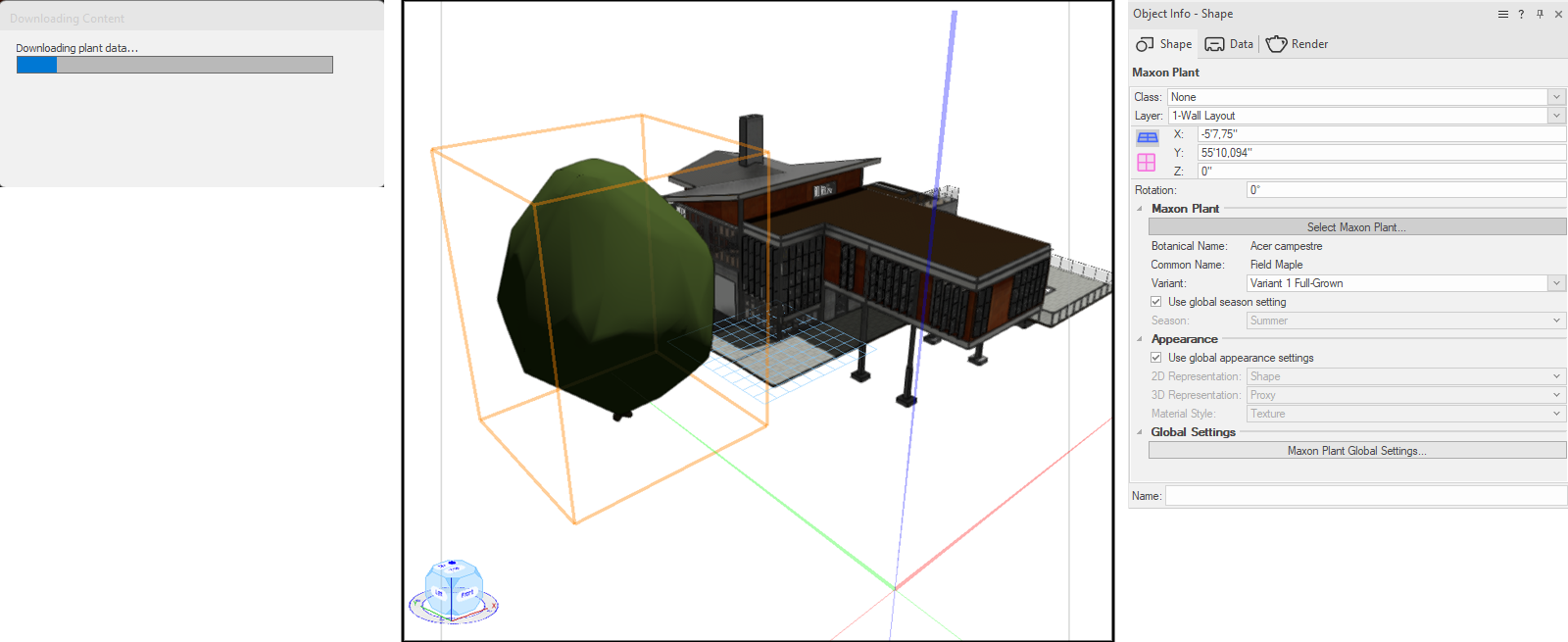
The selected plant can be placed directly in the Vectorworks viewport with a single click. If this plant is being used for the first time, it may be necessary to download the model and its textures beforehand; however, this occurs automatically (see the left side of Figure 2). Once the plant has been placed or a previously integrated Maxon Plant has been selected, its properties can still be edited later in the Object Info (see the right side of Figure 2).