
Generating a model from a sketch
On the Sketch tab of Model Generator, you draw the object directly on a canvas and add a short description. Model Generator turns the sketch into four design images, from which you continue as with a text prompt. A simple outline with the main shapes is enough; the description tells Model Generator what the sketch shows.
Generating a model from a sketch
- Select the Sketch tab.
- Draw the object on the canvas. For more room, click the arrow button at the top left to enlarge the canvas.
- In the field Describe your sketch for better results, describe what you drew, including materials and colors.
- Click Generate Preview Images and confirm the number of credits.
- Continue as described in Generating a model from a text prompt: choose a design, refine it if needed, choose the settings and generate the model.
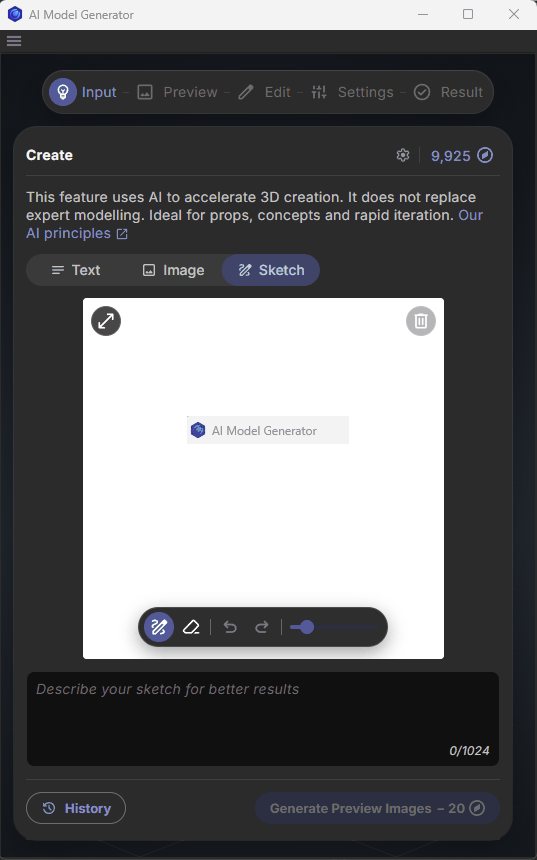
Drawing tools
The toolbar at the bottom of the canvas contains, from left to right:
| Tool | Function |
|---|---|
| Draw | Draws strokes on the canvas. |
| Erase | Erases parts of the sketch. |
| Undo / Redo | Undo or redo the last strokes. |
| Brush size slider | Sets the size of the brush and the eraser. |
| Arrow button (top left) | Enlarges the canvas, or reduces it back to its normal size. |
| Trash (top right) | Deletes the whole sketch. |
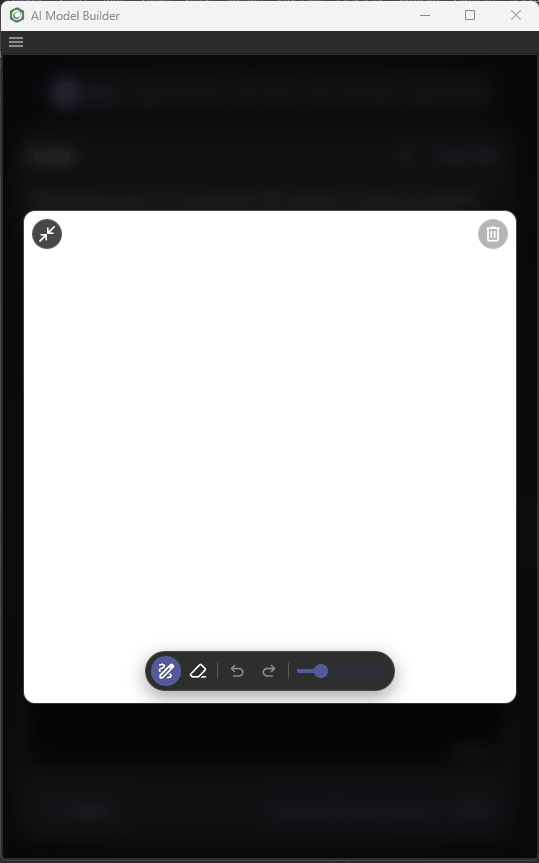
Tip:
Draw the outline and the main parts clearly, and leave the details to the description. If Model Generator interprets the sketch too loosely or too literally, try both settings of Geometry Behavior with Rodin, see Rodin settings.