Commenting and annotating
In Maxon Review, feedback is attached to the content itself. On a 3D model, you pin a comment to a specific spot or sketch your note in draw mode. On a video, each comment is linked to the frame you are looking at. Selecting a comment later restores the view or the frame it refers to, and comments can be answered, resolved and filtered.
Adding a comment
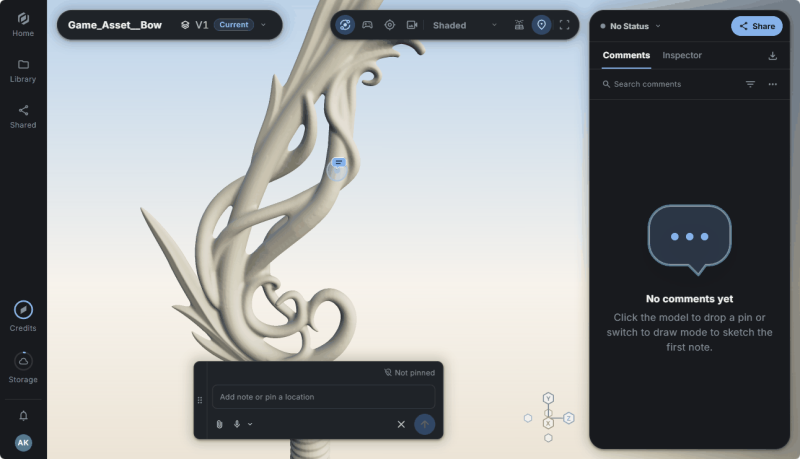
- Click Comment in the bar at the bottom of the viewer. A comment box opens.
- To attach the comment to a spot, click that spot on the model. A pin marks the location. Without a pin, the comment box shows Not pinned, and the comment refers to the model as a whole.
- Type your comment in the field Add note or pin a location.
- Click the arrow button to post the comment, or the X to discard it.
Attaching an image
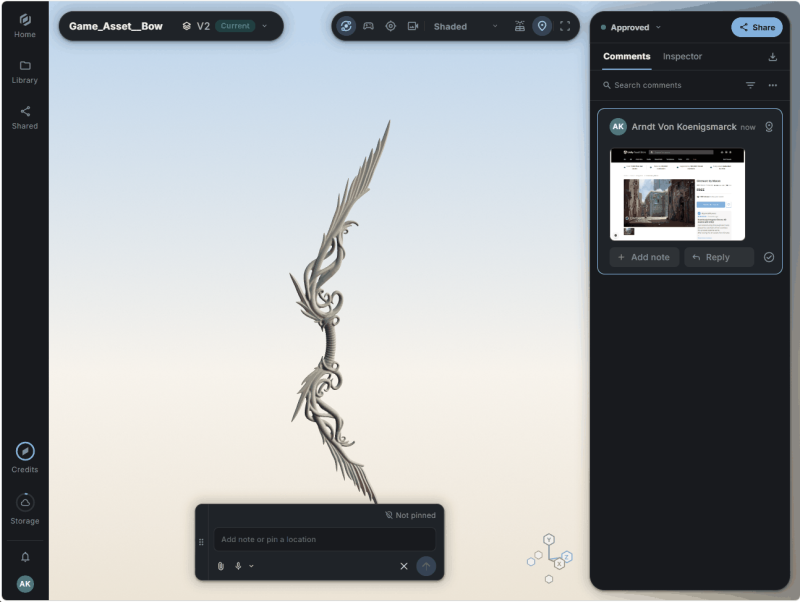
Click the paper clip icon in the comment box and choose an image file. The image is posted with the comment and shown as a preview in the comment list, for example a reference or a screenshot that illustrates your feedback. A comment can also consist of an image only; use Add note on the comment card to add text later.
Recording a voice comment
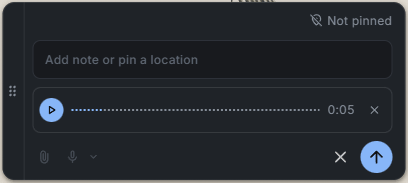
- Click the microphone icon in the comment box. The first time, your browser asks for permission to use the microphone; allow it.
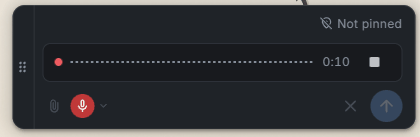
- Speak your comment. The recording time runs while you speak; click the stop button to end the recording.
- Play the recording back with the play button, or delete it with X and record again.
- Optionally, add a text note, then click the arrow button to post the comment with the recording.
By default, the microphone set in your operating system is used. To record with a different microphone, choose it from the small menu next to the microphone icon.
|
|
Drawing annotations
Click Draw to mark areas directly in the view, for example to circle a detail or point at it with an arrow. The comment box then shows the drawing tools, the line width, the colors and an optional text field. Post the drawing with the arrow button; it appears as a thumbnail in the comment.
| Tool | Description | With Shift |
|---|---|---|
| Pen | Draws freehand lines anywhere in the view. | Draws straight lines. With Shift+Ctrl (macOS: Shift+Cmd), straight lines snap to 45° steps. |
| Surface | Paints directly on the surface of the 3D model. | – |
| Box | Draws rectangular frames. | Draws squares. |
| Arrow | Draws arrows. | Snaps the arrow direction to 45° steps. |
Click the button with the three stacked dots to show a slider that sets the line or brush width continuously. Choose the color from the four color swatches: red, orange, green or blue. The curved arrow next to the post button undoes the last drawing action; click it repeatedly to undo several steps.
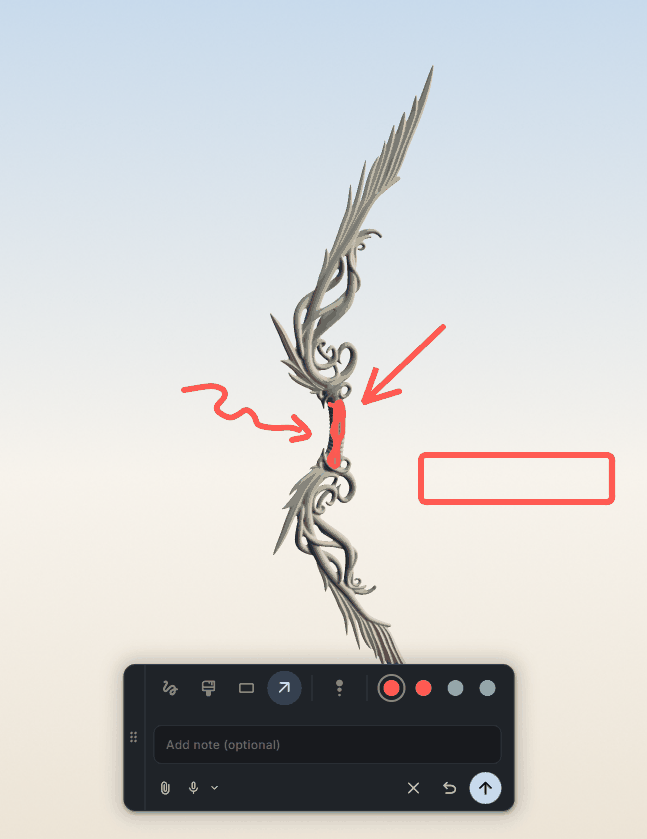
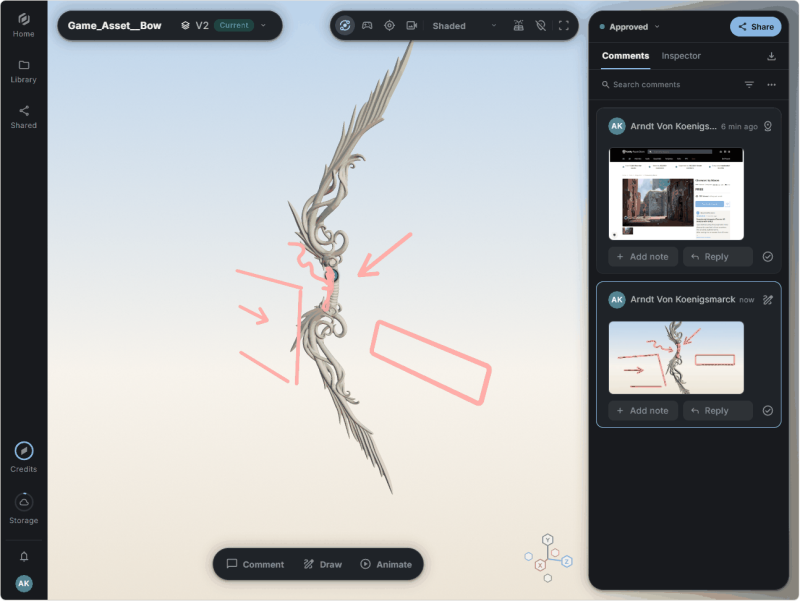
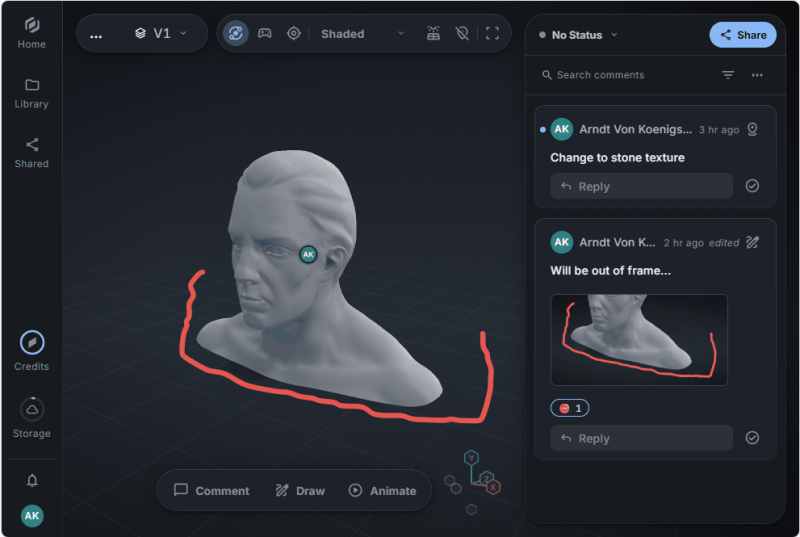
After posting, all strokes stay in place relative to the model in 3D space. When you or other reviewers orbit, pan or zoom, the drawing moves with the model, so it keeps pointing at the right spot from every angle. The comment card shows a thumbnail of the drawing and a pen icon that marks it as a drawn annotation.
Comments on videos
In a video review, pause at the relevant moment and add your comment. It is linked to that frame.
Working with comments
Posted comments are listed on the Comments tab on the right, and pinned comments appear as a marker with the author's initials on the model. Click a comment to restore the view it was made from: for a 3D model, the camera angle; for a video, the frame. The icon at the top right of a comment card shows its type: a pin for a comment attached to a location, a pen for a drawing.
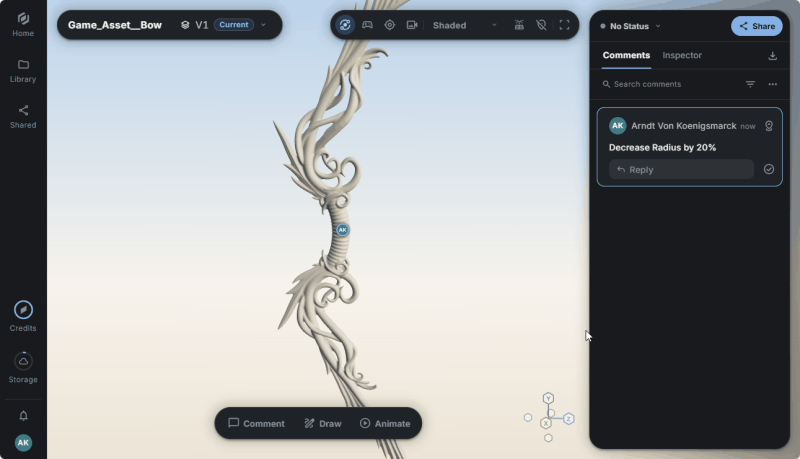
- Reply: type in the Reply field below a comment. Replies are also shown to the artist in Cinema 4D or ZBrush, where they can answer as well.
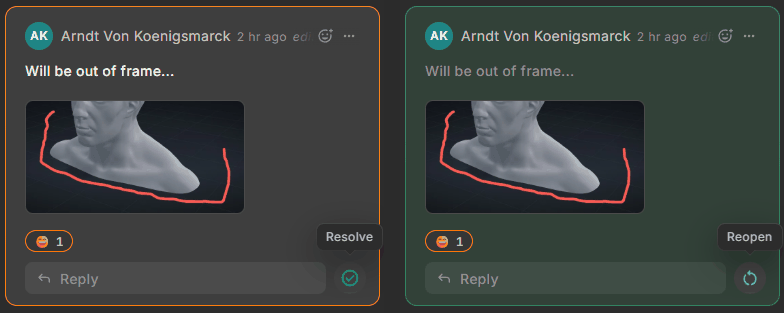
- Resolve: click the check mark next to Reply once the feedback has been addressed. The resolved comment is highlighted in color, its text is dimmed and the check mark turns green. To open the comment again, click the same button, which now shows Reopen; the comment then looks as before.
- React: move the mouse over the icon at the top right of a comment and click the reaction button to add an emoji reaction. Reactions appear below the comment with the number of people who chose them.
- More commands: next to the reaction button, the … menu contains Copy link, which copies a link to the comment, Mark unread, which marks the comment with a small dot in front of the author, Edit and Delete. An edited comment is marked edited.
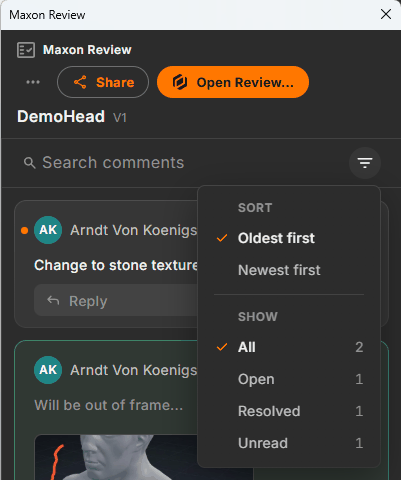
- Find: type in the search field to find specific comments. The filter button next to it sorts the comments (Oldest first or Newest first) and limits the list to Open, Resolved or Unread comments. By default, All comments are shown, oldest first. The menu shows how many comments each option contains. In the Maxon Review panel in Cinema 4D, All versions also lists the comments on earlier versions; without it, only the comments on the current version are shown.
Comments, replies and reactions are the same in the browser and in the review panels of Cinema 4D and ZBrush.
Comments belong to the version they were made on. When a new version is uploaded, it starts without comments, and the earlier comments remain with the earlier version.
Review status
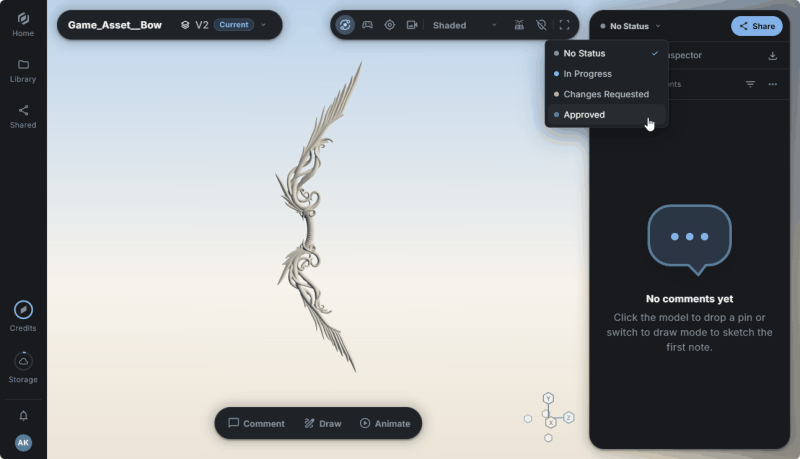
The status menu at the top of the panel shows where a review stands. Choose No Status, In Progress, Changes Requested or Approved. The status is also shown on the file card on the home page and in the Library.
Note the difference between resolving and approving: you Resolve a single comment once the requested change has been made. The status Approved applies to the review as a whole and is set once all change requests have been accepted.
The status always applies to all versions of a review; it cannot be set for a single version. When you upload a new version, the status is reset to No Status.