
Model Generator settings reference
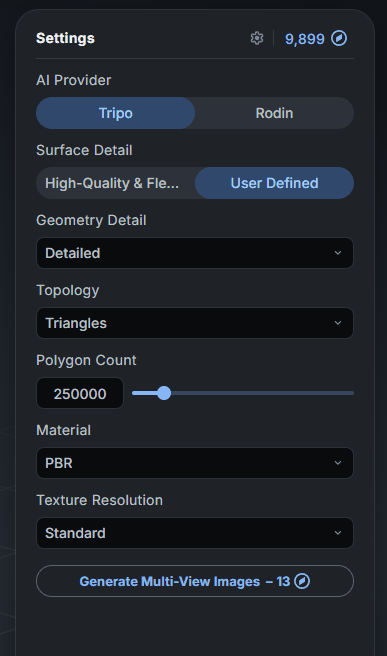
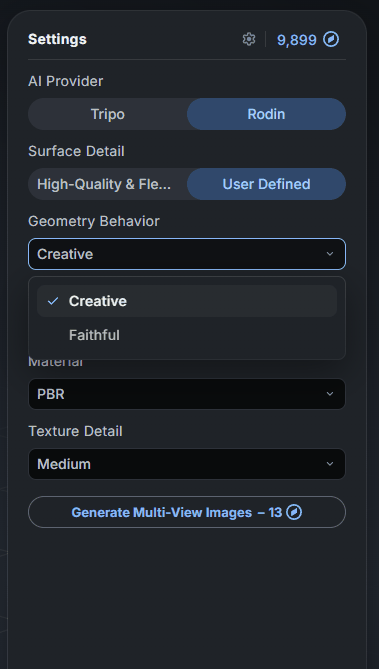
The Settings step of Model Generator defines how the 3D model is built. First choose the AI provider, then either the high-quality preset or User Defined settings. The options differ slightly between Tripo and Rodin, and the number of credits on the Generate Model button changes with every setting.
Provider and preset
| Option | Description |
|---|---|
| AI Provider | The service that builds the 3D model: Tripo or Rodin. The available options below depend on the provider. |
| Surface Detail | A preset for high quality (High-Quality & Flexible) or User Defined, which shows the individual options below. |
Tripo settings (User Defined)
| Option | Description |
|---|---|
| Geometry Detail | Standard or Detailed. Detailed geometry captures finer shapes and uses more credits. |
| Topology | Triangles or Quads. Quad meshes are easier to edit and deform more cleanly when the model is rigged and animated. |
| Polygon Count | The target number of polygons. With Quads, the maximum is lower than with triangles. |
| Material | PBR creates physically based materials with textures; None creates the geometry only. |
| Texture Resolution | Standard, HD or 8K. |
Rodin settings (User Defined)
| Option | Description |
|---|---|
| Geometry Behavior | Faithful follows the input image closely. Creative allows more interpretation, which can help with sketches, rough or ambiguous images and stylized designs. |
| Polygon Count | The target number of polygons. |
| Material | PBR or None. |
| Texture Detail | The level of texture detail: Low or Medium. |
Choosing an AI provider
Tripo and Rodin are independent services with their own strengths, and results for the same input can differ considerably. For important models, try both with the same image and compare the results, for example side by side in Maxon Review. Some guidelines:
- For models you want to edit, rig or animate, use a quad topology, available with Tripo under User Defined.
- For sketches or loosely defined images, Rodin's Creative behavior can give more complete results; for precise images, use Faithful.
- If a result shows obvious errors, such as twisted limbs, generate it again with the other provider before changing the input.
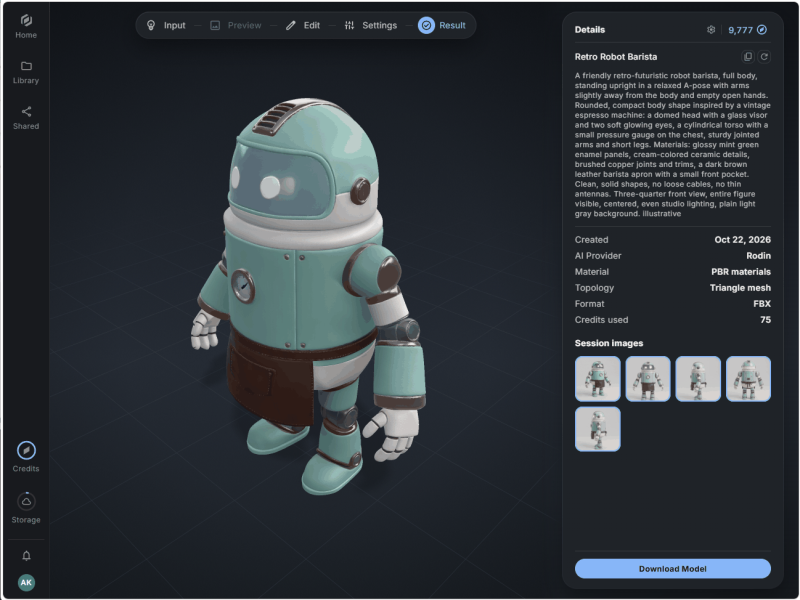
The robot barista from the example was generated with both providers from the same four views. Two of the side views showed the same side; Tripo reproduced this error as twisted limbs, while Rodin produced a correct model.
Panel settings
The gear icon at the top of the service panel opens the Settings dialog. These settings apply to new results only.
| Setting | Description |
|---|---|
| Cost confirmation | Defines whether the Confirm costs dialog appears before credits are used. With Ask every time, you confirm each generation. With Don't ask again, generations start without confirmation. If you have checked Don't show this again in the dialog, switch back to Ask every time to turn the confirmation on again. |
| Save to cloud | Cinema 4D and ZBrush for iPad only: saves every new result automatically in your cloud storage. If it is turned off, the result is only loaded into Cinema 4D or ZBrush for iPad in the last step, and you are responsible for saving it yourself. In the browser, results are always saved in the cloud folder. |
| Cloud folder | The folder in your cloud storage where new results are saved, by default Model Generator. Inside it, models are saved in the subfolder Models and results of Texture Generator (the textured models with their textures) in the subfolder Textures. |
The images that are created before the 3D generation, such as preview images, edits and the reference images of Texture Generator, are generated with Google Gemini. You cannot choose a different image model. The usage history shows the provider for each step.