Comparing versions
Each review can contain several versions. You add a new version when you have changed the content, and the version menu lets everyone switch between versions or compare two of them side by side, with a wipe or as an overlay. Comments stay with the version they were made on, so every iteration remains traceable.
The version menu
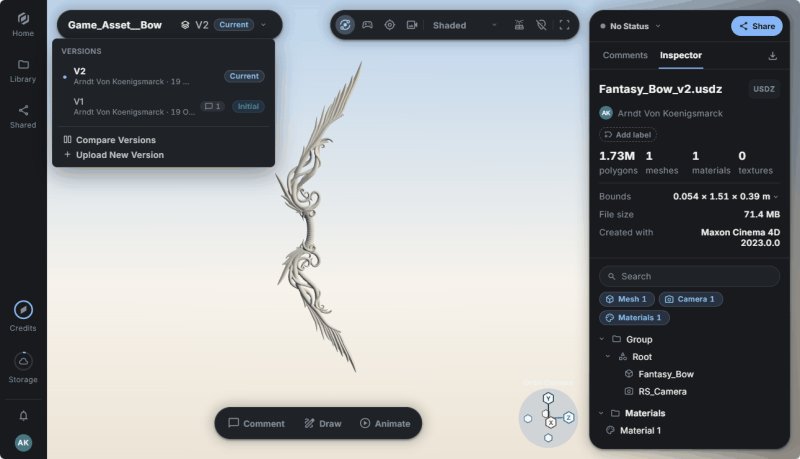
Click the version next to the review name, for example V2, to open the version menu. It lists all versions with their author and date. The newest version is marked as Current, the first one as Initial, and a badge shows how many comments a version has.
Uploading a new version
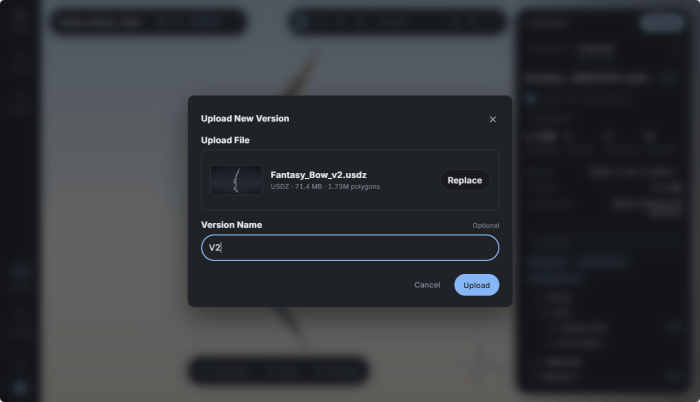
- Open the version menu and click Upload New Version.
- Choose the file. It is shown with its format, file size and polygon count; click Replace to choose a different file.
- Optionally, enter a Version Name.
- Click Upload.
From Cinema 4D, choose Create new version in the … menu of the Maxon Review panel instead, see Creating reviews from Cinema 4D.
Comparing two versions
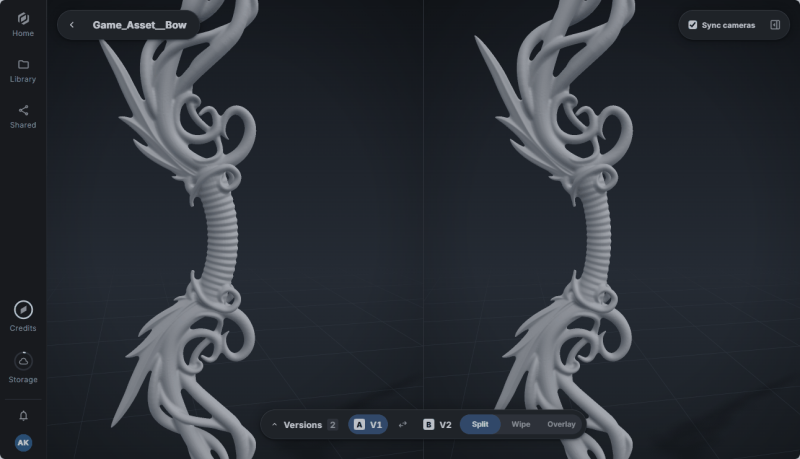
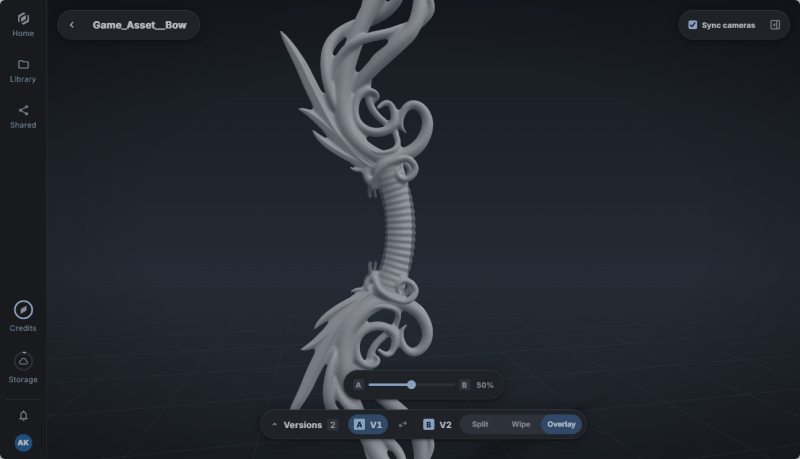
Click Compare Versions in the version menu. The bar at the bottom shows the two versions being compared as A and B; click a version to choose a different one, and use the arrow button between them to swap A and B. Choose how they are shown:
| Mode | Description |
|---|---|
| Split | Shows A and B side by side. |
| Wipe | Shows A and B in one view, divided by a line that you can move. |
| Overlay | Blends A and B in one view. The slider sets the mix, from 100% A to 100% B. |
With Sync cameras turned on, both views follow the same camera, so you always compare the same angle. The arrow at the top left next to the review name leaves the comparison.