
Texture maps reference
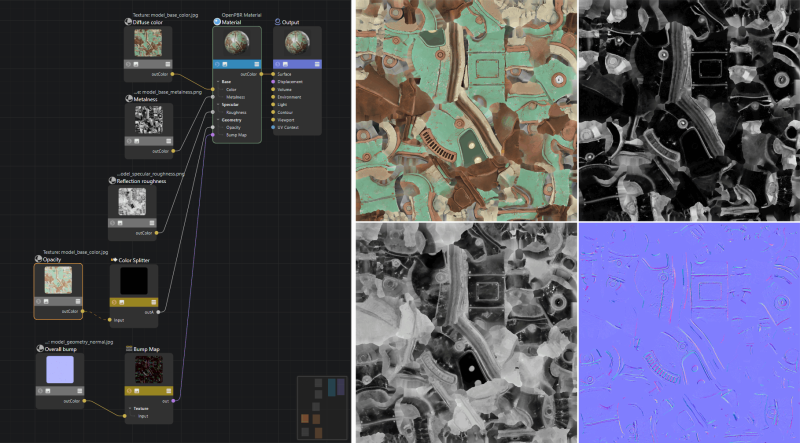
Texture Generator creates a base color texture, textures for metalness and roughness, and a normal texture. In Cinema 4D, Insert in scene creates a Redshift OpenPBR Material with one texture file per map and connects each texture to the matching material property. When you download the result in the browser, you get a GLB file in which the textures are embedded together with the model, so they do not appear as separate files. To edit the textures of a downloaded GLB file, import it into a 3D application or extract the textures with a glTF tool.
The texture files
| Texture file | Content | Texture node | Connected to |
|---|---|---|---|
| <name>_base_color.jpg | The color of the surface. | Diffuse color | Base > Color |
| <name>_base_metalness.png | Which areas are metallic. | Metalness | Base > Metalness |
| <name>_specular_roughness.png | How rough or glossy the surface is. | Reflection roughness | Specular > Roughness |
| <name>_geometry_normal.jpg | Fine surface detail as a tangent-space normal map. | Overall bump | Geometry > Bump Map, through a Bump Map node |
The textures have a resolution of 4,096 × 4,096 pixels, see Supported formats and resolutions in Texture Generator.
No transparent areas
Texture Generator does not create transparent or cut-out areas. The base color texture is always a JPG file without an alpha channel, so the material stays fully opaque. The material contains a connection from the base color through a Color Splitter node to Geometry > Opacity, but it is inactive. Even if holes or see-through parts appear in the reference images of the Style step, they are filled in the finished texture. To make parts of a model transparent, create an opacity map yourself or model the openings as geometry.
Editing the textures
Each map is a separate file, so you can edit or replace it on its own, for example to adjust the roughness in an image editor, and the material picks up the change. You can also edit the material like any other Redshift material.
Model Generator also creates an OpenPBR Material in Cinema 4D, with PNG files for all maps. See Materials in Cinema 4D.