
AI and Maxon Plus settings
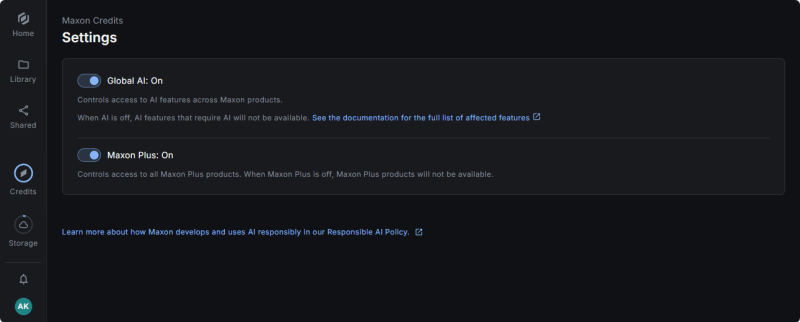
You decide whether you use AI in Maxon products. Two settings in your Maxon account control which AI features and which Maxon Plus services are available to you: Global AI and Maxon Plus. Both are turned on by default, and they are independent of each other: turning off one does not turn off the other.
What each setting controls
| Setting | What it controls |
|---|---|
| Global AI | AI features across Maxon products, including the generating services of Maxon Plus and AI features that run on your computer, such as Imagesense in the Cinema 4D Asset Browser. |
| Maxon Plus | Access to the Maxon Plus services, including Maxon Review and cloud storage. |
Which features are affected
The following table shows which features are turned off by each setting:
| Feature | Where | Turned off with Global AI | Turned off with Maxon Plus |
|---|---|---|---|
| Model Generator | Cinema 4D, browser | Yes | Yes |
| Clay Builder | ZBrush for iPad, browser | Yes | Yes |
| Texture Generator | Cinema 4D, browser | Yes | Yes |
| Maxon Review | Cinema 4D, ZBrush, browser | No | Yes |
| Imagesense | Cinema 4D, Redshift for Architects | Yes | No |
| Depth Gen | Red Giant | Yes (AI part) | No |
| Scene Light | Red Giant | Yes (AI part) | No |
| MCP server | Cinema 4D, Autograph | Yes | No |
| Maxon Agentic (Cinema 4D Agent, Autograph Agent) | Headless Cinema 4D (with Redshift) and Autograph | Yes | No |
| Render upscaling and denoising (for example MetalFX, DLSS, OIDN) | All applications | No | No |
“AI part” means that only the AI-based functions of the tool are turned off; the rest remains available. Account, subscription and storage settings remain accessible in all cases, and models and textures you have already generated remain usable.
Turning off Global AI also turns off the MCP servers of Cinema 4D and Autograph, through which you connect your own AI assistant to the application, as well as Maxon Agentic: without Global AI, Cinema 4D Agent and Autograph Agent do not start their MCP server.
If a service is blocked by these settings, its panel remains visible in the application and points you to the setting that enables it again.
When Global AI is turned off
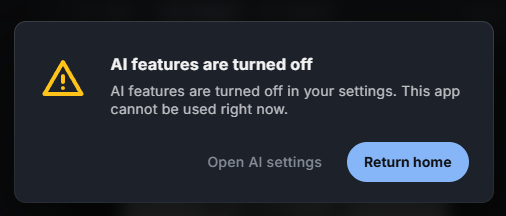
With Global AI turned off, Model Generator, Texture Generator and Clay Builder show the message AI features are turned off when you open them in the web browser. Click Open AI settings to turn Global AI on again, or Return home to go back to the Home page.
Maxon Review, your Library and your cloud storage keep working without restrictions, as long as Maxon Plus is turned on.
When Maxon Plus is turned off
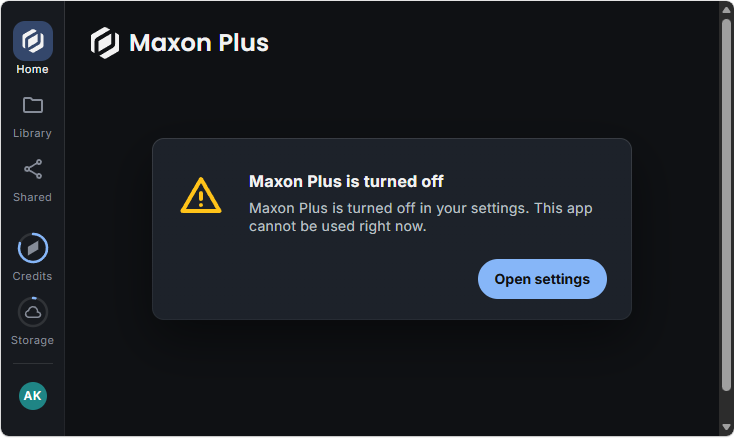
With Maxon Plus turned off, Maxon Plus in the web browser shows the message Maxon Plus is turned off on its pages. All areas in which you select, load, view or comment on content – Home, Library and Shared – are no longer available. Click Open settings in the message to turn Maxon Plus on again.
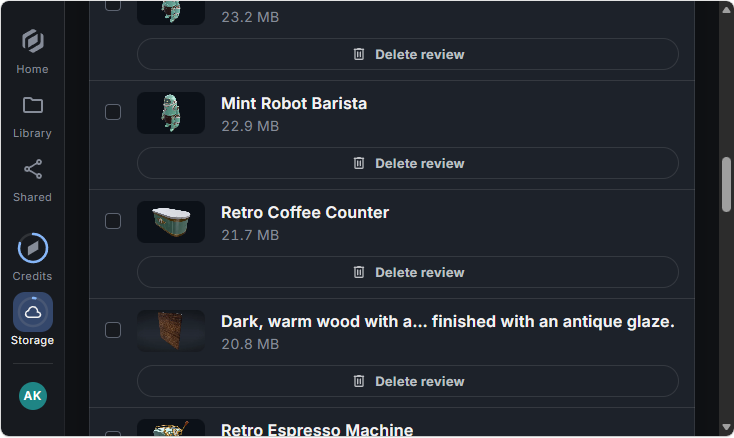
On the Storage page, you can still delete reviews with Delete review, for example to free up storage space. Opening or viewing them is not possible.
Where to change the settings
You can change both settings wherever you manage your Maxon account:
- Maxon Plus in the browser: on the Credits page, click Open Settings under AI and Maxon Plus Preferences.
- Maxon App: choose in the sidebar and click Open Settings, see Maxon Plus in the Maxon App.
- Cinema 4D: in the Preferences, in the Maxon Credits category, see Credits and AI settings in the Preferences.
- ZBrush for iPad: on the Maxon Plus page, see Using the services in Maxon ZBrush.
- The Maxon Portal and Maxon Labs.
Maxon ZBrush (desktop) and Maxon Autograph have no setting of their own for this. Change the settings in the Maxon App or in Maxon Plus in the browser.
Changes apply to all your computers
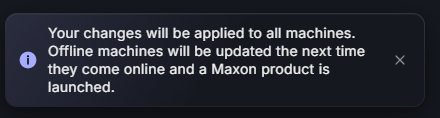
The settings belong to your Maxon account, not to a single computer. Changes apply to all your computers; a computer that is offline picks them up the next time it is online and a Maxon product is started. While offline, the Maxon App shows the last known values, and they cannot be changed.
Settings in teams
For accounts managed in a team, administrators set both options in the Teams Dashboard. Team members see the values, but cannot change them; the settings show the message “These settings are managed by your Teams administrator.” If you belong to several teams, the most restrictive setting applies, separately for AI and for Maxon Plus. An individual subscription does not override a restriction set by the team.