
Getting started with Maxon Review
A review in Maxon Review is a 3D model, a video or a still image that you share with others to collect feedback. Reviewers open it in a web browser, place comments directly on the model or at a specific moment of a video, and you answer, upload a corrected version and repeat until the result is approved. Maxon Review does not use AI and does not change your files.
Maxon Review is currently a Public Preview. To create reviews and invite reviewers, you need a Maxon Plus subscription, which also provides the storage for your reviews. During the Public Preview, creating and sharing reviews does not use any credits. The people you invite only need a free Maxon account to comment; if you share a review with anyone who has the link, they can view it even without an account. Features and terms may change until the full release.
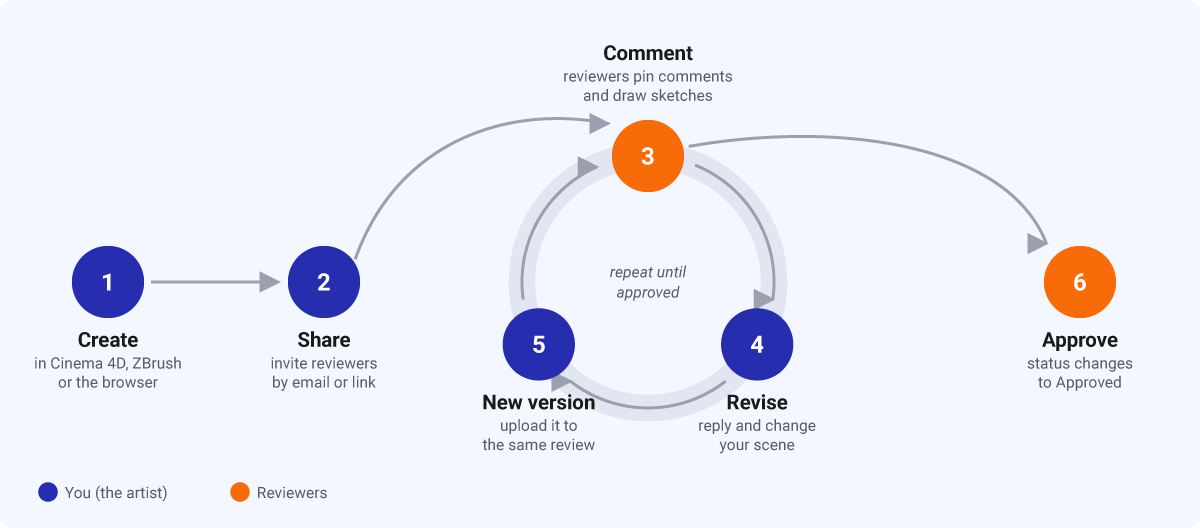
A typical review cycle
- Create the review. In Cinema 4D, create a 3D, video or image review of your scene, see Creating reviews from Cinema 4D. In ZBrush, create a review of your sculpt, see Creating reviews from ZBrush. In the browser, upload a 3D model, a video or a still image, see Uploading 3D models, videos and still images. The review is stored in your Maxon Plus cloud storage.
- Share it. Invite the people who should give feedback. They need neither a subscription nor any Maxon software, only a web browser; to comment, a free Maxon account is enough. See Sharing content and inviting reviewers.
- Collect feedback. Reviewers pin comments to the model, draw sketches or comment on a specific frame of a video. See Commenting and annotating.
- Respond and revise. You see all comments in the browser and in Cinema 4D or ZBrush, can reply to them and jump to the view or frame they refer to.
- Upload a new version. After making changes, add a new version to the same review, see Comparing versions.
- Approve. Set the status of the review, for example to Changes Requested while revisions are pending and to Approved once everyone is satisfied.
3D, video or image review?
A 3D review lets reviewers orbit and inspect the model. It is well suited to judging shapes and proportions. An animation of the scene can be played in 3D, so reviewers can change the view while it plays. The model is converted for display in the browser, so materials and lighting do not look exactly like your final render.
A video review shows your scene rendered as a video, with the actual materials, lighting, camera and timing. Reviewers cannot change the camera angle, but every comment is linked to the exact frame it refers to.
An image review shows a single rendered frame, for example a key visual or a still of a scene. Reviewers comment on the image and draw on it. From Cinema 4D, you create it with the Image review type; in the browser, you upload a PNG, JPG or GIF file. See Image reviews.
Use a 3D review when the form matters, a video review when the look, the lighting, the animation or the timing matters, and an image review for a single final frame. Very dense scenes, for example with modeled grass, are usually better presented as a video.