
Creating reviews from Cinema 4D
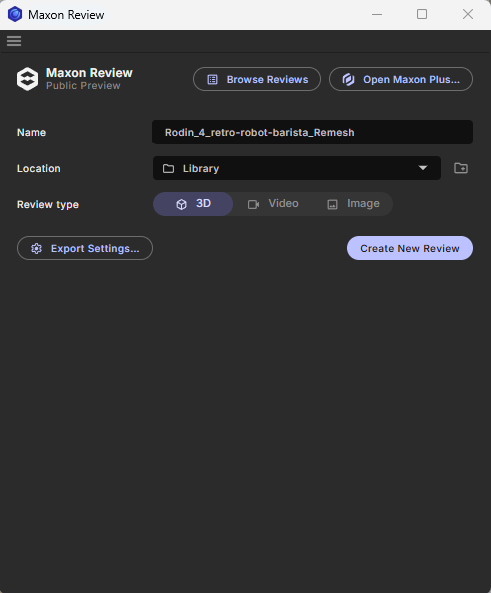
In Cinema 4D, the Maxon Review panel creates a review of the current scene and uploads it to Maxon Plus. To open it, choose . Choose whether reviewers should see the scene as a 3D model, as a rendered video or as a rendered still image, then click Create New Review. Afterwards, the same panel shows all comments on the review, so you can answer them and upload new versions without leaving Cinema 4D. The panel is available in Cinema 4D 2027.1 or later.
Creating a review
- Open the scene you want to present and choose .
- Enter a Name for the review.
- Choose the Review type: 3D, Video or Image.
- Under Location, choose the folder in your Maxon Plus storage where the review is saved. Files cannot be saved at the top level of the Library: if you do not choose a folder, a 3D review is saved in the Models folder. The folder icon next to it creates a new folder. See Library.
- If needed, adjust the export settings with Export Settings… (see below).
- Click Create New Review. Cinema 4D asks you to save the scene, even if you have already saved it, and suggests the file name with an added number.
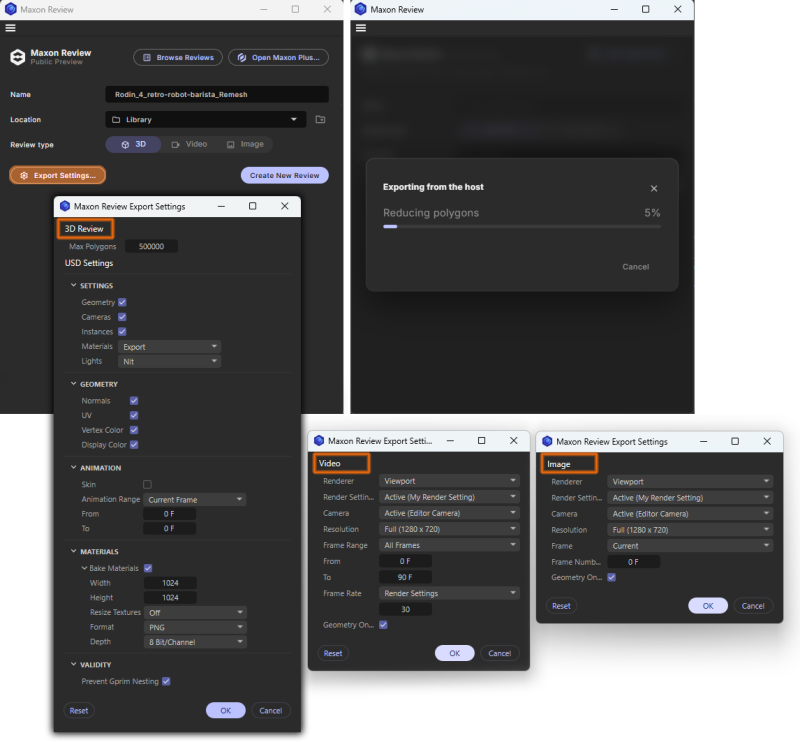
Cinema 4D now exports the scene and uploads it; the progress is shown in the panel (Uploading to review). For 3D reviews with many polygons, the model is reduced first; the progress dialog shows Reducing polygons. Reducing a large scene can take a while, and Cinema 4D is blocked until the export is finished. You can cancel the export at any time.
Open Maxon Plus… opens Maxon Plus in your web browser. To link the scene to a review that already exists instead, see Connecting an existing review.
Export settings
Export Settings… opens the Maxon Review Export Settings. The dialog shows the settings for the selected Review type. Once a review exists, you find the same button in the dialog for a new version, see Uploading a new version. Reset restores the default values. In most cases, you can keep the defaults.
3D reviews
For a 3D review, the scene is exported as a USD file and converted for display in the browser.
- Max Polygons: the maximum number of polygons (triangles) of the exported model. The limit keeps the review smooth in the web browser. If the scene has more polygons, Cinema 4D reduces it automatically during export with the Polygon Reduction generator. The default is 500,000; you can enter up to 10,000,000. Above about 3 to 5 million polygons, the review may load slowly or not at all on devices such as smartphones. See 3D models.
- Settings: which parts of the scene are exported, for example geometry, cameras, instances, materials and lights.
- Geometry: which additional data of the objects is exported, such as normals, UV coordinates and vertex colors.
- Animation: whether skinned objects and which frames of the animation are exported. By default, Animation Range is set to Current Frame, so no animation is exported. To include the animation, choose one of the other options: All Frames exports the whole timeline, even if only part of it is animated; All Frames Animated limits the export to the range that contains keyframes; Preview Range uses the preview range of the timeline, and Manual the range set with From and To. Reviewers play an exported animation in the browser with Animate, see Playing animations and turntable playback.
- Materials: with Bake Materials, the materials are baked into textures of the set size and format. Textures in the review are limited to at most 2,048 × 2,048 pixels, see 3D models.
- Validity: options that keep the exported file compatible with the viewer in the browser.
Video reviews
For a video review, Cinema 4D renders the scene and uploads it as an MP4 video in the resolution set in the export settings.
- Renderer: renders with the viewport renderer (Viewport), which is fast, or with Redshift (Full (Redshift)), which shows the final materials and lighting.
- Render Settings and Camera: the render settings and the camera that are used, by default the active ones.
- Resolution: the size of the video, for example the full resolution of the render settings.
- Frame Range, From, To: the frames that are rendered, for example All Frames.
- Frame Rate: the frame rate of the video, by default the one of the render settings.
- Geometry Only (with the Viewport renderer): turns off all viewport filters that are not related to the geometry of the models, such as lines, the world axis, the horizon and the HUD. It corresponds to the Geometry Only filter in the Cinema 4D viewport. If it is turned off, the review shows everything that is visible in the viewport.
Image reviews
For an image review, Cinema 4D renders a single frame and uploads it as a PNG file in the resolution of the render settings. The settings are the same as for a video, including Geometry Only, but instead of a frame range you choose the Frame to render, for example the Current frame or a specific Frame Number. With Viewport, the image shows the viewport quality; with Full (Redshift), the final render. Reviewers can comment on the image and draw on it, as on a video frame.
Working with comments in Cinema 4D
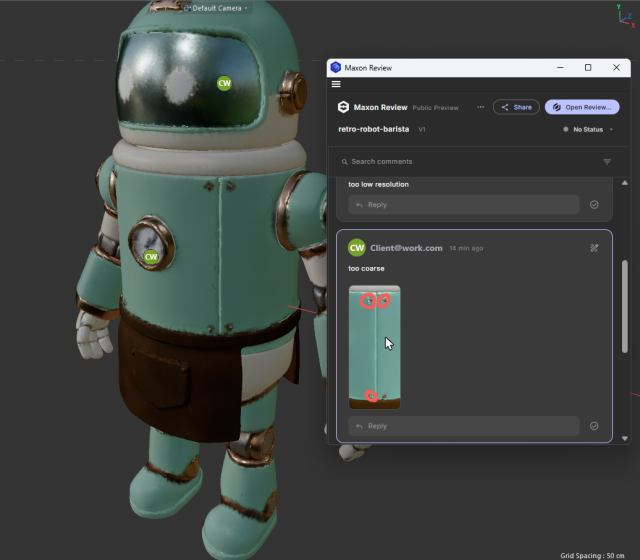
Once the review exists, the panel shows its name, the current version (marked Current) and the review status, the icons for the … menu, Create new version and Share, the button Open Review…, a search field and the list of comments. Share invites people to the review and sets their roles, see The Share dialog and Roles. Open Review… opens the review in your web browser, see Viewing and inspecting 3D models. You can reply to a comment directly in the panel. The … menu contains Mark all read, which marks all comments as read, and Disconnect review from project, see Reviews and scenes.
Click a comment to see what it refers to. For a video review, Cinema 4D jumps to the frame the comment was made at. For a 3D review, the viewport switches to the view from which the reviewer made the comment. Pinned comments appear as colored markers with the initials of their author on the model; move the mouse over a marker or click it to read the comment in the viewport. Resolved comments are marked with a check mark on the model.
Drawings are not shown in the viewport. The panel shows them as an image in the comment; click the image to see it enlarged. Reply in the panel once you have made the change; the reviewer sees your answer in the browser.
Finding and filtering comments
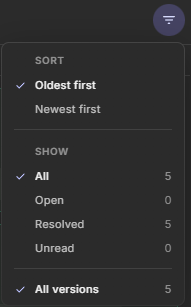
Type in the search field to find comments. The filter button next to it sorts the comments (Oldest first or Newest first) and shows All, Open, Resolved or Unread comments; the number of comments is shown for each option. With All versions, the list shows the comments on the current and all earlier versions of the review; without it, only the comments on the current version are shown. See Working with comments.
Uploading a new version
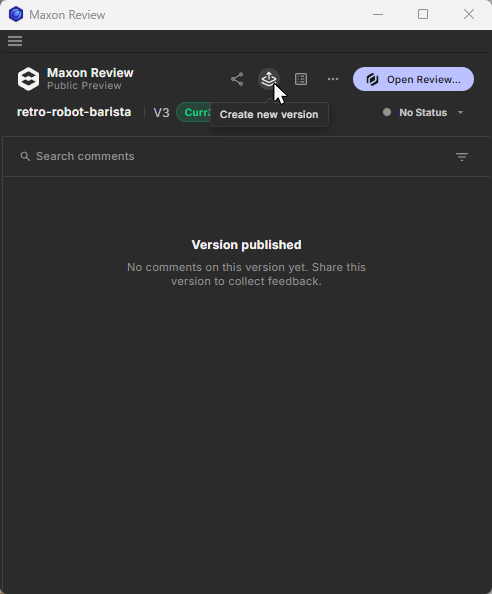
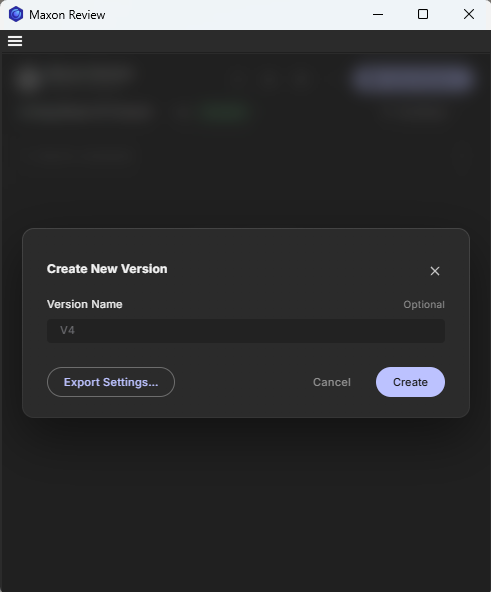
After you have changed the scene, click the Create new version icon (the arrow pointing up) in the panel, or choose Create New Version at the bottom of the version list, see The version list in the panel. In the dialog, you can enter a Version Name; if you leave it empty, the next number is used, for example V4. Export Settings… lets you check the export settings. Click Create to upload the current scene. Here, too, Cinema 4D asks you to save the scene under a file name with an added number. Reviewers can then comment on the new version and compare it with earlier ones, see Comparing versions.
The version list in the panel
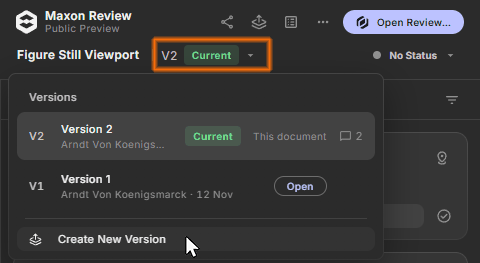
Click the current version next to the name of the review, for example V2 Current, to open the list of all versions. Each entry shows the version name, the author and the date; the current version is marked Current, the version that belongs to the open scene is marked This document, and an icon shows the number of comments. Create New Version at the bottom of the list opens the same dialog as the icon in the header of the panel.
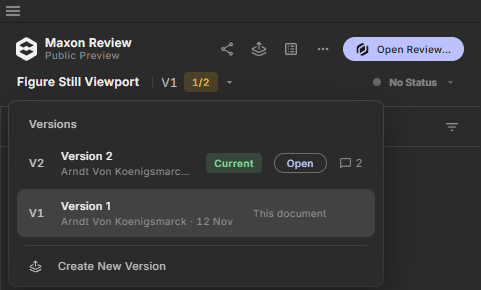
To go back to an earlier version, click Open next to it. Cinema 4D opens this version as a new scene; the scene you had open stays open. The version display in the panel then shows which version of how many is open, for example 1/2, and the list marks it This document. To return to a newer version, click Open next to it. If you continue working on an earlier version and then create a new version, it is added as the newest version, for example V3 after V1 and V2.
When you upload a new version, the review status is reset to No Status. See Review status.
Connecting an existing review
If the new version of your work is in another scene file, link this scene to the existing review first:
- Open the scene and choose Window > Maxon Review.
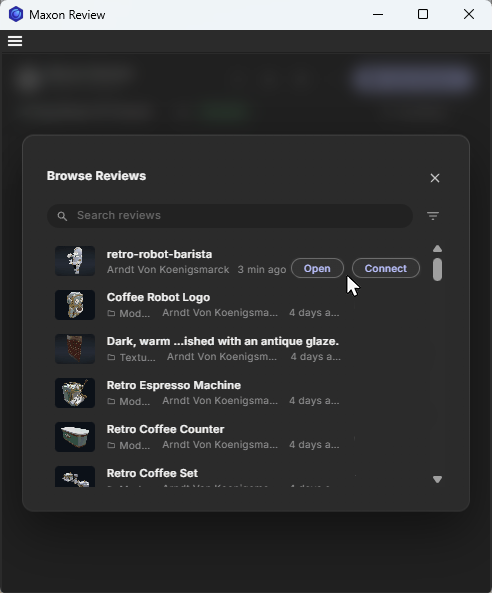
- Click Browse Reviews. The dialog lists your reviews with their name, folder, owner and last update; use the search field and the filter to find the review.
- Click Connect next to the review (or Open to just view the comments).
- Upload the scene as a new version, see Uploading a new version.
Reviews and scenes
Each review is linked to the scene it was created from or connected to. When you open a scene that is linked to a review, the panel shows that review; for other scenes, it shows the options for creating or connecting a review. To remove the link, choose Disconnect review from project in the … menu.