
Model Generator troubleshooting and FAQ
Arms or legs are twisted on one side
This usually happens when the side views are wrong: both show the same side of the object, or the left and right side views are swapped. Check the views in the Settings step before generating, see Checking the side views. Generate the views again, try the other AI provider with the same views, or upload your own views, see Uploading your own views. For a symmetric object, you can also mirror the incorrect side view horizontally in an image editor and upload it.
The model contains several objects
The input image showed more than one object, for example a turnaround sheet with several views. Cut the sheet into single views and load them with Multi-View Images on the Image tab, see Creating views with a turnaround sheet.
Legs or other parts are merged
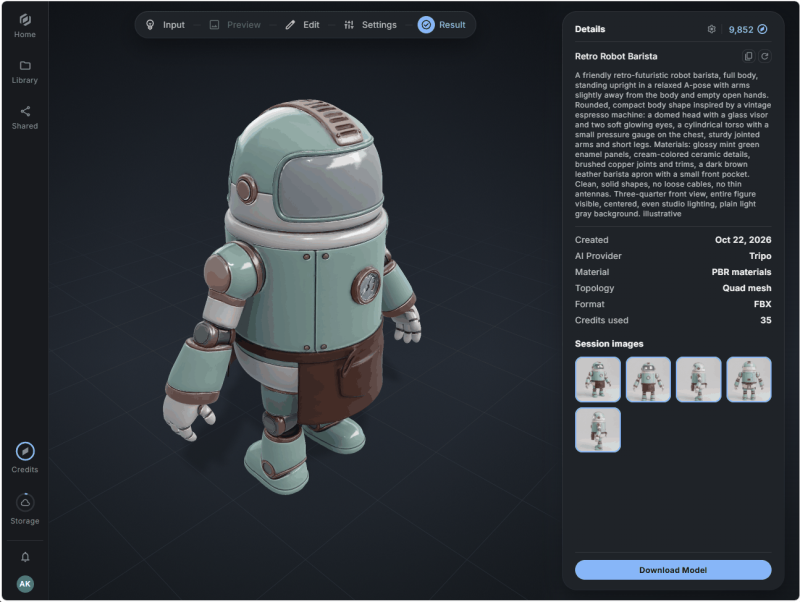
Parts that touch or overlap in the image, such as legs covered by a long apron, are often built as one block. Choose a design in which the parts are clearly separated, or change it in the Edit step.
The model includes a base or floor
A pedestal or ground plane in the image is built as part of the model. Choose a preview without a base, or remove it in the Edit step.
Transparent parts are missing or flat
Model Generator cannot reproduce transparent parts, such as glass, correctly. Objects behind or inside the glass, for example the beans in a coffee grinder or cakes under a glass dome, are missing in the model and only appear in its texture. Model such parts yourself in your 3D application, or remove them from the image in the Edit step before generating the model. See also the workflow example Part 3: Building the café with more generated assets.
I cannot set a higher polygon count
With Topology set to Quads, the polygon count is limited to a lower maximum than with triangles.