Accessing the services: Web, Cinema 4D and ZBrush
You use Maxon Plus in your web browser at https://plus.maxon.net/. Several services are also available directly in Cinema 4D and Maxon ZBrush. Everywhere, you sign in with the same Maxon account and work with the same Library, cloud storage and credits: a model you generate in Cinema 4D also appears in your Library in the browser, and a review you create in ZBrush can be opened and shared in the browser.
Which service is available where
| Service | Web browser | Cinema 4D | Maxon ZBrush | Maxon Autograph |
|---|---|---|---|---|
| Model Generator | Yes | , see Using Model Generator in Cinema 4D | No | No |
| Clay Builder | Yes | No | ZBrush for iPad: integrated, under New Sculpt. ZBrush (desktop): use the browser. See Using Clay Builder base meshes in ZBrush | No |
| Texture Generator | Yes | , see Using Texture Generator in Cinema 4D | No | No |
| Maxon Review | Yes | , for 3D, video and image reviews, see Creating reviews from Cinema 4D | ZBrush (desktop): Maxon Review button at the top left of the layout or menu, see Creating reviews from ZBrush. ZBrush for iPad: use the browser. | , for video reviews, see Creating reviews from Autograph |
In the browser, you also manage your Library, your cloud storage, your credits and your subscription. See Home page and Library. In Cinema 4D, the Preferences category Maxon Credits shows your credits and gives you access to the AI settings, see Credits and AI settings in the Preferences.
Model Generator, Clay Builder and Texture Generator are a separate purchase and require a Maxon Plus credit subscription. They are not included in a Cinema 4D, ZBrush or Maxon One subscription. See Account, licensing and credits.
Maxon Review is currently a Public Preview. To create reviews and invite reviewers, you need a Maxon Plus subscription, which also provides the storage for your reviews. During the Public Preview, creating and sharing reviews does not use any credits. The people you invite only need a free Maxon account to comment; if you share a review with anyone who has the link, they can view it even without an account. Features and terms may change until the full release.
Signing in
All services use your Maxon account. Cinema 4D and ZBrush have no sign-in of their own: they use the account you are signed in with in the Maxon App, which also manages your licenses. In the browser, you sign in with the same Maxon account, and the website checks the status of your Maxon Plus subscription with the same license data. Make sure you use the same account in the Maxon App and in the browser. If you open a review from Cinema 4D or ZBrush in the browser and see the message This review is private, you are signed in to the browser with a different account or not at all. See Reviews for invited people only.
People you invite to a review do not need a Maxon Plus subscription or any Maxon software. To comment, they need a free Maxon account; if you share a review with anyone who has the link, they can view it even without an account.
Maxon Plus in the Maxon App
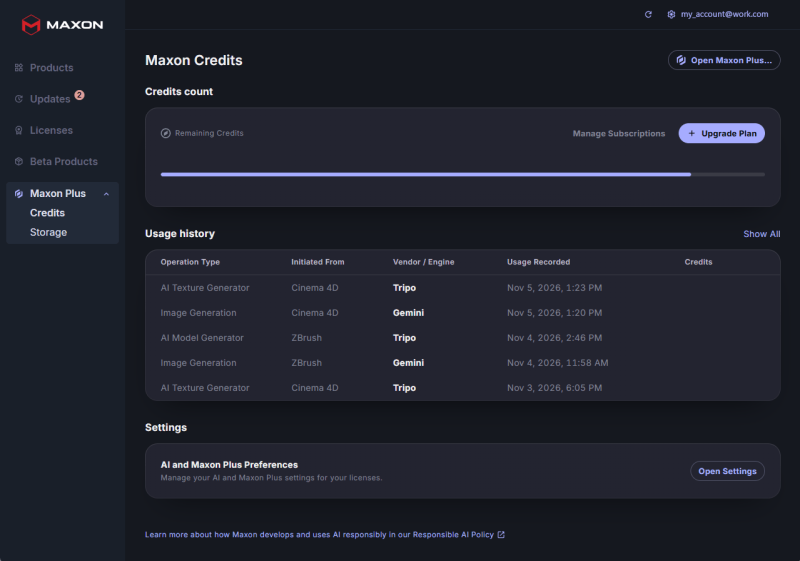
The Maxon App has its own Maxon Plus section in the sidebar, so you can check your account without opening a Maxon application or the browser:
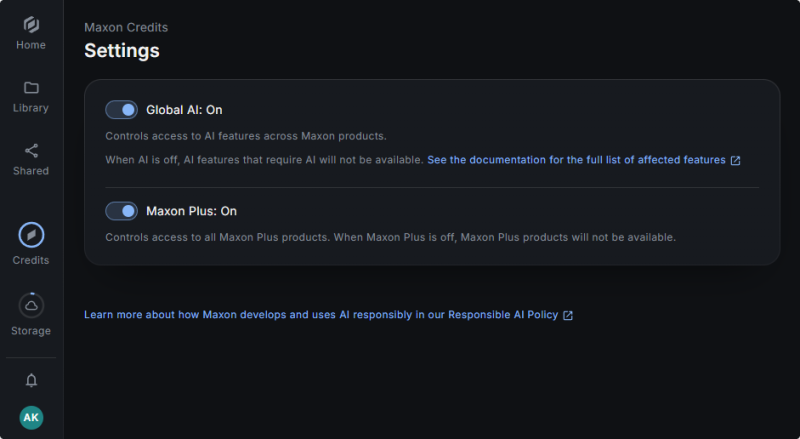
- Credits: your remaining credits with Manage Subscriptions and Upgrade Plan, the Usage history with Show All, and under Settings, Open Settings for the Global AI and Maxon Plus switches. The page works like the Credits page in the browser.
- Storage: the Library Storage page with the used, deleted, remaining and total storage and the list of the largest reviews, where you can delete reviews to free up space. It works like the Storage page in the browser.
Open Maxon Plus… opens Maxon Plus in your web browser.
Requirements
- An internet connection. All services run in the cloud, also when you use them in Cinema 4D or ZBrush.
- A current web browser.
- For the integration in an application: Cinema 4D 2027.1 or later, or Maxon ZBrush (desktop) or ZBrush for iPad 2027.1 or later.
For the hardware and operating system requirements of Cinema 4D and Maxon ZBrush, see System requirements.
Turning the services on or off
In the Settings (you can access it, for example, by clicking on your account icon in the lower-left corner of the main menu and selecting Settings, see Account menu), the Global AI switch controls all AI features across Maxon products, and the Maxon Plus switch controls access to all Maxon Plus services. When a switch is off, the affected services are not available in the browser, in Cinema 4D or in ZBrush. See AI and Maxon Plus settings.