Uploading 3D models, videos and still images
In the browser, you can upload 3D models, videos and still images to your Library. Every uploaded file is a review: you can share it, collect comments and add new versions. To present a Cinema 4D scene or a ZBrush sculpt, create the review directly from the application instead, see Native file formats.
Maxon Review is currently a Public Preview. To create reviews and invite reviewers, you need a Maxon Plus subscription, which also provides the storage for your reviews. During the Public Preview, creating and sharing reviews does not use any credits. The people you invite only need a free Maxon account to comment; if you share a review with anyone who has the link, they can view it even without an account. Features and terms may change until the full release.
Uploading a file
- Open the home page or the Library.
- Click New at the top right and choose New asset.
- Select the file on your computer.
The file appears in your Library. Click it to open it in Maxon Review, where you can view it, comment on it and share it. See Uploading files and creating folders and Sharing content and inviting reviewers.
Supported formats
| Type | Supported formats |
|---|---|
| 3D models | STL, FBX, OBJ, glTF/GLB, USD (USDC, USDA, USDZ) |
| Still images | PNG, JPG/JPEG, GIF |
| Videos | MP4, MOV |
For what is shown in a 3D review and which limits apply, see Formats and limits in Maxon Review.
Native file formats
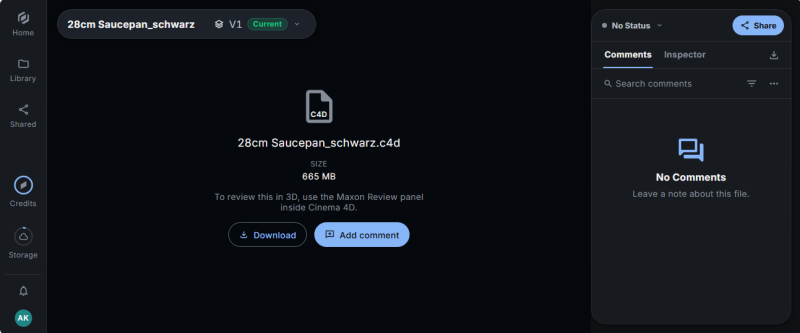
Native 3D formats, such as Cinema 4D files (.c4d), can also be uploaded to the Library in the browser, but they cannot be displayed as a 3D view there, and reviewers cannot comment on or draw on them. To get an interactive 3D view, create the review from Cinema 4D or ZBrush. The Maxon Review integration converts your scene automatically into a format that can be displayed in the browser. See Creating reviews from Cinema 4D and Creating reviews from ZBrush.