
Creating reviews from ZBrush
In Maxon ZBrush, the Maxon Review panel creates a review of the current project and uploads it to Maxon Plus. Reviewers look at your model in their web browser and place comments or drawings directly on it. The panel shows their comments in ZBrush, where you can answer them and upload new versions. The panel is available in Maxon ZBrush 2027.1 or later.
Opening the panel
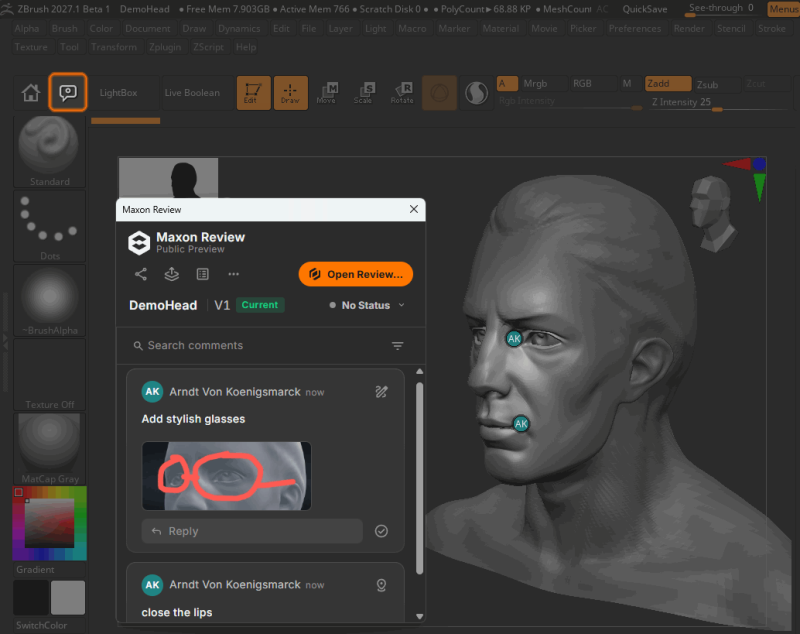
Open the project you want to discuss, for example with colleagues or clients. Then click the Maxon Review button (the speech bubble) at the top left of the ZBrush layout, next to the Home button. The button opens and closes the Maxon Review panel, a floating window. You can also open the panel in the menu, section Maxon Review.
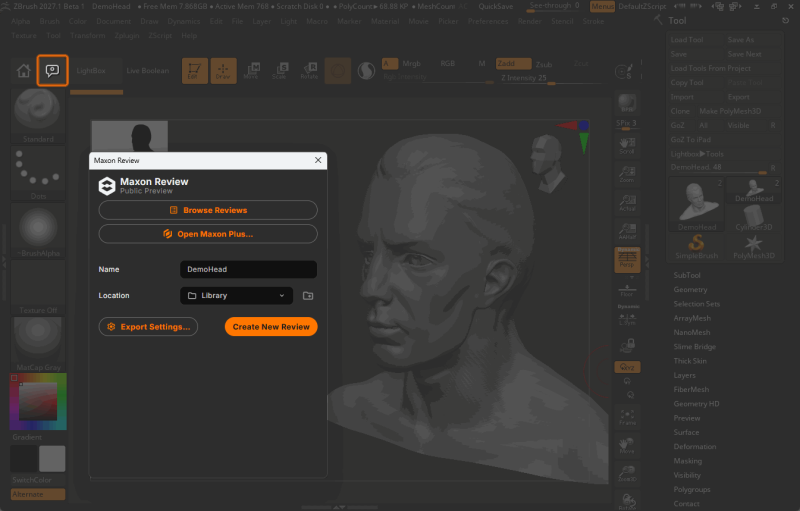
Open Maxon Plus… opens Maxon Plus in your web browser.
Creating a review
- Check the Name of the review. The panel suggests the name of the current project.
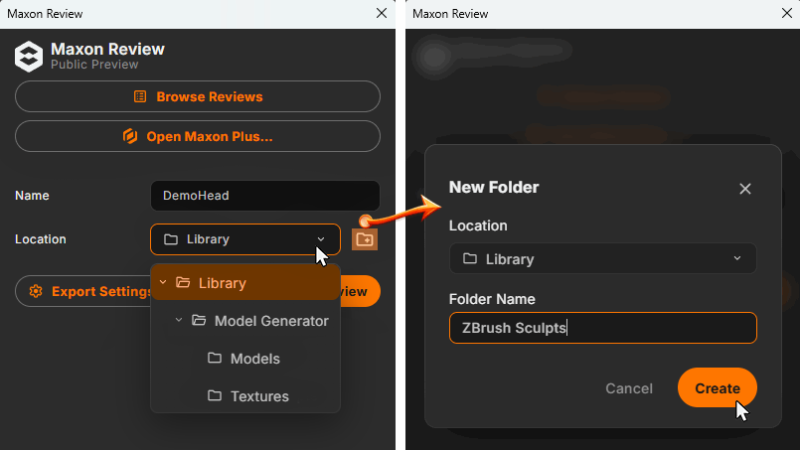
- Under Location, choose the folder in your Maxon Plus Library where the review is saved. Files cannot be saved at the top level of the Library: if you do not choose a folder, the model is saved in the Models folder. See Library. To create a new folder, for example one reserved for your ZBrush projects, click the folder button next to the menu. In the New Folder dialog, choose the parent folder under Location, enter a Folder Name and click Create. The project is then uploaded to the new folder right away.
- If needed, check the Export Settings…, see Export settings.
- Click Create New Review to upload the project to the selected folder.
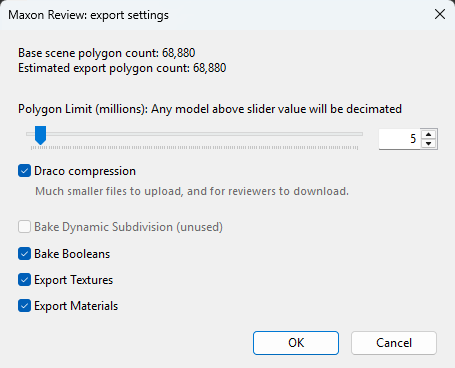
Export settings
Export Settings… opens the dialog Maxon Review: Export Settings. It shows the polygon count of the scene and the estimated polygon count of the export. Depending on the complexity of the project, a lower subdivision level reduces the file size for the upload.
| Setting | Description |
|---|---|
| Polygon Limit | Any model with a higher polygon count will be decimated for export. |
| Draco compression | A compression library developed by Google especially designed for 3D meshes. It reduces the size of 3D mesh models and point clouds, allowing 3D assets to be uploaded more quickly. |
| Bake Dynamic Subdivision | Exports dynamic subdivision as real geometry. |
| Bake Booleans | Exports groups that subtract or intersect as their result, without textures. These groups are not counted in the estimate. |
| Export Textures | Exports used textures. |
| Export Materials | Exports used materials. |
Options for functions that the project does not use are marked (unused) and grayed out. There is no polygon limit for the upload, but the file must fit into the free space of your cloud storage, so keep an eye on the file size of large projects.
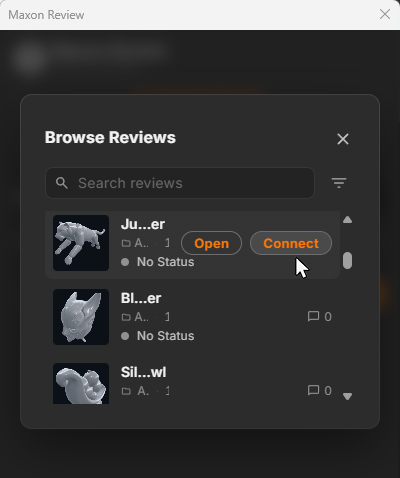
Connecting an existing review
If you have already shared an earlier stage of the project, for example from a different file, you can link the current project to that review. Click Browse Reviews. The list shows the reviews in your Library with a preview, the name, the folder, the owner, the last update, the status and the number of comments. Type in the search field to find a review, or use the filter button; then click the review to connect it. New versions are then added to the same review, and the earlier versions and their comments stay available.
Working with the review in ZBrush
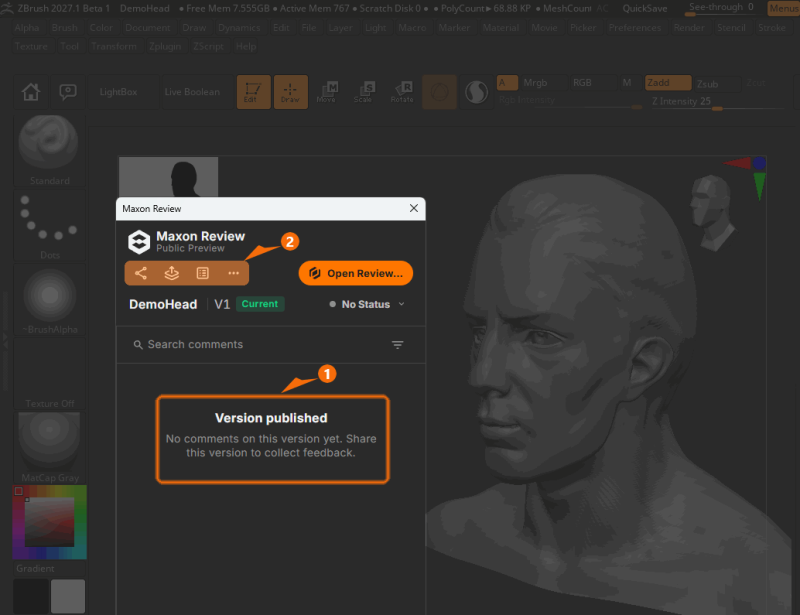
After the upload, the panel shows the review: Version published means that the version is online but has no comments yet (1). Usually, you now share it with the people who should comment on it. The icons at the top of the panel (2) are, from left to right:
- Share: sets the access rights and invites people, see The Share dialog and Roles.
- Create new version: uploads the current state of the project as a new version, see Uploading a new version.
- Browse Reviews: connects the project to a different review, see Connecting an existing review.
- …: a menu with Mark all read and Disconnect review from project.
Below, the panel shows the name of the review, the version with the Current label, the status (see Review status), a search field and a filter for the comments. Open Review… opens the review in your web browser, see Viewing and inspecting 3D models.
Reading and answering comments
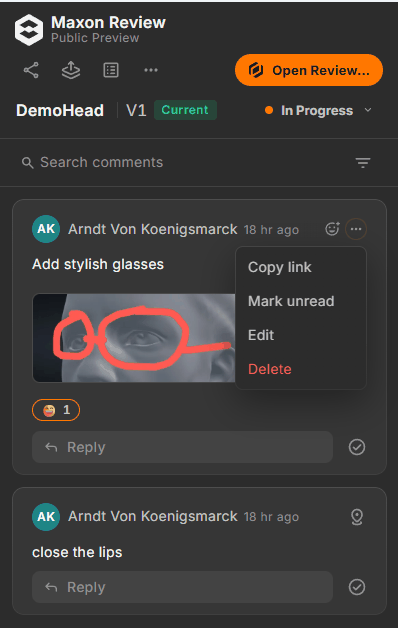
Comments and drawings that reviewers add in the browser appear in the panel, with author, time and text; drawings are shown as an image. The icon at the top right of a comment shows its type: a pin for a comment attached to a location on the model, a pen for a drawing. Type an answer in the Reply field, or react with an emoji; the reviewer sees it in the browser. Once you have made the requested change, click the check mark to resolve the comment. See Working with comments.
Next to the type icon, a button adds a reaction, and the … menu of a comment offers Copy link, Mark unread, Edit and Delete. Reactions appear below the comment. To find comments, use the search field; the filter button sorts the comments and shows all, open, resolved or unread comments.
Comments also appear as markers with the initials of their author at the commented locations on the model in the viewport. Double-click a marker to bring the panel to the front and show its comment or drawing. The Maxon Review button in the ZBrush layout shows and hides the markers together with the panel.
Uploading a new version
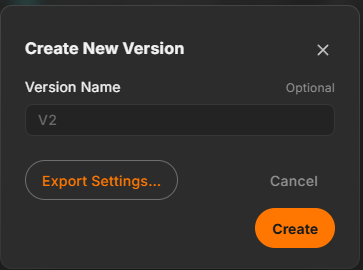
After you have implemented the requested changes, click the Create new version icon. In the dialog, you can enter a Version Name; if you leave it empty, the next number is used, for example V2. Export Settings… lets you check the export settings. Click Create. The current state of the project is uploaded as the next version of the same review, and reviewers can compare it with the previous one and comment on it again. When you upload a new version, the review status is reset to No Status. See Comparing versions and Review status.
Reviews and projects
Each review is linked to the project it was created from or connected to. Mark all read in the … menu marks all comments as read. To remove the link between project and review, choose Disconnect review from project.