
Generating textures from an image reference
To give Texture Generator a concrete idea of the look you want, add images as image references in the Style step, for example a photo of a material, a color palette, a pattern or a logo. Texture Generator uses them, alone or together with a text prompt, to create reference images of your model, and transfers this look onto the model as a texture. Image references guide the result, but the texture is not an exact copy of the image.
Prerequisites
- A Maxon Plus subscription with enough credits for two generation steps (reference images and texture).
- A 3D model, uploaded or stored in your Maxon Plus cloud storage, or a polygon object in your Cinema 4D scene.
- One or more images that show the look you want, each at most 6 MB in size.
If you are new to Texture Generator, read Getting started with Texture Generator first.
Generating the texture
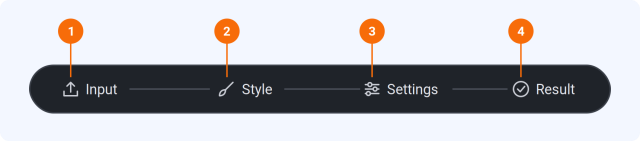
- Open Texture Generator and select your model in the Input step. Choose the UV Handling you want; if you are unsure, keep the default.
- In the Style step, check the four views and adjust them if an important part of the model is hard to see.
- Below Image references, click the button for adding an image and select your image. Images larger than 6 MB are rejected with the message The reference image could not be used. Images must be 6 MB or smaller. Reduce the resolution or save the image with stronger compression, for example as JPG.
- Optionally, describe in the field Describe the texture you want to create what the image stands for and where it should appear on the model. An image reference alone is enough to generate references, but a short description gives you more control, for example “Use the colors and the leather grain from the reference for the handle; the rest is polished brass.”
- Click Generate references and confirm the number of credits with Generate.
- Check the reference images in the Settings step. If they do not show the look of your image, go back, change the prompt or the image and generate the references again.
- Choose Alignment and Quality, click Generate Textures and confirm the number of credits.
- Check the result in the Result step and click Download model, or Insert in scene in Cinema 4D.
What makes a good image reference
- One subject per image: a single material, pattern or palette is easier to interpret than a busy scene.
- Even lighting: strong highlights, reflections and shadows in the image can end up in the texture.
- Plain background for logos and patterns: crop the image to the element you want to use.
- A clear role in the prompt: say what each image is for and on which part of the model it should appear.
More tips: Tips for texture prompts and reference images.
Limitations
The AI interprets the image; it does not copy it. Colors, patterns and especially lettering in logos can be changed, simplified or distorted, and a logo is not guaranteed to appear exactly where you want it. Because the texture is projected from generated images, it can contain baked-in highlights and small artifacts. Every new attempt uses credits again.