
Custom Composition Paramters
Adding a new custom tab
To add a custom tab, select the Composition and go to the Properties Panel to display its parameters. Click on the "+" button to add a custom tab.
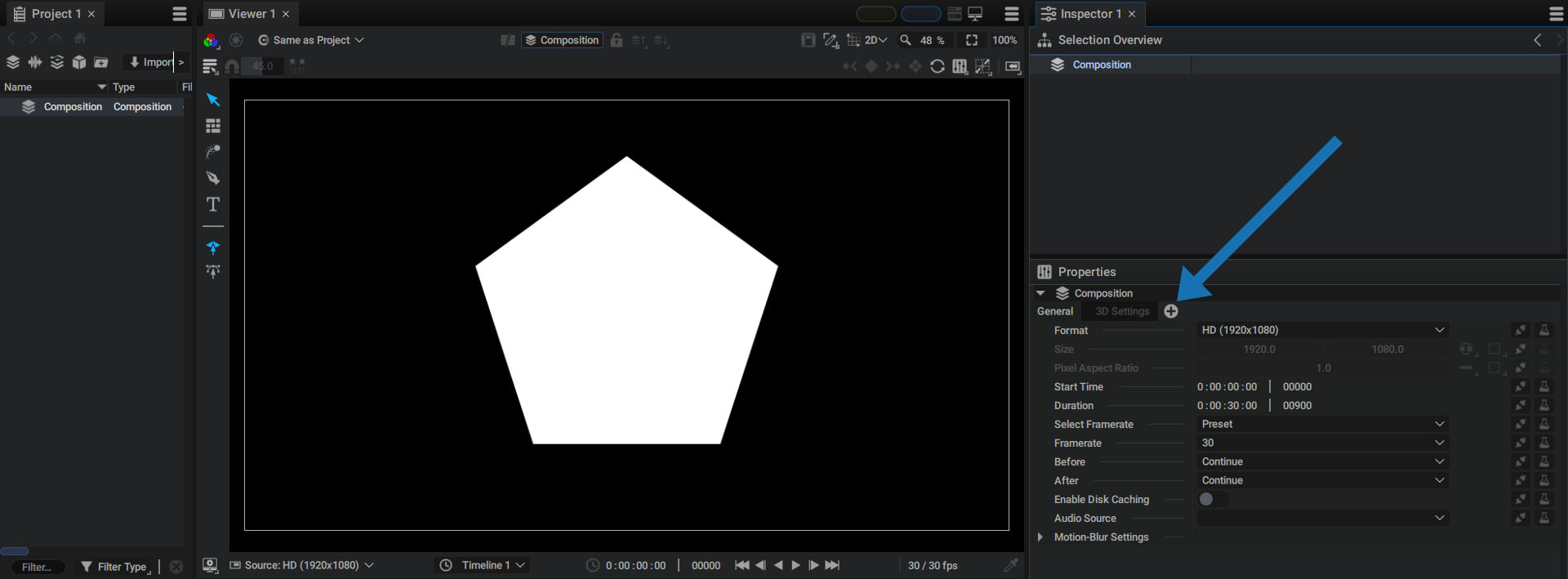
Double-click on the tab to rename it:
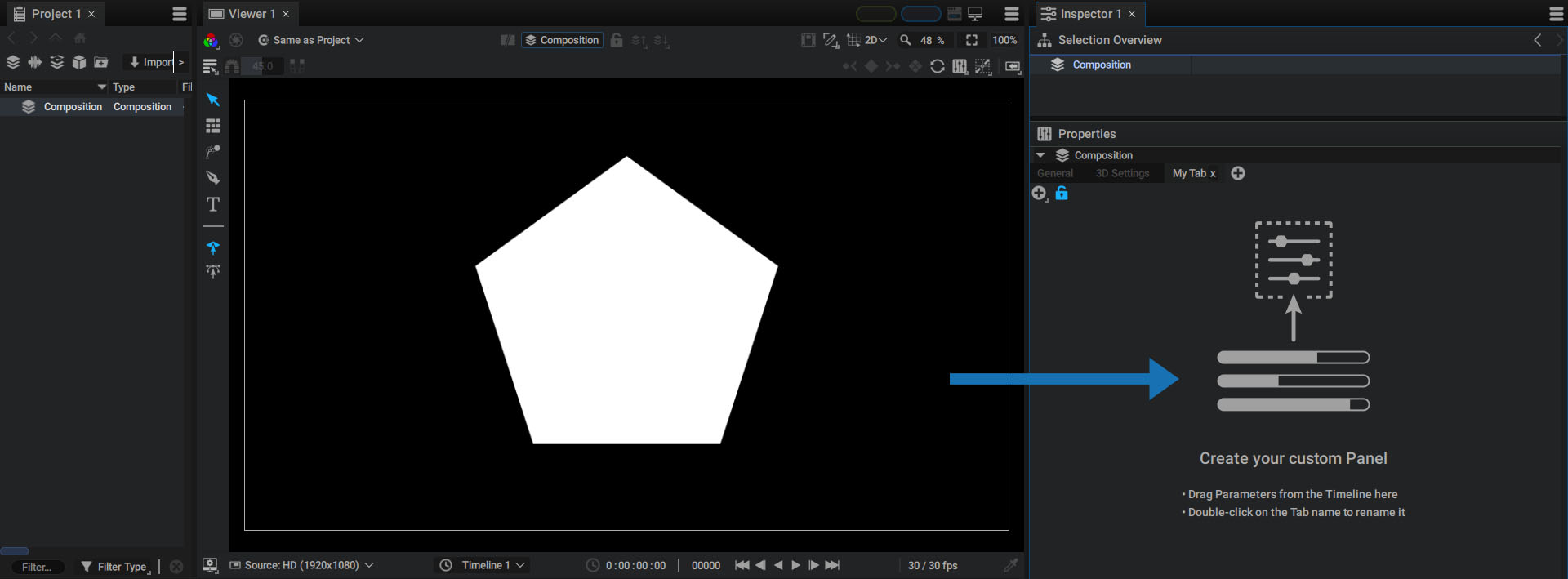
By default, the blue lock at the top is open. This means that you can edit the tab's content.
Clicking on the "+" button next to it displays the various data types Autograph can contain.
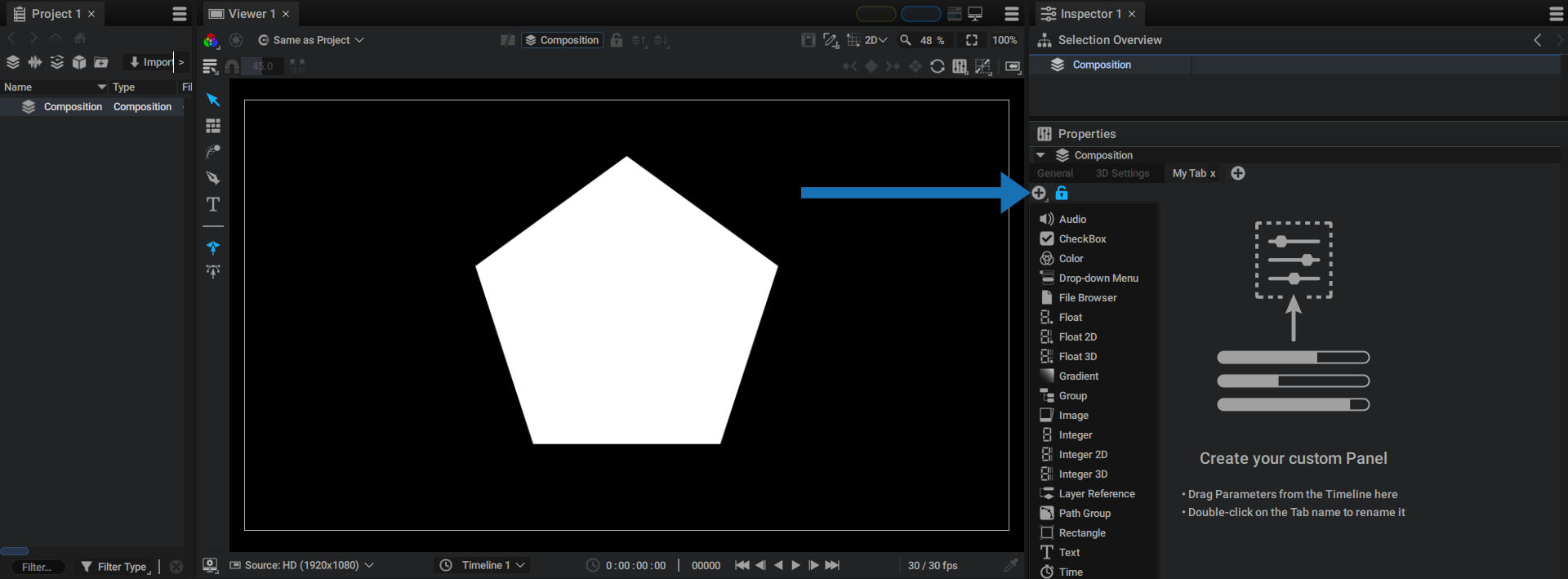
As an example, let's add a Float parameter. This is a one-dimensional parameter.
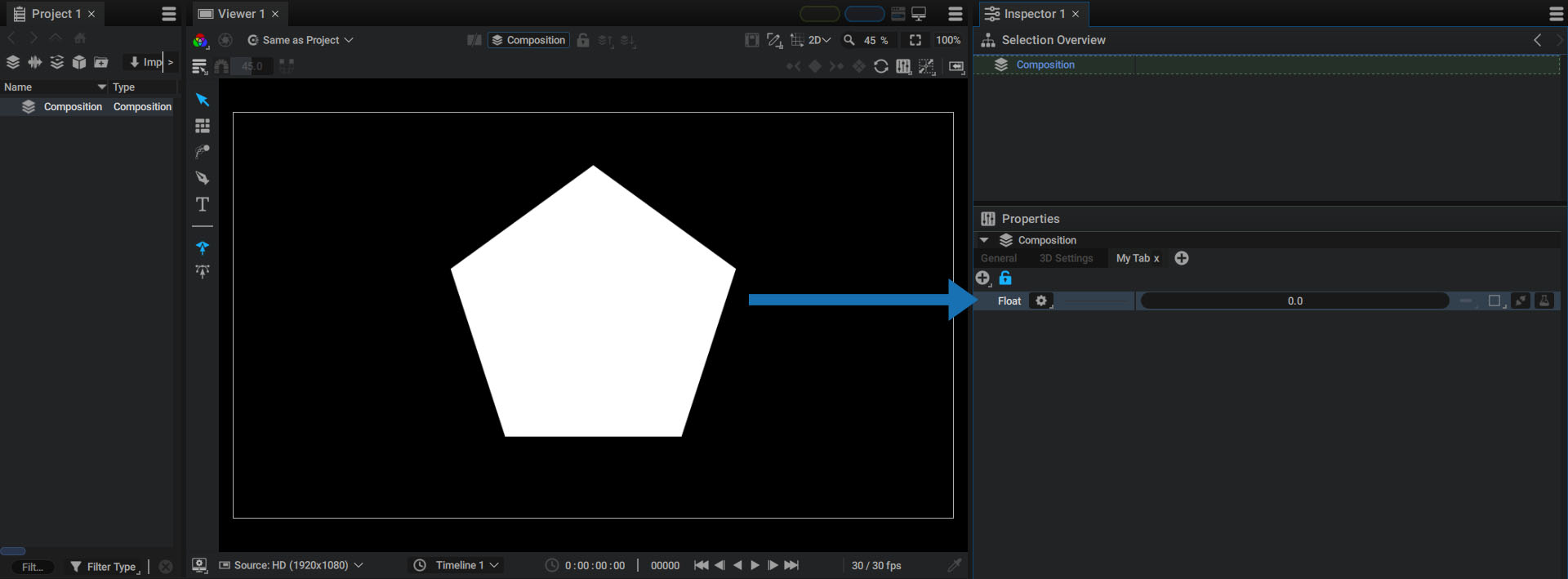
To rename the parameter, select it and press the enter or f2 key.
You will see all of the types of controls that come with parameters. So you can create a link from this one to another one:
Creating a custom parameter through drag and drop
You can also directly drag and drop a parameter from the Timeline to this custom tab.
The custom parameter is automatically created and linked to the layer parameter.
Custom parameter options
Access more options by clicking on the gear icon, next to the parameter's name:
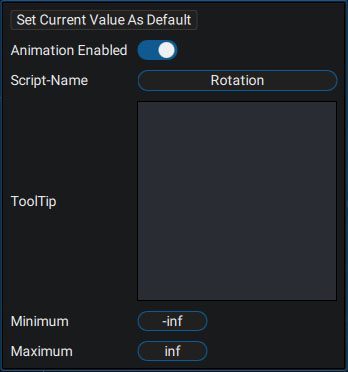
- Animation Enabled: enables or disables the button for adding keyframes to this parameter.
- Script-Name: an alternative name to use in an expression. This name must be unique to the whole project.
- Tooltips: these will be displayed when moving the mouse over the parameter.
- Minimum/Maximum: defines the limits within which the parameter can evolve.