File Browser
Two ways to browse your files
By default, Autograph uses the file system browser to browse your files, import images or animations, or save your projects. But you can also use a different file browser, one designed specifically for Autograph. To enable it, go to Preferences, then to the Appearance section, and uncheck “Use Native Browser”.
The section below describes how this built-in browser works, offering additional features compared to the system browser.
A browser in four sections
The file browser appears when saving/opening a file or importing an item in the Project Panel.
It is made up of 4 sections:
- The main browsing window: displays the files in the current folder
- Volumes: provides access to your storage units and system aliases
- Bookmarks: provides quick access to specific folders
- Recent files: displays a list of recently opened or saved files
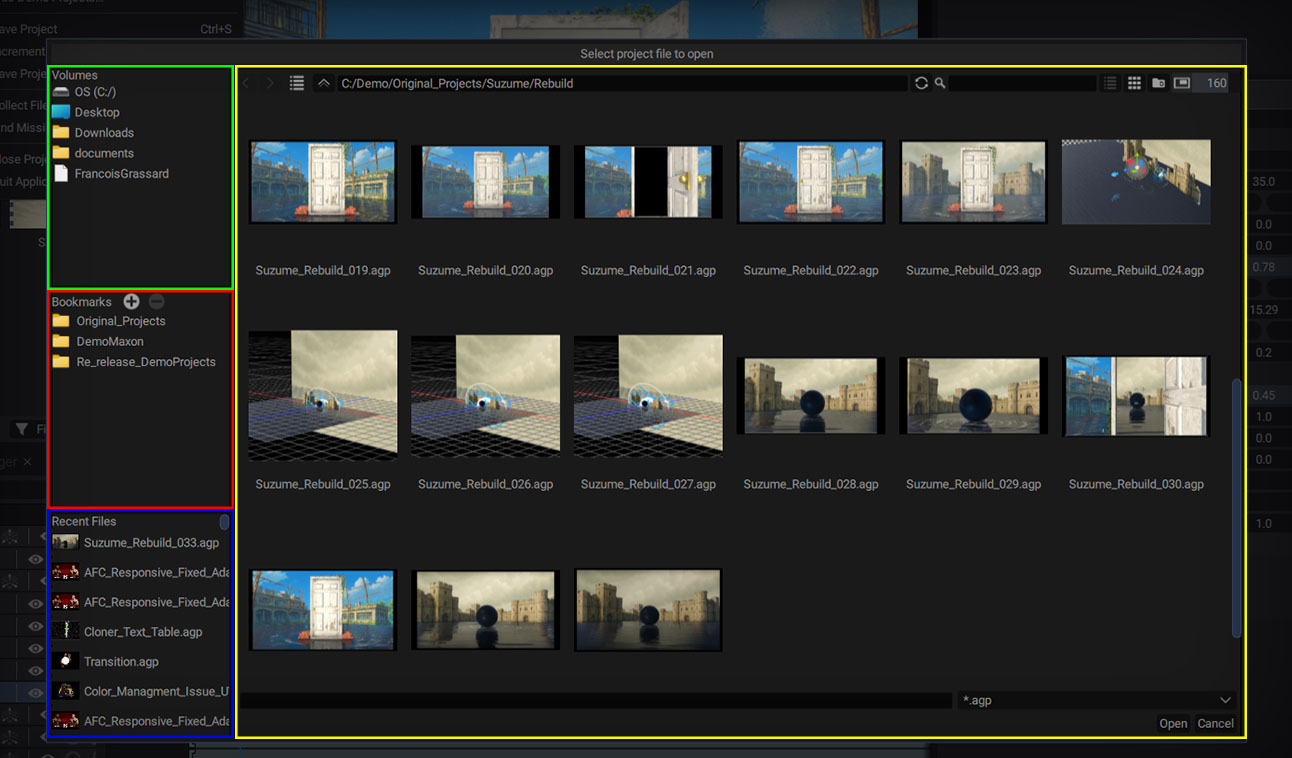
The file types displayed in the Recent Files list depend on the menu you used to open the File Browser. The File > Open Project File menu will only display Autograph projects, while File > Import Files will display images, movies, sounds, and 3D files.
Main window top bar
At the top of the main window, there is a bar with the following options (from left to right):
- Back and forward buttons for navigating through browsing history
- A list of all folders visited since the file browser was used
- A button to access the top folder
- The path to the current folder
- A refresh button to update the current folder content
- A search bar to filter the file display
- Two buttons to switch to List mode or Grid mode
- A button that opens the current folder in the system browser
Display Modes
List mode
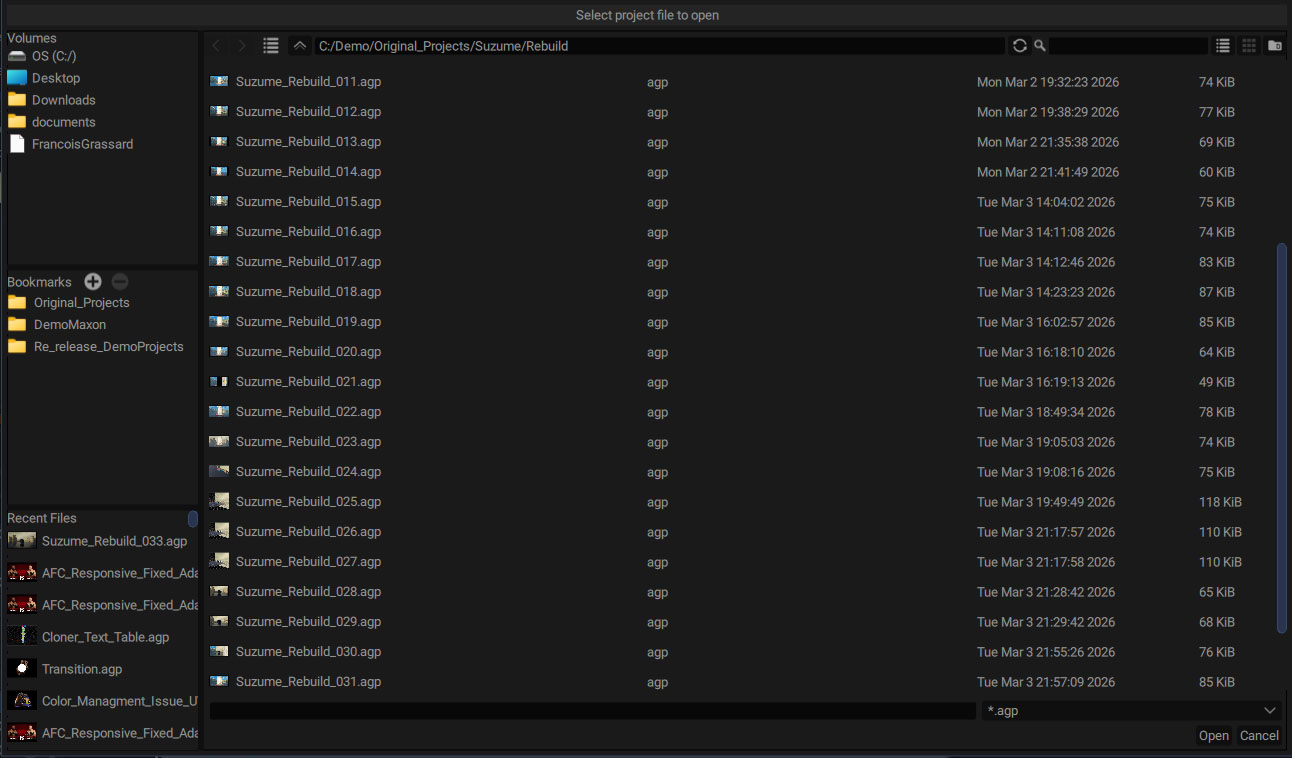
List mode lists files in the current folder by name with 4 columns:
- File Name
- File Type
- File Creation Date
- File Size
Grid mode
When loading or saving an Autograph Project (.agp) file, thumbnails embedded in projects are displayed.
An additional slider will appear to define the thumbnail size.
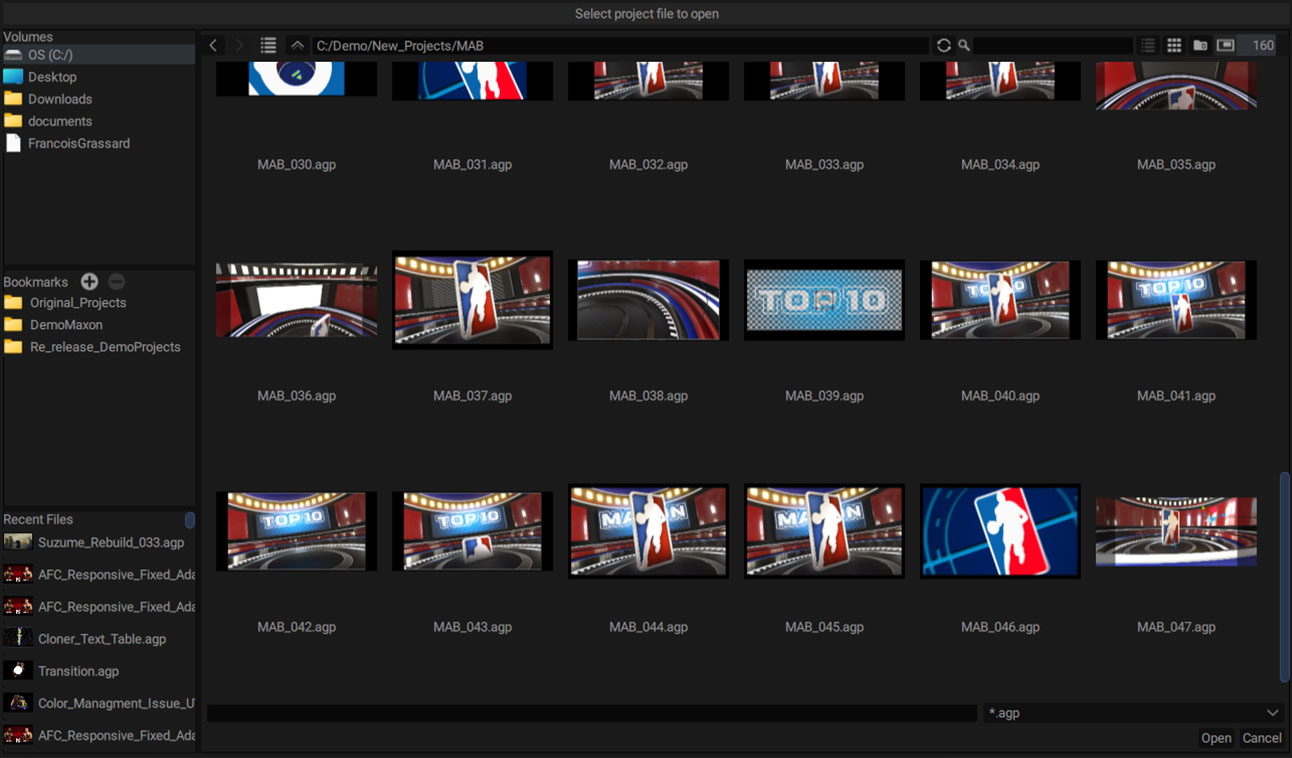
Thumbnails are created by taking a snapshot of the last active Viewer at the time of saving.
Creating Bookmarks
Bookmarks remember the path to the current directory so you can quickly return to it later.
Adding a bookmark:
To create a new bookmark, simply click on the "+" button in the Bookmarks section, to the left of the file browser. It will appear just underneath, with the name of the current folder.
To rename a bookmark, select it and press the enter or f2 key.
Removing a bookmark:
To delete a bookmark, select it from the list in the bookmarks section and press the "-" button.
Image Sequence
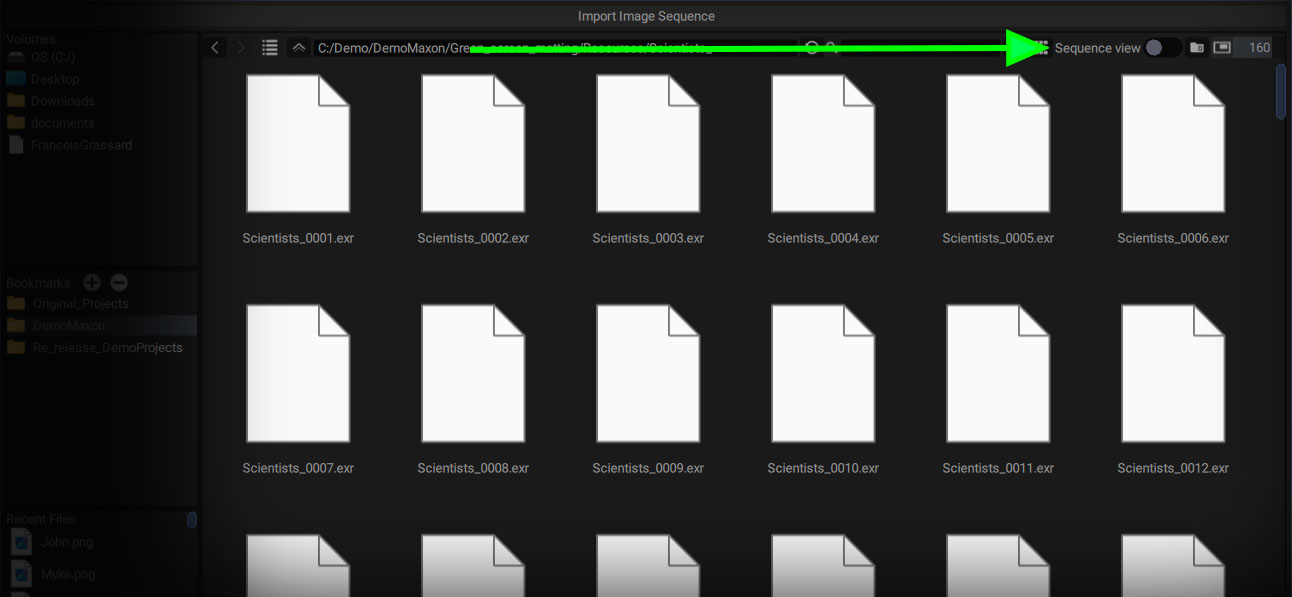
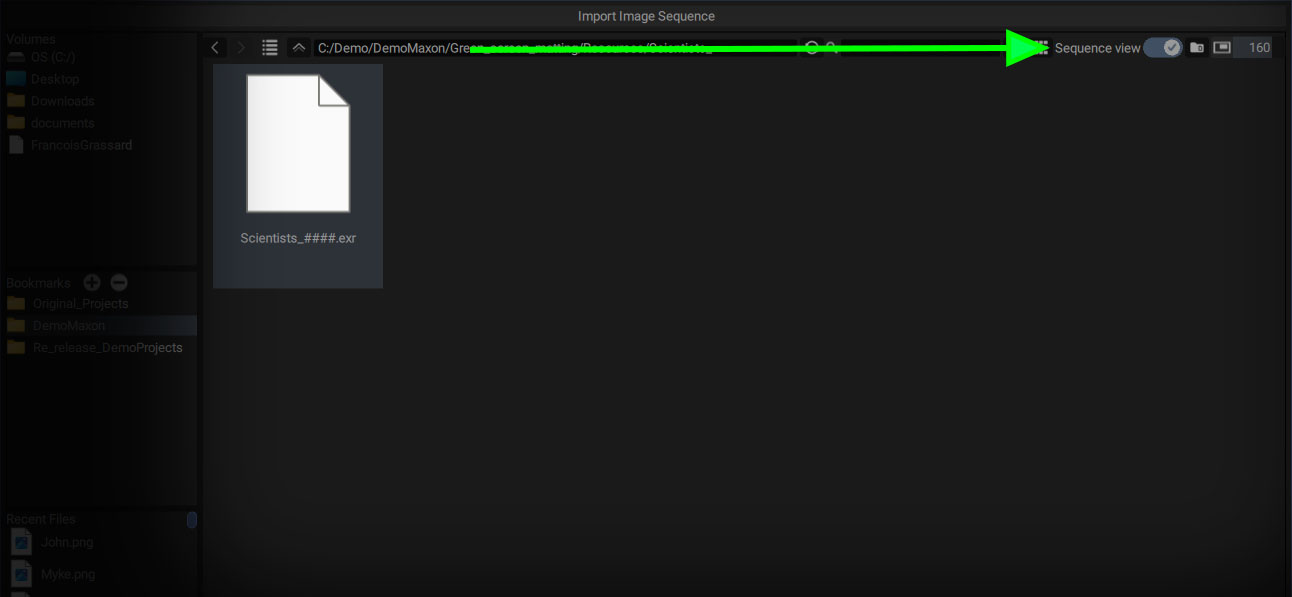
When accessing a folder containing a sequence of images, it will appear as a single element instead of individual files.
This is because the Sequence View switch in the top right-hand corner is enabled by default:
If this switch is turned off, all individual files will be displayed: