
Selection and Overlays
A button in the top toolbar of the Viewer lets you control overlays added on top of an image.
Depending on whether you use the Viewer in 2D or 3D mode, these overlays will be different.
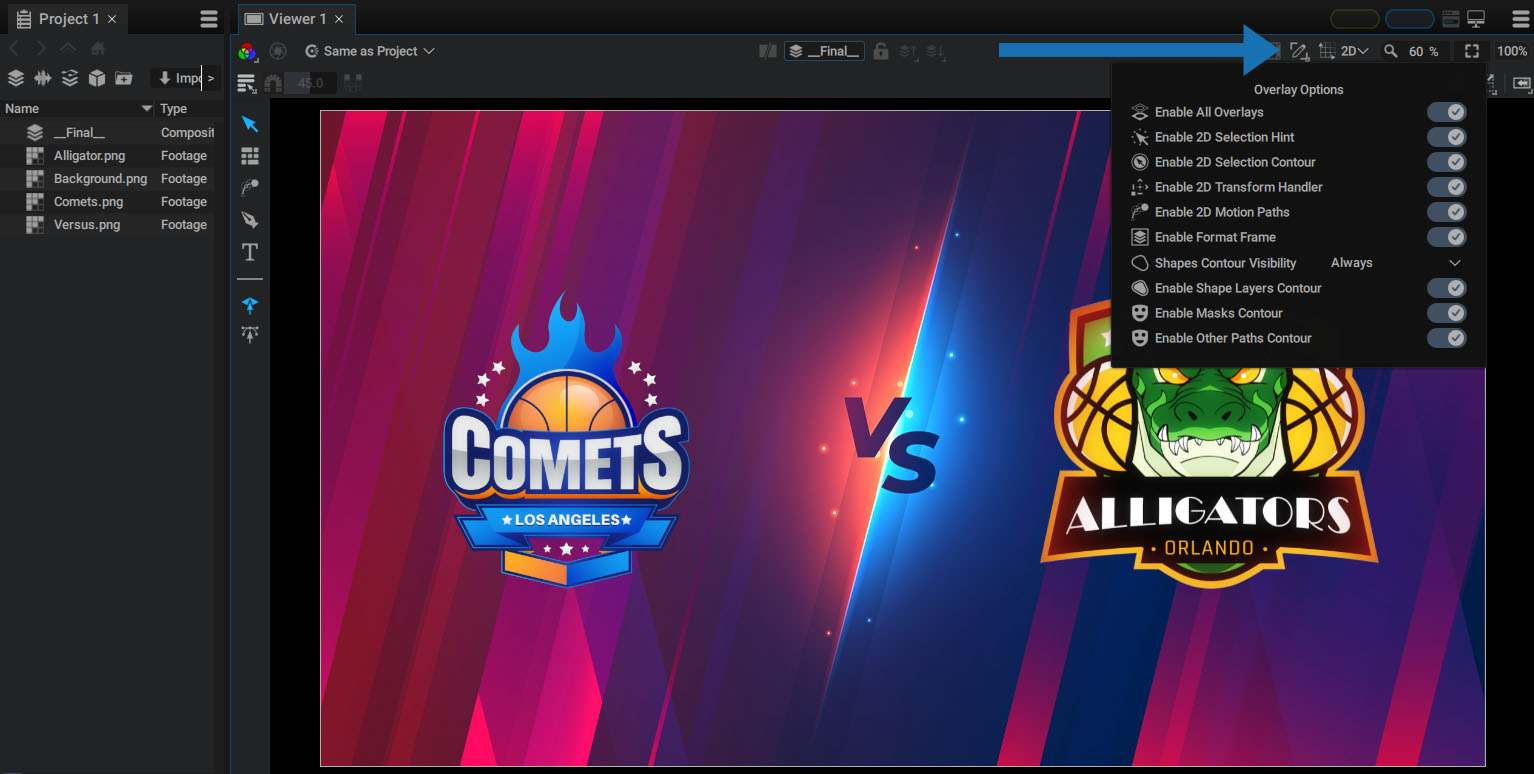
The Enable All Overlays option is useful for quickly hiding all overlays. This can also be triggered by presssing the h key.
When at least one of the overlays is disabled, the icon turns green:

2D Selection Hint
When moving the mouse over an unselected layer, a flash hint animation will quickly play to indicate which layer will be selected if you left click at this position.
The layer also flashes in the Timeline to indicate which layer will be selected.
2D Selection Contour
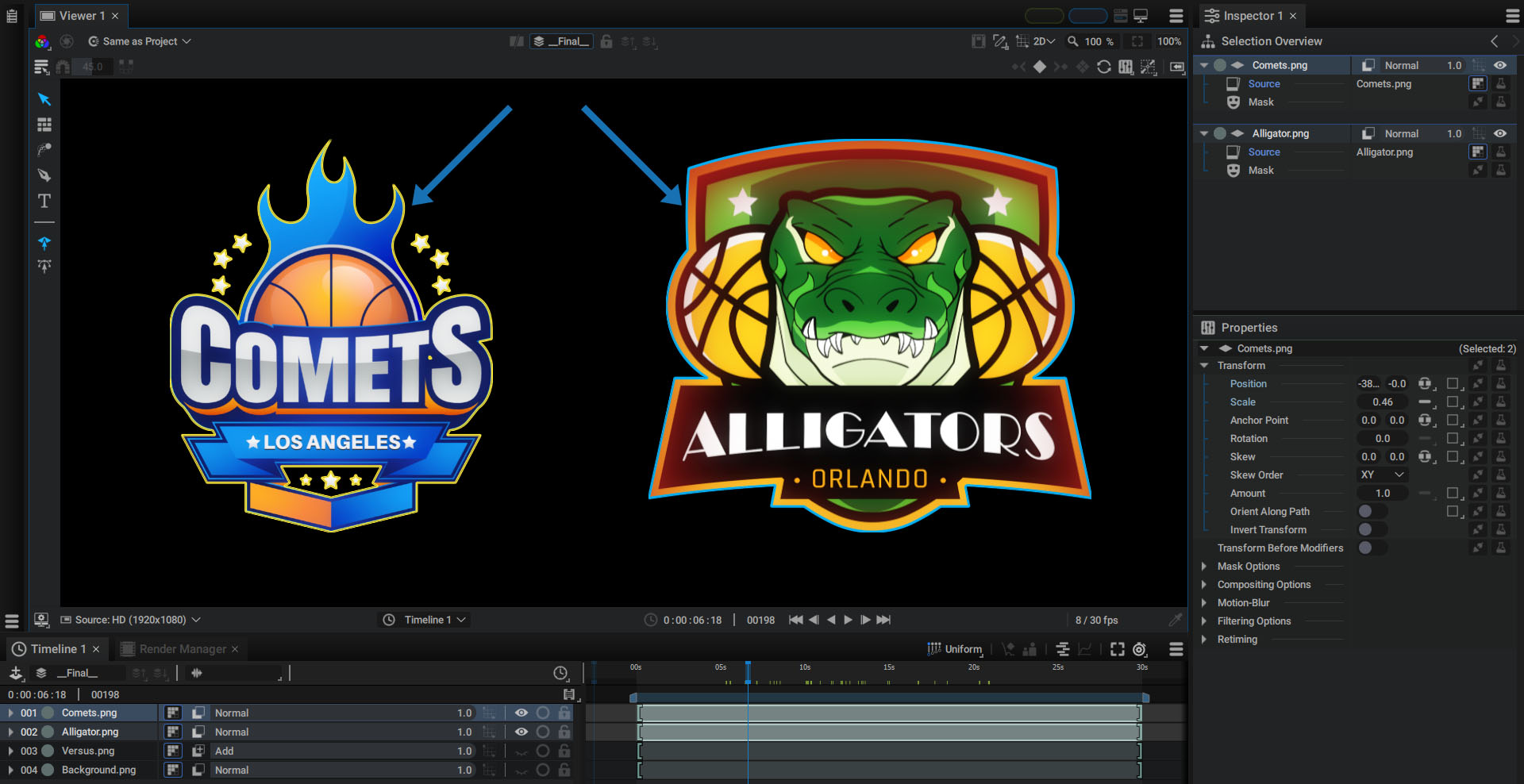
When layers are selected, they either have a yellow or blue outline.
- Yellow indicates that the layer is selected and is the active layer
- Blue indicates that the layer is selected but not the active layer.
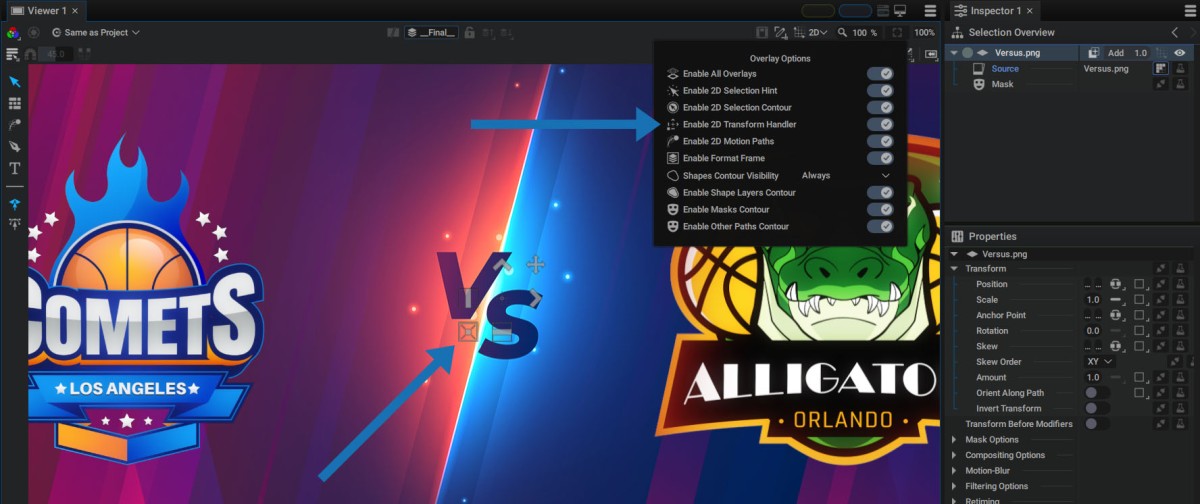
2D Transform Handler
The 2D Transform Handler option hides the Transform Handler when a layer is selected and the mouse cursor is over the Viewer.
Even if this handler is hidden, a layer can still be moved and rotated by pressing the alt key.
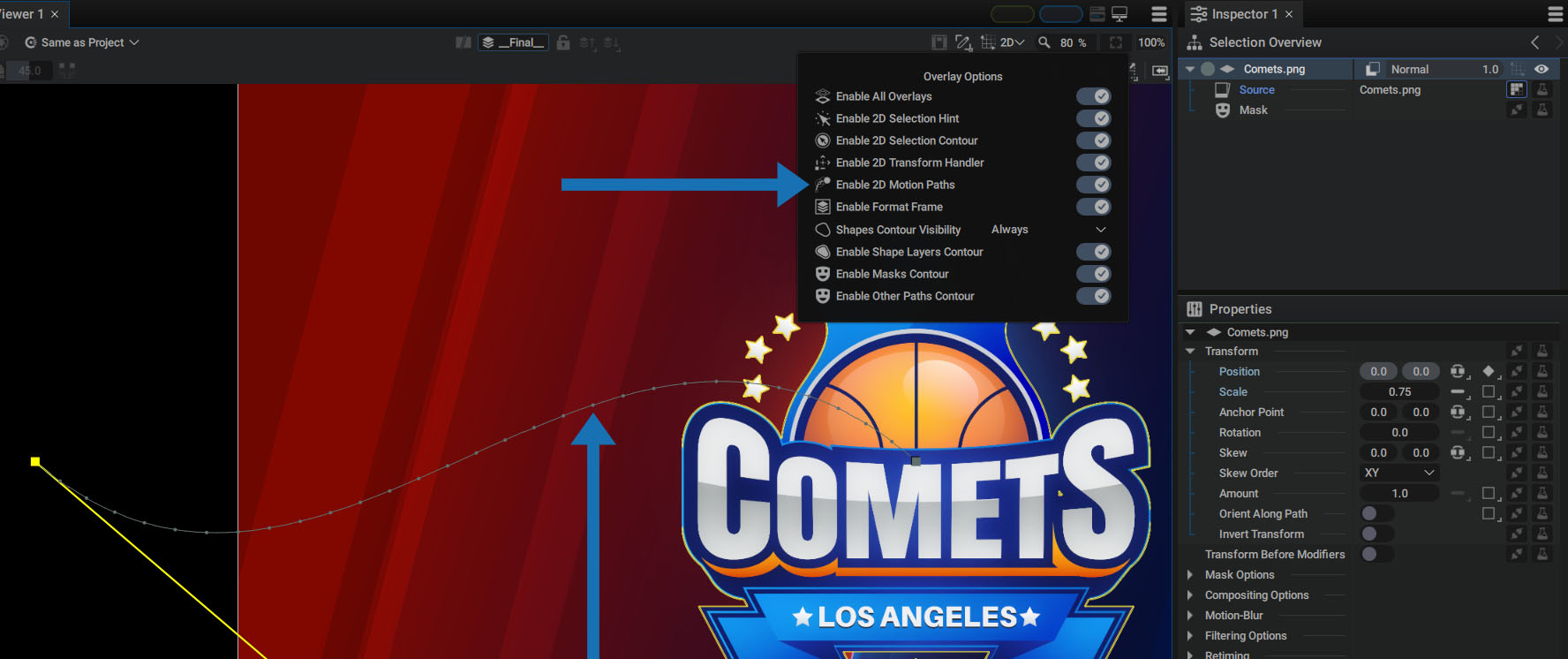
2D Motion Path
This option hides Motion Paths on selected layers.
Format Frame and Bounding Box
This hides/displays the white rectangle around the composition, indicating the composition format frame.
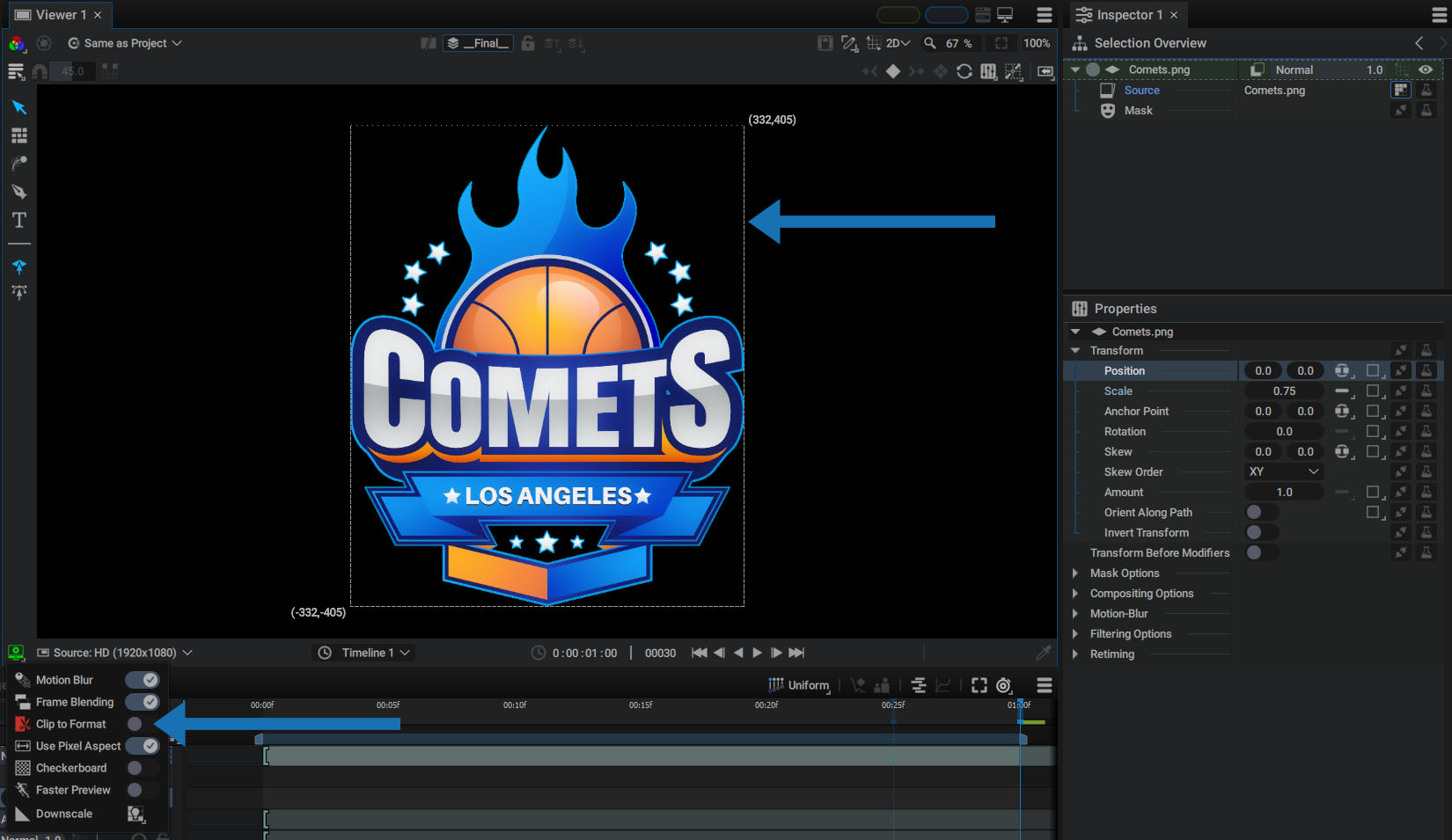
The dashed rectangle, visible when the Clip to Format option is disabled, indicates the bounding box of the actual pixels in the composition. When using Modifiers that increase the bounding box, such as a Blur or Transform, you can quickly see how large the bounding box grows.
Path Overlays Options
The following four options are designed to control the display of Paths in a Shape Generator.
The path overlay options are described in the Path Overlays section.
2D Selection
The transform tool can select 2D/3D layers and 2D paths.
- To select layers, activate the first layer selection sub-tool
- To select paths, activate the second layer selection sub-tool
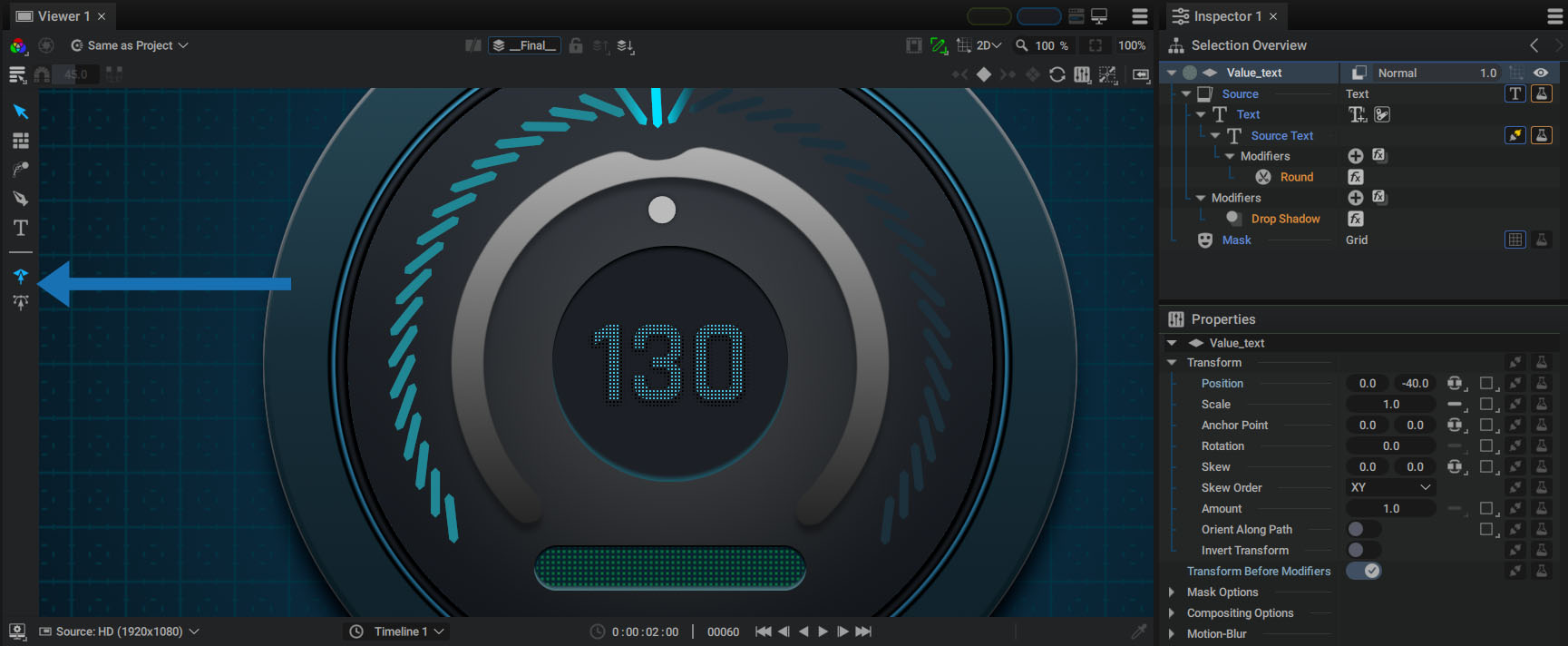
Layers can be selected by clicking either:
- On the layer's non-transparent pixels if the Selection Method is set to Alpha Channel
- Anywhere within the layer's bounding box if the Selection Method is set to Select with bounding box
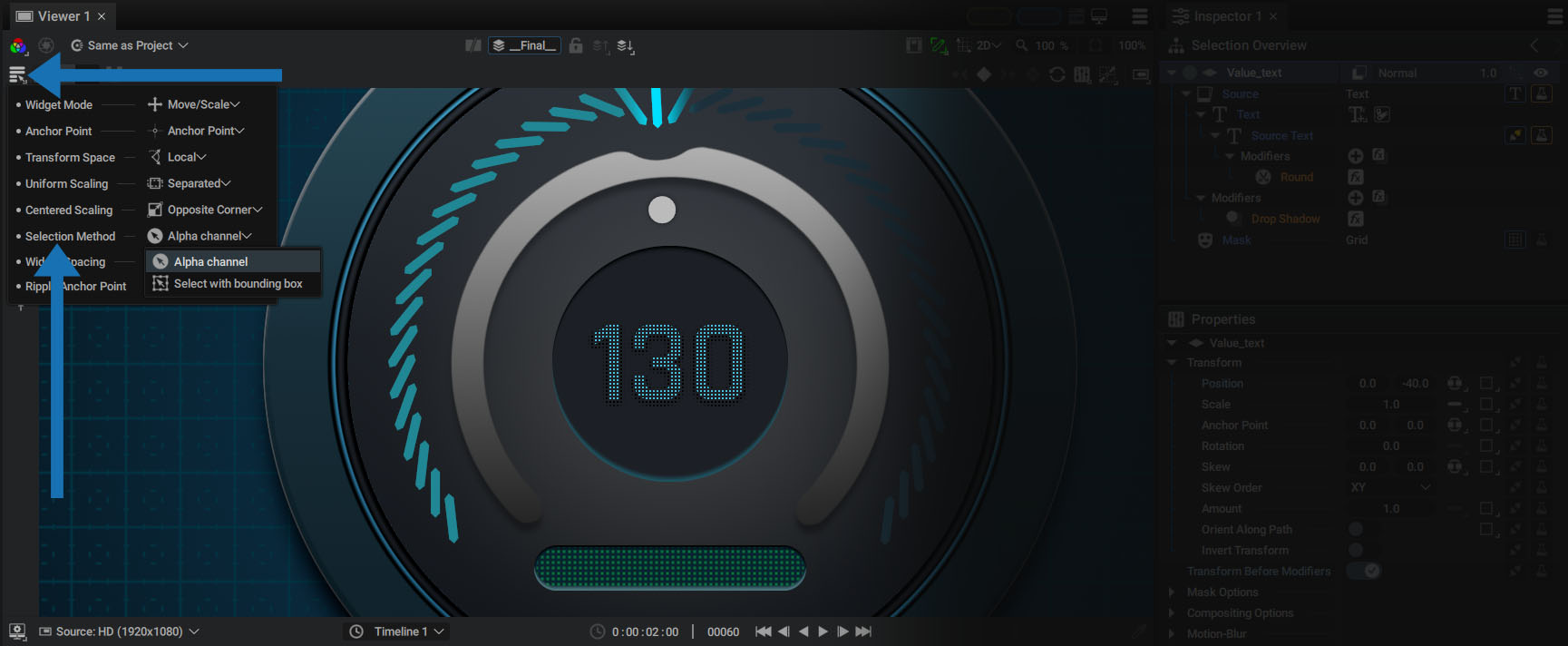
The Alpha Channel method offers a more advanced selection method that enables layer selection regardless of their position in the layer stack, as long as they are visible on screen.
Layers can also be selected by drawing a selection rectangle. Any layer that has its bounding box intersecting the rectangle will be selected.
- When holding shift, the rectangle adds layers to the existing selection.
- When holding ctrl + shift, the rectangle removes layers from the selection.
3D layers can be selected in 2D, similarly to 2D layers.
3D Overlays
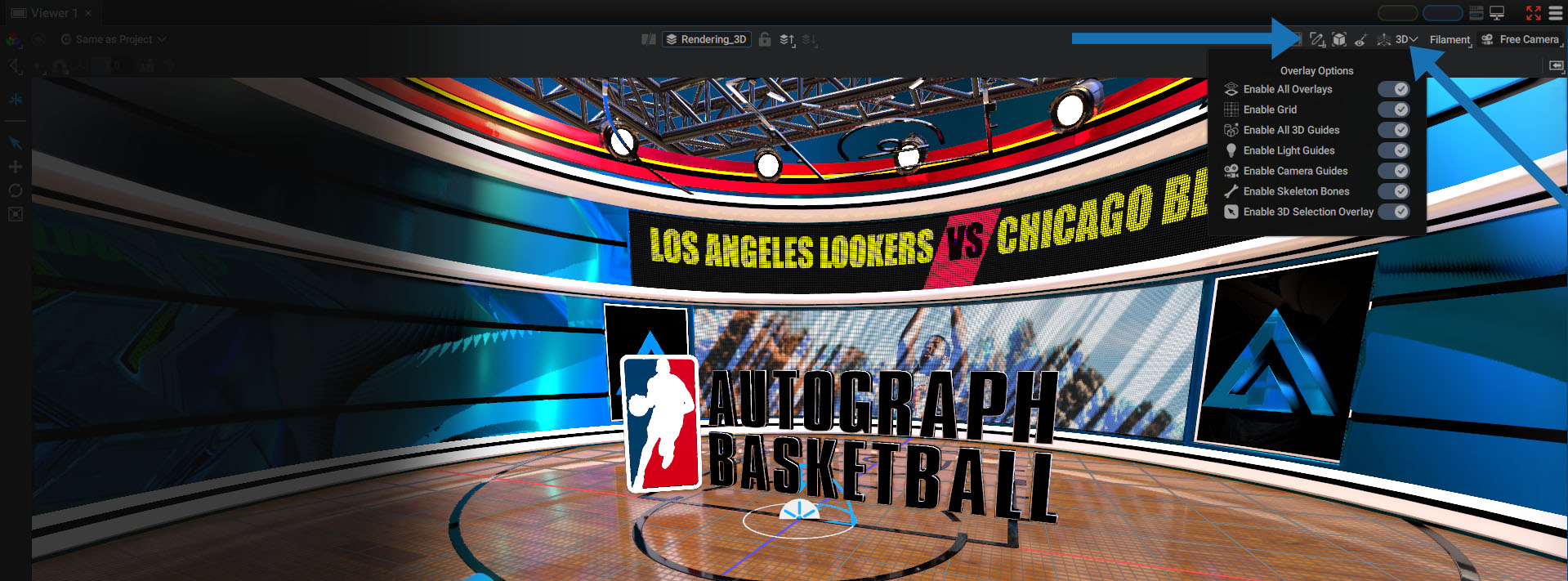
Each type of primitive (lights, cameras, bones) can be filtered from the overlays:
- All Overlays
- Grid
- All 3D Guides
- Light Guides
- Camera Guides
- Skeleton Bones
- 3D Selection Overlay: similar to the 2D yellow selection contour
For more information on other 3D Viewer options, check out the 3D Environment section.