Inspector - Introduction
Just like the Timeline, the Inspector panel is one of Autograph's key panels. Its content is updated according to the selection made in the Timeline, Viewer, or Project panel.
The Inspector panel provides quick access to the parameters of the current selection, so you can easily change parameter values and connect them to other parameters.
The Inspector panel has two distinct sections:
- Selection Overview (top)
- Properties (bottom)
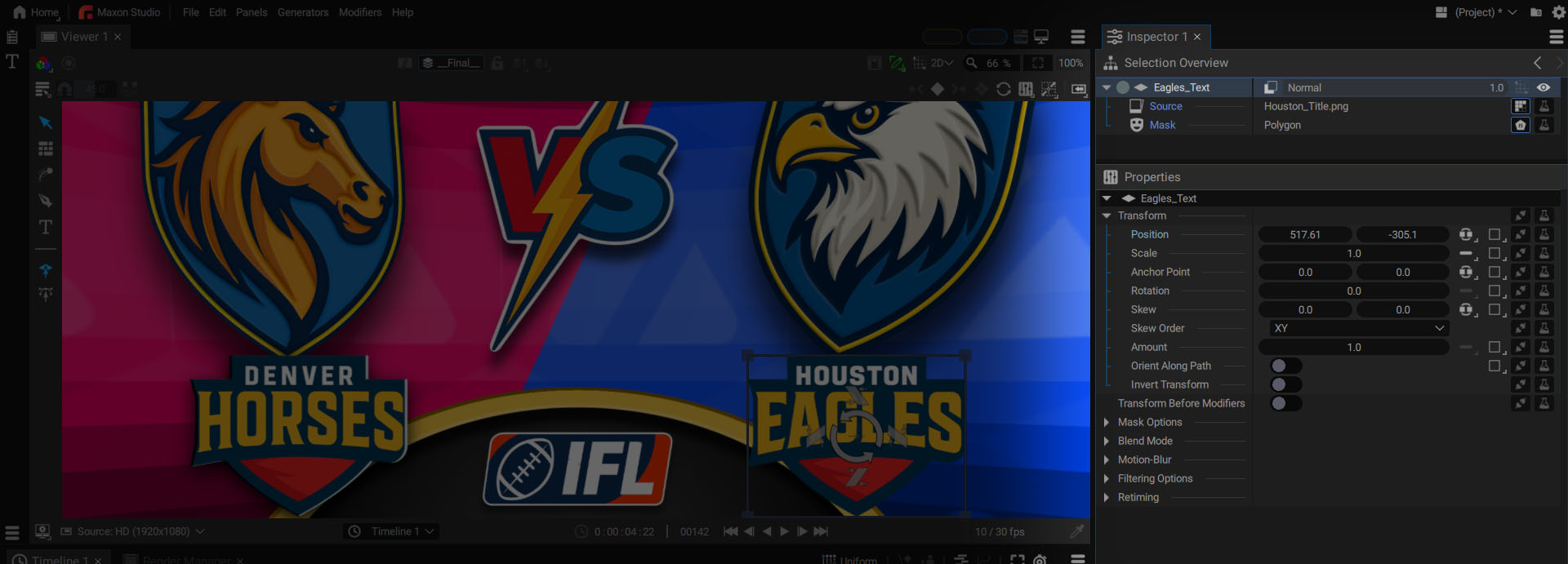
The Inspector highlights the most important parameters from a selection for more direct access and a faster, more efficient workflow, whereas the Timeline is where you can unfold all of a layer's subsections and display a large number of parameters.
In the image below, a layer is selected and its parameters are unfolded in the Timeline.
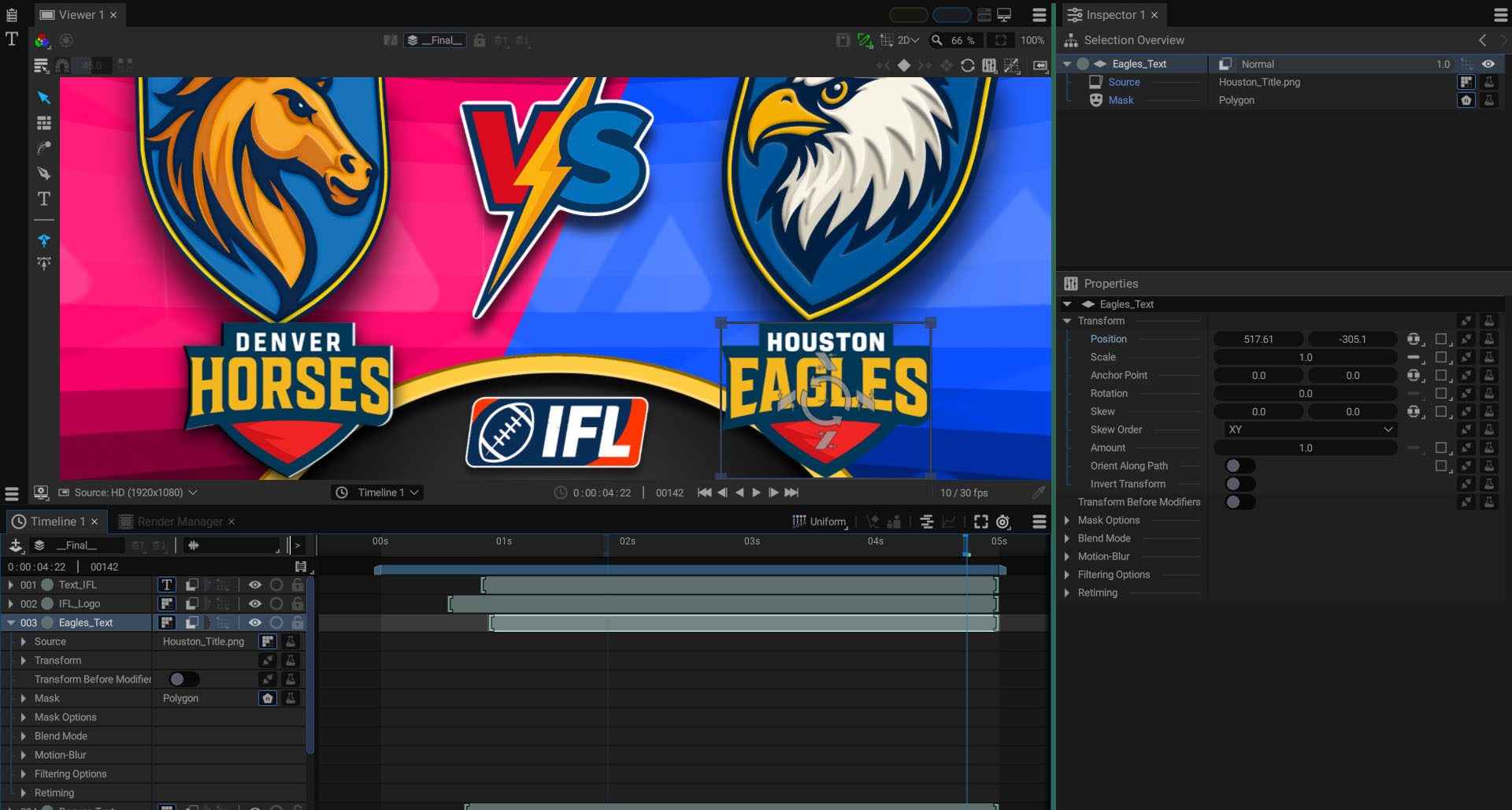
This selection is also visible in the Selection Overview in 3 lines:
- The first line represents the layer. This shows the layer's blend mode, opacity, rendering mode (2D or 3D), and the icon for managing its visibility.
- The second line represents the layer source. At the end of this line on the right, there are buttons indicating the type of images or Generators connected, followed by a button for adding Modifiers.
- The third line represents the layer mask, with the same buttons on the right.
When a layer is selected in the Timeline or the Viewer, this first line will also be selected in the Selection Overview. This will display all of the parameters that define this layer, apart from its Source and Mask, in the Properties section at the bottom.
- Transformation: Position, Scale, Anchor Point, Rotation...
- Mask Options: Enable, Invert, Transform...
- Compositing Options: Visibility, Blend Mode, Opacity...
- Motion Blur: Type, Quality, Shutter Phase, Shutter Angle...
- Filtering Options: Layer Filtering_ and _Supersampling
- Retiming: Time Offset, Time Remapping, Speed Mulitplier...
Clicking on a line in the Selection Overview will define the contents of the Properties section. So, clicking on the Layer Source, for example, will only focus on the element connected to it, whether it's a Project Item available in the Project Panel or a Generator.
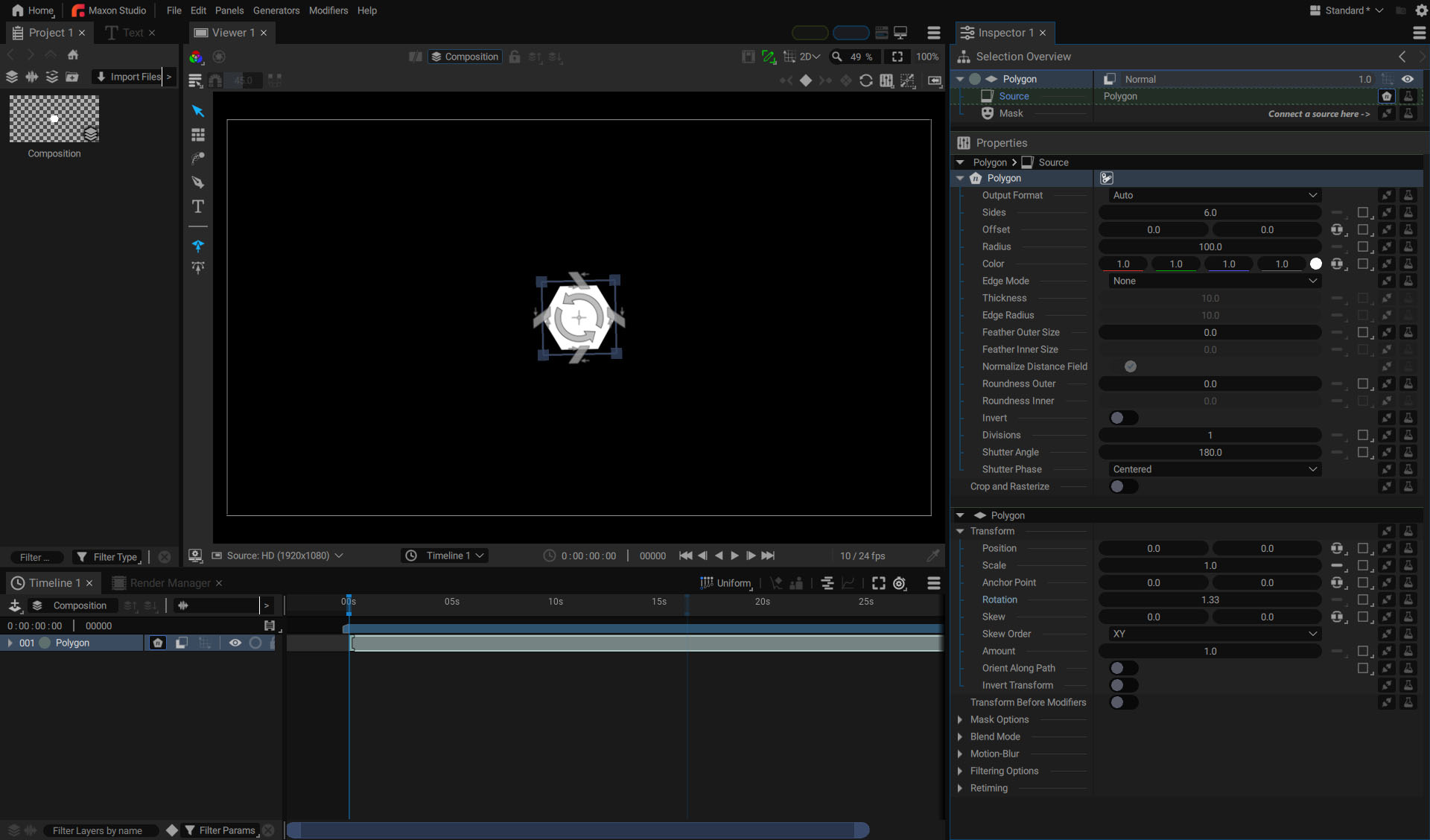
In the example below, we created a new layer using a Polygon Generator. By selecting this layer in the Timeline, then clicking on its source in the Selection Overview, you can quickly access the Generator parameters.