
Preserve underlying Transparency
Each layer in the stack has an Alpha channel allowing you to make some of its pixels totally or partially transparent. This allows you to cut out the content of a rectangular image in order to give it the shape you want. As stacking progresses, the alpha channels of all layers will be superimposed, mixed, and added to each other to end up with a resulting alpha channel for the entire stack.
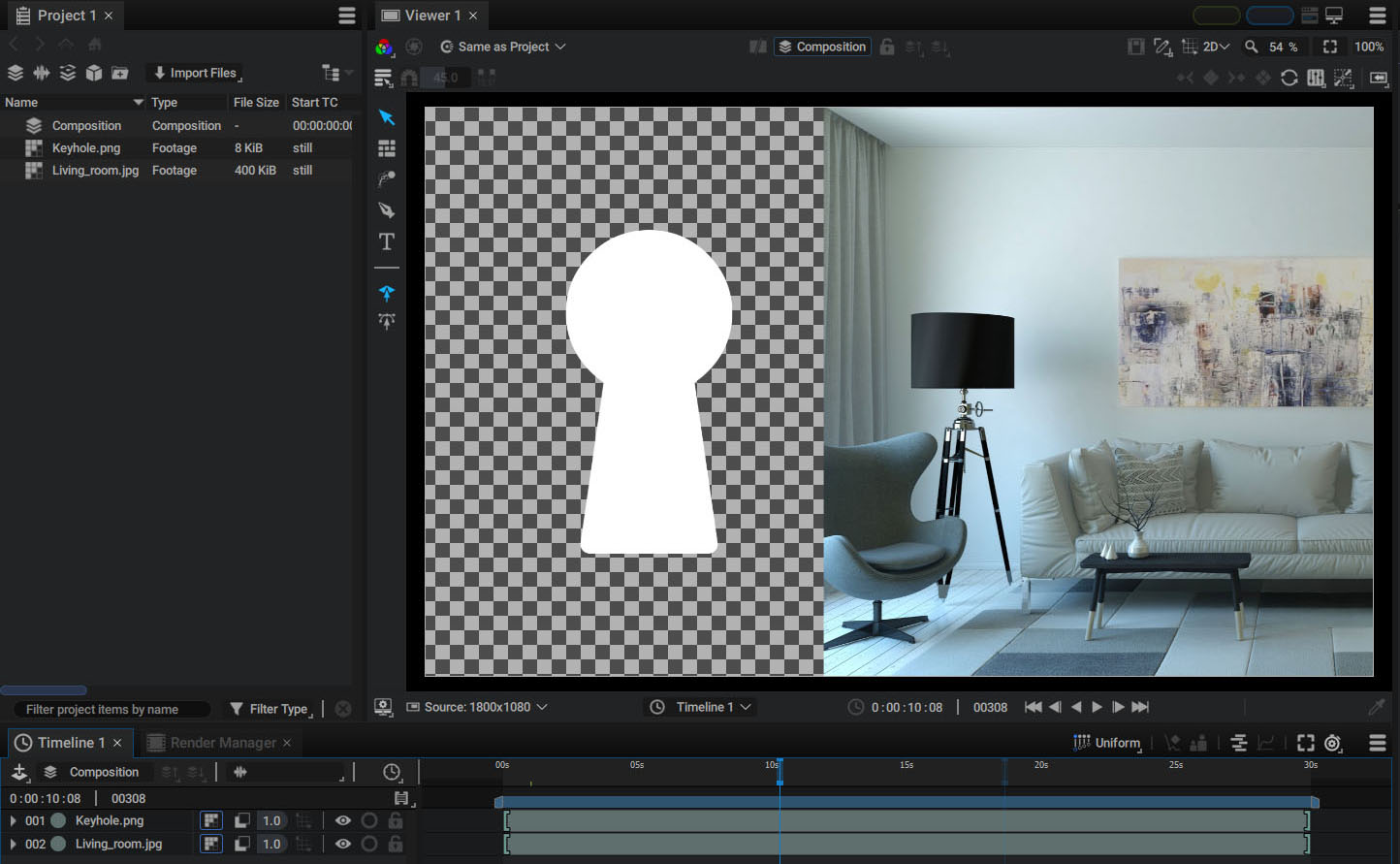
Elements will then progressively fill the composition format, leaving less and less empty space; but, there is an option that allows you to continue to add pixels on the RGB channels without affecting the current state of the Alpha layer.
Test it out yourself by downloading the living room and keyhole images
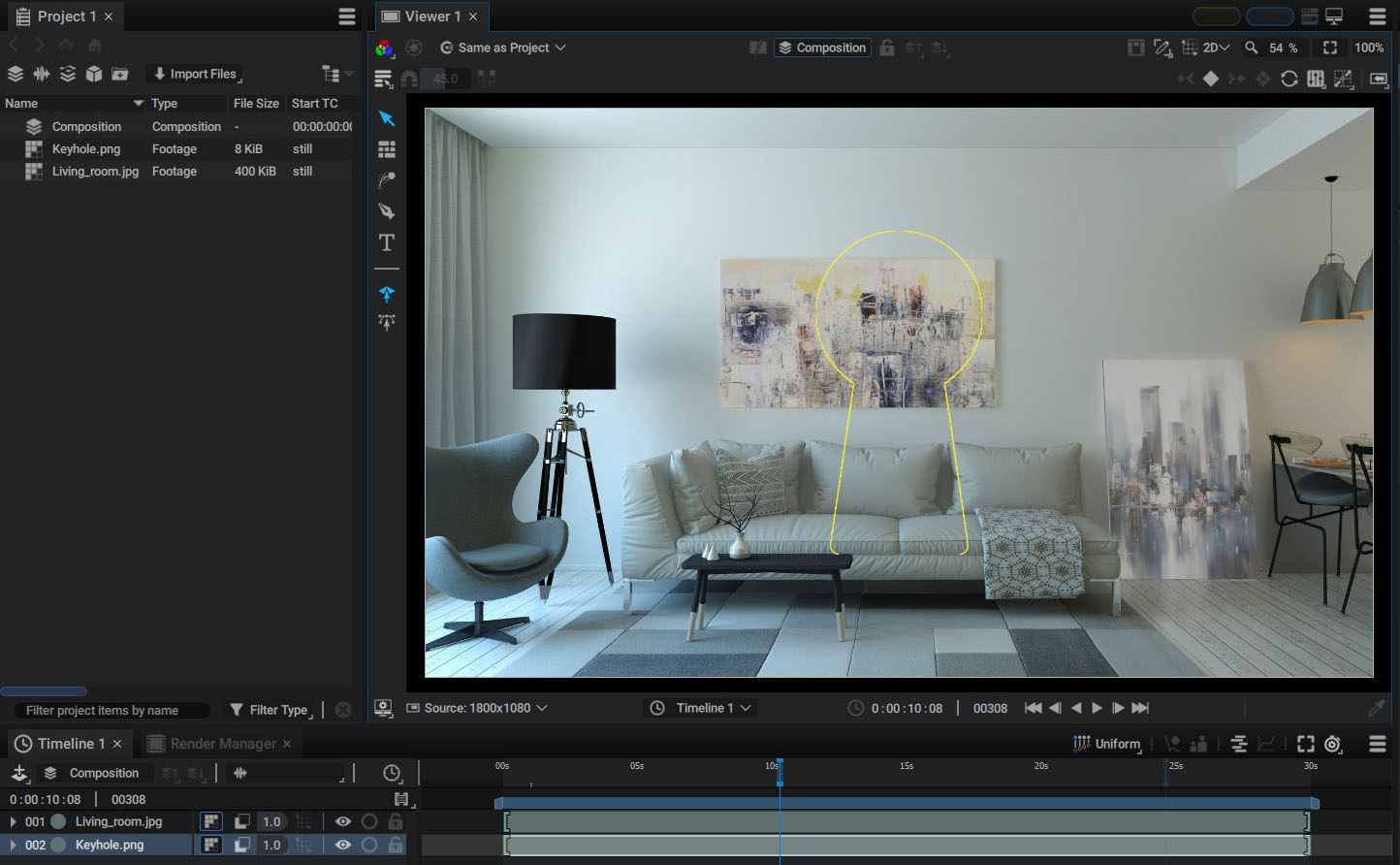
- Based on the previous image, we can place the image of the living room above the one representing the keyhole in the stack.
- By checking the Options > Preserve Underlying Transparency option for this layer through right-clicking or checking this option in the Compositing Options group, this big image will be cut by the alpha channel of the stack underneath.
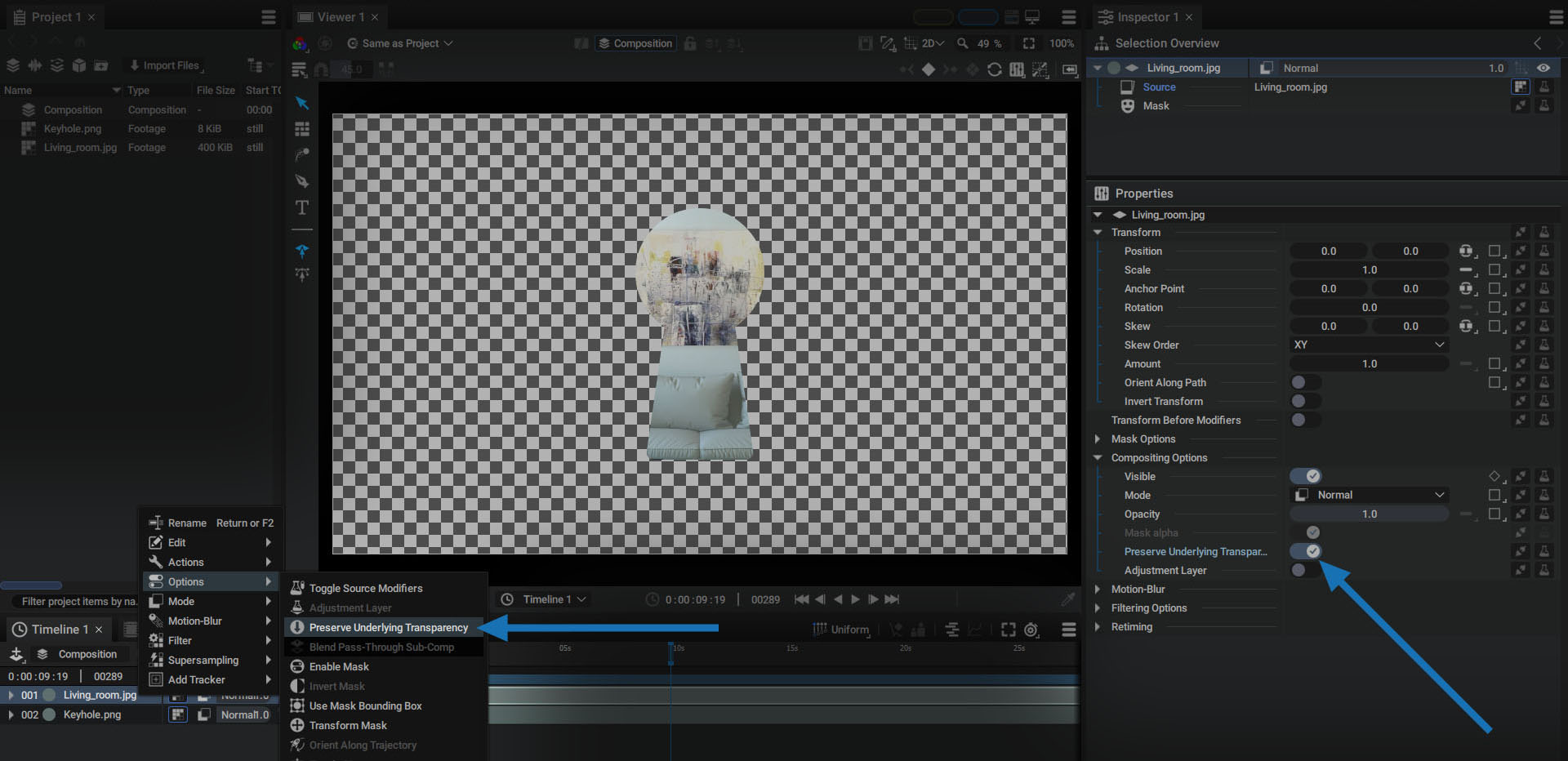
When you look through a keyhole, you see the world on the other side of the door through a cutout shape. In this case, the cutout is the alpha channel of the stack underneath.
There are several ways to recreate this keyhole effect in Autograph, such as connecting an external source to the Mask input of a layer or Sub-composition. However, you can also simply place an image containing a keyhole-shaped alpha channel, and activate the Preserve Underlying Transparency option for all layers located above in the stack.
In this example, the initial RGB channels of the keyhole shape are completely replaced by other pixels, because:
- The layers above it are bigger than the keyhole and completely cover it
- These layers have an opacity value of 1.0
- The blending mode used for all layers is Normal
In many cases, you can reduce layer opacity and play with blending modes, for example, to add a grunge texture over the whole stack while preserving the initial shape.
External resources: Living room photo: https://pxhere.com/fr/photo/1367038