
Color Management - OCIO & ACES
Overview
|
|
|
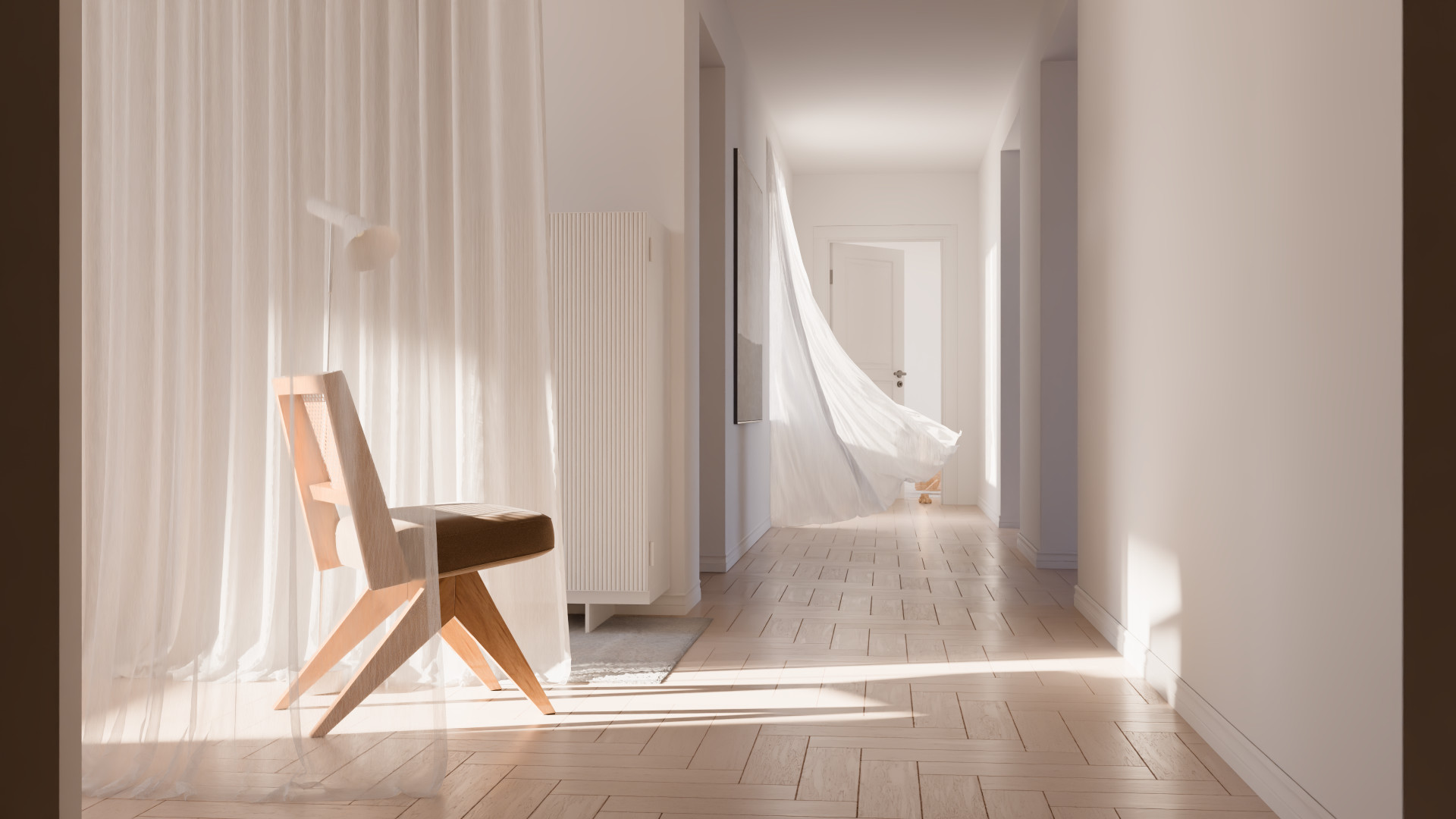
Rendered with ACEScg using the ACES 2.0 SDR View Transform |
| Scene by Gabe Nadel |
Color Management is a term used to describe the control and conversion of color from one place to another, to an artist it presents as the system that controls how colors are selected, previewed, stored, and rendered. Since color is critical to so many aspects of rendering it's important to make sure that color is processed correctly.
Redshift aims to make this simple, supporting the industry standard OCIO (OpenColorIO) and shipping with ACES (Academy Color Encoding System) as the default color system. The CG industry has seen increased standardization over the years to the benefit of artists everywhere, in effect, ACES distills the work of hundreds of color scientists and filmmakers into a manageable and artist friendly color workflow.
For Redshift color management occurs in three key areas: texture import, the render space, and final output. Prior to the implementation of OCIO all rendering in Redshift was done entirely in scene-linear Rec.709 - sRGB color space and many artists utilized the "linear workflow" as part of their method for color management. When using ACES the workflow changes slightly but the general concept of color space consideration and linearizing your source assets before rendering remains largely the same.
Redshift OCIO Configs
Redshift ships with two OCIO configs, both can be found in the Data > OCIO folder in your RS installation directory.
- maxon-cg-v1.1_ocio-v2.4.ocio
- OCIO v2.4
- ACES v1 & v2
- Display Spaces: sRGB, Display P3, Display P3 HDR, P3-D65, Rec.1886 Rec.709, Rec.2100-PQ, ST2084-P3-D65
- Extended file rules
- config.ocio
- OCIO v2
- ACES v1
- sRGB display space
- Basic file rules
Maxon-cg contains all color spaces found in the original Redshift "config.ocio" and adds support for ACES 2, more display spaces, and extends file rules to increase the chances of correctly setting the color space of input textures automatically based on file name.
ACES 2 vs ACES 1
|
|
|
ACES 2.0 SDR View Transform |
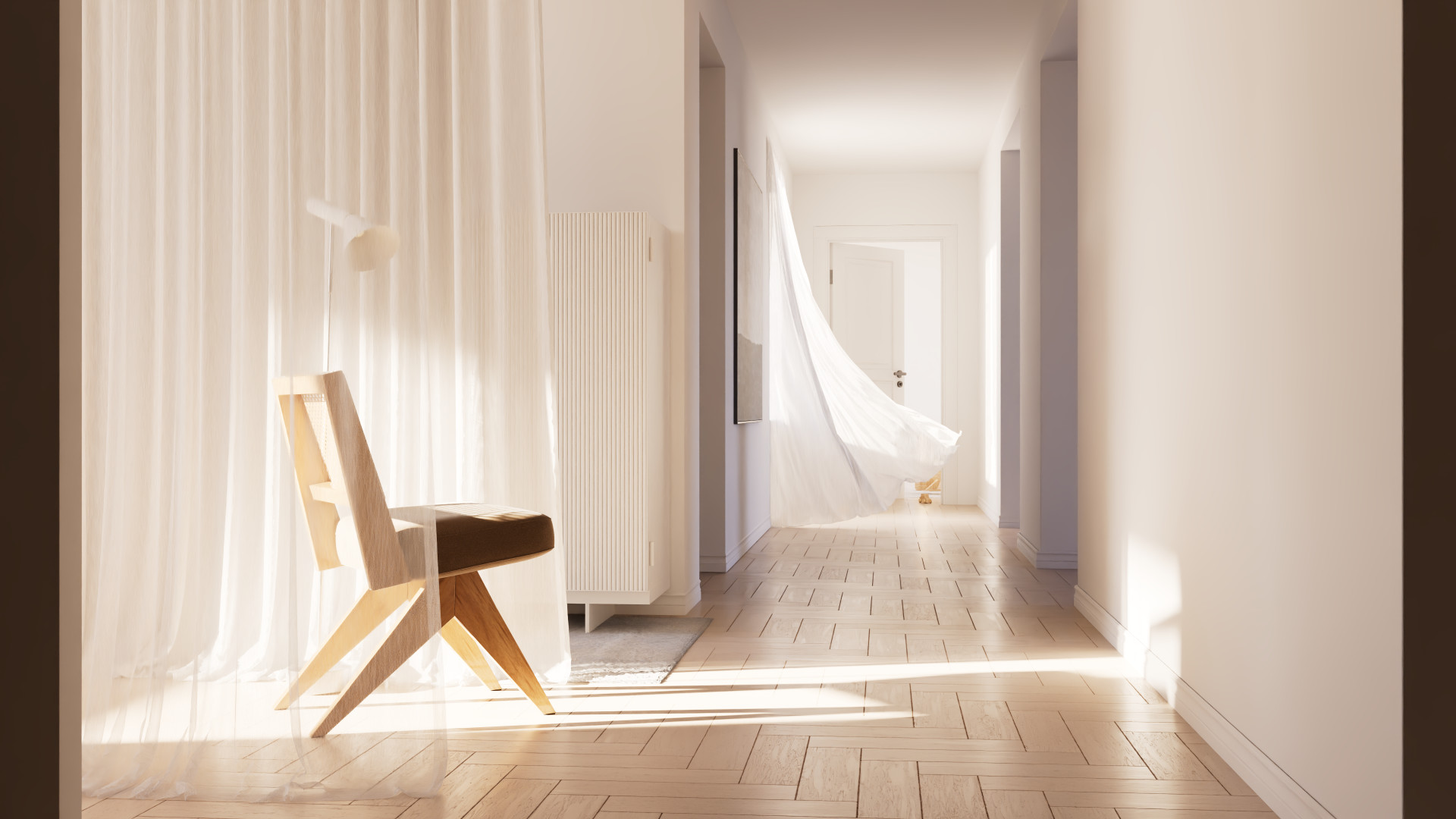
ACES 1.0 SDR View Transform |
| Scene by Gabe Nadel | |
Maxon-cg uses ACES 2 as the default view transform but ultimately the choice is yours to make, there is no right or wrong answer.
The ACES v2 view transform is designed to provide a more neutral starting point compared to ACES v1, with softer contrast and a more natural look.
|
|
|
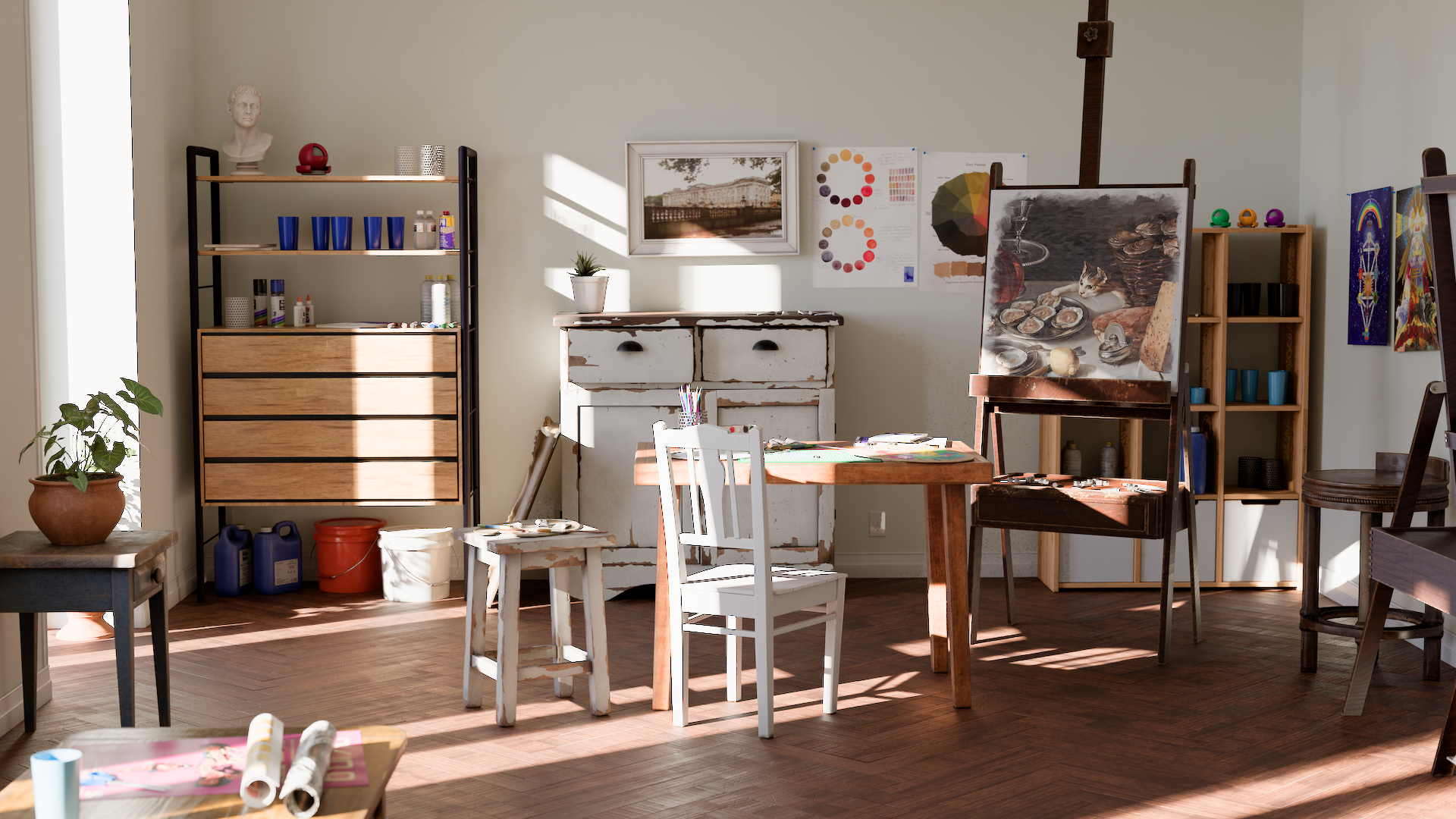
ACES 2.0 SDR View Transform |
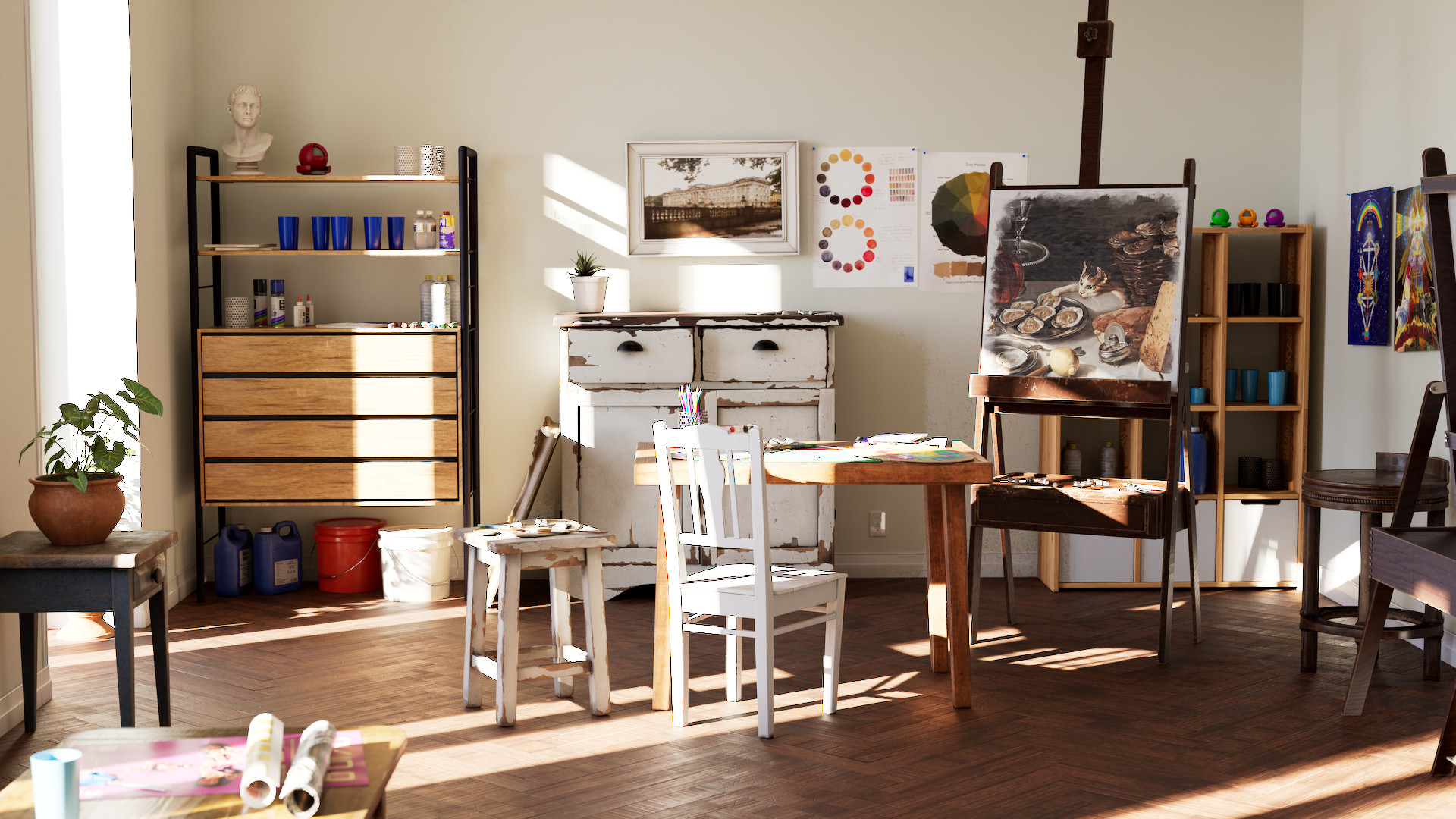
ACES 1.0 SDR View Transform |
| Scene by Saul Espinosa | |
It is also designed to better handle extreme saturation and highlight clipping that ACES v1 struggles with, this becomes quite pronounced when comparing extreme blue colors.
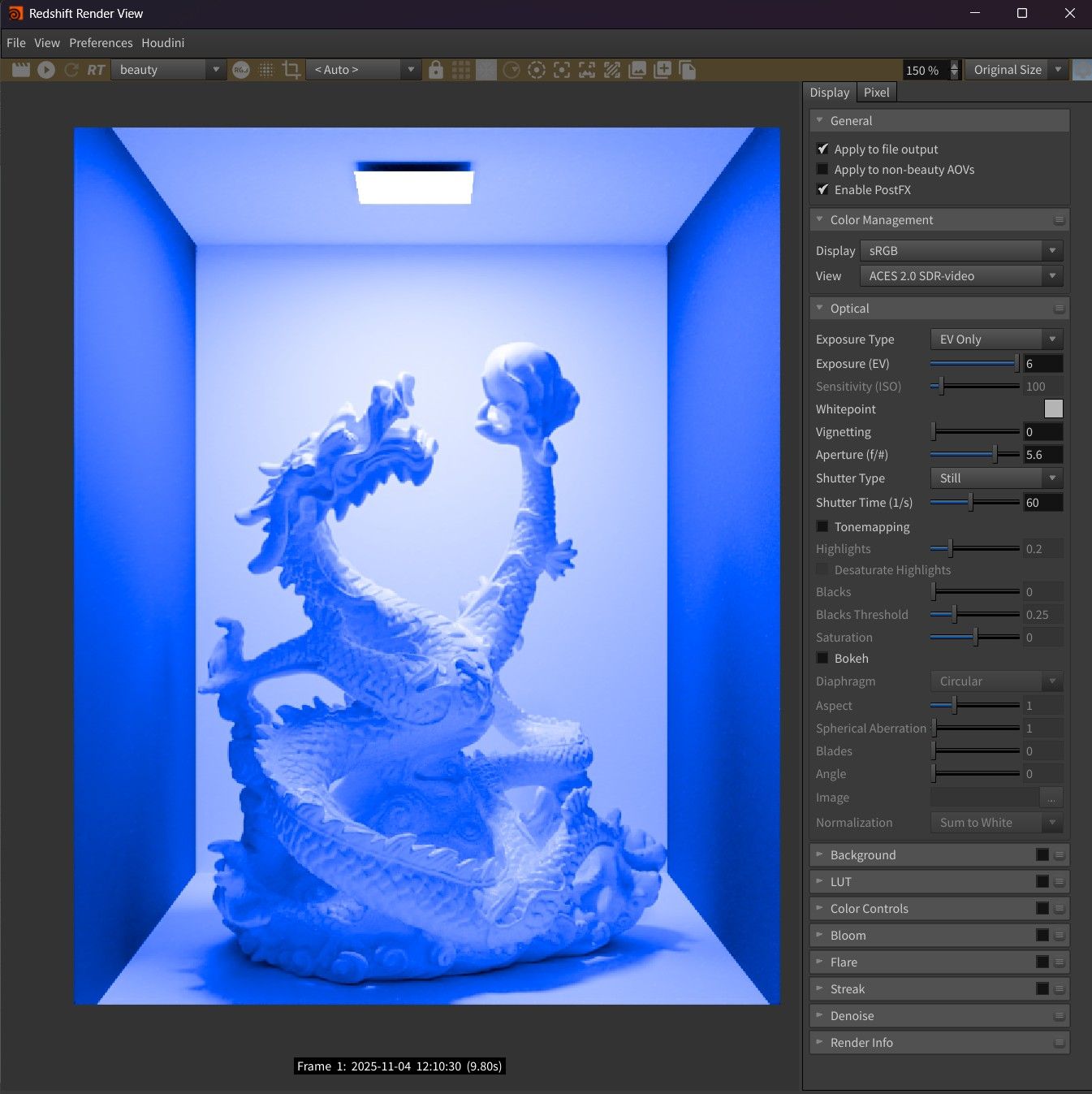
|
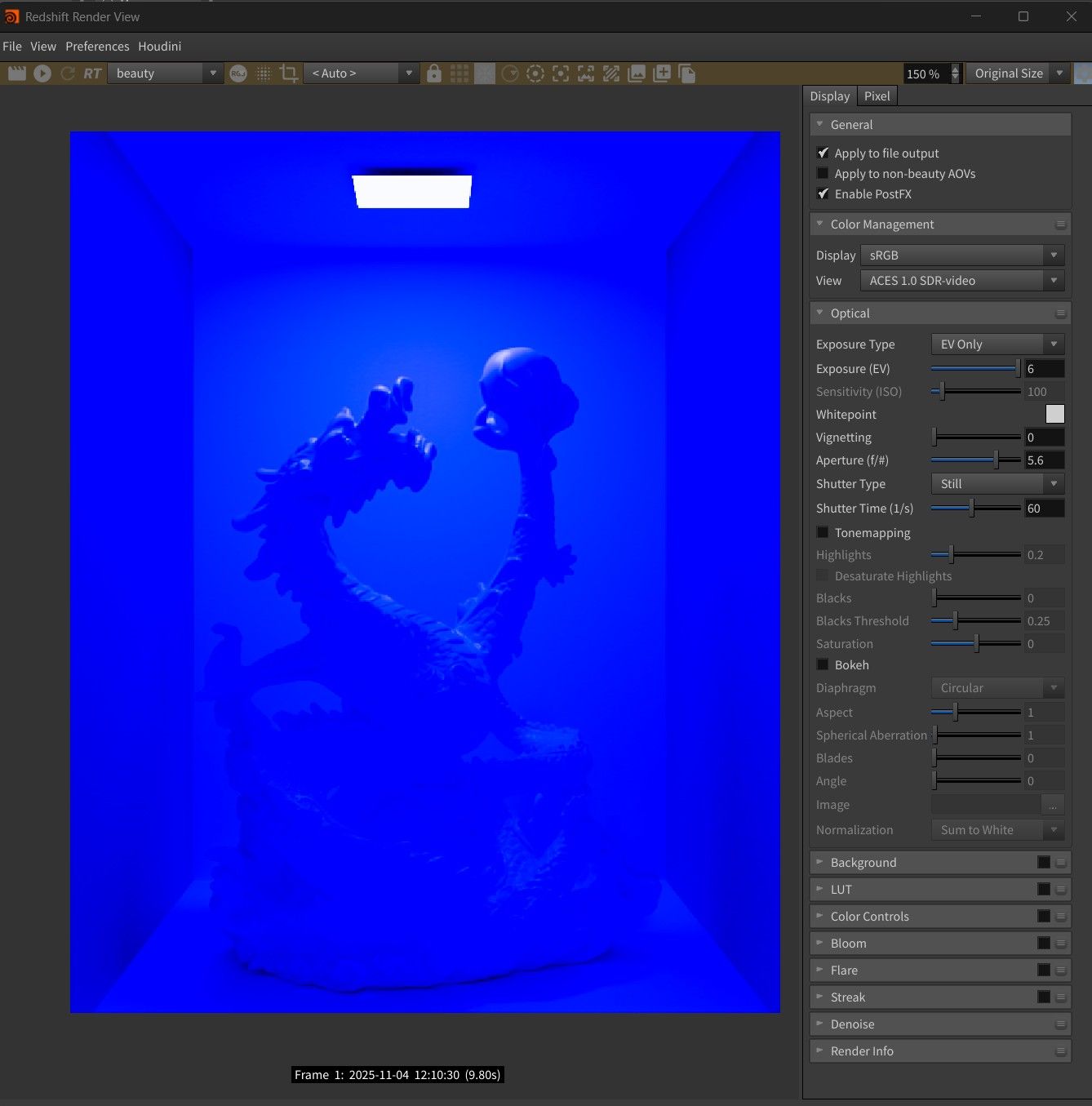
|
|
ACES 2.0 SDR View Transform |
ACES 1.0 SDR View Transform |
ACEScg vs Linear sRGB render space
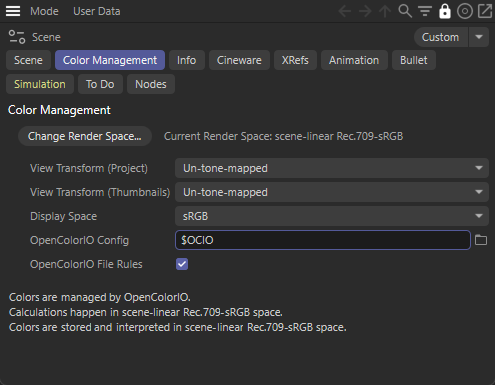
The introduction of ACEScg as the default render color space brings with it many potential improvements compared to the old default setup using scene-linear Rec.709-sRGB with an un-tone-mapped view transform.
ACEScg has a much wider color gamut than sRGB making it capable of representing more colors and more accurately portraying scenes. Due to this increased dynamic range, and coupled with an ACES 1.0 or 2.0 view transform, highlights and shadows have more detail with a smoother more filmic response and the ability to better handle extreme lighting and color saturation. In general, working with ACES provides an easier path to creating more predictable and photo-realistic images in less time and effort.
Before, when using scene-linear Rec.709-sRGB with a linear workflow, there was no distinction between linear color data (a linear diffuse color map) and linear non-color data (normal / roughness maps) but ACES is a color-aware workflow that needs to understand the differences between the two or the result will be incorrect, this is handled by designating the appropriate color space of the input textures/colors.
If you would still like to render using the old color management method match your render settings to use the Render Space "scene-linear Rec.709-sRGB" and the "un-tone-mapped" view transform.
|
ACES Concepts
The ACES workflow for CG in Redshift is designed to be artist friendly despite the complex underlying color science that serves as its foundation:
-
First import and convert all assets to the same unified color space (ACEScg for Redshift)
-
Render in that unified color space
- Finish by export everything to the format needed for the next stage in production.
After rendering an ACES workflow in compositing continues much like it does in CG, importing and converting all assets to ACES, work in ACES, and export to the next format.
In order to facilitate moving through each stage of the workflow it is important to understand some of the key concepts that make up the ACES workflow and an ACES OCIO configuration file.
ACES Config Components
| OCIO Config |
This is the .ocio file that contains all of the relevant OCIO / ACES components needed for your OCIO color management workflow. It houses everything you need to get from the start to the end of your project within an ACES workflow. The same OCIO config should be used for all parts of the production pipeline when working with ACES, if you start your project in Redshift with one OCIO config the same one should be used when compositing with ACES in order to ensure consistency throughout the project. It's entirely possible to use different OCIO config files but care should be taken when doing so. |
|
|
|
| ACES Color Space | Description |
|---|---|
| ACEScg |
A linear color space used in CG and effects composting, default used by Redshift for rendering. Wide gamut.
|
| ACES2065-1 |
The foundation of ACES, a linear color space with the widest gamut of all ACES color spaces. ACES2065-1 is used for archival or transfer purposes rather than a working color space.
|
| ACEScc / ACEScct |
Non-linear color spaces used for color correction. ACES cct has a different gamma curve in the form of a "toe" in the dark portion of the image compared to ACES cc. The resulting effect is footage that is more similar to grading in log. |
|
|
|
| ACES Transforms | Description |
| Input Transform |
These transforms are used to take the color data of a specified source asset and convert it into a specified color space. In Redshift this is most commonly used when converting textures used in shaders and lights to the render space. AKA Input Display Transform, IDT.
|
| View Transform |
Converts raw scene-linear data into data that can be properly viewed on your display. AKA Output Transform, Output Display Transform, ODT.
|
Common OCIO input color spaces and their purpose
|
Color Space |
Purpose |
|---|---|
| sRGB |
To be used on Input with LDR (low dynamic range) sRGB color images like JPEG and PNG.
|
| Scene-Linear Rec.709-sRGB |
To be used on Input with HDR (high dynamic range) color images like dome light / area light textures and other linear HDR color images.
|
| ACEScg |
To be used on Input for pre-converted ACEScg textures.
|
| Raw |
To be used on Input with non-color (data) images like bump, normals, roughness, displacement etc.
|
| Invert ACES 1.0/2.0 SDR-video |
Can be used on Input to more easily match branding colors. This is known as using an inverted LUT as it involves using a transform normally reserved for Output as an Input. This is not recommended to be used with textures in a physically correct shader as pure white will be mapped unrealistically bright and should be used with care. |
|
Camera Color Spaces
|
To be used on Input with the matching camera specific color space. |
ACES Workflow
Step 1: Redshift Color Management Setup
Redshift defaults to using your DCCs color management setup but this can be manually overridden with a custom config.
Custom OCIO Config
The OCIO configs that come with Redshift are lightweight, if you have a need for more View Transforms and Color Spaces you can download the latest ACES config, save it somewhere on your hard drive and then set its location as the OCIO config path in Redshift or set its path in your own environment variable.
Setting an OCIO Environment Variable
An environment variable is a dynamically-named value that is established at the system level. In practice an environment variable is queried by programs for a custom value specific to that system.
For OCIO this comes in the form of an environment variable called $OCIO which corresponds to the file path of your system's OCIO config. In practice this tells your OCIO relevant software where on your system it should be pulling your OCIO config from and makes it easy to use the same config file across all of your software and through the various stages of production without manually setting up each piece of software. Click below to learn how to set up an environment variable for your system.
 Environment Variable Setup in Windows 10...
Start by typing "environment variable" into your start menu and click on "Edit the system environment variables."
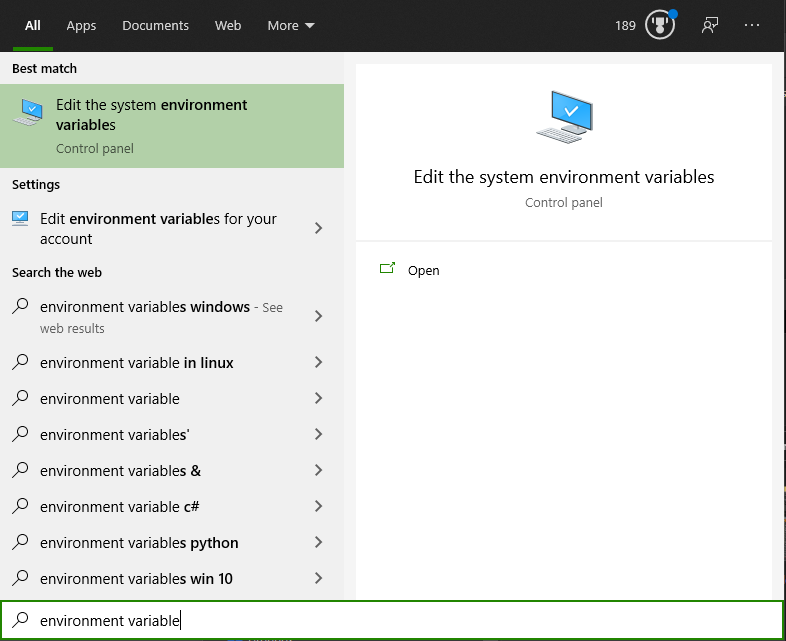
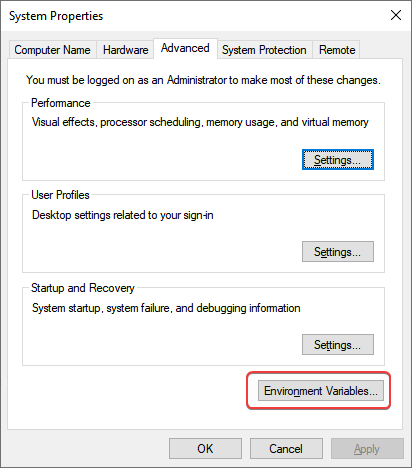
Then click on the "Environment Variables..." button in the System Properties window.
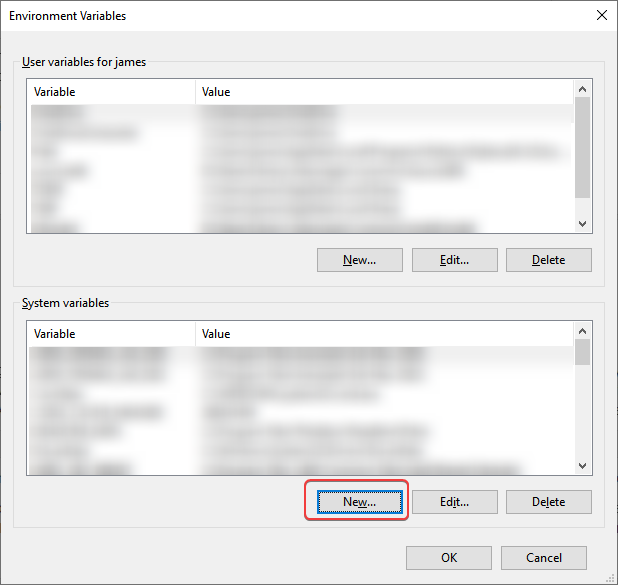
From there create a "New" system variable:
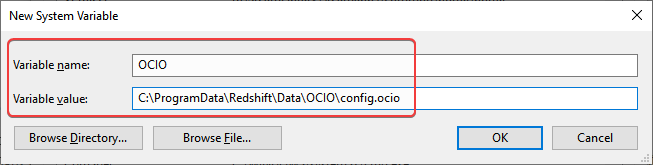
Use the following settings
- Variable name: OCIO
- Variable value: Copy the full file path to your OCIO config file here
- The example image below is set to use the custom OCIO config that ships with Redshift.
- C:\Program Files\Maxon Redshift 20XX\Data\OCIO\config.ocio
After the rendering color space is specified you must select a display transform that matches the display you are working on to properly preview the renders. If you are using an sRGB monitor then you would use the default sRGB display transform. In addition a view transform can be selected to tone map the render to your liking, by default Redshift uses the ACES 2.0 SDR-video view transform which has a nice neutral tone mapping.
If you would like to render using legacy color management setup use "Scene-Linear Rec.709-sRGB" as the Render Space and "Un-tone-mapped" as the View Transform.
Step 2: Convert Assets
|
|
|
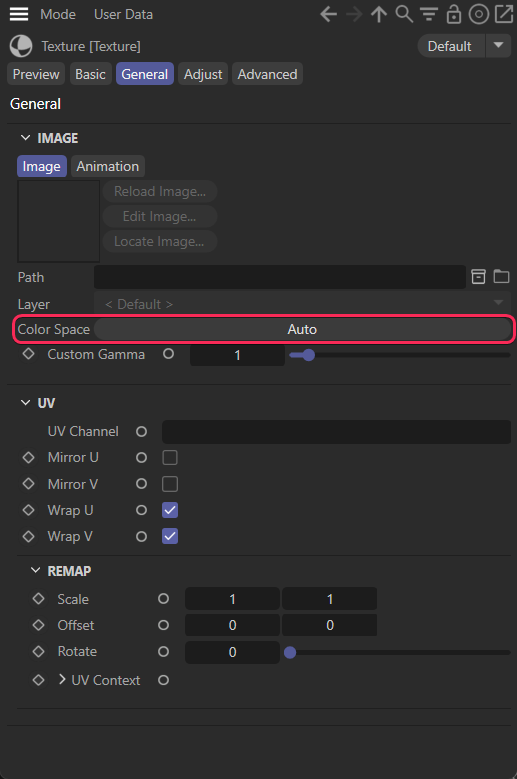
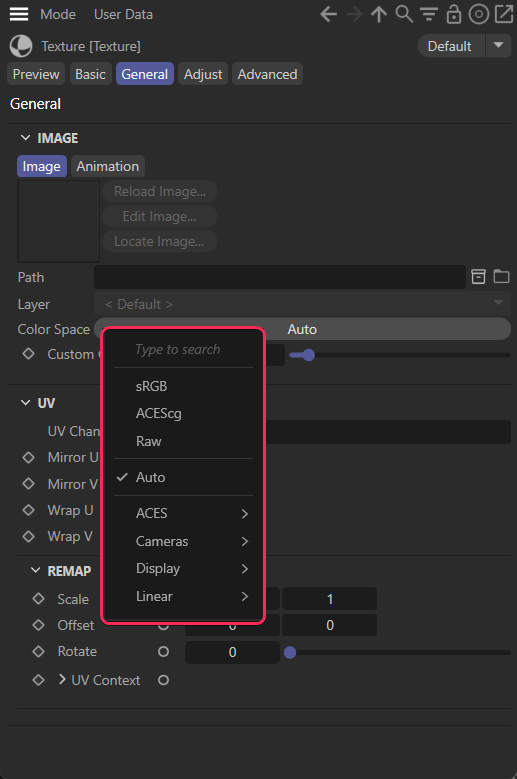
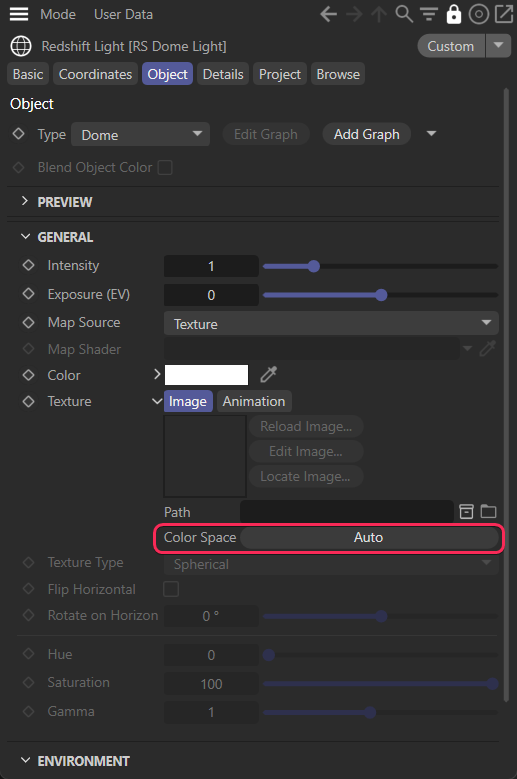
| Redshift Texture Color Space parameter | Redshift Texture Color Space menu expanded | Redshift Dome Light Color Space parameter |
In order for colors to display as expected all input textures and colors must be converted into the same linear rendering color space (ACEScg by default). This is accomplished by setting the color space for each asset using the drop-down menus highlighted in the pictures above. The color space specified here tells OCIO what color space to convert from when converting to the render space.
Color swatches like diffuse colors, ramp colors, and the Redshift physical sky are automatically converted into the rendering color space. File rules are used to automatically select the most likely color space for a texture based on its file name but there's a chance it could still get it wrong. Consider the following general tips if manually overriding the color space:
- If your asset is for color data
- Examples: diffuse / albedo color, specular / reflection color, dome light texture / backplate
- If you already know what the correct color space is set it to that
- If it's a JPG / PNG / BMP etc set it to sRGB
- If it's an EXR / HDR etc set it to scene-linear Rec.709-sRGB or other appropriate scene-linear color space
- If your asset is for non-color data
- Examples: normal, roughness, metalness, displacement etc.
- If you already know what the correct color space is set it to that
- Otherwise set it to Raw
|
|
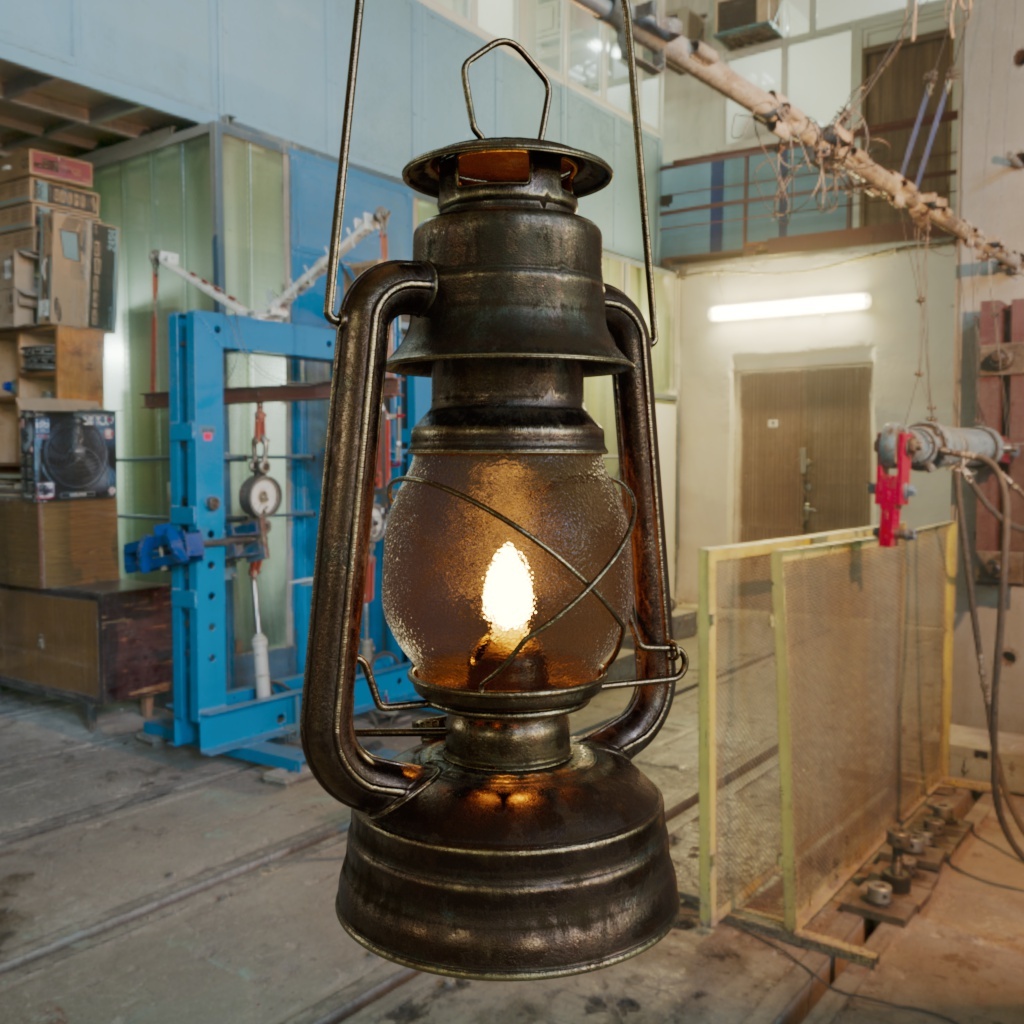
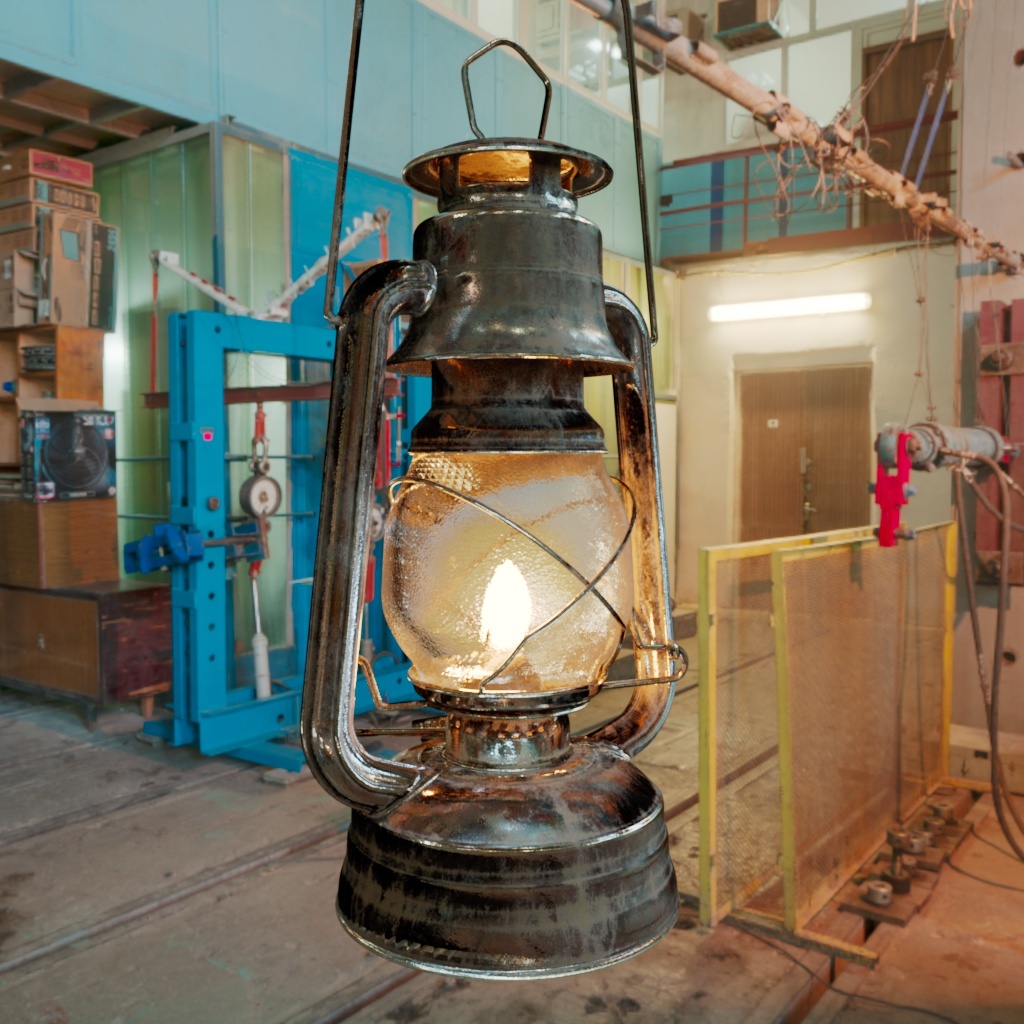
| Correct Color Spaces | Incorrect Color Spaces |
In the example images above the
only difference in scene setup is that the color spaces were set up correctly versus incorrectly. The diffuse color texture was set to raw instead of sRGB and all non-color textures were set to "
sRGB" instead of the correct color space "
Raw." Setting the color spaces correctly is required in order for renders to look right, in general incorrect color spaces for non-color textures negatively impacts the final result more so than incorrect color spaces for color textures. For example, the result of the normal map in the incorrect example looks fully broken, resulting in jagged unnatural reflections that fall far from achieving the correct result on the glass and in the bottom left of the lantern. Incorrect color spaces for color data like diffuse color and HDRI dome light backplate are more subjective, while still technically incorrect they don't visually break as drastically. For example, notice that the HDRI in the background becomes too saturated when incorrectly set to color space "
raw" instead of "
scene-linear Rec.709-sRGB," this is because it is being incorrectly transformed into the too wide gamut of ACES2065 vs the proper sRGB gamut that the HDRI was originally captured in.
You can download the model, textures and HDRI with the links below to easily recreate the demo scene pictured above. Model and texture credit to Rajil Jose Macatangay at PolyHaven.com
HDRI credit to Oliksiy Yakovlyev at PolyHaven.com
Step 3: Rendering with ACES
When rendering straight to a LDR (low dynamic range) file format like JPG or PNG make sure to bake in the view transform for proper results. This clamps highlights to a value of 1.0 and limits how far you can push edits in post.
If instead you will continue your project into compositing save out an unclamped linear EXR (openEXR) and do not bake in the view transform. This allows you to fully utilize the strengths of the ACES workflow by compositing your ACES Redshift renders.
To render out unclamped linear 16 bit OpenEXRs in Cinema 4D there are a couple of key details to keep in mind depending on your method of rendering.
"Regular Image" Rendering
Set the file format to OpenEXR, enable "Use 16 Bit Floats" in the options foldout, and make sure "Bake View Transform" is disabled.
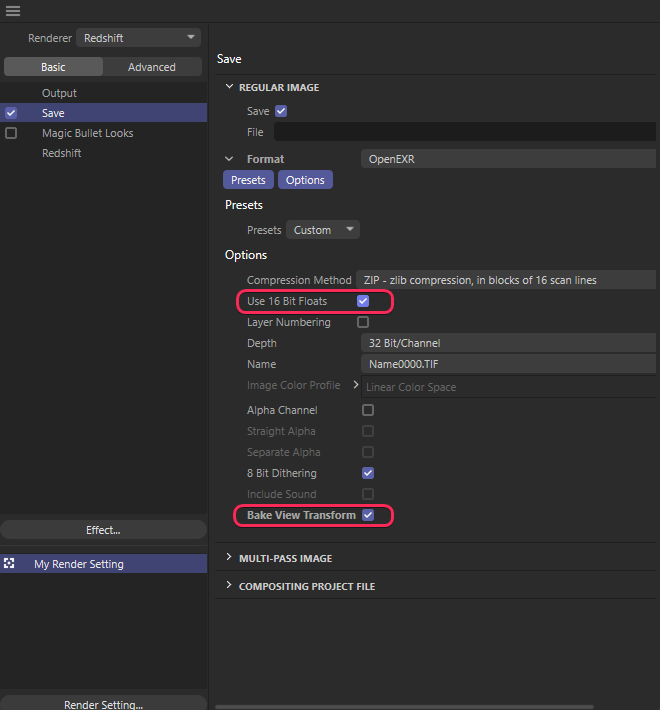
|
Multi-Pass Output Rendering
If rendering out with "Multi-Pass Image" use the same settings for "Regular Image" rendering above and you must also enable "32 bits" for the Bits Per Channel option in the AOV's Multi-Pass section even if the output EXR is set to only 16 Bit/Channel depth.
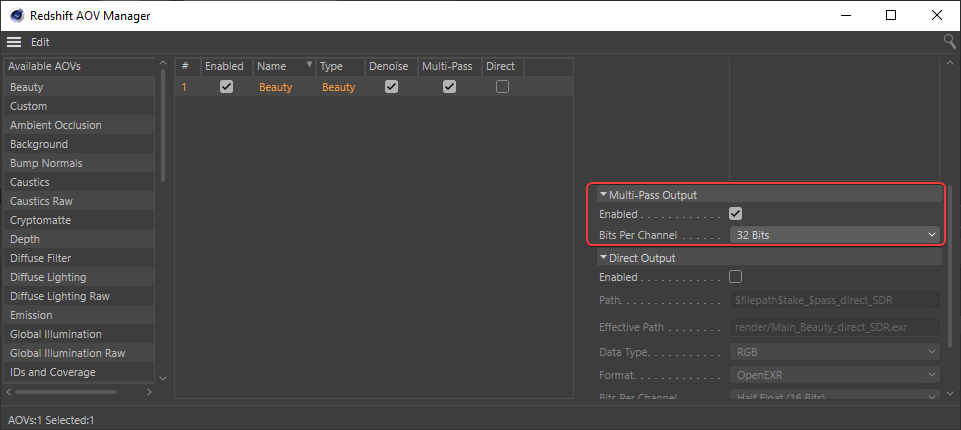
|
| Multi-Pass Output 32 Bits Per Channel required for unclamped Multi-Pass Output |
Direct Output Rendering
If rendering out EXR's via "Direct Output" the resulting files will correctly render out unclamped even if a tone mapping View transform is enabled, making it a safer export method less prone to human error and accidentally ending up with clamped EXRs.
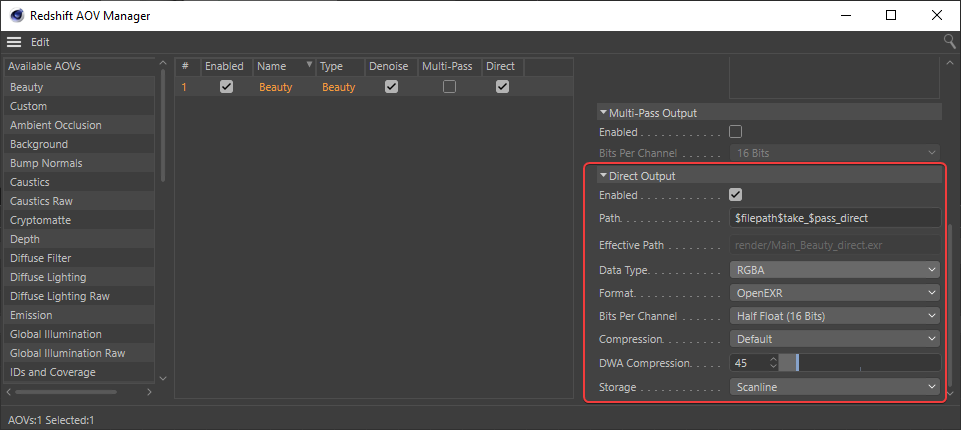
|
| Example settings for unclamped 16 bit Direct Output |
Unclamped vs Clamped Output
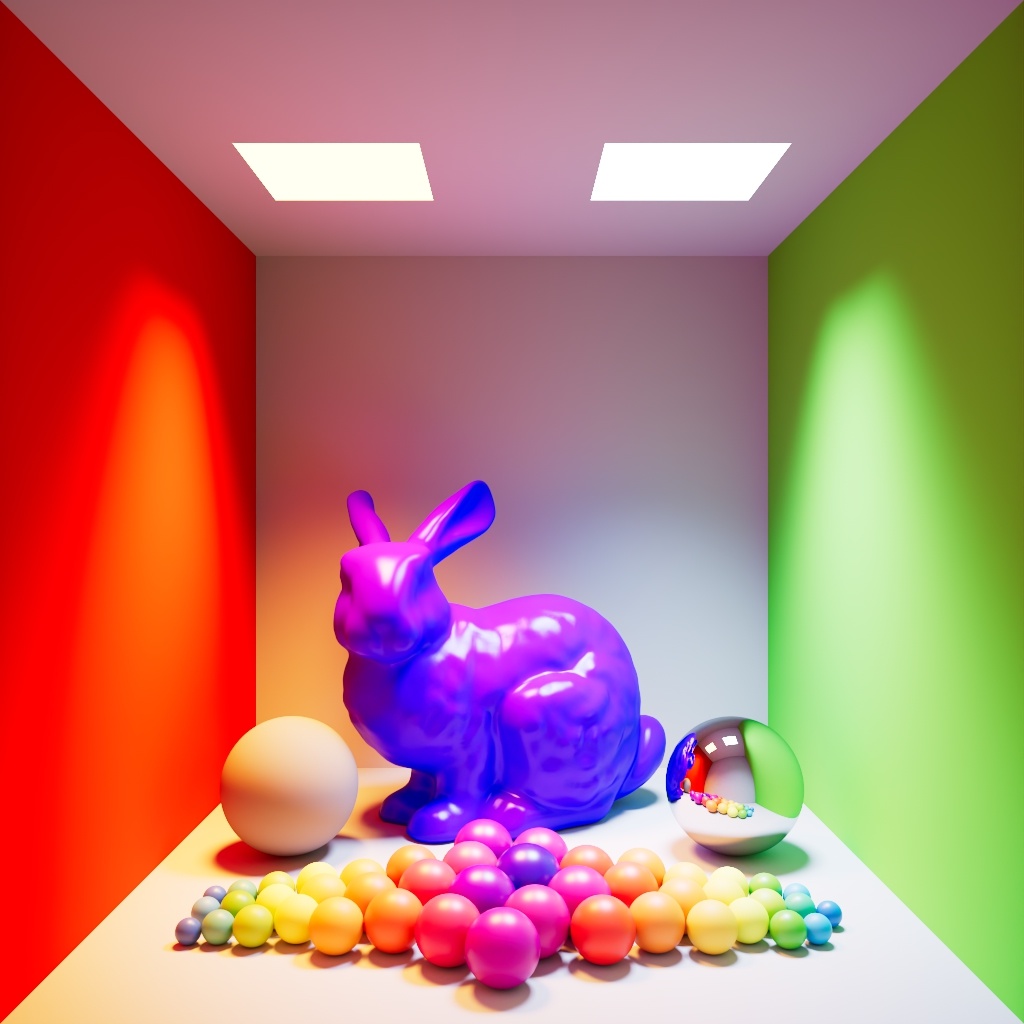
|
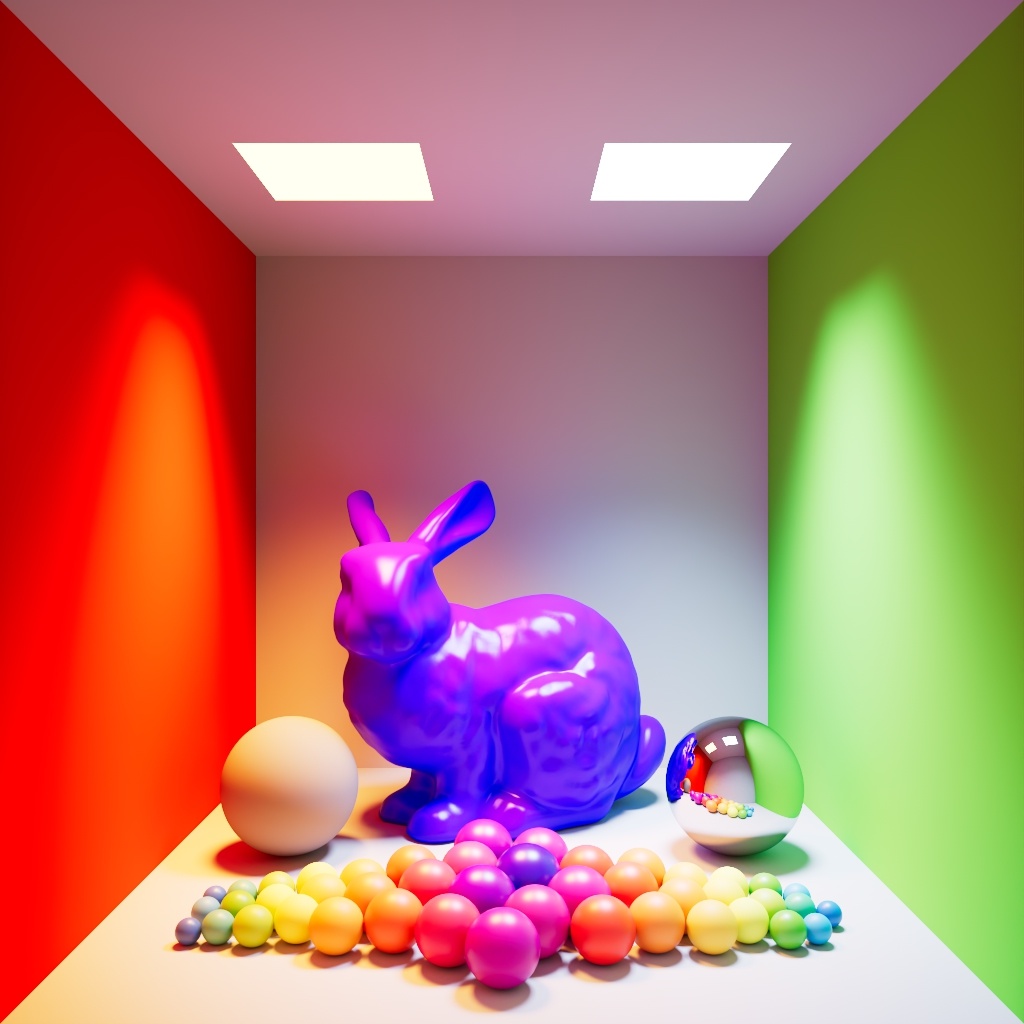
|
| Linear ACEScg OpenEXR with ACES 1.0 SDR view transform - unclamped & unedited | Non-Linear sRGB JPG with Baked in ACES SDR View - clamped & unedited |
At first without any editing both images look identical, as they should, but once you start editing the image the limitations of the clamped SDR JPG becomes readily apparent.
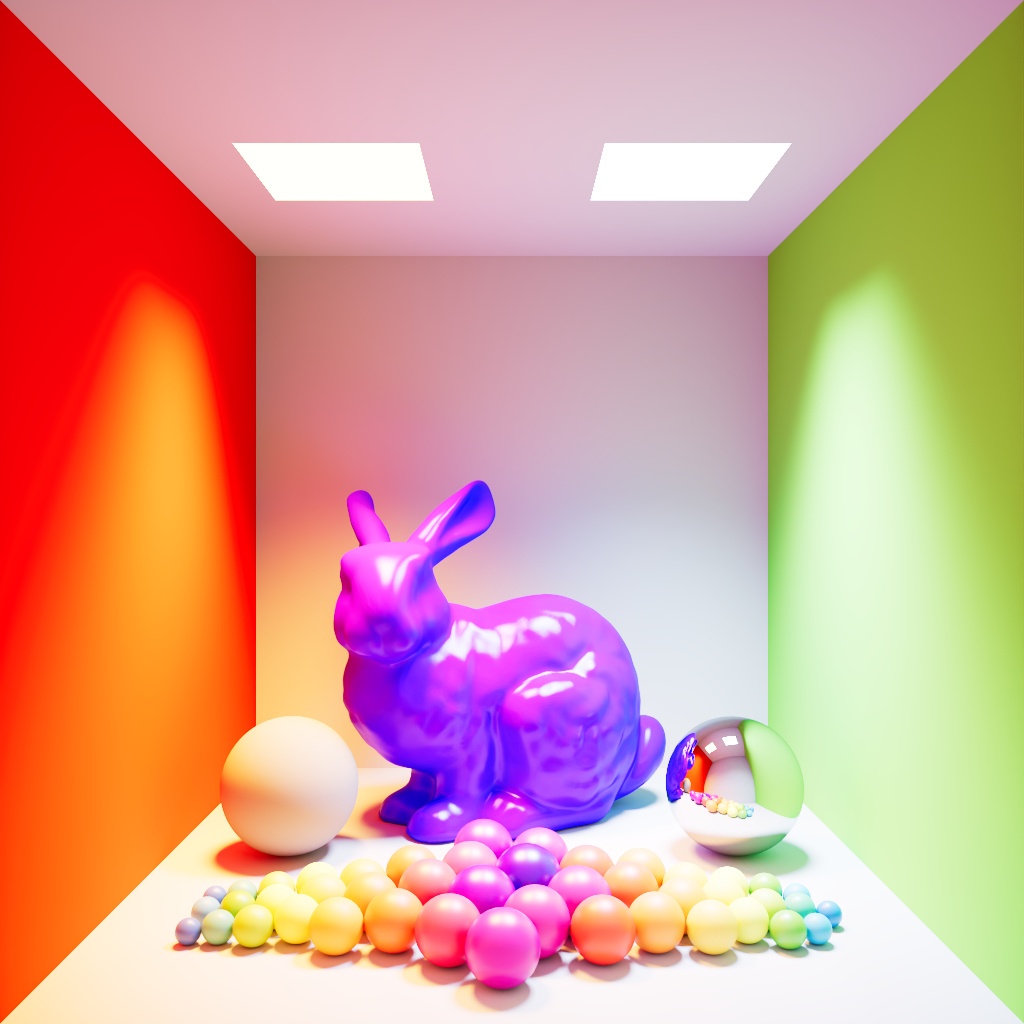
|
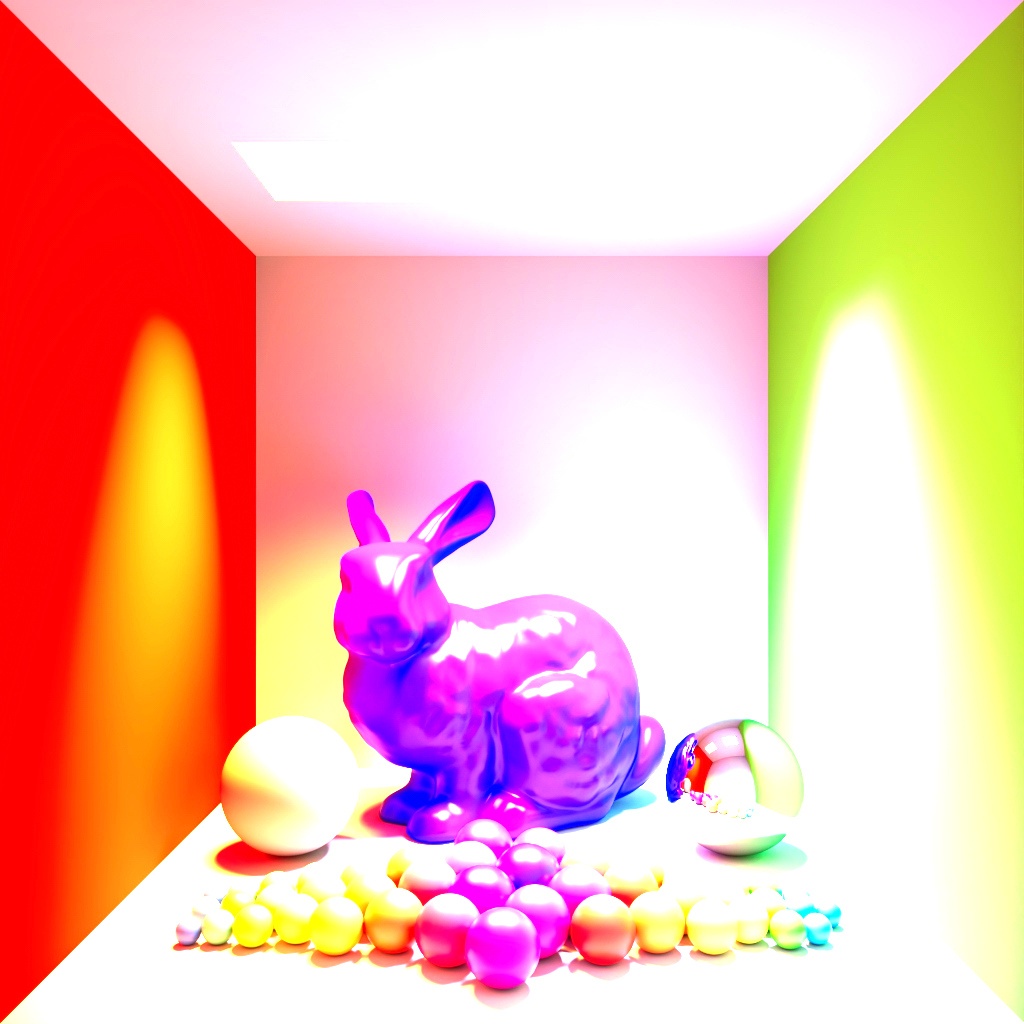
|
| ACEScg OpenEXR with ACES 1.0 SDR view transform - unclamped & Gain +2 | sRGB JPG with Baked in ACES SDR View - clamped & Gain +2 |
By increasing the gain the clamped JPG with the baked in view transform severely clips throughout the image while the unclamped image handles the over exposure very well as it is still benefiting from the flexibility and increased range of the linear EXR within the ACES workflow. This lack of range is exacerbated even worse if we take this image and go down with the gain adjustment.
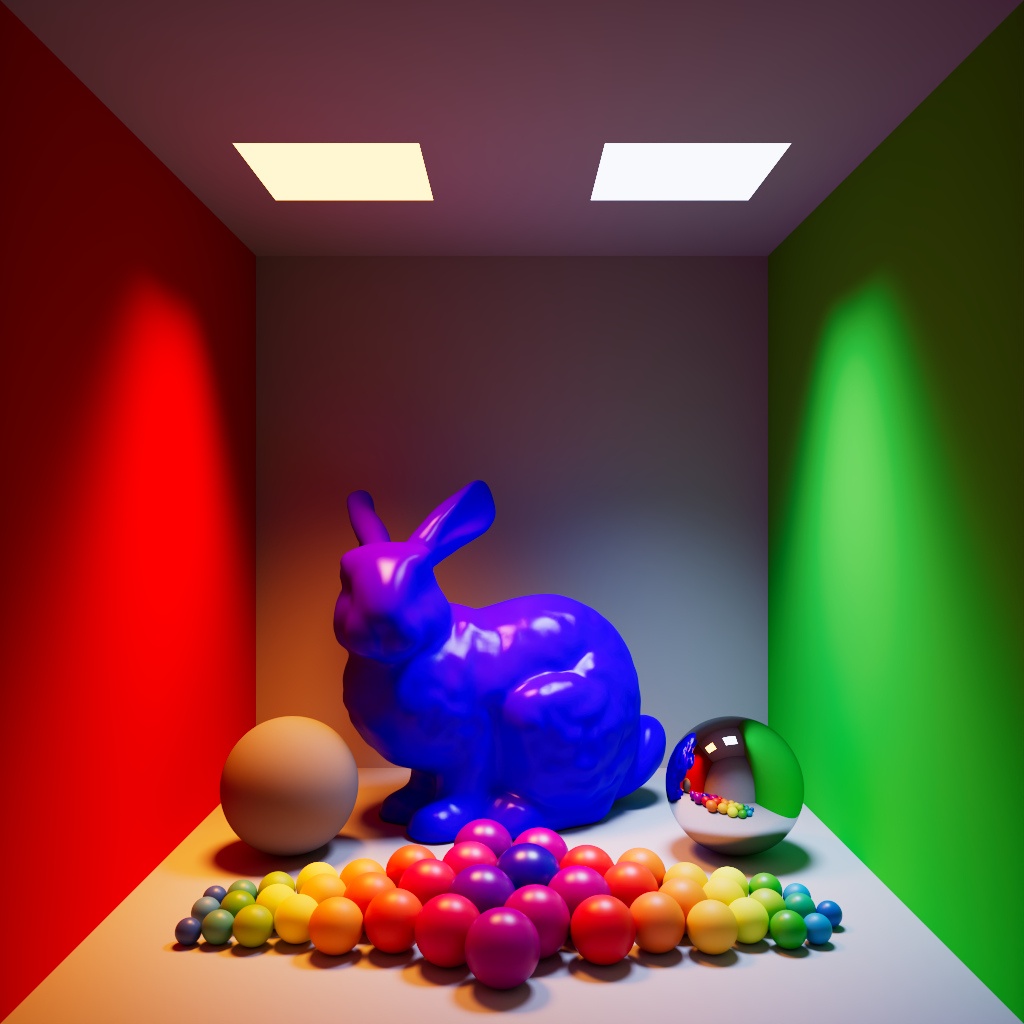
|
|
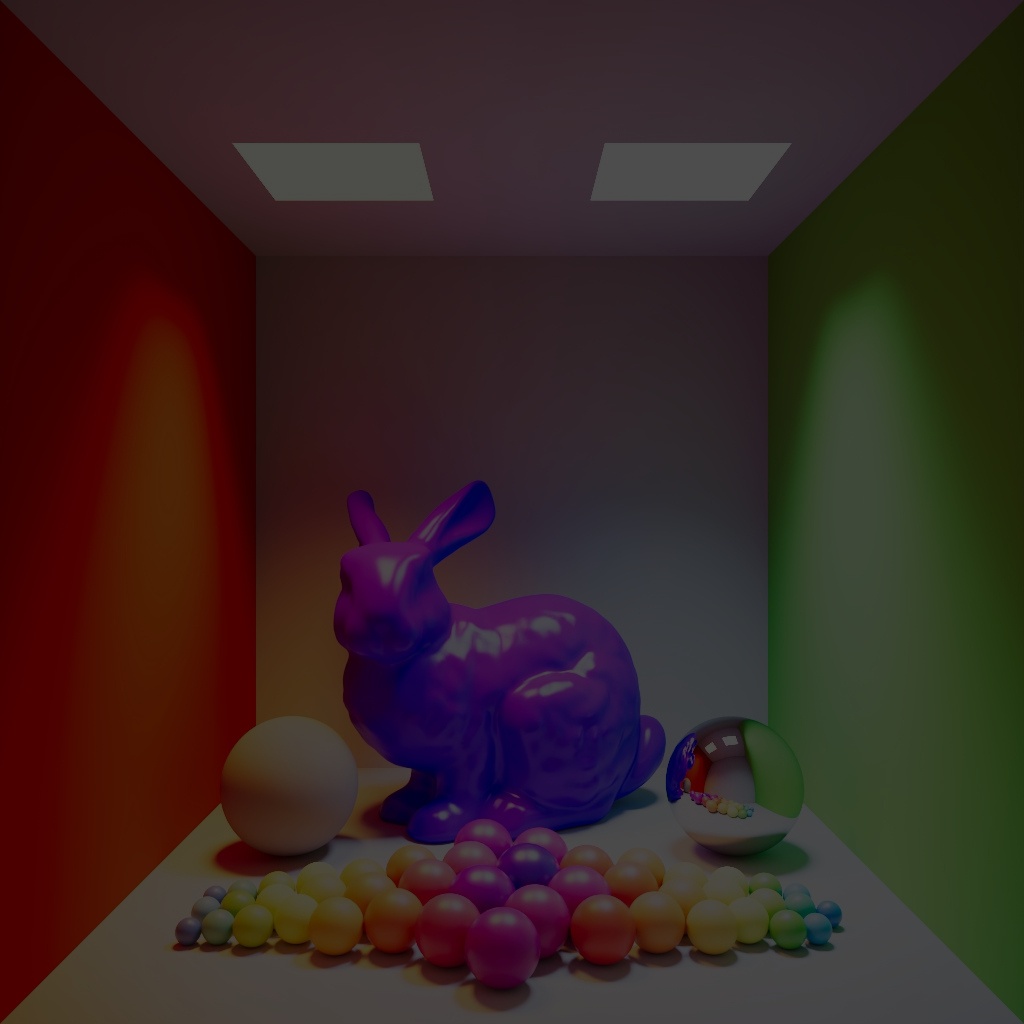
| ACEScg OpenEXR with ACES 1.0 SDR view transform - unclamped & Gain 0.3 | sRGB JPG with Baked in ACES SDR View - clamped & Gain 0.3 |
When we reduce the gain from the default 1.0 to 0.3 the difference is stark, since the JPG version already had all of its highlights clipped to 1 everything is forced to reduce in brightness in a very uniform way. This is despite the fact that in the actual scene the Redshift lights are much brighter than the walls that they are casting on, so the clamped image looks more like you are adjusting the opacity of a black solid layer on top of the image rather than adjusting the brightness of the scene itself as in the results of the unclamped EXR example. The raw value of the visible lights in the unclamped linear EXR go as high as 30 (compared to the clamped JPG's 1) so when the gain is reduced the picture darkens in a more predictable and realistic manner due to this much higher dynamic range.
Color Management Parameters
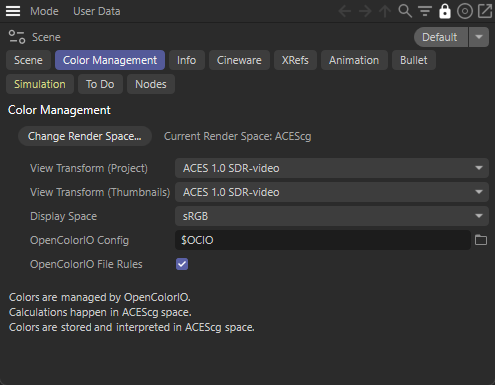
|
OpenColorIO Configuration
This sets the path to the OpenColorIO config file. By default Redshift ships with and uses its own predefined configuration but a custom OCIO config be set here as well.
Render Color Space
This is the linear color space that Redshift renders in, ACEScg by default which allows Redshift to make full use of its wider rendering color gamut.
Display Space
This is the Display Transform that should be set to a color space that is supported by the display that you are working on, for most people this will be sRGB.
View Transform
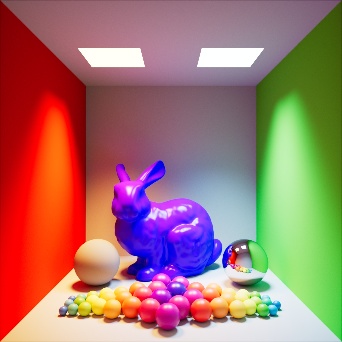
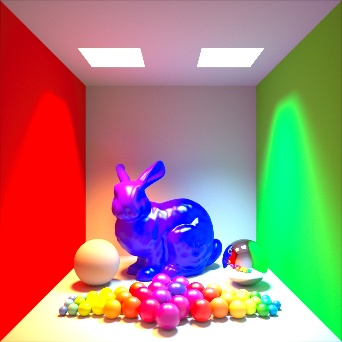
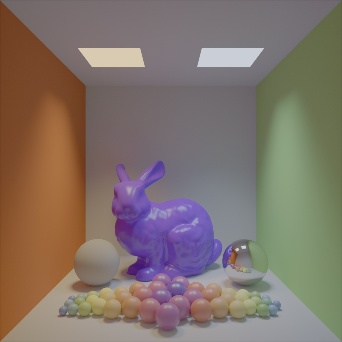
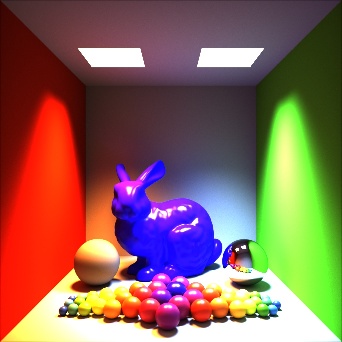
This determines how the image is displayed on screen and works in conjunction with the Display transform. By default this can be set to an ACES SDR tone-mapped result, un-tone-mapped, a logarithmic color space (ACEScct) or the raw linear result which is unaffected by the Display transform.
|
|
|
|
| View: ACES 1.0 SDR-Video | Un-tone-mapped | Log | Raw |
Use OpenColorIO File Rules
When enabled this will use any file rules established within the currently used OCIO config file. OCIO file rules are used to automatically set the correct color space for assets that fall within established parameters.
Examples:
- If a file is a jpg / png and has the words "albedo" or "diffuse" in the file name use the sRGB color space
- If a file is a jpg / png and has the words "roughness" or "normal" in the file name then use the Raw color space.