
System - Live
Overview
Asynchronous Asset Streaming
Enabled
When enabled, Redshift Live will present your scene in a temporary state without waiting for all shaders and textures to finish processing, this allows you to get visual feedback more quickly at the expense of visual accuracy. The scene will update automatically as each remaining shader and texture finishes processing in the background until the entire scene is fully processed and up to date. During this time, you can still navigate through and interact with your scene.
Asynchronous Asset Streaming accomplished this in two ways, by temporarily using a clay shader for any material that has yet to be compiled and by temporarily using a low resolution dummy texture until the high resolution texture is compressed and displayed.
When disabled, Redshift Live will wait until all shaders and textures are processed before updating the render view.
Log and Feedback
When rendering Redshift will print out a multitude of useful messages in your 3d app's script/console window. In order to avoid clutter, Redshift's default behavior is to only print out a subset of all the messages it generates.
If you want to view all the messages in the script window, the user can set Redshift's verbosity level to "Debug". This option can be found in the System tab.
Apart from the 3d app's script/console window, Redshift stores all messages in log files.
Verbosity
Controls how much detail is show in the 3d app's script/console window that pertains to Redshift rendering from the following options:
- Errors and Warnings (default) - Only show errors and warnings in the 3d app's script/console window, the most critical things for quickly being notified about problems with the scene.
- Detailed Info - Show more detailed information in the 3d app's script/console window.
- Debug - Show all messages, the most detailed information, in the 3d app's script/console window.
Diagnostic Messages
When enabled, it prints even more detailed information to the Redshift log. This is useful for debugging a problematic scene and sharing the results with Redshift developers on the forums as outlined in the Bug Reporting thread.
Log IPR Messages
When enabled, messages are printed to the Redshift Log file during Interactive IPR Rendering. This is enabled by default.
When disabled, nothing is printed to the Redshift Log file during interactive IPR rendering.
Scene/Geometry Issues
When enabled, it alerts the user via the log file to invalid geometry and other issues found in the scene so the issues can be fixed.
Only valid geometry is rendered.
Abort on License Failure
When enabled, it aborts rendering when Redshift licensing fails.
Abort on Missing Resources
When enabled, it aborts rendering when the scene is missing resources like textures and other external references.
Display Behavior
Controls when the Redshift Feedback Display is automatically popped open on screen from the following options:
- Always - Always show the Feedback Display with each render.
- Errors and Warnings (default) - Only show the Feedback Display when errors and / or warnings are found.
- Errors Only - Only show the Feedback Display when errors are found.
- Never - Never automatically pop up the Feedback Display.
Show Feedback Display
A button to open the Redshift Feedback Display
Shader Baking
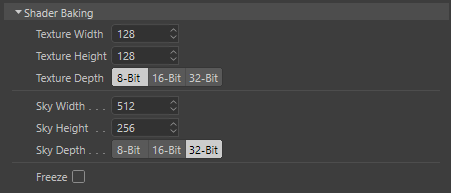
|
| Cinema 4D Shader Baking |
Cinema 4D shaders are supported in Redshift by baking the shaders down to textures that are controlled by the parameters covered in this section.
Maxon Noise Shader
If you are looking to use a Cinema 4D noise shader please use Redshift's Maxon Noise shader which is natively supported by Redshift and does not require shader baking.
Texture Width
Specifies the resolution for the width of the baked textures.
Higher values result in higher resolution textures while lower values result in lower resolution textures.
Texture Height
Specifies the resolution for the height of the baked textures.
Higher values result in higher resolution textures while lower values result in lower resolution textures.
Texture Depth
Specifies the bit depth for the baked textures from the following options:
- 8-Bit (default) - Generally good enough for textures used for color.
- 16-Bit - Better for textures that may reveal banding with 8-Bit textures like bump and displacement maps.
- 32-Bit - Best for textures that may reveal banding issues like bump and displacement maps.
Sky Width
Specifies the resolution for the width of the baked texture used for the Cinema 4D Physical Sky.
Higher values result in higher resolution C4D sky textures while lower values result in lower resolution sky textures.
Sky Height
Specifies the resolution for the height of the baked texture used for the Cinema 4D Physical Sky.
Higher values result in higher resolution C4D sky textures while lower values result in lower resolution sky textures.
Sky Depth
Specifies the bit depth for the baked textures used for the Cinema 4D Physical Sky from the following options:
- 8-Bit
- 16-Bit
- 32-Bit (default)
Generally this should be left at the default 32-bit as it provides the highest quality and most realistic portrayal of the high dynamic ranges frequently found in pictures of the sky.
Freeze
When enabled, it stops Redshift from updating shader baking for Cinema 4D shaders.
Units
Mode
Controls how physical units are handled by Redshift from the following options:
Project Settings
Redshift is fully unit aware, using the same parameters defined by Cinema 4D's Project Scale found in the Scene Settings. Lights that use physical units and shading effects based on physical phenomena like subsurface scattering behave realistically and are managed automatically. Redshift manages proxy export and import based on scene units, so you can transfer an asset built in Houdini in meters to Cinema 4D in centimeters without hassle. This is the default and recommended setting for best results and ease of use.
Cinema 4D's Project Scale defines how the numerical values stored in the scene are interpreted, effectively changing the scale of the scene and the intensity of the lights. However, please note, some parameters scale while others do not when changing the Project Scale.
- What doesn't scale:
- Parameters with fixed units that define physical phenomena like Transmission Depth
- Lights that use physical Units like Lumens or Watts
- A parameter driven by a Unit Conversion node in "Fixed" mode
- What scales:
- Lights that use the Unit type "Image"
- Parameters that use scene units for driving artistic effects like an Ambient Occlusion's Max Distance
- A parameter driven by a Unit Conversion node in "Scene Units" mode
The Unit Conversion node and shading parameters defined by a unit function best when the "Project Settings" mode is used.
Custom
Redshift uses a legacy form of scene unit management. Requiring more manual intervention when converting to scenes of different scales and managing parameters like Photometric Units to Meter Scale and cd/m^2 Factor.
Disabled
Redshift uses the oldest form of scene unit management. Unit settings are ignored and changes to Cinema 4D's Project Scale have no impact on rendering.
Image Units Scale
Only available when the Units Mode is set to "Project Settings."
Scales the intensity of lights that use the "Image" unit type. The "Image" unit is used to represent lights in an artistic way, not strictly based on a physically accurate light unit, because of this the intensity can be scaled here. The default values are chosen for the most familiar results in each DCC.
Export Units
Only available when the Units Mode is set to "Custom"
The export units options allows you to adjust the effective scale of your scene based off of the current Project Scale setting as defined in Cinema 4D's Project Settings.
Photometric Units to Meter Scale
Only available when the Units Mode is set to "Custom" or "Disabled." When the "Project Settings" mode is selected, light intensity is handled automatically in a physically correct way.
Certain features of Redshift such as photographic exposure, physical sun/sky and IES light support require knowledge of the "units to meter" and "candela to square meter" settings. It's important to set these values correctly, otherwise lighting coming from physical light sources might appear too dim or too bright.
If you're working with centimeters (i.e. 1 world unit is 1 centimeter), the units to meter scale should be set to 100. That's because, in this case, 100 world units means 100cm, which means 1 meter. If you're working with meters, then it should be set to 1, because 1 world unit means 1 meter.
cd/m^2 Factor
Only available when the Units Mode is set to "Custom" or "Disabled." When the "Project Settings" mode is selected, light intensity is handled automatically in a physically correct way.
Photographic exposure, IES lights and the physical sky/sun use the cd/m^2 (candela to square meter) setting. Please make sure to attach a photographic exposure lens shader when using IES lights and physical sun/sky, otherwise your lighting will appear too bright or too dim.
Legacy
The legacy options in this section are mostly provided for backwards compatibility or in some cases unique global options that are generally no longer recommended as best practice. The legacy options allow you to more closely match the rendered results of older versions of Redshift while using a newer version of Redshift.
For example, you might want to take advantage of new Redshift features and enhancements but you still need to match the look of a scene that was created using the old Black-Body and Dispersion Technique. Instead of being forced to use a version of Redshift prior to version 3.0.50 you could use the latest version of Redshift but with the legacy option "Black-Body and Dispersion Technique" enabled.
Lens Effect Camera
This option allows you to provide a single Redshift Camera tag and use its settings for all cameras in the scene.
This is provided as a backwards compatibility option to match the look of older scenes that made use of this feature.
Instance Optimizations
When enabled - by default, it forces Redshift to use an improved instancing algorithm that cuts down on scene traversal time.
This option should only be disabled if you suspect you have encountered a bug regarding Redshift rendering instances in C4D.
Non-Inverse-Square Light Decay
Introduced in Redshift version 2.5.55
When enabled - by default, it forces Redshift to employ a hack exclusively for lights that have linear or no decay ( non-physically correct decay) in order to make this kind of decay look ‘nicer’ when the surface that is being lit is very close to the light source, but it is not actually correct.
When this hack is disabled, the fall-off can get darker when the distance from the light is less than 1 unit, which is actually mathematically correct.
Standard Material Conversion
This setting controls how Redshift interprets Cinema 4D Standard Materials.
- Native (default) - The latest and most advanced support for C4D Standard Materials.
- Architectural (legacy) - Uses the deprecated Redshift Architectural shader as the base for C4D Standard Material conversion.
- Material (legacy) - Uses an older version of C4D Standard Material conversion with the Redshift Material as the base.
Standard Sky Conversion
When enabled, it forces Redshift to use an outdated technique for converting a Cinema 4D Sky object and treating it as a Redshift Dome light.
When disabled, Redshift uses the latest technique for converting a Cinema 4D Sky object and treats it as a Redshift Environment shader.
Standard Ambient Occlusion Emulation
When enabled, it forces Redshift to emulate the ambient occlusion effect of a C4D Standard Material.
Time Behavior
Introduced in Redshift version 3.5.15
When enabled, Redshift uses an old version of time management.
When disabled - by default, Redshift uses a new version of time management that enables new features like the looping functionality in a Maxon Noise shader.
Automatic Displacement
Introduced in Redshift version 3.6.04
When enabled - by default, a material that uses a Displacement shader is displaced automatically. Note, you still need enough geometric detail to properly support displacement via subdivisions or tessellation.
When disabled, Displacement must be set up manually with an Object tag.
Manually configured displacement settings via a Redshift Object tag take priority over Automatic Displacement, this ensures compatibility with previously created scenes.
Vector displacement maps still require manually setting the Maximum Displacement. Height field maps support automatic maximum displacement with both single displacement shaders and displacement blenders.
GI Conserve Reflection Energy for Photon Caustics
Introduced in Redshift version 2025.0
Conserve Reflection Energy (CRE) is a Global Illumination feature that approximates the look of caustics by simulating very soft bounces of light. While the CRE effect looks nice without caustics, when rendering with caustics the effect is redundant and decreases the contrast provided by actual caustics.
When enabled and rendering with Photon Caustics, Conserve Reflection Energy is enabled resulting in a less accurate render by simulating fake caustics and real caustics at the same time.
When disabled and rendering with Photon Caustics, Conserve Reflection Energy is disabled resulting in a more accurate render where only real caustics are used.

|

|
| GI CRE for Photon Caustics: Enabled Old behavior |
Disabled New behavior |
Area Light Visibility
Introduced in Redshift version 2025.3
When disabled, by default, area and dome lights are less dependent on their camera visibility offering more control over scene lighting. For example, a light can be invisible to camera rays (Camera contribution 0) and still visible in transmissive refractions.
When enabled, lights revert to their visibility behavior in 2025.2 and older. When a light is invisible to camera rays it is also invisible to transmissive rays.
Material Processing Mode
Introduced in Redshift version 3.5.08
-
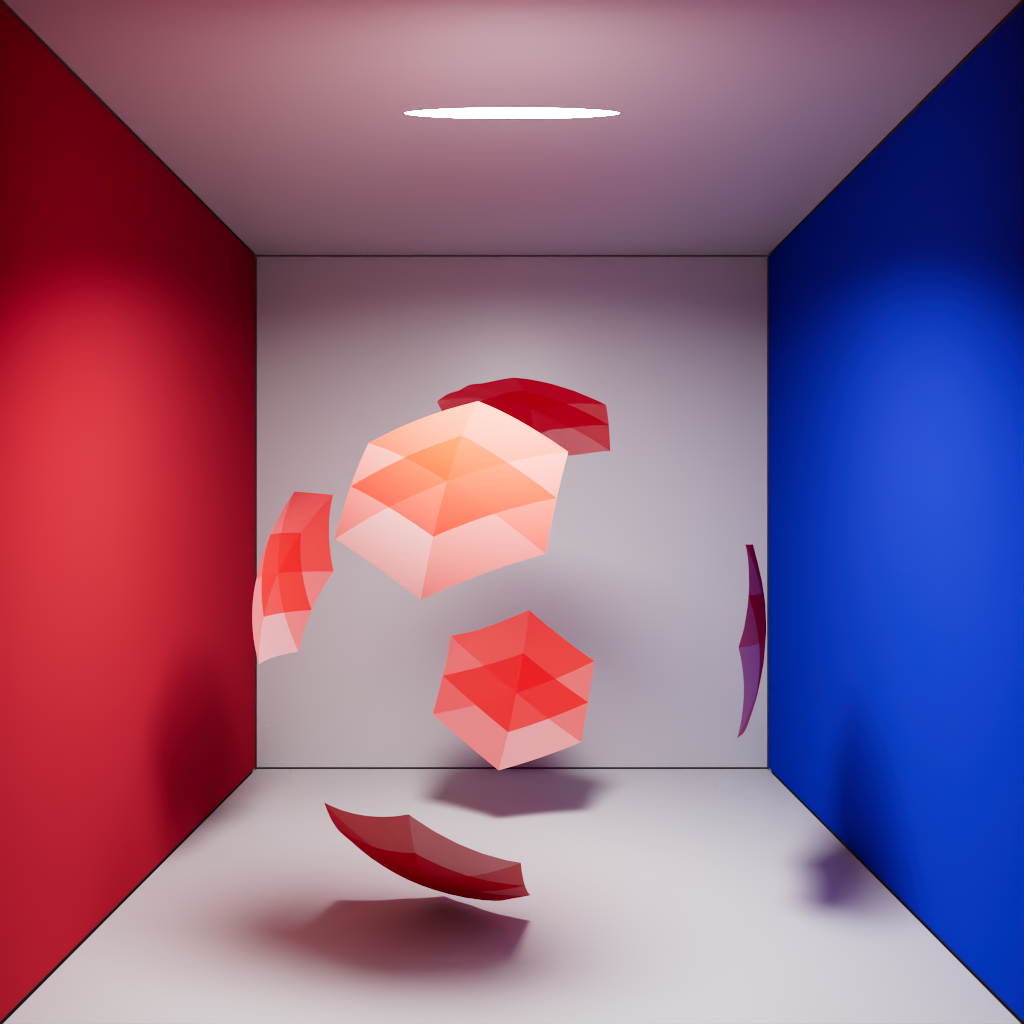
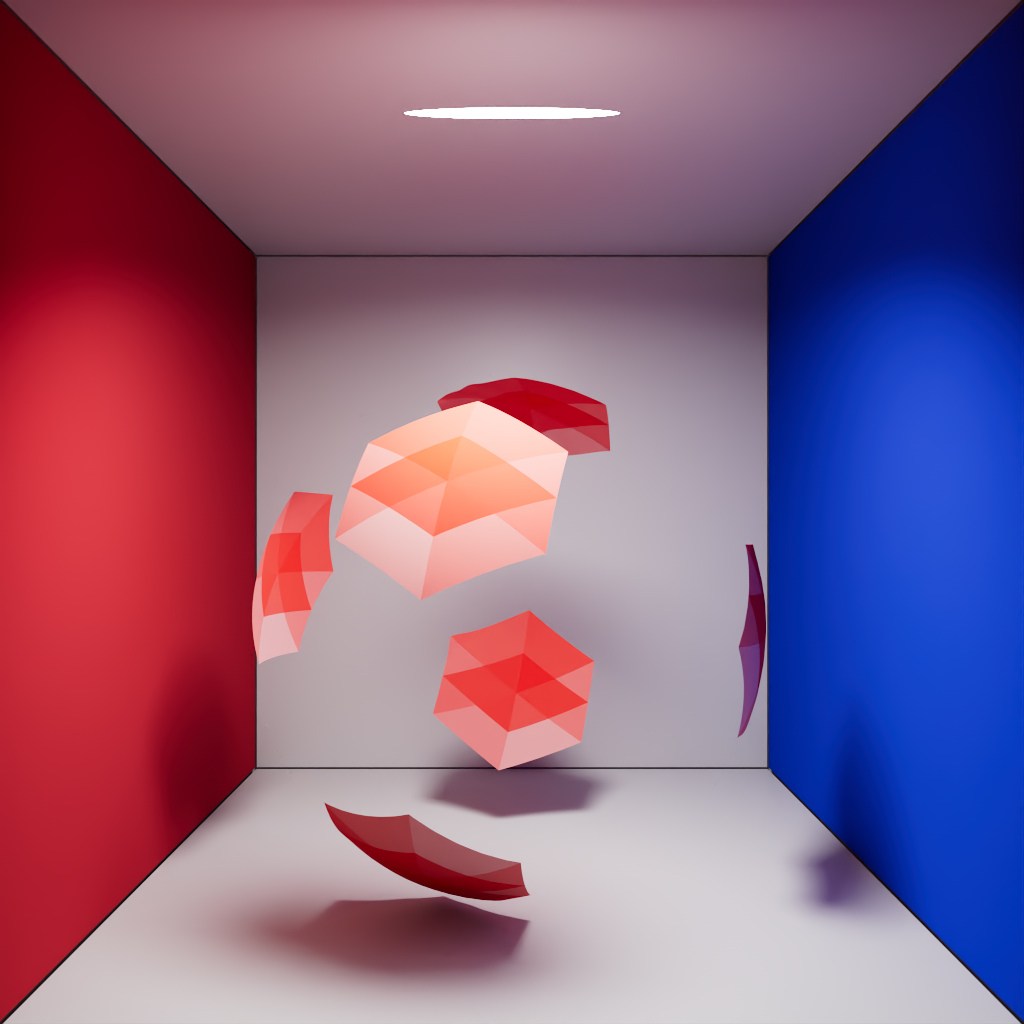
Single (Legacy) - Disables material stacking, only the top most material will render regardless of opacity.
-
Stacked - Enables material stacking, materials below the top most material can be seen underneath if the materials on top use opacity or transmission.

|
|
|
Material: Bottom |
Top |
|

|
|
Material Processing: Single (Legacy) |
Stacked |
Volume Voxel Offset
Introduced in Redshift version 2026.7
When disabled, by default, this fixes a volume rendering bug that shifted the voxel position out of alignment.
When enabled, the legacy look is preserved.
Cloud Hex Tiling
Introduced in Redshift version 2026.9
When disabled, by default, Hex Tiling for Clouds works properly in Redshift Live and Production.
When enabled, Hex Tiling for Clouds does not work in Redshift Live and legacy scenes are preserved for Redshift Production.
Memory
Texture Streaming VRAM Budget
The percentage of VRAM that can be allocated for texture streaming.