
Globals - Live
Parallax Mapping
When enabled, depth is simulated for materials using displacement mapping without the need to generate additional polygons or subdivisions. The effect is similar to classic bump or normal mapping, but can appear even more realistic by simulating cast shadows.
This enables convincing effects like deep grooves between tiles or blades of grass on a lawn to be rendered in real time on otherwise flat geometry. Parallax Mapping heavily depends on the viewing angle, since no geometry is actually displaced the silhouette of an object remains unchanged but inner surface detail can benefit greatly.
Combined Depth
Depth parameters control how many times a ray of its individual type can interact with objects in a scene until it is terminated.
The Combined Depth parameter specifies the maximum number of times any individual ray can be used for global illumination, reflection, or transmission / refraction. Even if the depth values for an individual ray type is higher than the Combined Depth the resulting render will still be capped at the Combined Depth value.
Separating the controls like this provides more flexibility, allowing individual effects to be rendered with increased depth when needed but restricting unnecessarily high render times. For example, let's say that reflection and refraction are both set to a value of 4 and combined is set to 6. If a ray had already been reflected 4 times, then it could only be refracted 2 more times because the combined trace depth is 6.
Increasing Depth values can quickly and greatly increase render times in scenes with many bounces. In general it is best practice to the lowest depth values that still allow for the desired render, higher depth values provide more realism at the expense of render times.
Reflection Depth
The Reflection Depth parameter sets an individual cap on how many times a reflection ray can bounce.
Refraction Depth
The Refraction Depth parameter sets an individual cap on how many times a refraction ray can bounce or pass through objects.
Probes (Experimental)
When enabled, this option uses an experimental estimate of where the lighting relevant to the scene comes from. In some cases, this allows for more precise lighting with fewer passes. If in doubt, simply try it out and see whether you prefer the result with or without this option.
Color Management
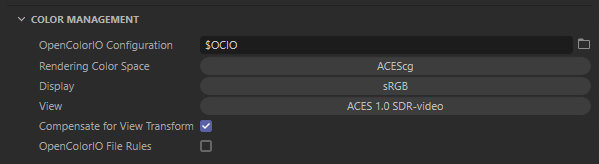
By default, Redshift uses the Cinema 4D's Project Settings Color management. The options below are only visible when using legacy Color Management.
|
Color Management in greater detail
For more information on the subject of color management please see the Color Management - OCIO ACES page.
OpenColorIO Configuration
This sets the path to the OpenColorIO config file to be used.
By default Redshift ships with and uses its own predefined configuration but a custom OCIO config be set here as well.
Rendering Color Space
This sets the linear color space that Redshift renders in, ACEScg by default which allows Redshift to make full use of its wider rendering color gamut.
Display
This is the Output Display Transform that should be set to a color space that is supported by the display that you are working on, for most people this will be sRGB.
View
This determines how the image is displayed on screen and works in conjunction with the Display transform. By default this can be set to 4 different views, an ACES SDR tone-mapped result, un-tone-mapped, a logarithmic color space (ACEScct) or the raw linear result which is unaffected by the Display transform.
|
|
|
|
|
| View: ACES 1.0 SDR-Video | Un-tone-mapped | Log | Raw |

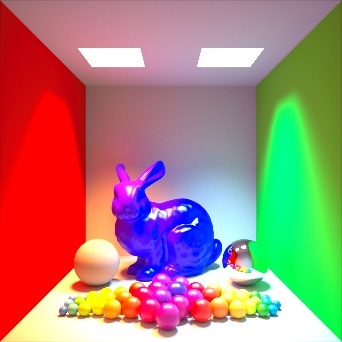
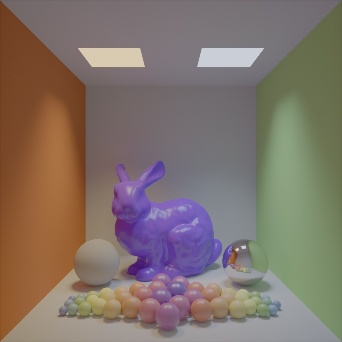

Compensate for View Transform
When enabled this setting will bake in the view transform.
Use OpenColorIO File Rules
When enabled this will use any file rules established within the currently used OCIO config file. OCIO file rules are used to automatically set the correct color space for assets that fall within established parameters.
Examples:
- If a file is a jpg / png and has the words "albedo" or "diffuse" in the file name use the sRGB color space
- If a file is a jpg / png and has the words "roughness" or "normal" in the file name then use the Raw color space.
Options
Default Light
Enables or disables the rendering of any default lights in the respective digital content creation tool.
If your render appears brighter or differently lit than you expect this is a good option to check and disable.
Global Light Intensity
Scales the light intensity of all lights (except the Sun & Sky) in the scene up or down.
Bokeh Method
Controls how Redshift Live computes the bokeh depth of field camera effect when it is in use.
- Raytraced: (default) Slower to resolve but much higher quality.
When Static Frame Denoising is enabled, the renderer uses a mix of Post Effect blur and Raytraced depth of field during interaction to reduce noise. After movement stops it automatically switches over to fully raytraced depth of field.
When Denoising is completely disabled, the raw raytraced result is always shown.
- Post Effect: Faster to resolve but lower quality. No support for bladed aperture shapes and artifacts are likely to appear with heavy depth of field.
For best results, it is recommended to use Static Frame Denoising or the OIDN denoiser when using Raytraced Bokeh.