
Using Scene Light
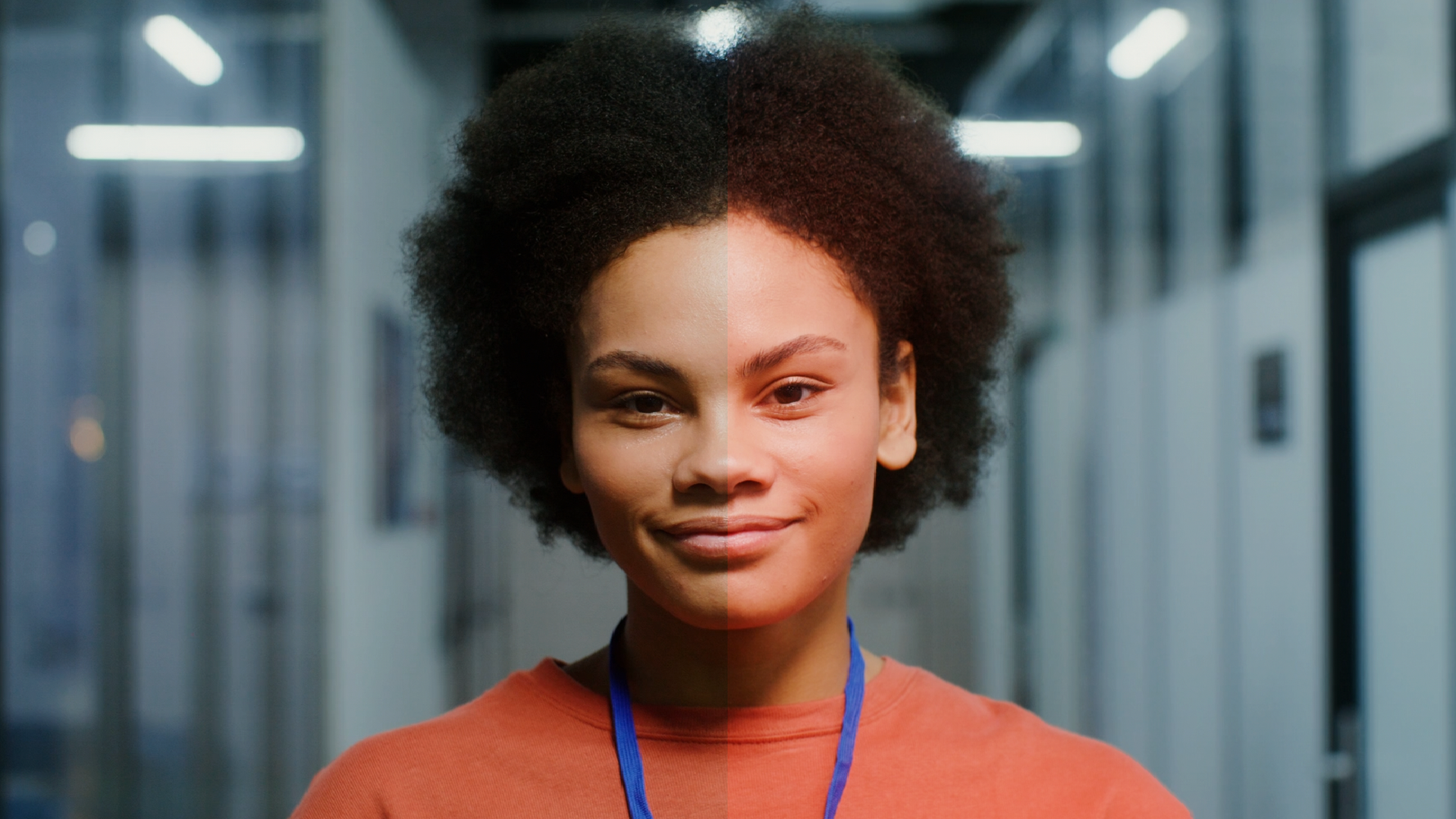
Scene Light is an After Effects plugin that adds light to footage. You place 3D composition lights in your shot, and Scene Light illuminates each surface based on its distance from the camera and the direction it faces. Two AI models, installed locally on your machine, estimate that distance and direction from your footage.
How Scene Light Reads Your Shot
Scene Light runs two AI models on your footage:
- The depth model estimates how near or far each point in the shot is from the camera. The result is a grayscale depth map, like the ones Depth Generator makes. Depth is what lets you move a light through the scene, nearer to or farther from the camera.
- The normal model estimates which way each surface faces. The result is a normal map in color. Green marks surfaces facing up (y axis), red marks surfaces facing sideways (x axis), and blue marks surfaces facing the camera (z axis). Blends of those colors mark surfaces at an angle.
Together, the two maps tell Scene Light where each surface is and which way it faces, so the plugin knows how each surface should catch a light. Place a light beside someone's face, and Scene Light illuminates the side of the face pointing toward the light and leaves the other side dark. To see either map, set Show Pass to Depth or Normal (see Scene Light Passes and CG Relighting).
The models generating these maps are small enough to install with Scene Light, so they aren't as accurate as the largest models available. Normal Influence (see below) and custom passes (see Scene Light Passes and CG Relighting) can help when models fall short.
Matching Your Footage
My Footage Is tells Scene Light which color space your footage and project are in, so the light looks right. The same control appears in other Red Giant tools.
- Video (default): standard Rec. 709 footage.
- Log (ACEScct): log footage in an ACEScct workflow.
- Linear: linear footage.
The wrong choice becomes immediately apparent. Linear applied to ordinary video footage, for example, looks blown out.
Highlight Rolloff is available when My Footage Is is set to Video. With little or no rolloff, a bright light blows out whatever it hits. Higher values roll off the highlights for a softer, more natural look. The default is 100%.
Adding a Light
Scene Light uses the lights in your composition. In a composition without lights, applying Scene Light won't change your footage until you place one. Apply Scene Light to a 2D footage layer. The composition doesn't need a camera, but Scene Light works with one, such as a camera from a 3D-tracked shot.
- Apply Scene Light to a footage or image layer. Click Effect > RG VFX > Scene Light.
- Set My Footage Is to match your footage (see Matching Your Footage above).
- In the Effect Controls Panel (ECP), click Place Point Light. A banner instructs you to click anywhere to place a light.
- Click the spot in the Composition panel where you want the light, such as a person's shoulder.
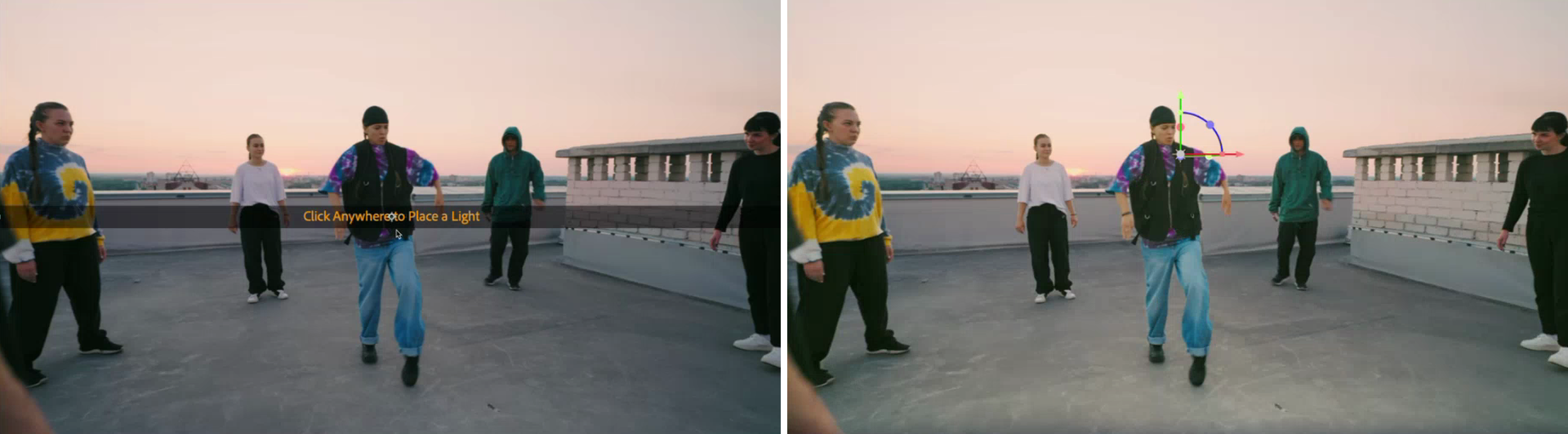
The banner after you click Place Point Light (left), and the light placed on the subject (right)
Scene Light adds a point light at that selected spot at the depth it estimated there. The light's Position, in its Transform properties, reflects that depth.
Place Spot Light works the same way. Click once in the Composition panel to place the light. Scene Light then points the spot light at the frame's center at the depth it estimates there. To aim the light elsewhere, change the light's Point of Interest.
Lights that Scene Light places start with a warm color, about 2700 K, like an incandescent bulb. Their names start with "SL Light". To move a light after placement, change its Position values in the Timeline panel or drag the light's on-screen controls in the Composition panel.
A saturated color and a high intensity make it easier to see what a light is doing while you set it up. Setup is also faster with Depth Quality set to DA2 Medium (see Depth Quality and Edge Smoothing).
Shaping the Light
Scene Light uses each light's own After Effects settings: Intensity, Color, Falloff, Radius, and Falloff Distance, plus Cone Angle and Cone Feather for spot lights.
- Falloff decides how the light fades. With None, the light doesn't fall off. Smooth lets you set the softness yourself with Falloff Distance. Inverse Square Clamped calculates a realistic falloff from the radius alone.
- Radius is the size of the light source itself. Falloff Distance is how far the light spreads beyond it, so it works like softness. With Falloff set to Smooth, a Falloff Distance of 1 gives the light a very hard edge.
- For a spot light, reduce Cone Feather for a sharp edge and raise it for a soft one.
Placing Lights Precisely
Depth Line
Activate Depth Line draws a line through the scene that follows the depth of each light in the light's color. Each light gets its own line. Use depth lines as a tool for placing lights more accurately.
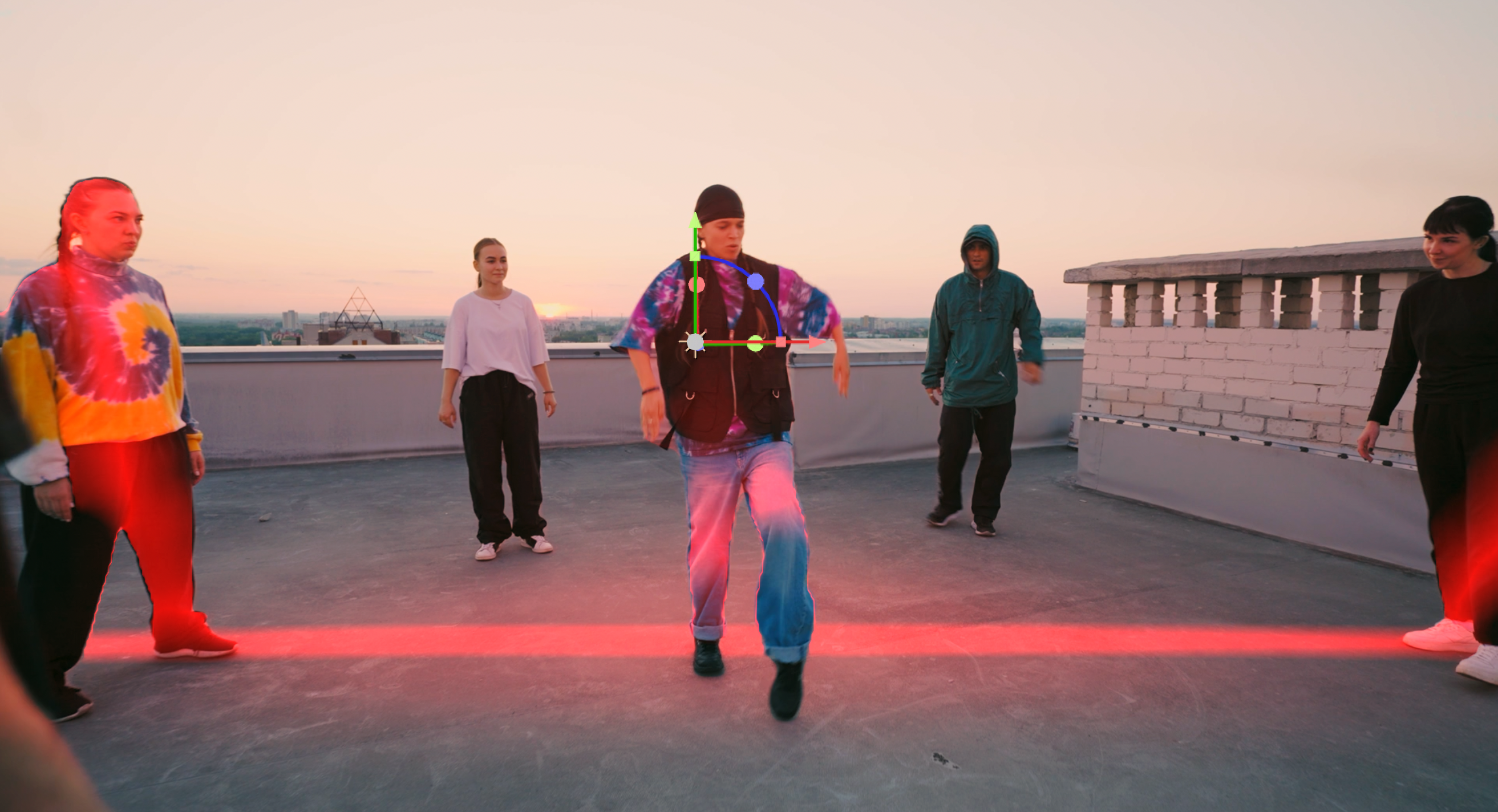
With Activate Depth Line on, a line in the light's color (red here) follows the light's depth across the scene.
Important: Depth lines show up in renders. Turn off Activate Depth Line before you render.
Depth Range
Scene Light projects the depth map into a "box" of space. Lights move within that box. Depth Range Near and Depth Range Far set the box's size. The defaults are 0 and 1000.
Raising Depth Range Far tells Scene Light that the background is farther away. As you raise it, the light from lights you've already placed moves closer to the camera. The lights' Position values don't change, only where their light lands. A light then has more room to travel into the scene before it starts illuminating the distant background, such as a skyline behind your subject. Lowering Depth Range Near, even below 0, has a similar effect. Often, adjusting Depth Range Far alone is enough, but try both to see what works for your shot.
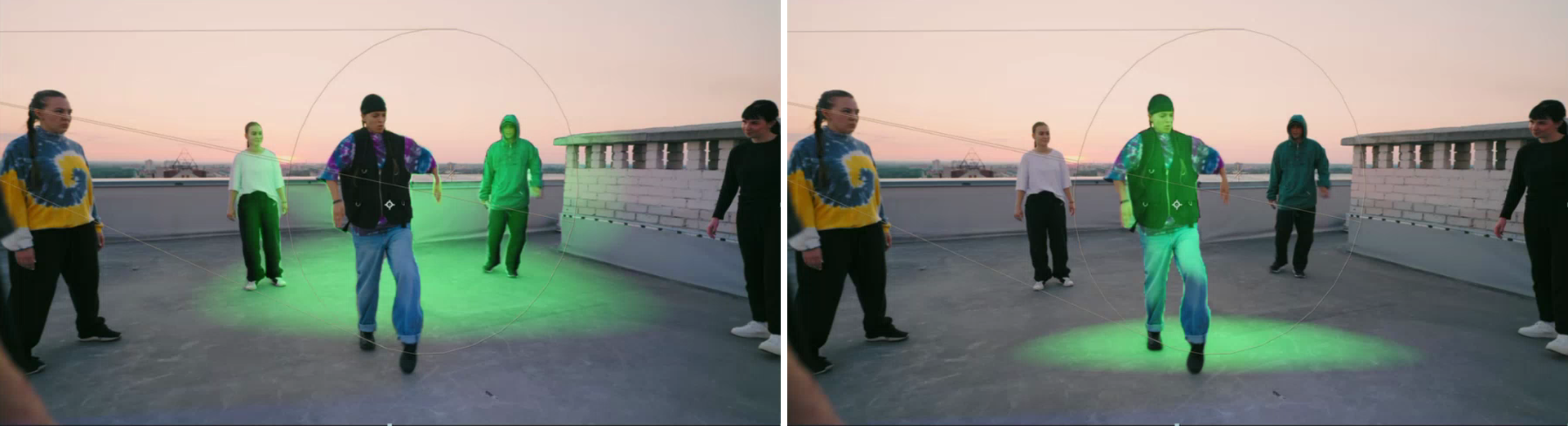
The same light with Depth Range Far at 1000 (left) and 1660 (right)
Choosing Which Lights Scene Light Uses
Lights Used decides which lights in the composition Scene Light uses:
- All (default): every light in the composition.
- Named: only lights whose names start with the text you set.
To use only some of your lights:
- Set Lights Used to Named.
- Click Set Light Name… and enter the text the light names start with.
The default text is "SL Light", which corresponds to every light Scene Light places. Setting Lights Used to Named with the default text is a quick way to keep other lights in the composition from lighting your footage, but feel free to use any naming scheme.
One naming tip to consider: With lights named "Point" and "Spot," entering "Point" lights the scene with the point light only.
Limiting Light by Depth
The Depth Isolation group works like a matte for where light falls along the depth of the scene.
On the Depth Isolation Curve graph, the left side represents near values and the right side far values. Lower the curve's left end to cut off light close to the camera. For example, a light can spread sideways across the frame without spilling forward onto things close to the camera. Curve Offset shifts the effect of the curve nearer or farther. Use this for fine-tuning after the curve is set.
The curve itself (points, drawing tools, and presets) works as it does in Depth Generator. See Using Curves. Unlike Depth Generator, Scene Light has no Curve Calculation or loop controls. The curve's shape is used directly as the matte.
Depth Quality and Edge Smoothing
Depth Quality selects the depth model:
- DA2 High (Sharpest Frames), DA2 Medium, and DA2 Low (Fastest) use Depth Anything 2, the same models used by Depth Generator. Depth Anything 2 analyzes each frame on its own, so depth may flicker from frame to frame.
- Video (VDA) uses Video Depth Anything, which looks at the 16 frames before and the 16 frames after each frame. The depth is much steadier over time. The trade-offs are performance (VDA processes 33 frames for every frame) and resolution (VDA's depth is less detailed than DA2 High).
You may wish to work in DA2 Medium while you set up your lights, then switch to Video (VDA) for the final render. The render takes longer, and the steadier result is worth the wait.
Edge Smoothing smooths jagged edges of objects in depth maps along high-contrast outlines in the shot. Jagged depth shows up most with VDA, since its depth is lower resolution, so Scene Light applies some smoothing by default (10).
Normal Influence
Normal Influence sets how much the normal map shapes the light, from 0% to 100%. The default is 100%.
At 0%, Scene Light lights by depth alone. Depth doesn't say which way a surface faces, though, so a light illuminates every side of a subject equally, whether the light is in front of or behind the subject. Lower Normal Influence when the normals hurt more than they help — for example, in a large space where the model is less accurate at a distance.
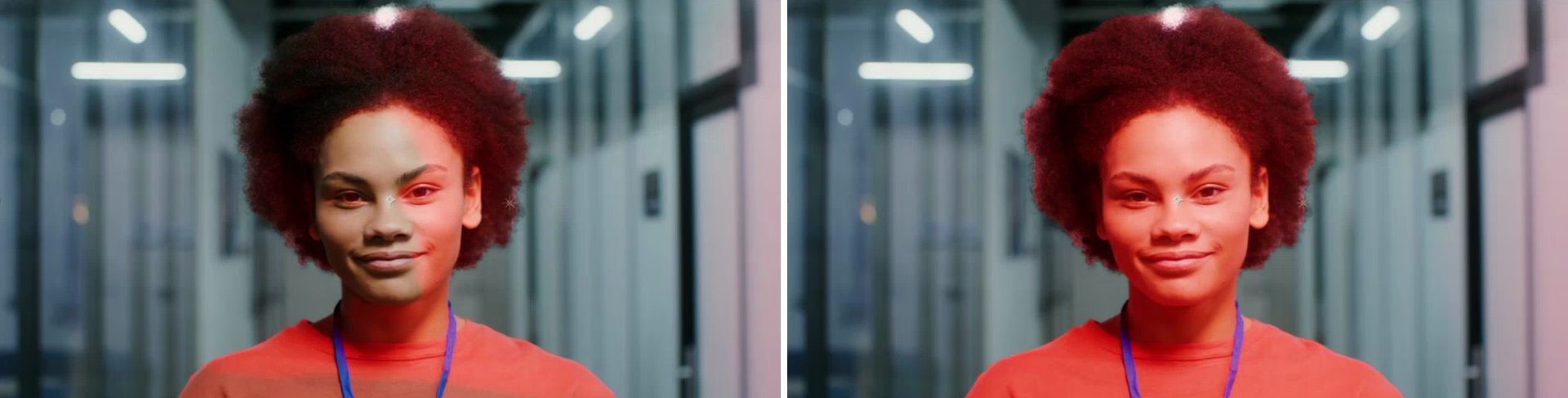
The same light with Normal Influence at 100% (left), lighting only the side of the subject that faces it, and at 0% (right), lighting all sides