Particular
Visibility > Obscuring Layer
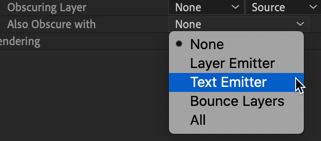
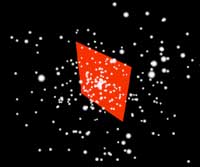
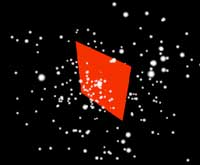
Since Particular applies to a 2D layer and the particles live in their own 3D world, other layers in the composition won't automatically obscure the particles. The Obscuration Layer provides a way to insert a 3D layer into the particles' virtual space.
Any 3D layer in the comp can obscure particles. To do this, place the Obscuration Layer below the particle layer in the timeline. Make sure its 3D switch is checked in the timeline. Then select that layer in the Obscuration pop-up.
Also Obscure With
Also Obscure With can additionally tell the Layer Emitter, Text Emitter, and/or Bounce Layers to obscure particles.
Technical notes:
- The Obscuration Layer must have Continuous Rasterize switched off in the timeline layer switches.
- The Obscuration Layer must have 3D enabled in the timeline layer switches.
- Obscuration does not work with semi-transparent layers.
- This obscuration is not anti-aliased, so its effect can look rough on the layer edges. In many cases, this issue doesn't matter because particles are small and move quickly.