SOFT EDGE WIPE
A linear wipe transition with an adjustable feathered edge, used for transitioning between two layers of footage with a subtle blend. Soft Edge Wipe includes angle control and the ability to add a colored stroke as a part of the transition.
Presets
Universe Dashboard presets for Soft Edge Wipe make A-B linear transitions smooth, simple, and easy to set up. Just keyframe the Mix duration (see below) and tune to taste! Find these presets via the blue Open Dashboard... button or the Choose a Preset... button below it.
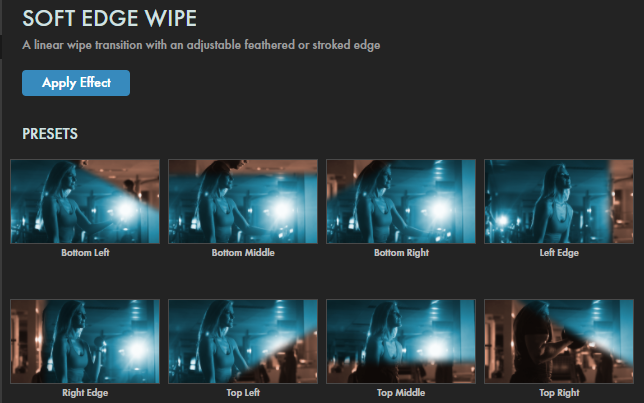
As with all other Universe tools, you can modify or create a Soft Edge Wipe look and then save it under its own name by pressing the Save Preset... button.
Getting Started in a Timeline




- Drag the transition over your edit in the timeline, placing it at the end or beginning. Alternatively, you can place it between two successive clips.
- Modify the Duration of the transition either by entering a length in the field or dragging directly in the timeline.
- You can choose the Alignment (Center at Cut, Start at Cut, End at Cut, or Custom Start) either by positioning the transition in the timeline or by choosing from the Alignment drop-down in some host applications.
Getting Started in a Compositor


- Apply the transition to the layer from which you want to transition.
- Choose the footage layer you would like to transition to in the Transition B drop-down menu. (Note for Motion users: Drag the footage layer up to the Transition B box.)
- Animate your transition using the Mix slider from 0% to 100 percent. Set a keyframe for 0% where the transition should start, then set another at 100% for the end.
Modify the Transition
- The Animation drop-down menu gives multiple interpolation style choices for your transition's animation. The default is Ease In Out Cubic. For more detail on these animation patterns, see our Animation Tween Examples page.
-
Edge Start establishes from which direction and side the transition will start.
Shown below are Top Left (left), Top Middle (center), and Bottom Right (right). Note how corner starts enter with an angle (see Edge Angle below) while edges and middles enter parallel to their starting face.

- Edge Angle sets the transition edge angle to Diagonal or 45 Degree when the Edge Start is set to an angled option.
-
Edge Softness
raises the softness level to give a soft, feathered edge to the transition boundary.
Shown below are values of 10 (the minimum, left) and 50 (the maximum, right).

-
Border
adds a stroked line to the transition.
- Click the Stroke Border checkbox to enable this feature.
-
Border Width
controls the stroke thickness.
The example we used for Edge Softness shows a Border Width of 30. In contrast, a value of 0 (shown below) eliminates the stroke, just as if you'd unchecked the Stroke Border box.

-
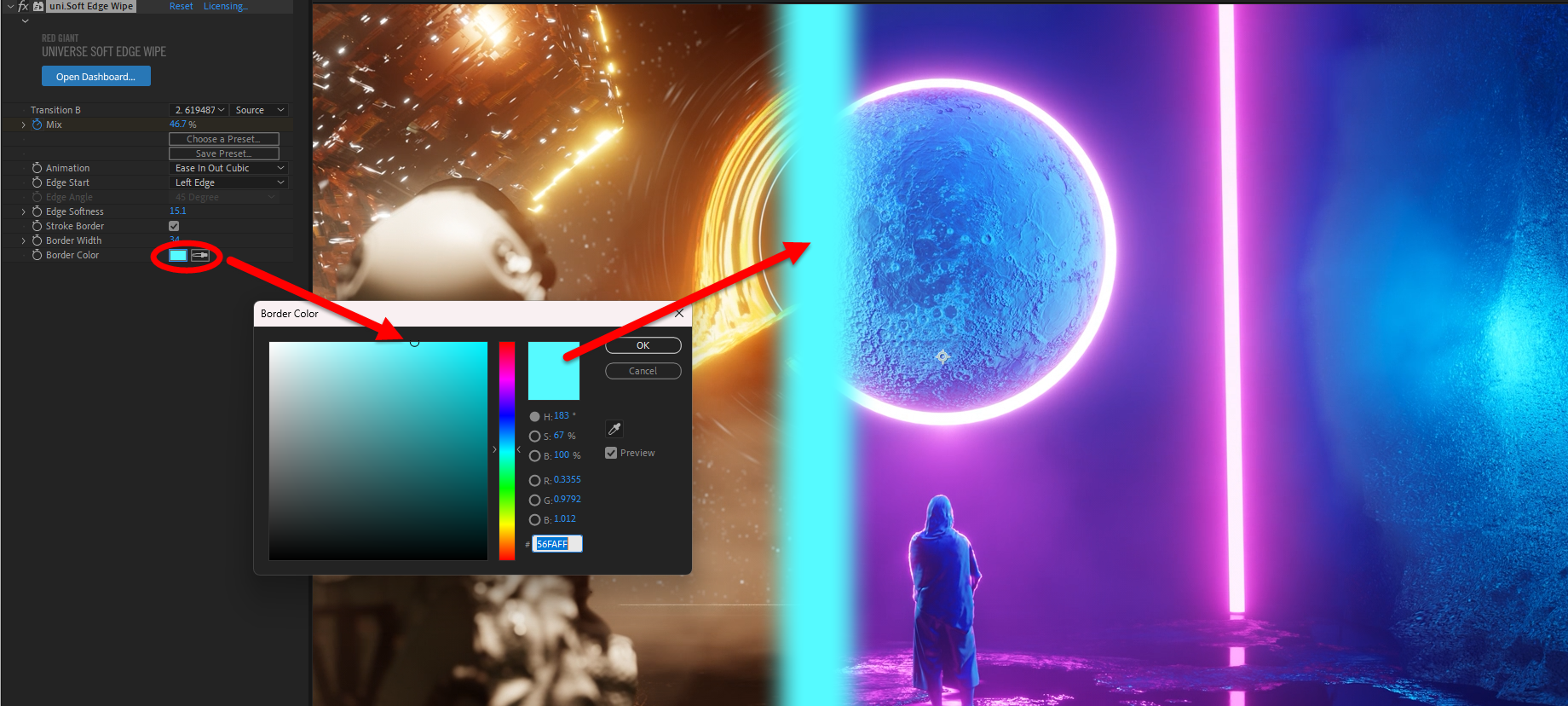
Border Color
selects the color of the border with the
color picker.