
Symbol Mapper Effects Group
The Effects group contains two subgroups: Scan Lines and Glow. Scan Lines mimic the pixelated raster scanning patterns found in old cathode ray tube (CRT) displays. Glow features help to boost light in the Symbol Mapper effect.
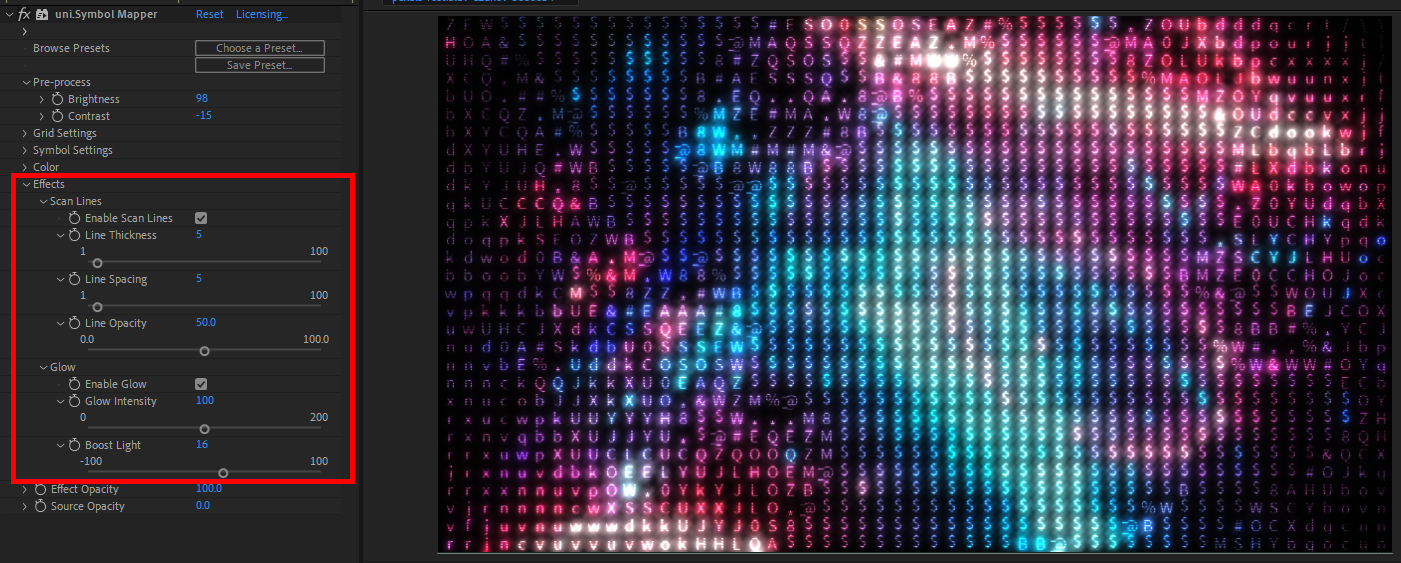
Scan lines tend to introduce black lines between the image’s colors. The effect can help smooth jagged edges. However, Glow controls pair well with Scan Lines because real CRTs often experienced color bleed from glowing pixels into those black lines.
The image above shows Symbol Mapper’s default Scan Lines values, with Line Thickness at 5 pixels, Line Spacing at 5 pixels, and Line Opacity at 50.0. The higher you crank Line Opacity, the darker the black scan lines become, and thus the more those lines will dampen glow bleeding.
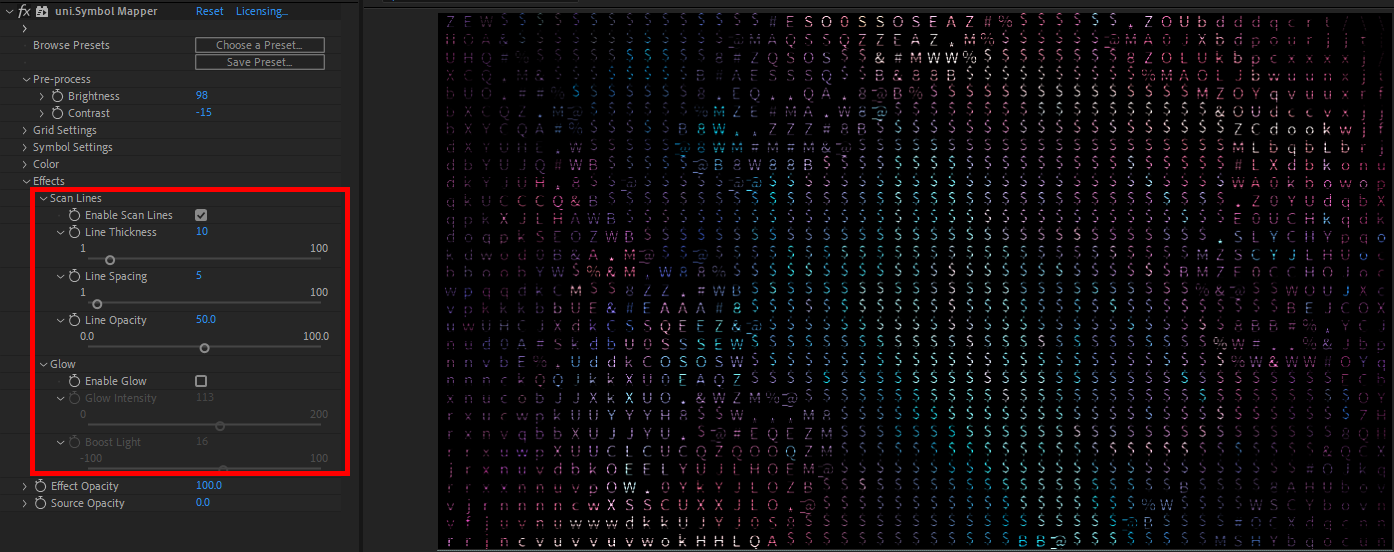
Let’s examine two variations by modifying the Effects values in the images below. The first image has the Enable Glow box unchecked, thereby disabling the Glow controls. We doubled Line Thickness to 10, incrementally increasing the distance between character lines. You can see how eliminating the glow really cuts down on the effect’s vibrance. This may not be a bad thing if you intend to fade in from or out to a dark, muted effect.
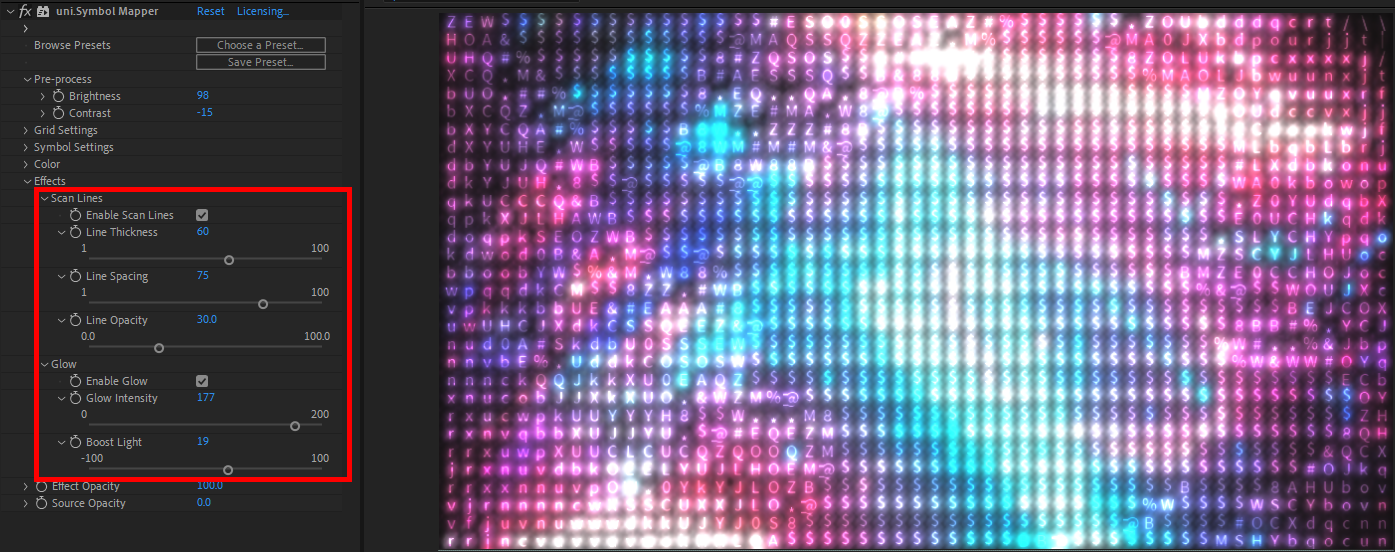
Next, we increased Line Thickness to 60 and Line Spacing to 75 while also checking Enable Glow. We cranked Glow Intensity to 177 and Boost Light to 19. Be careful with Boost Light; a little boost can go a long way. You might argue that we went too far, as the glow bleed has overwhelmed many of our brightest characters and made it impossible to discern which symbols they are. With lower Line Thickness and Line Spacing, this bleeding would have been even more pronounced.