
Supercomp
LAYER CONTROLS
Both individual layers and the entire Supercomp output have their own set of controls, which populate the Element Controls section when selected in the Supercomp Layers area.
|
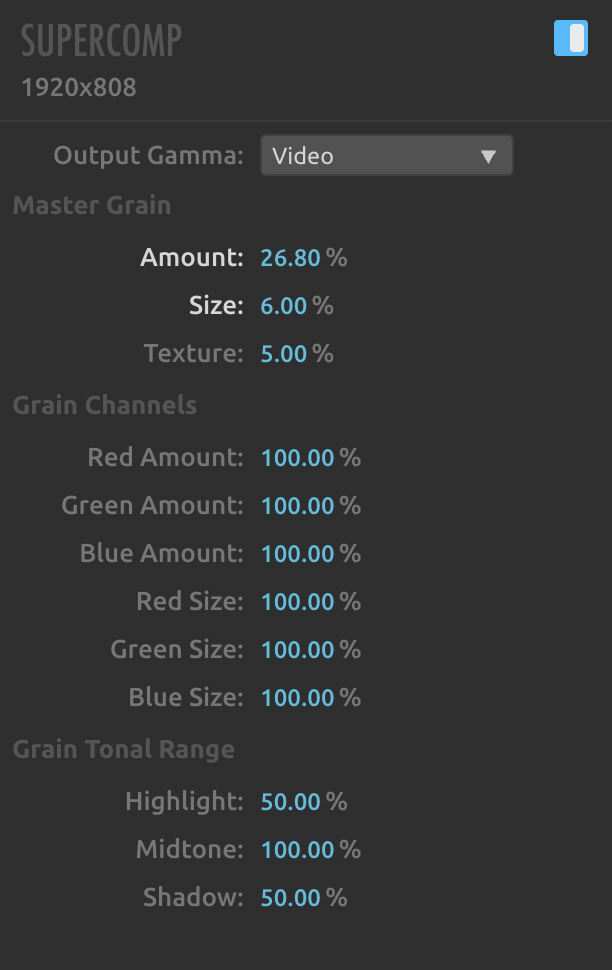
Supercomp These parameters appear when the entire Supercomp output has been selected from the Supercomp Layers area:
|
Supercomp Layers
These parameters appear whenever an individual Supercomp Layer has been selected.
- Layer Presets opens a menu of presets that, when selected, populate the layer with prebuilt effects. Presets are great for shortcuts, inspiration, or just a draft for depicting whatever the layer is going to be used for. Learn more about Layer Presets here.
-
Save Preset
(
 ) creates a custom preset from the current array of effects and effect settings applied to a layer.
-
Layer Type
determines the layer's blend mode. Selecting a blend mode adjusts the layer's color in the Supercomp Layers area. If an additive blend mode had already been set for the layer in After Effects prior to applying Supercomp, the Layer Types will have already been set to Additive.
- Normal (blue): The layer is neither distorting nor coloring the frame information behind it.
- Additive (yellow): The layer will affect the colors of the frame information behind it.
- Adjustment (purple): The layer will distort the frame information behind it.
- Gamma adjusts the gamma's output curve to the overall Supercomp Effect. Select Video, Log, or Linear depending on the image source. If you’re uncertain, leave at Video.
- Opacity controls the layer's transparency.
- Grain sets how much grain applies to the output.