Real Lens Flares
INSPECTOR PANE
The inspector pane provides context for and control over the currently selected item. This is where all fine tuning of lens flare aspects take place.
Depending on the context (e.g., when a core projection or lens barrel is selected), the inspector pane will display controls for the following components:
- Lens element
- Aperture
- Image plane
- Projections
- Light source
- Lens flare properties
- Core projection
For an example of how context changes the inspector pane’s contents, compare the following two images. The first has a lens simulation preset selected. The second has a core projection within that preset selected.
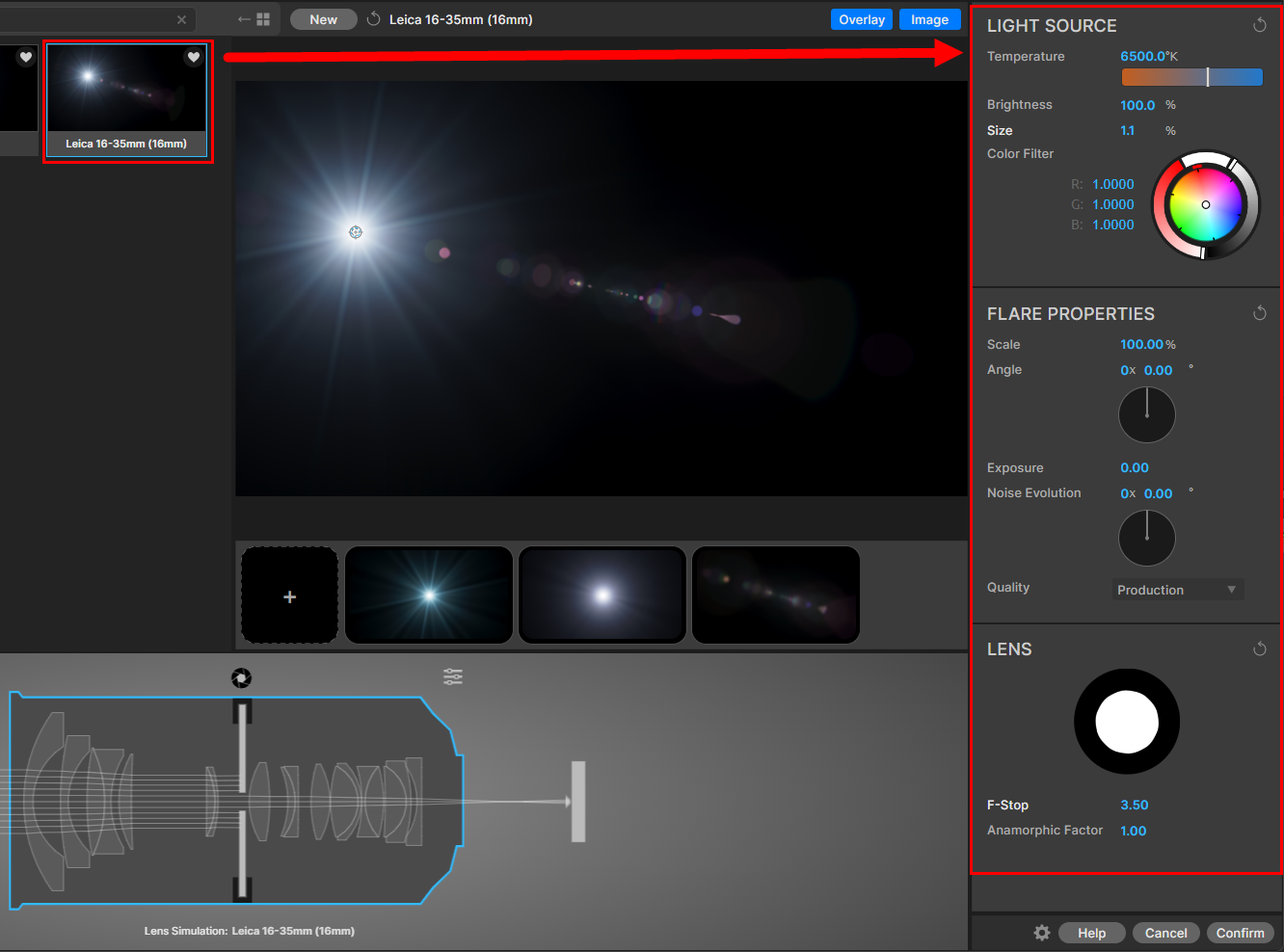
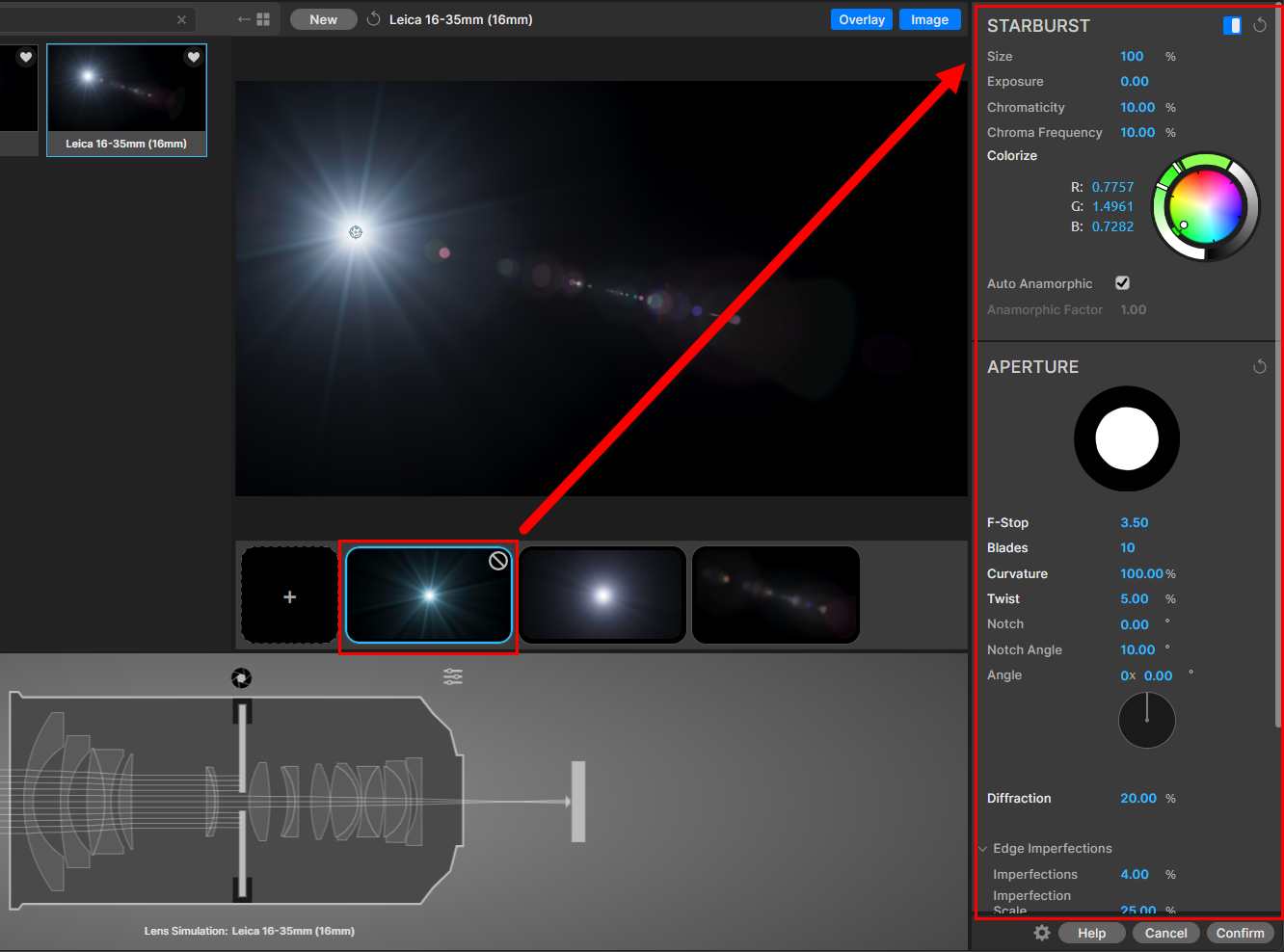
As shown above, when you select a preset, the inspector pane shows three component areas: light source, flare properties, and aperture. We will examine these in the following user guide sections.
Note: If you select a preset and then change a parameter in the inspector pane, those changes will not be saved if you click on the preset (or any other preset) again. For example, say you select the Panavision Primo preset shown above. Then you change the light source size from its default value of 9.0% to something else, perhaps 1.1 percent. That change will be visible in the preview as well as every projection on the projection strip. But if you click that Panavision Primo preset thumbnail again, all inspector pane values will revert to their original defaults. Thus, when you start making changes to a lens flare you’re likely to keep, begin by saving the changes as a custom lens flare, then work with that.
Light Source
A light source can be the simulation of anything from an LED flashlight to an interstellar collision. Within Designer, a light source is defined as the combination of a spectral model of a real-world light and a color filter placed in front of it, even if that filter is perfectly transparent. A light source is the object that creates the lens flare.
To show only the light source controls, click the light source icon at the left end of the lens pane in the Designer’s lower-left corner. By default, the icon is a sun. With Fire selected, it’s a flame.
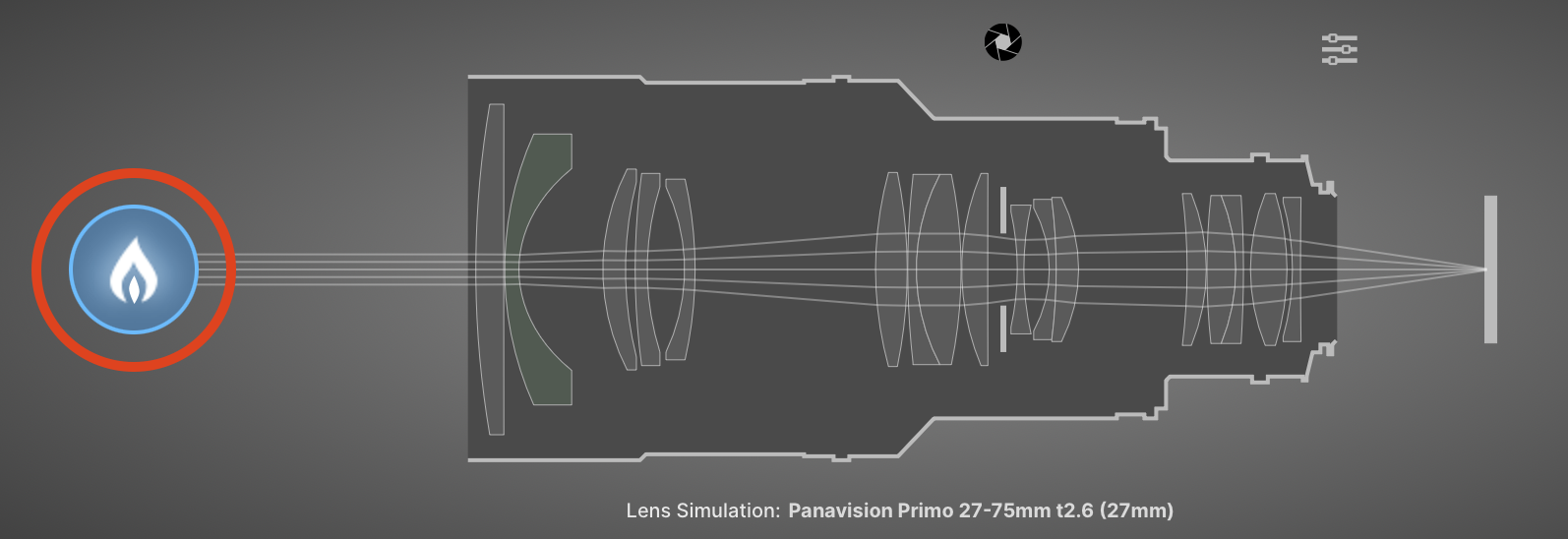
Real Lens Flares gives you control over these light source settings:
- Light Type. The kind of real-world light that creates the flare. See Light Types below.
- Temperature. Ranges from 1,000K to 10,000K. The default is 6,500K. Temperature is available only when Light Type is set to Sunlight or LED (White). With other types, it’s grayed out.
- Brightness. Ranges from 0% to 100,000%. The default is 100%.
- Size. The size of the light source, which can give a different result than raising the brightness. Ranges from 0% to 50%.
- Size Affects Brightness. See Distance on the Effects Control Panel page.
- Color Filter. Click the color picker to adjust the filter in front of the light source.
Light Types
Light Type sets which real-world light source creates the flare. It’s the first of the light source controls.
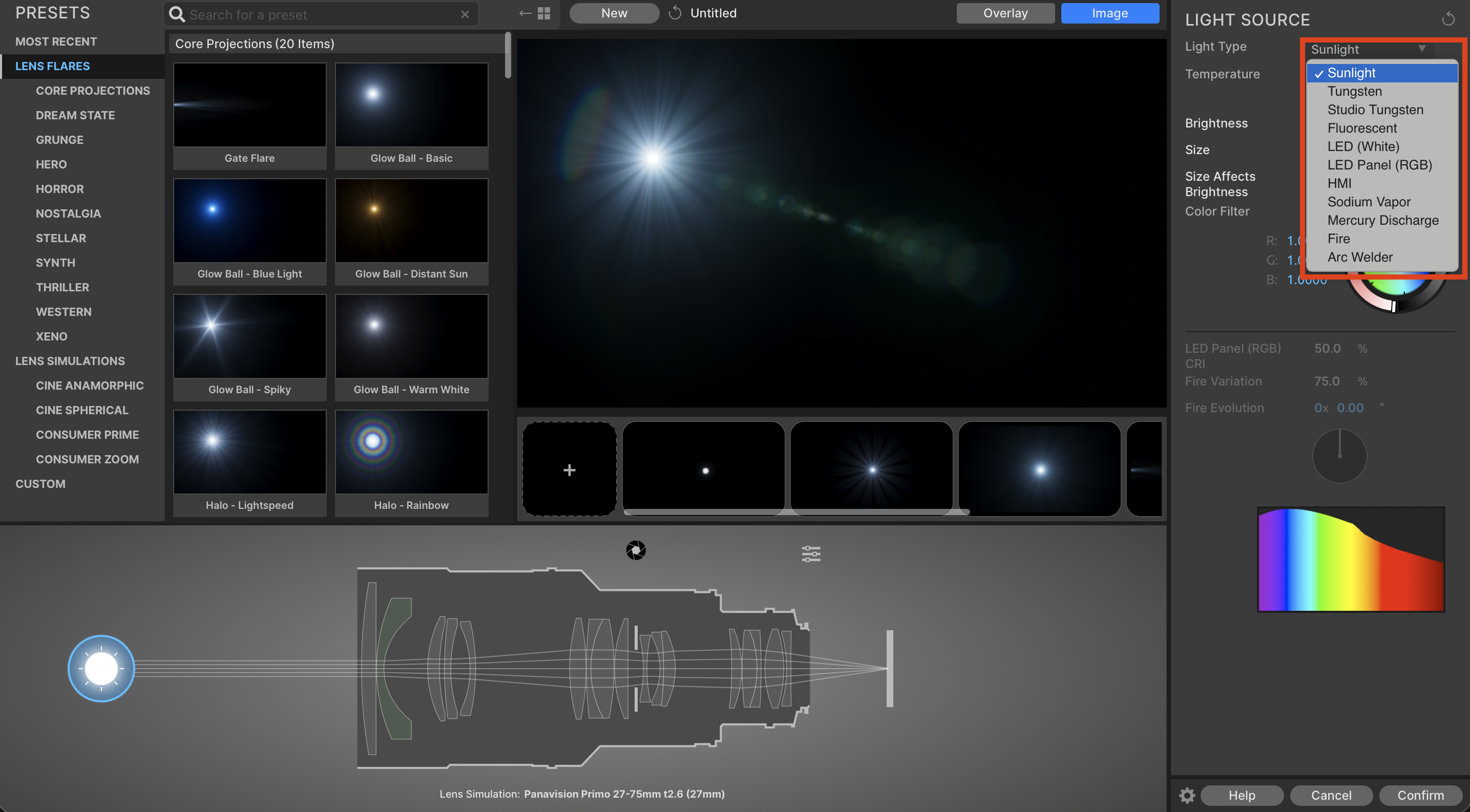
Each Light Type has its own spectrum, so the same lens produces a different flare with each one. Color Filter can tint a light, but only Light Type makes the flare spectrally accurate to a specific kind of light.
The light type options are Sunlight (the default), Tungsten, Studio Tungsten, Fluorescent, LED (White), LED Panel (RGB), HMI (hydrargyrum medium-arc iodide), Sodium Vapor, Mercury Discharge, Fire, and Arc Welder.
A spectrum curve at the bottom of the light source controls shows the spectrum of the selected type. Watch the curve as you switch types to compare them.
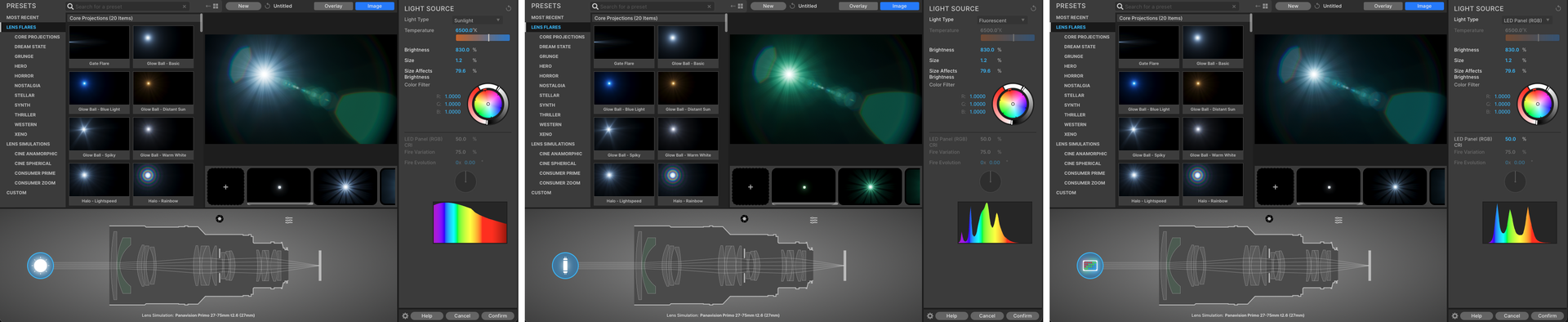
The same lens and flare with three light types, left to right: Sunlight, Fluorescent, and LED Panel (RGB). Note how the spectrum curve changes with each type.
LED Panel (RGB) CRI
LED Panel (RGB) CRI (Color Rendering Index) is available only when Light Type is set to LED Panel (RGB). With other types, it’s grayed out. For real-world lights, CRI describes how accurately an object’s color shows under the light, with lower or higher CRI showing color less or more accurately, respectively.
A lens flare isn’t light reflecting off an object, though, so CRI works differently here. At low values, the spectrum curve shows sharp peaks in the red, green, and blue channels. Raising the value fills in the gaps between the peaks and gives the flare a slightly more chromatic look. With the Samyang AF 85mm F1.4 EF lens from the lens library, for example (see below), the highest values add a rainbow halo to the flare.
Fire Variation and Fire Evolution
Fire Variation and Fire Evolution are available only when Light Type is set to Fire. As a flame flickers, its light shifts along the spectrum. These two controls recreate that shift.
- Fire Evolution steps the flame through its spectrum changes. Adjust it and the spectrum curve changes in real time.
- Fire Variation sets how much the spectrum changes from one Fire Evolution value to the next. At 0%, the spectrum stays the same no matter how you set Fire Evolution. At 100%, you get the biggest flicker.
Use a low Fire Variation for a candle flame in still air and a high one for a bonfire. The Designer doesn’t animate, so to make the fire flicker over time, animate Fire Evolution in the Effect Controls Panel.
Flare Properties
When a preset is chosen, or you click on the lens barrel in the lens pane, the flare properties area becomes visible in the inspector pane.
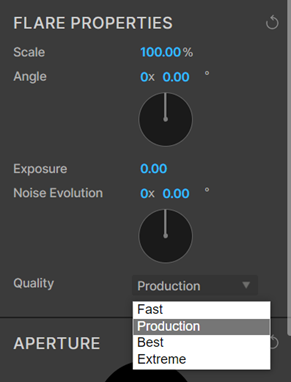
Five properties are available for customization:
- Scale. This control ranges from 0% to 5,000%, with 100% being the default.
- Angle. See the Aperture section under Lens Pane for details about angle controls.
- Exposure. This control ranges from -20.00 to 20.00, with 0.00 being the default.
- Noise evolution. Perlin noise is a form of pseudo-random noise (originally developed for the 1982 Disney film Tron) used to make computer-generated visuals appear more lifelike. Changing the noise evolution directionality alters the seed values used in generating those noise textures.
- Quality. This is a rendering function that controls the number of light wavelengths sent into the lens flare simulation. There are four options, each with its own number of contributing wavelengths.
- Fast: 3 (red, green, blue)
- Production (the default): 7
- Best: 15
- Extreme: 20
These quality settings can help optimize your workflow. For example, you might choose to work in Fast for the quickest system responsiveness when positioning and editing flares, then switch to Production for color adjustments and Extreme when rendering out to After Effects.
Lens
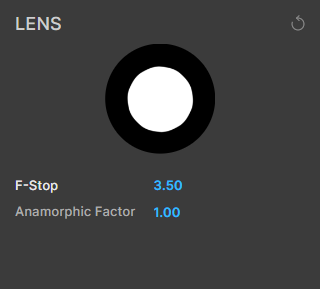
When a preset or lens barrel is selected, VFX Real Lens Flares offers this minimalistic Lens section at the bottom of the inspector pane. As we’ll see later, the program offers many more aperture options. This spartan version simply offers a quick means to tweak the f-stop setting and anamorphic factor.