
Particular
Visibility Group
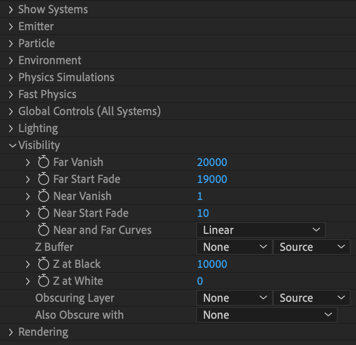
The Visibility group controls where particles are visible in the composition. For example, particles far away can be set to fade out, which is great for simulating fog. Another option lets you use a z-buffer from another layer, so you can work with a z-buffer imported from a separate 3D modeling program.
The Visibility section also holds Obscuration settings that can make layers obscure particles.
Far Vanish
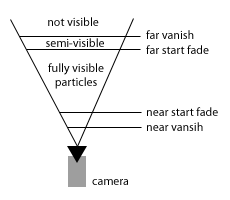
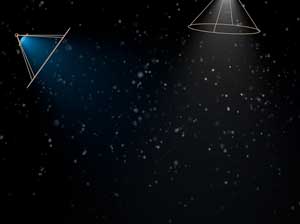
This control sets the distance from the camera at which particles become completely invisible. Low values mean particles are farther away when they become invisible.
Far Start Fade
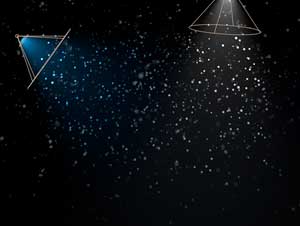
This control sets the far distance from the camera at which particles start to fade into invisibility. Low values make the fade apply closer to the camera. High values keep the fade from happening until greater distances.
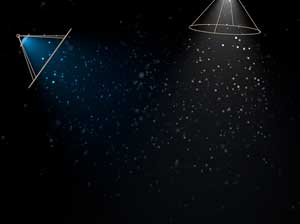
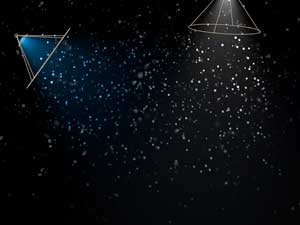
Near Vanish
This control sets the near distance from the camera at which particles become invisible. Low values mean particles are closer and stay visible. High values mean particles are farther away and become invisible. (Effectively, this is the opposite of the Far Vanish parameter.)
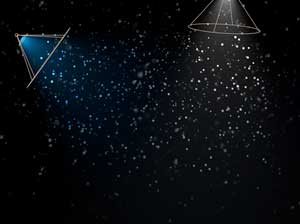
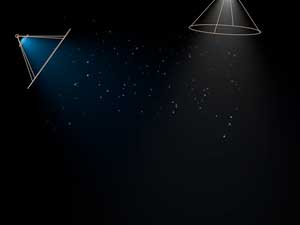
Near Start Fade
This control sets the near distance from the camera at which particles start to fade into invisibility. Low values keep the fade from happening. High values make the fade apply. (Effectively, this is the opposite of the Far Start Fade parameter.)
Near and Far Curves
This is the curve used to fade particles in the Near and Far Fade zones. Curves can be Linear or Smooth.
Z-Buffer
A z-buffer, also known as a depth map or depth buffer, lets you select a 2D, comp-sized, lightness-based, linear layer to use as a z-buffer.
A z-buffer contains per-pixel depth values. Typically, z-buffering stores the z axis value of each pixel, which includes information about the distance from the camera viewpoint for each pixel.
Z-buffering can be useful when particles are to be inserted into a scene from a 3D application (like Cinema 4D). The 3D app can be configured to output a z-buffer. If the z-buffer is not anti-aliased, leaving it a bit rough on the object edges, it often won’t matter if the particles are small and moving quickly.
Z at Black
This control establishes the depth (distance to camera) represented by a completely black pixel in the z-buffer.
Z at White
This control establishes the depth (distance to camera) represented by a completely white pixel in the z-buffer.