
PluralEyes
The PluralEyes Menus
This page discusses many of the important menu items in PluralEyes.

- File menu
- Edit menu
- View menu
- Sync menu
- Window menu
- Help menu
File menu
This menu has fast options for importing and exporting in PluralEyes.
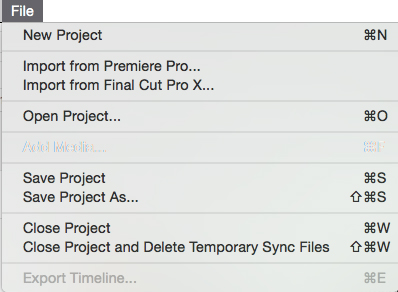
File> New Project
This command creates a new, empty PluralEyes project.
File> Import from Premiere Pro...
This command imports a project file from Premiere Pro and converts it into a PluralEyes project in the PluralEyes timeline.
File> Import from Final Cut Pro X...
This command imports a project file from Final Cut Pro X and converts it into a PluralEyes project in the PluralEyes timeline. Note: Vegas Pro is also a supported NLE, but its workflow is different, so there is no Import From command. Go here for the full import/export workflow.
File> Close Project and Delete Temporary Files
After exporting the Timeline for a project, use this option to close the project safely delete the temporary files that it generates. Temporary files consist of audio content that has been extracted from video files. Read more in Temporary Files .
File> Export Timeline
If you want to change options before exporting, use the File> Export... command. This opens the Export Timeline window.
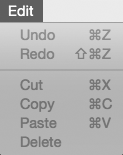
Edit menu
This menu has options for basic editing commands to your PluralEyes project.
View menu
This menu has commands for navigating the video and audio clips in the Timeline. There also viewing options for the Timeline.
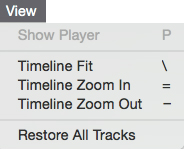
View> Show Player
Makes playback controls visible.
View> Timeline Fit, Zoom In/Out
These menu items control the size of the Timeline by showing the entire Timeline, zooming in or zooming out. Their behavior matches the Zoom slider in the Timeline.
View> Restore All Tracks
Puts all track data back to the beginning of your sync processing.
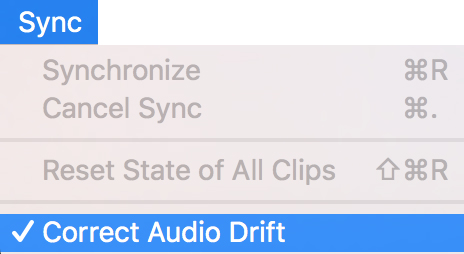
Sync menu
This menu allows you to start a Synchronize process or cancel a sync in progress. You can also revert the state of all added media clips.
If you do not wish PluralEyes to automatically correct audio drift when detected, you can turn it off here.
Window menu
Provides basic window controls if you have more than one project open.
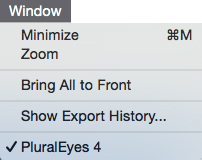
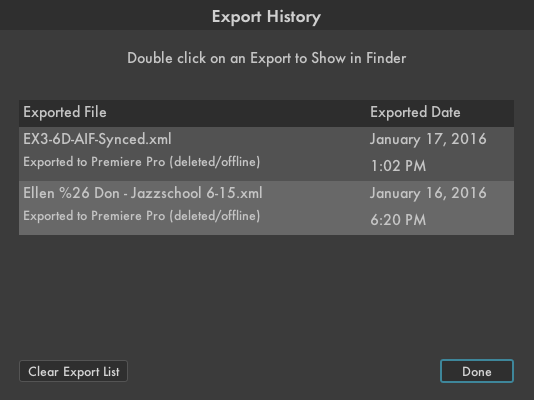
Window> Show Export History
This command opens the Export History window, which shows a list of your recent exports. If you double-click on a file in the list to reveal its location in the Finder. You also have the option to clear the export list.
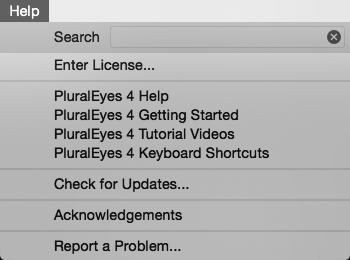
Help menu
The Help menu allows you to search for a Help topic or browse through PluralEyes tutorials and other information. This is also where you will serialize your copy of PluralEyes after your trial is over and you've purchased the product or the Shooters Suite.
Help> Report a Problem
PluralEyes has a Help command that generates a problem report, so we can help you better. To create a report:
- Go to the menu item Help> Report a Problem.
- PluralEyes will open the Problem Reporting dialog , where you will have an opportunity to describe your problem.
- Press the Save button when you are ready to save the report.
- A ZIP file is automatically created and saved on your desktop. It includes your project file and .pep files.
- Attach the ZIP file to your message to us.