
Maxon Noise
Maxon Noise is a generator effect for Autograph, After Effects, Premiere Pro, DaVinci Resolve, and Avid Media Composer that uses the procedural noise library from Cinema 4D. In compositing and editing apps, most artists have worked with the same few noises, such as Perlin-based turbulence and fractal noise for years and years. Maxon Noise brings 32 patterns beyond those from the Cinema 4D library to add surface detail, create special effects, and drive maps. New patterns mean new looks and the ability to differentiate your work from the next person's.
Applying Maxon Noise
Maxon Noise is in the RG Generators category of your host's effects menu. Apply Maxon Noise to footage or to a solid to generate noise on its own. On footage, noise covers the picture completely by default. So, to mix it in, change Blend Mode and Opacity (see Blend Mode and Opacity).
Maxon Noise animates as soon as you apply it. To hold the pattern still or keyframe it yourself, see Animation (below).
Presets
At the top of the effect's controls, click Choose a Preset… to browse the presets. To save your own preset, adjust the controls, click Save Preset…, and enter a name. Presets you save appear under your custom presets in the preset browser.
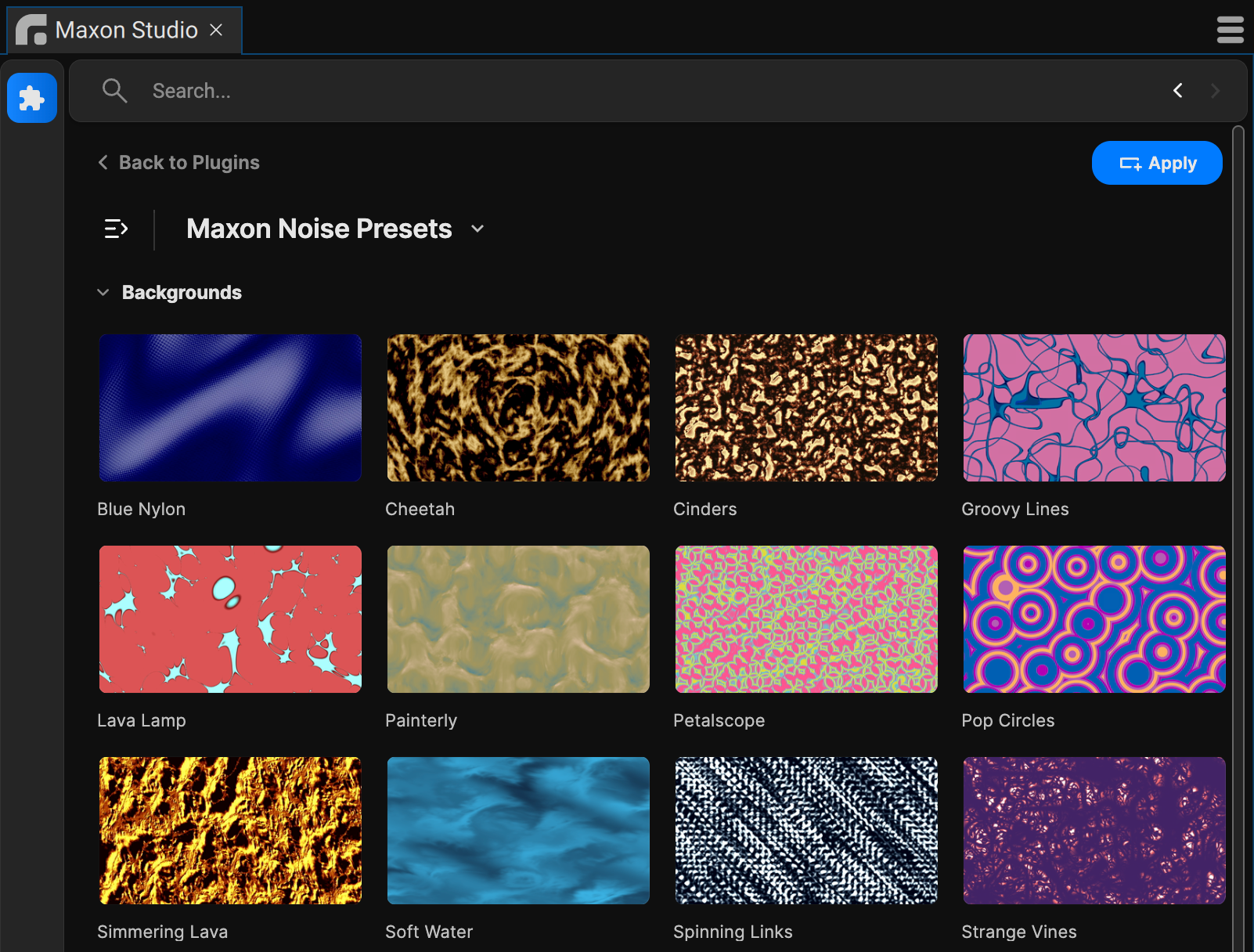
The default preset patterns that ship with Maxon Noise
Pattern and Random Seed
Pattern selects one of 32 noise patterns, from Box Noise and Cell Noise to Fire, Electric, and the Voronoi patterns. Each pattern has its own character, so it's worth flipping through them. You'll even find the default pattern, Luka, is unlike any noise you've used before.
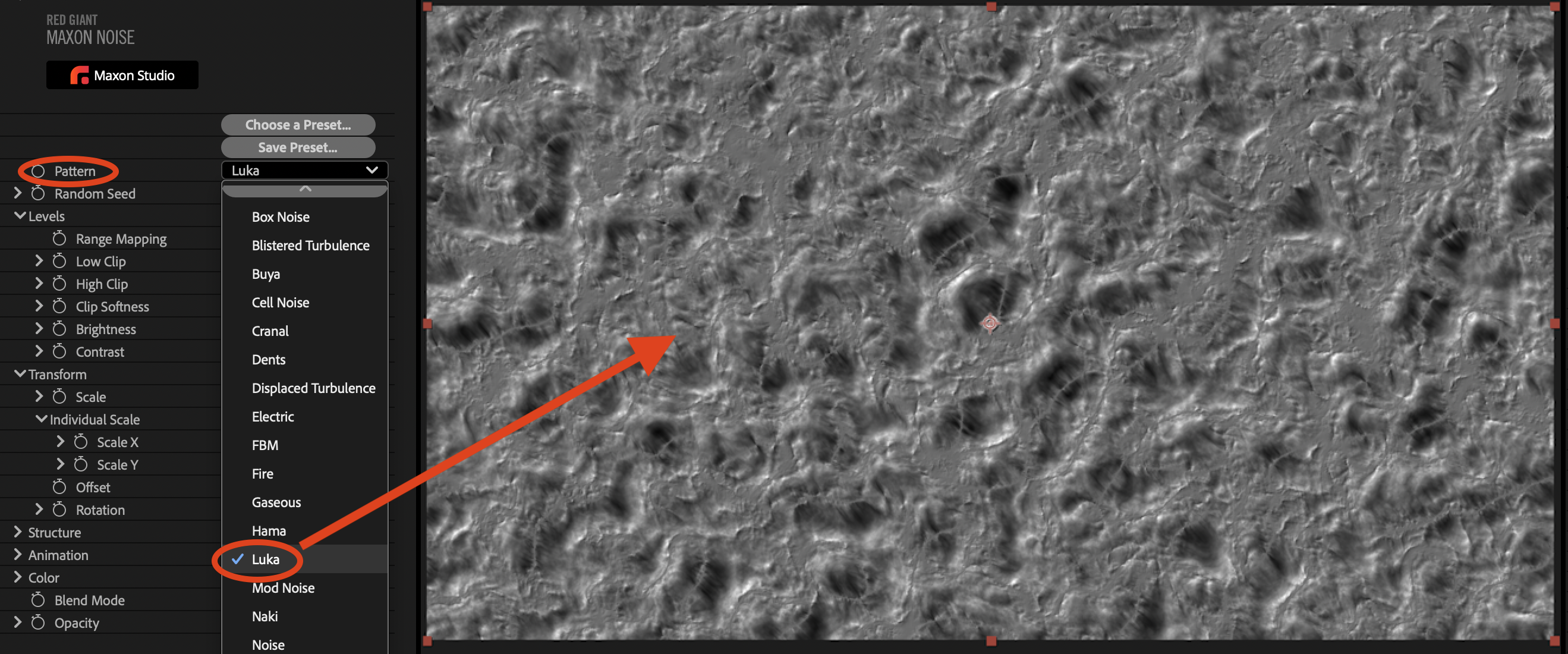
Random Seed sets the pattern's starting state. When you like a pattern but not its exact layout, change the seed to get a different arrangement of the same noise. You can also animate Random Seed for a jittery, chaotic look. After 7.5 million years of calculation, Maxon selected 42 as the default seed value.
Levels
The Levels group controls how noise brightness values are treated.
Range Mapping
Noise values usually run from 0 (black) to 1 (white). Raising Brightness or Contrast (below) can push values above 1, as in high dynamic range (HDR) images. Range Mapping decides what happens to values outside the 0 to 1 range. The Curve column (below) describes how brightness behaves as noise values keep rising past 1.
| Option | Result | Curve |
|---|---|---|
| Clamp | Values stop at 1. | Hard stop |
| Soft Clamp | Values ease into 1 along a soft curve. | Rounded stop |
| Wrap - Sawtooth | Values drop back to 0 and climb to 1 again. | Sawtooth |
| Mirror - Triangle | Values travel back down to 0 and then up to 1. | Triangle |
| Circular - Sine | Like Mirror - Triangle, with smooth transitions. | Smooth wave |
| Binary - Square | Every value becomes either 0 or 1, with nothing in between. | Square |
| Preserve HDR (default) | Values above 1 stay unchanged. | No limit |
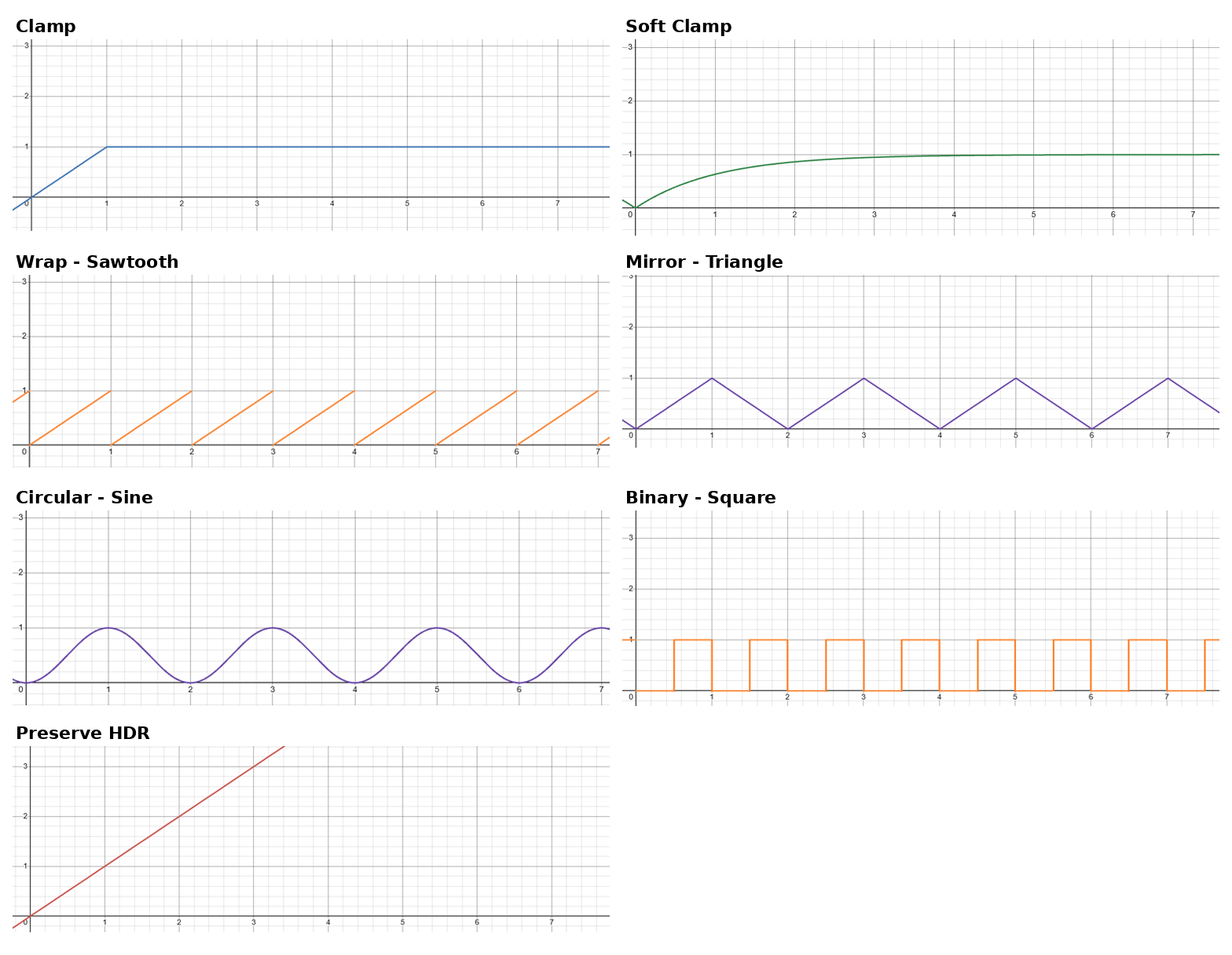
Range Mapping options: how brightness behaves as a noise value reaches and rises past 1
Clamp may not look different at first. In a 32-bpc After Effects project, hover over a bright area with the Info panel open. With Preserve HDR, the readout shows values above 1. With Clamp, every value stops at 1. The other options change the picture more visibly when Brightness and Contrast are high.
Clip, Brightness, and Contrast
| Control | What it does | Default |
|---|---|---|
| Low Clip | Sets the threshold for what counts as black. Raise it to turn more of the noise black. | 0% |
| High Clip | Sets the threshold for what counts as white. Lower it to turn more of the noise white. Set it above 100% to bring the bright values down. | 100% |
| Clip Softness | Sets how smooth the transition is between the low and high clip points. Lower values give sharper transitions in high-contrast areas. | 100% |
| Brightness | Raises or lowers the overall brightness of the noise. | 0 |
| Contrast | Raises or lowers the overall contrast of the noise. | 0 |
Transform
The Transform group moves, rotates, and scales the noise.
| Control | What it does | Default |
|---|---|---|
| Scale | Scales the noise uniformly in x and y. | 100% |
| Scale X | Scales the noise in x only. | 100% |
| Scale Y | Scales the noise in y only. | 100% |
| Offset | Moves the noise in x and y. | Center of the layer |
| Rotation | Rotates the whole noise pattern. | 0° |
Scale X and Scale Y sit in the Individual Scale subgroup, and they work together with Scale. Set the stretch you want with Scale X and Scale Y. Then make the whole pattern bigger or smaller with Scale. Keyframe Offset to drift the noise across the frame for effects such as rain.
Structure
Many patterns are built from several copies of the same noise, scaled within one another, so that large shapes carry finer detail. These copies are called noise layers here. Complexity and the Sub Structure controls set how the noise layers combine. Cycles and Absolute reshape the pattern itself. Note that Complexity has no effect on the Box Noise, Cell Noise, Mod Noise, Naki, Nutous, VL Noise, Cell Voronoi, Voronoi 1, Voronoi 2, and Voronoi 3 patterns.
| Control | What it does | Default |
|---|---|---|
| Complexity | Sets how many layers of the noise combine. At 1, you see a single layer. More layers add depth and detail. | 6 |
| Cycles | Repeats each cell's shape inside itself. See below. | 0 |
| Absolute | Turns negative values positive, so dark areas of the pattern reflect into bright areas. | Off |
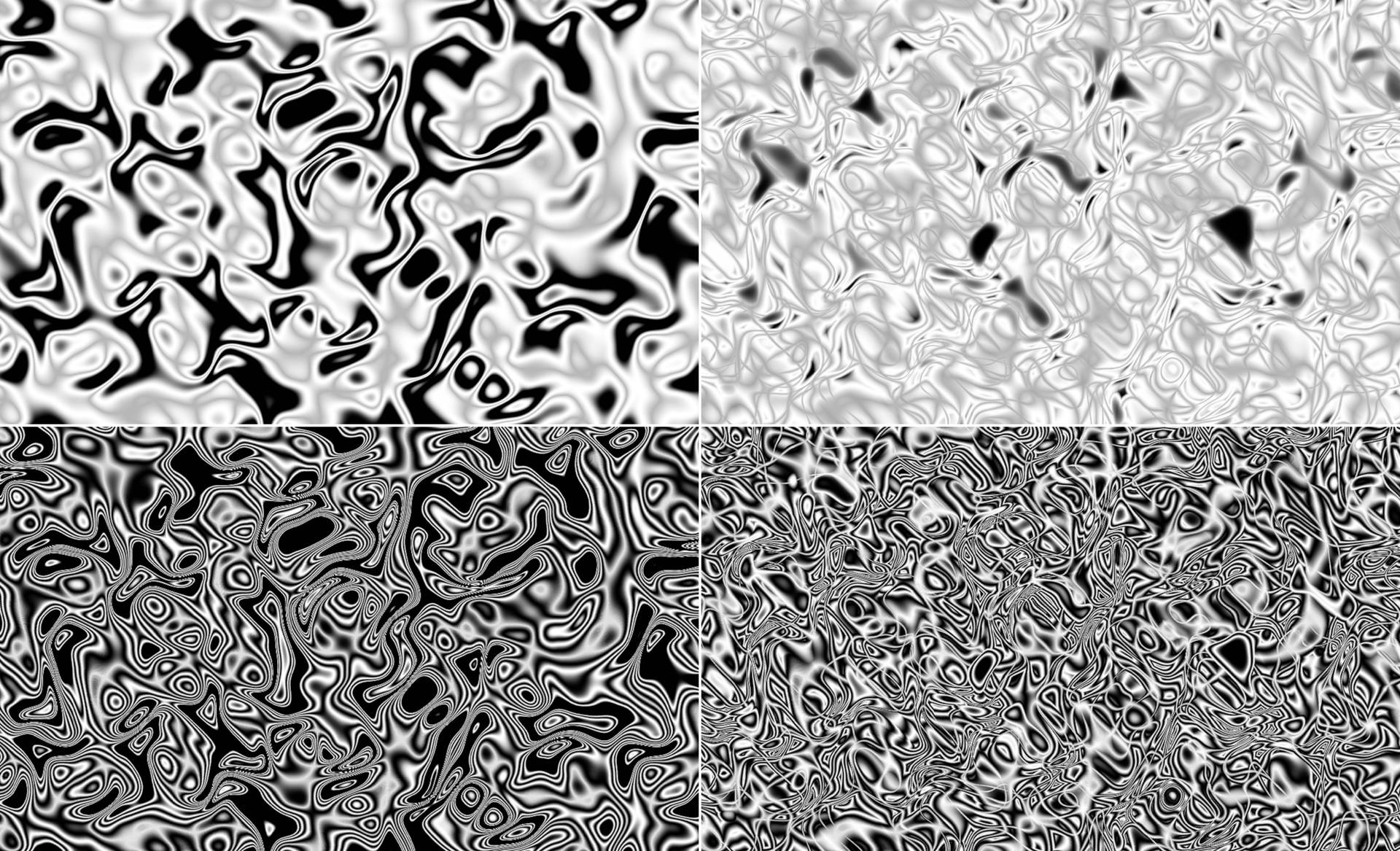
The Zada pattern. Top left: Complexity 1, Cycles 1. Top right: Complexity 5, Cycles 1. Bottom left: Complexity 1, Cycles 5. Bottom right: Complexity 5, Cycles 5.
Cycles is easiest to understand on a pattern with distinct cells. Watch a single cell as you raise the value. Copies of the cell's outline grow inside it, from the inside out. Cycles behaves differently from pattern to pattern, and on some patterns the result may appear unrelated to the cell shape.
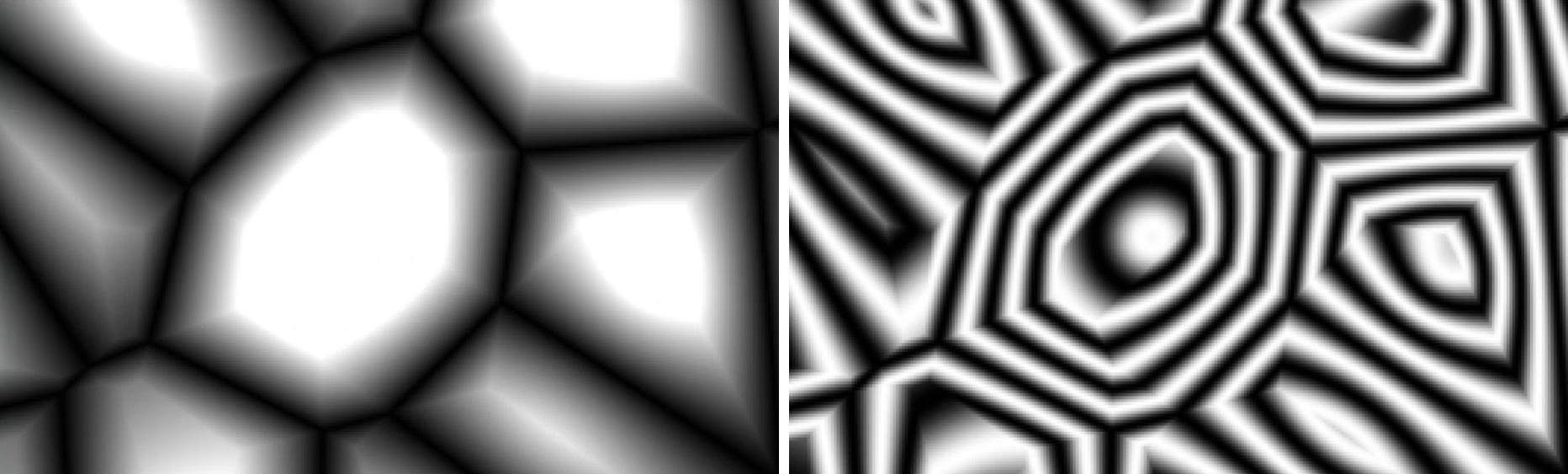
The Voronoi 3 pattern with Cycles at 0 (left) and 1.8 (right). Cycles repeats each cell's outline inside itself.
Absolute isn't a full inversion. Values below zero become positive, and values that are already positive stay as they are.
Sub Structure
The Sub Structure subgroup sets how each noise layer relates to the one before it. The settings compound from layer to layer. FBM is a good pattern for seeing them at work.
| Control | What it does | Default |
|---|---|---|
| Sub Scale | Sets each layer's scale relative to the layer before it. | 100% |
| Sub Rotation | Rotates each layer relative to the layer before it. | 0° |
| Sub Offset | Moves each layer in x and y relative to the layer before it. | Center of the layer |
| Center Sub Scaling | Scales each layer from the center. | Off |
Sub Scale sets each noise layer's size relative to the one before it. With Complexity at 3 and Sub Scale at 27%, the second layer is 27% the size of the first, and the third is 27% the size of the second. Large splotches come from the first layer, and the tight, intricate detail inside them comes from the smaller layers.
Animating Sub Offset is the clearest way to see the layers at work. The layers move at different speeds, which gives the noise a parallax look.
Animation
| Control | What it does | Default |
|---|---|---|
| Auto Animate | Animates the evolution of the noise automatically. | On |
| Speed | Sets how fast the noise evolves while Auto Animate is on. | 100% |
| Evolution | Sets the evolution manually. Available when Auto Animate is off. | 0° |
| Loop Animation | Makes the evolution loop seamlessly. | Off |
| Loop Time | Sets the loop length, in seconds. Available when Loop Animation is on. | 5 |
With Auto Animate off, the noise holds still at the current Evolution value. Turn it off when you want a still pattern or want to keyframe Evolution yourself.
To make the noise loop every two seconds, for example:
- Either make sure Auto Animate is on or set Evolution keyframes over time.
- Turn on Loop Animation.
- Set Loop Time to 2.
- Set the composition's duration to two seconds.
The noise returns to its starting state at two seconds, so playback loops without a jump. If the noise barely moves within the loop, raise Speed.
Color
| Control | What it does | Default |
|---|---|---|
| Color Mode | Duotone colors the noise with highlights and shadows. Tritone adds a third color for the midtones. | Duotone |
| Highlights | The color for the bright areas. | White |
| Midtones | The color for the middle values. Available in Tritone mode. | Gray |
| Shadows | The color for the dark areas. | Black |
| Midpoint | Shifts the balance between highlights and shadows. Available in Tritone mode. | 50% |
| Invert Colors | Swaps highlights and shadows. | Off |
| Posterize Color | Limits the noise to a set number of colors. | Off |
| Color Steps | Sets the number of colors when Posterize Color is on, up to 32. | 5 |
Try Color Steps at 3 for an old-school, 8-bit look (see below). At 32, posterizing has almost no visible effect, but you can animate Color Steps from 32 down to a low value to move from smooth noise to posterized color.
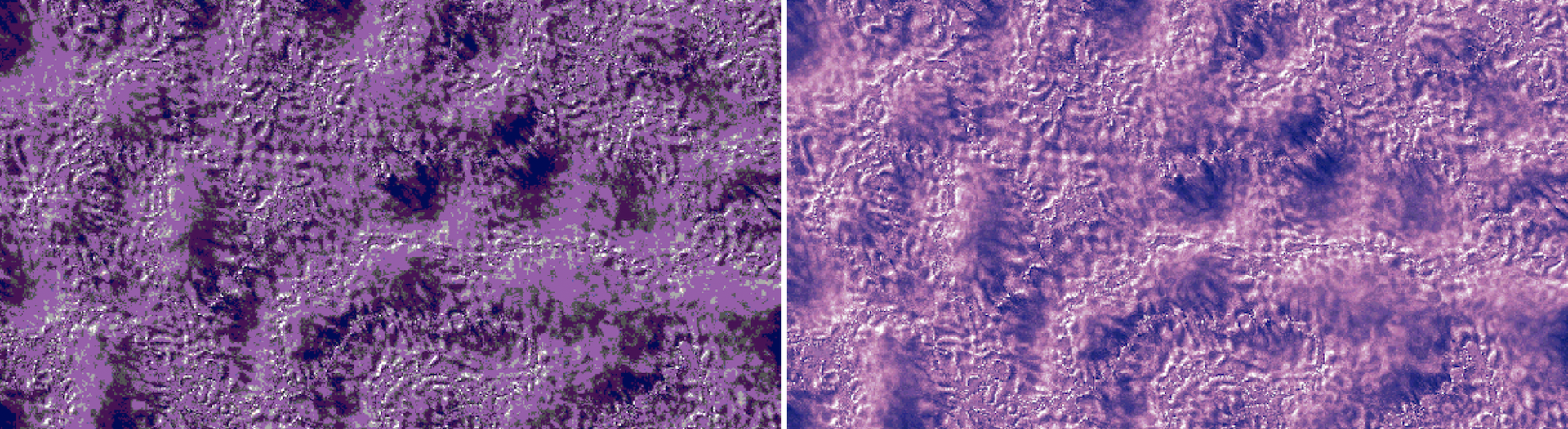
Posterize Color on, with Color Steps at 3 (left) and 15 (right). Fewer steps give flatter, poster-like bands of color. The noise is in Tritone mode with white highlights, pink midtones, and dark blue shadows.
Blend Mode and Opacity
Blend Mode sets how the noise blends with the layer to which Maxon Noise applies. Opacity sets the strength of the effect, from fully transparent at 0% to fully opaque at 100%. The defaults are Normal and 100%. The blend modes are the same as in Turbulence Noise.
Using Maxon Noise as a Schmutz Texture
Schmutz is the Real Lens Flares texture that mimics dirt and smudges on a lens. Because Maxon Noise animates by default, it makes a good moving Schmutz texture. Apply Maxon Noise to a solid and move the solid to the bottom of the layer stack. Then, in the Real Lens Flares Schmutz controls, set Texture to Custom and choose the solid in the Custom Texture layer menu. In After Effects, remember to set the source menu to Effects & Masks. Custom Schmutz textures work in Autograph, After Effects, and DaVinci Resolve (Fusion page). See Using Your Own Schmutz Texture.