
Particular
Rendering > Motion Blur Subgroup
Motion Blur gives particles that move quickly a smooth look, much like a camera does.
Technical note about render time: Motion Blur produces significantly more particles, which can make projects more memory intensive. Additional particles are inserted before rendering to create the blurred frame. This also means that per-particle transfer modes apply for each blur level, which produces even more extra particles.
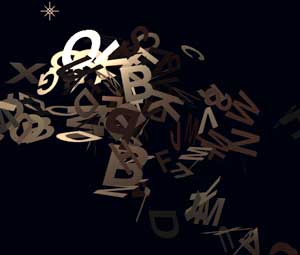
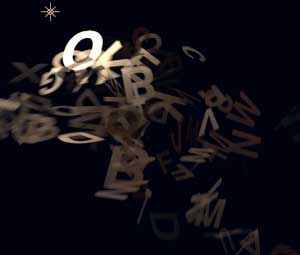
Motion Blur
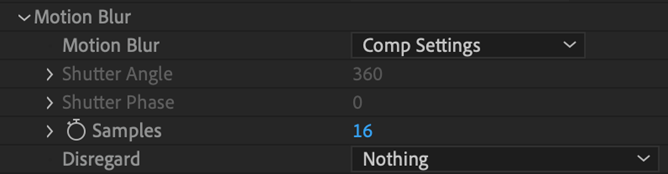
You can tell Motion Blur to be Off or enable it with either On or Comp Settings (the default).
When you select Comp Settings, this disables Particular's Shutter Angle and Shutter Phase controls because the Shutter Angle and Phase values from the After Effects composition are used instead. These values appear in After Effects' Composition > Composition Settings > Advanced menu. To activate Motion Blur with Comp Settings, the comp Motion Blur switch and the layer Motion Blur switch must be turned on.
Shutter Angle
This control is active when Motion Blur is set to On. Shutter Angle sets how long the virtual camera shutter stays open when a picture is taken. This controls the "streak length" or "blur length" of particles. High values set a longer particle streak. Low values set a short streak.
Shutter Phase
This is active when Motion Blur is set to On. Shutter Phase offsets the point in time when the virtual camera shutter opens.
Samples
This control samples the particle's position and rotation at a number of points while the shutter is open. Samples is useful if particle motion is curvy, like when using Turbulence or Spin. The default value is 16. Higher Samples levels will take longer to render.
Disregard
Sometimes, not everything in the composition should be motion blurred. With Disregard, some parts of the particle simulation can be ignored when Motion Blur is computed.
The four Disregard settings are:
- Nothing: Nothing in the simulation is disregarded.
- Physics Time Factor (PTF): The Motion Blur from an explosion is unaffected by the standstill in time. This is useful for effects such as freezing time in an explosion.
- Camera Motion: In this mode, camera motion does not contribute to Motion Blur. Perhaps the most useful case is when Shutter Angle is very high and particles are very long. In this situation, if the camera is moved, that motion will cause a lot of blur unless Disregard is set to Camera Motion.
- Camera Motion & PTF: Neither camera motion nor PTF contribute to Motion Blur.