
Scene Light Passes and CG Relighting
Scene Light illuminates your footage from two passes, a depth pass and a normal pass, that its AI models estimate for every frame. You can view those passes, render them to files that Scene Light reads instead of running the models, or replace them with depth and normal passes you already have, such as passes from a 3D render. For placing and shaping lights, see Using Scene Light.
Viewing Passes
Show Pass sets what Scene Light outputs:
- Final (default): the light over the original image.
- Light Only: only the light, over black.
- Depth: the depth pass.
- Normal: the normal pass.

Show Pass set to Final (left), Depth (center), and Normal (right)
Light Only shows clearly where your light falls and where it doesn't, making light adjustment much easier and more intuitive.
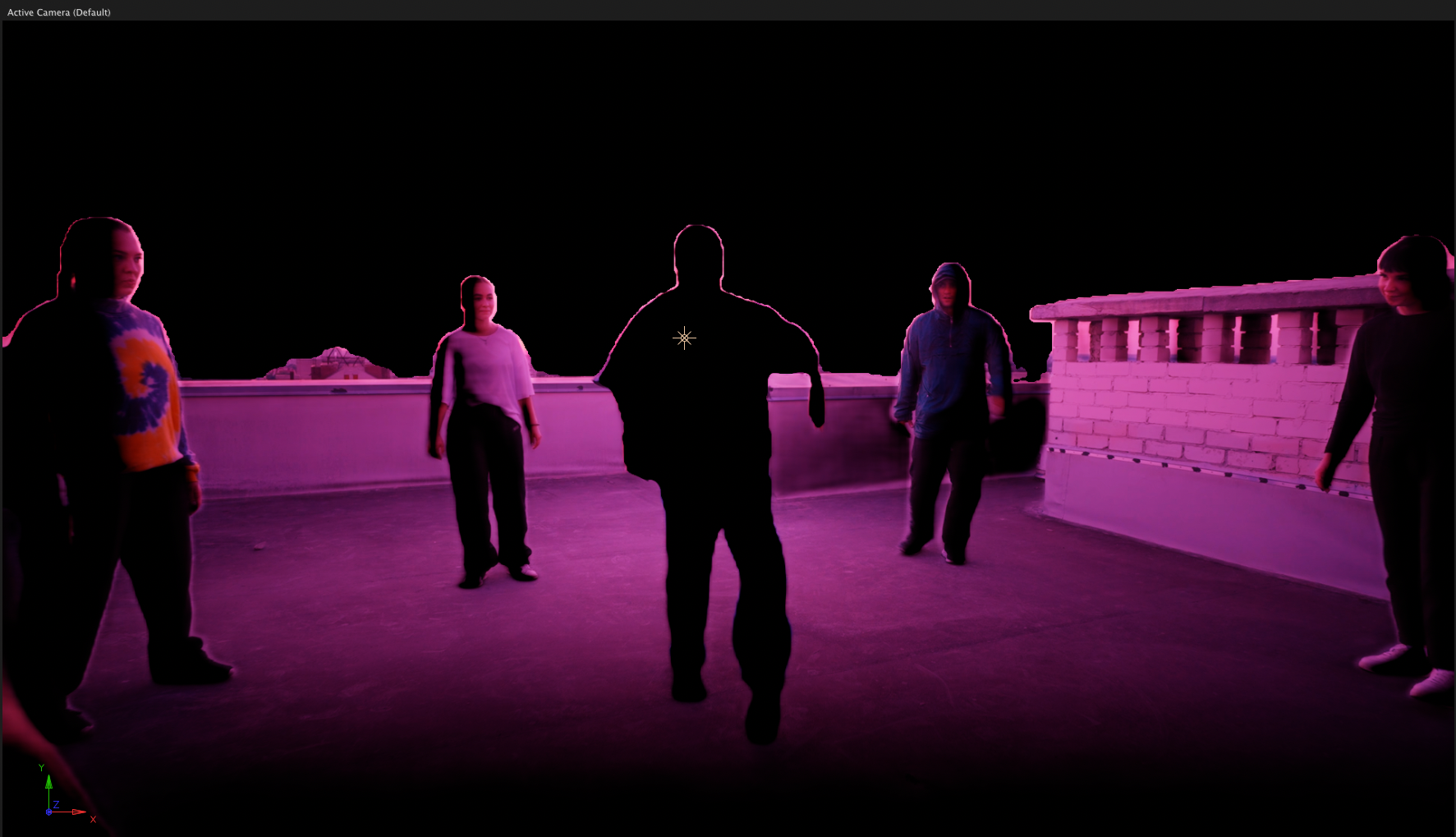
Show Pass set to Light Only
Separating the Light Pass
With Light Only, you can put the light on its own layer and composite it separately from the image. You might do this to add a glow to the light alone, for example.
- Duplicate your footage or image layer.
- Apply Scene Light to the upper copy.
- In Scene Light, set Show Pass to Light Only.
- Set the upper layer's blend mode to Screen or Add.
The upper layer holds the light, and the lower layer holds the original image. Effects you apply to the upper layer, such as Optical Glow, affect only the light.
Relighting CG Renders with Custom Passes
The Custom Passes group replaces the passes estimated by the AI models with layers from your composition. Each control has two menus. The first picks the layer. In the second, Source reads the layer's own pixels and Effects & Masks reads the layer with its effects and masks applied.
- Depth Pass: the layer Scene Light uses for depth. Near areas should be white and far areas black. If your pass is the other way round, apply an Invert effect to it. With None, Scene Light uses the depth model.
- Normal Pass: the layer Scene Light uses for surface direction. The pass should be in camera space, with values normalized to 0 to 1, x in red, y in green, and z in blue. The z axis should be inverted so that it faces the camera. With None, Scene Light uses the normal model.
When a custom pass is assigned, Show Pass set to Depth or Normal reveals that pass.
Custom passes make Scene Light useful for relighting 3D renders. Renderers such as Redshift can write AOVs (separate passes saved alongside the final image), including depth and normals. Those passes are cleaner than what the models estimate, so the lighting and falloff emerge more accurate.
- Import the beauty pass (the final rendered image) and the depth and normal passes of your render and add them to a composition.
- Apply Scene Light to the beauty layer. Until you assign custom passes, Scene Light estimates depth and normals from the beauty pass with its AI models.
- If the depth pass doesn't appear to show anything, as an EXR depth pass can, you may need to pre-process it to reveal the depth information in your host application.
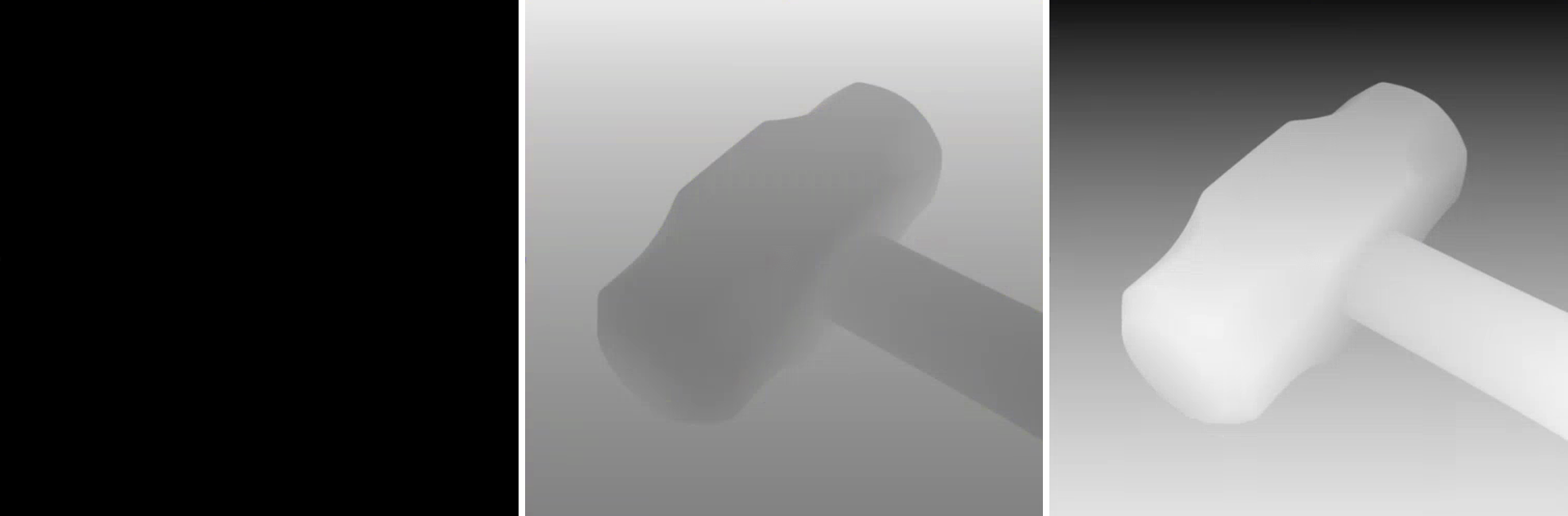
An EXR depth pass as imported (left), with its depth channel extracted (center), and inverted and adjusted so near areas are white (right)
- Under Custom Passes, set Depth Pass to the depth layer and choose Effects & Masks, so Scene Light sees the pass with your adjustments.
- Set Normal Pass to the normal layer, with Source or with Effects & Masks if you've applied effects to it.
- Place and shape lights as described in Using Scene Light.
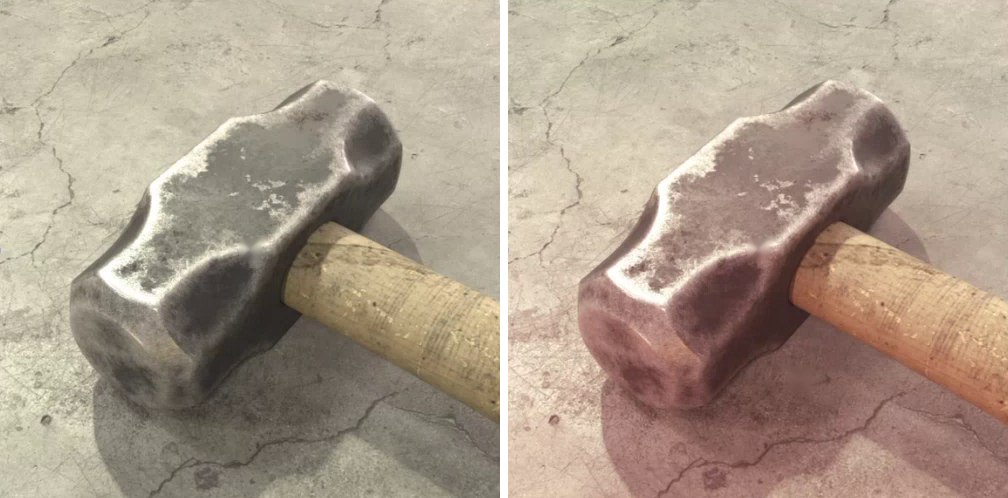
The CG render before (left) and after (right) assigning the renderer's depth and normal passes under Custom Passes
You can hide the depth and normal pass layers in your composition.
Rendering Depth and Normal Passes to the Composition
Rendering the depth and normal passes to files works like a cache. Scene Light assigns each pass you render under Custom Passes (see Relighting CG Renders with Custom Passes above), so it reads the file for that pass instead of running the AI model, allowing you to work faster. Rendering does take some time up front. Scene Light applies Depth Quality and Edge Smoothing to a pass before it renders it, so set them first. You can't adjust them on a rendered pass.
- Set Show Pass to Depth or Normal. Render to Comp is available only for these two passes.
- Choose Export Format: MP4 (default) for a single video file or PNG for an image sequence with less compression and slightly higher quality.
- Click Render to Comp, and choose a name and location for the rendered file. Scene Light renders only the composition's work area. To stop a render in progress, click Cancel.
- Repeat for the other pass.
- Set Show Pass back to Final.
Scene Light renders each pass to disk and imports it into the composition. Render both passes to stop running the models entirely. To go back to the AI models, set Depth Pass and Normal Pass under Custom Passes to None.
AI Tool Information
The AI Tool Information group explains how Scene Light uses AI. Scene Light's AI models are installed locally on your machine. The models don't learn from any content you process through them, and they don't send any image data back to Maxon. For a full description, see Scene Light and AI.