
Real Lens Flares
PROJECTION STRIP
The projection strip contains the various visual elements (core projections and lens simulations/reflections) that comprise a flare. When you select a preset, its layered components appear here. Clicking on any one of these elements will open its customizable properties in the inspector pane.
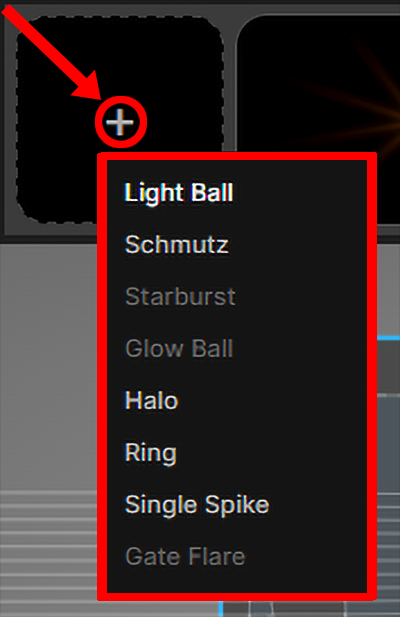
Click the + icon on the projection strip’s left to add a new core projection. (The core projection types are detailed later.) Designer allows up to the following number of core projections to a lens flare and thus to the projection strip:
- Light Ball: 1
- Schmutz: 1
- Starburst: 1
- Glow Ball: up to 3
- Halo: up to 3
- Ring: 1
- Single Spike: up to 3
- Gate Flare: 1
Note how selecting a core projection, lens simulation, or stylized flare from the presets shows a very limited set of aperture information (along with light source and flare properties settings) in the inspector pane. Essentially, only the graphical representation of the aperture blade configuration and f-stop control are shown (as demonstrated in the first image, below). However, if you select a preset and then click on a core projection in the projection strip, the full assortment of aperture settings appears (second image, below).
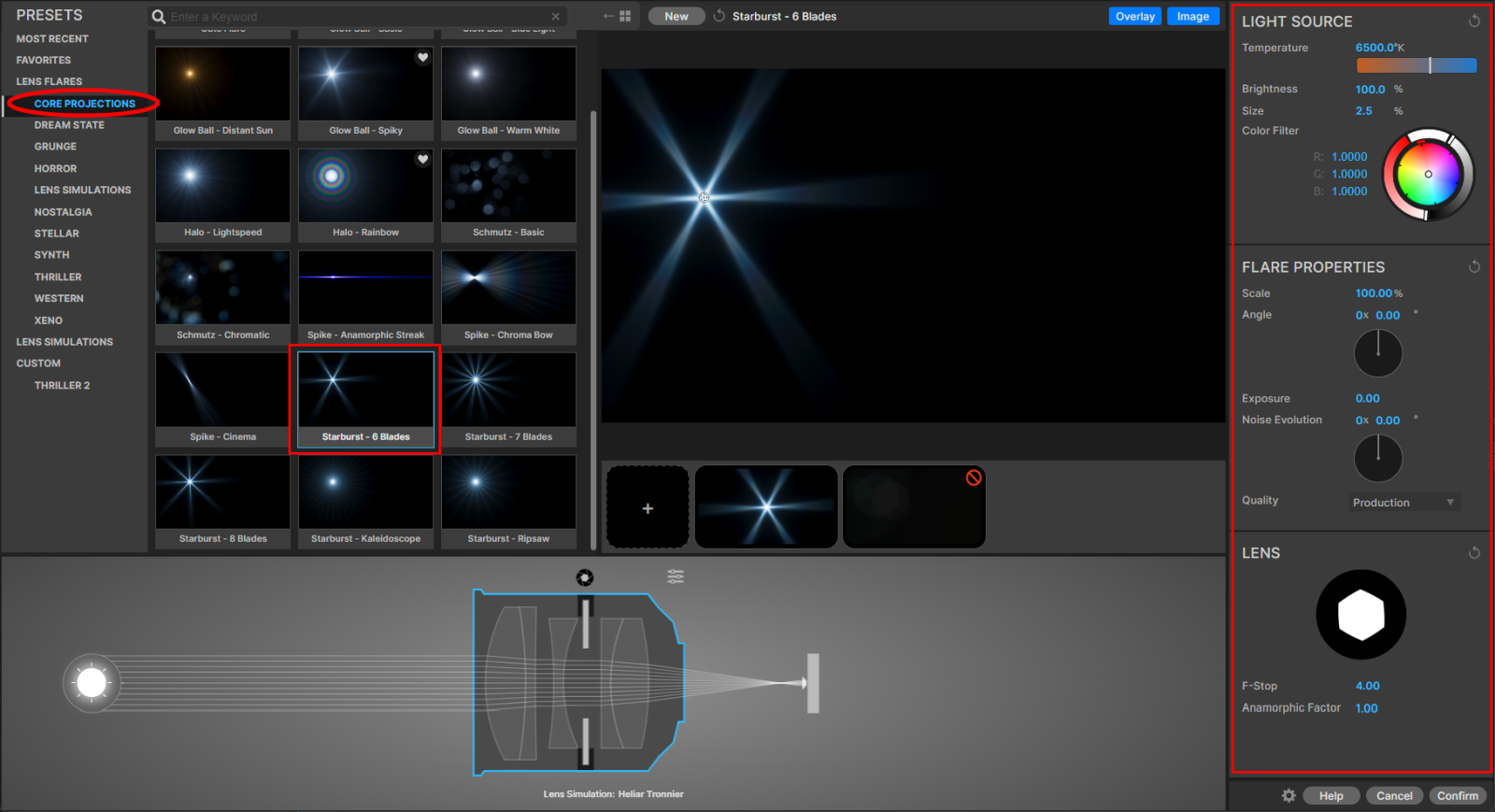
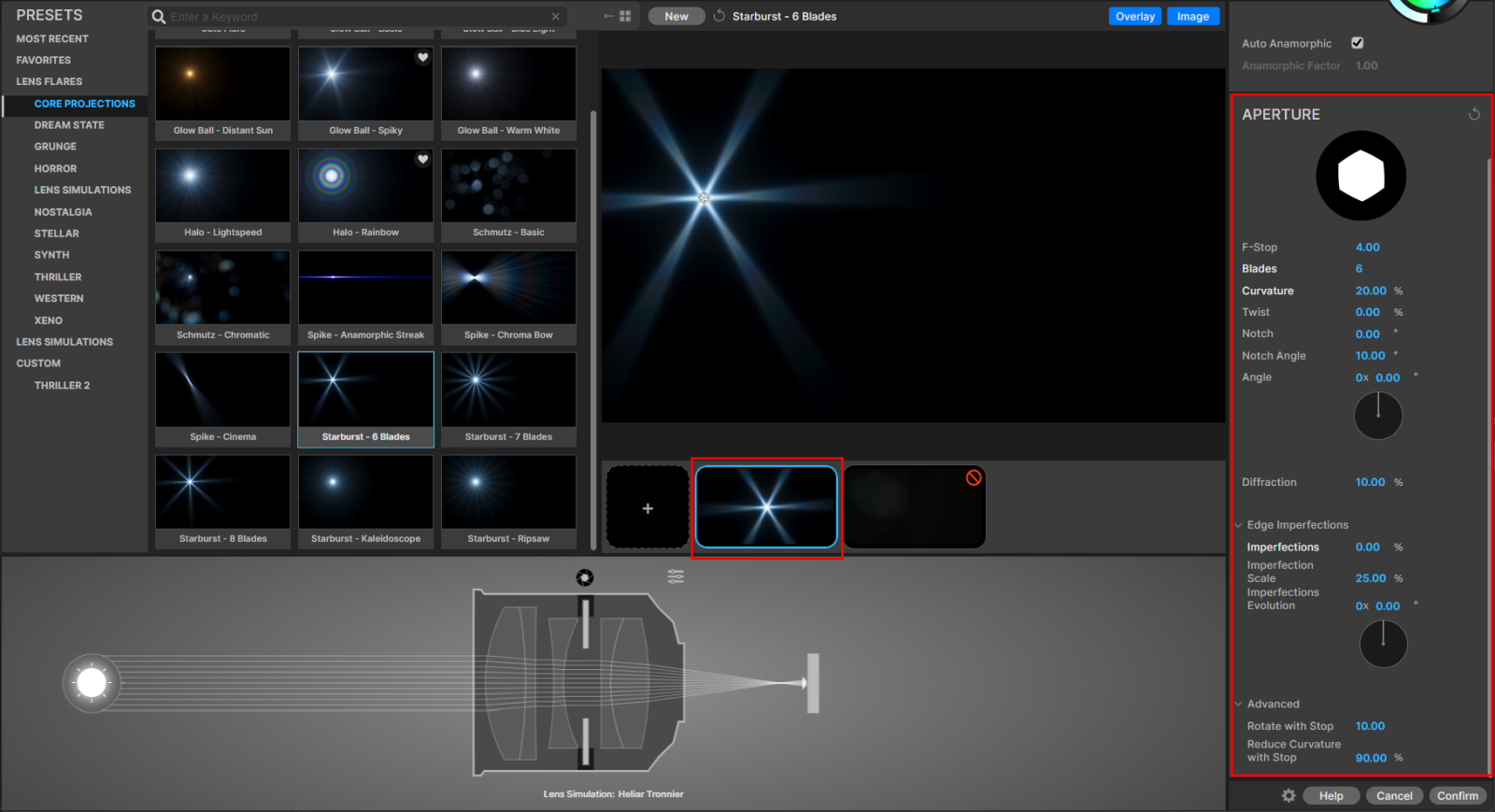
VFX Real Lens Flares takes this approach to provide more control granularity as you dig deeper into a lens flare’s components.
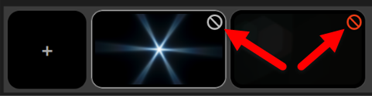
It may be useful to isolate certain projections by hiding others, much like turning off visibility for project layers. To do so, mouse-over the strike-out symbol in the top-right corner of a projection’s thumbnail in the strip. Clicking it turns the symbol from white to red and hides that projection’s layer.
Finally, the projection strip includes a few additional functions accessible by right-clicking on a strip thumbnail:

- Reset: Reverts the properties of that projection to their default values, NOT to the values saved for that preset. For example, the Hazy Late Summer stylized flare preset has a starburst core projection with Size of 83 percent. Selecting Reset for this will change the size value to 100%, the default for starburst core projections.
- Hide: Makes that projection layer invisible, just like selecting the thumbnail’s strike-through symbol.
- Solo: Turns all projection layers invisible except that of the selected thumbnail.
- Delete: Deletes that thumbnail and its associated projection layer. Alternatively, you can delete a projection by selecting its thumbnail and hitting the Delete key.