
Magic Bullet Looks
Controls Pane
In traditional color grading, computer mice were rarely used. Instead, professionals employed dedicated panel peripherals loaded with knobs and trackballs. These provided a more tactile, intuitive means to manipulate the wheel-type controls for adjusting color channels, saturation, shadows, highlights, and many other factors. (To learn more about these controls, check out our Colorista user guide page on 3-Way Correction.)
In Looks, the Tilde key (~) toggles Trackpad Mode on and off, allowing you to use your trackball or integrated trackpad as you would a traditional panel’s trackball.
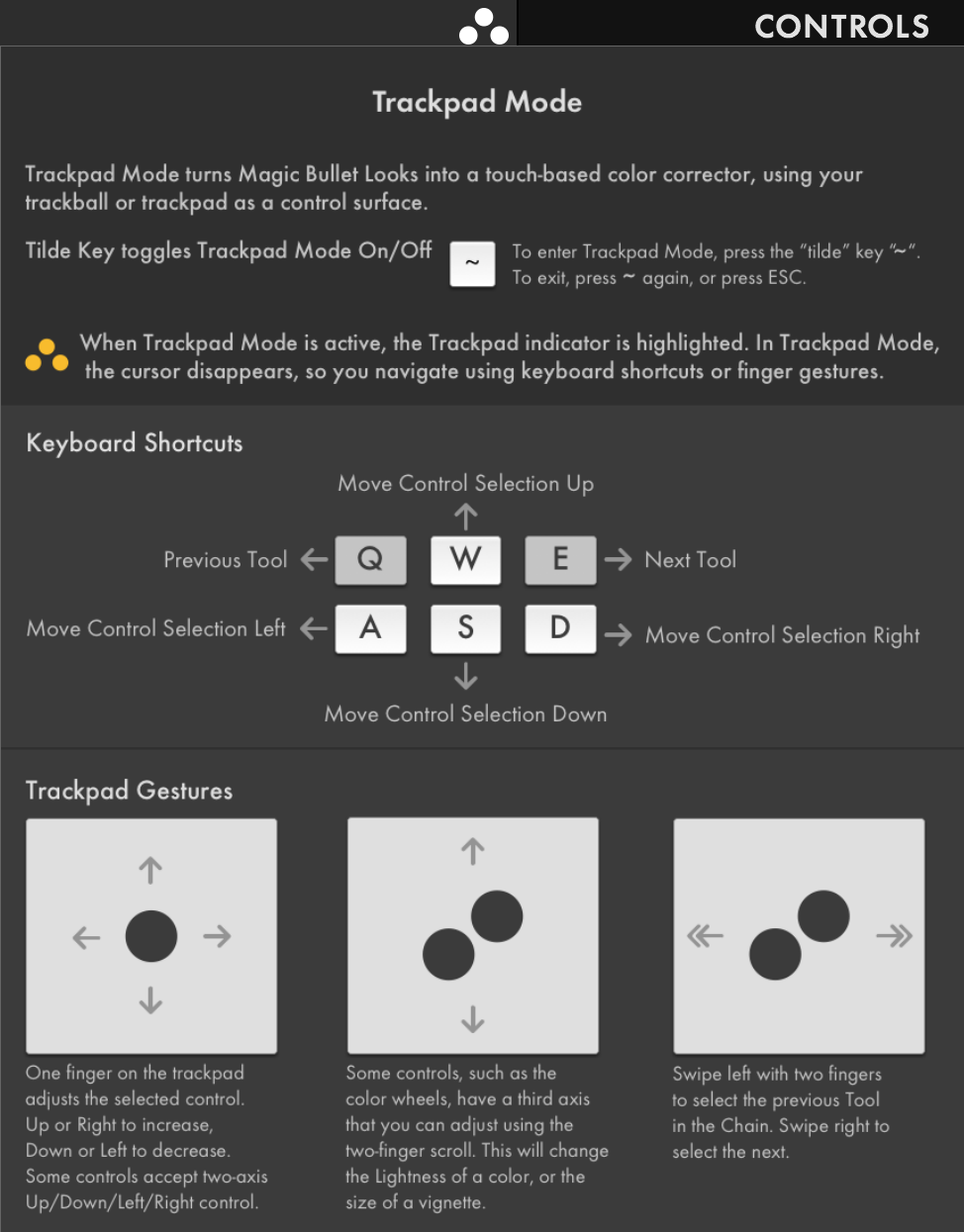
This pop-up explainer appears when you click the three-dots icon to the left of CONTROLS.
Trackpad Mode
Trackpad Mode lets you edit the numeric values of a tool’s controls with the touch of a trackpad, trackball, or mouse. Every control can be customized in Trackpad Mode, and built-in keyboard mapping aids in moving between controls as you edit their values.
Let’s illustrate how to use Trackpad Mode with the Hue/Saturation tool.
Step 1. With the tool selected, press the Tilde (~) key, located next to the 1 key on US/Canadian keyboards. You’ll notice that enabling Trackpad Mode turns the three-circles icon from white to orange.
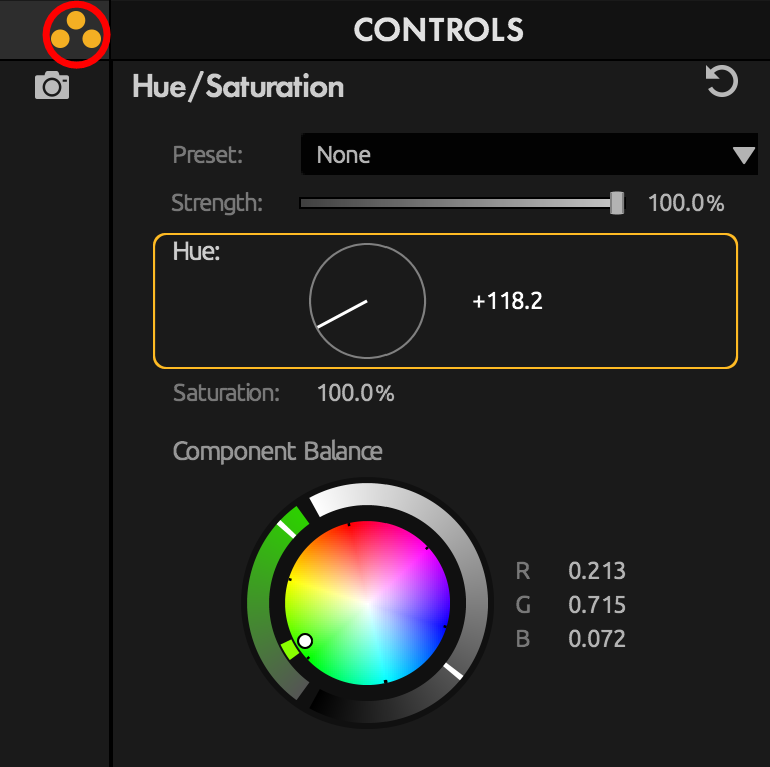
Step 2. Use the arrow keys to select the Component Balance wheel.
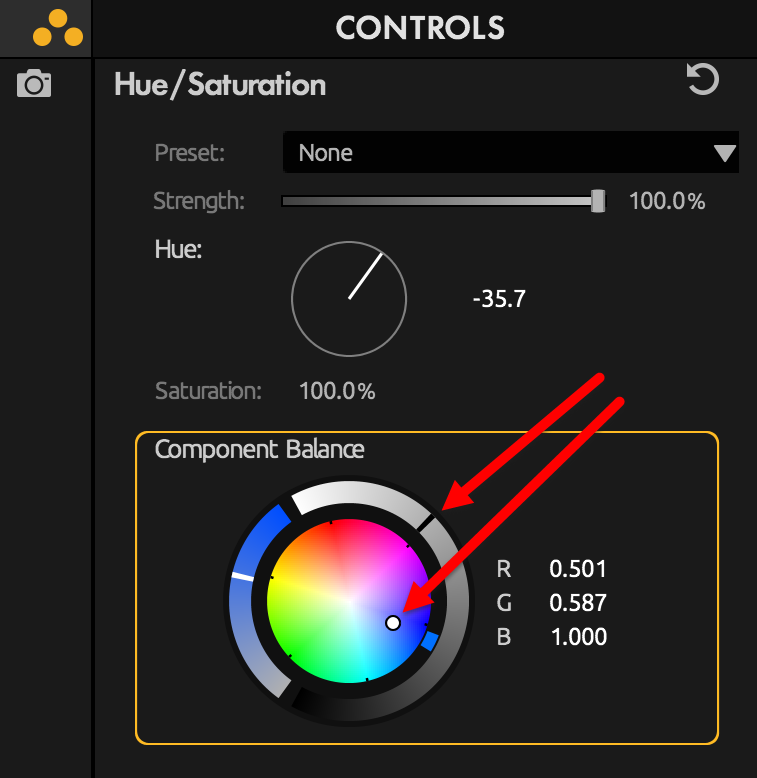
Step 3. Use the mouse or trackpad to push the center dot away from the greens toward the reds or blues.
Step 4. Use the scroll wheel to scroll up/down and change luminance. When finished, press Enter or Tilde to exit Trackpad Mode.
Trackball Mode keyboard shortcuts
Looks uses the following keyboard controls in Trackball Mode:
- Tilde (~): Enter/exit Trackball Mode.
- Esc or Enter: Leave Trackball mode and accept changes.
- Up/Left arrow: Move to the control above the current one. If at the topmost control, selection wraps around to the bottom.
- Down/Right arrow: Move to the control below the current one. If already on the last list entry, selection wraps around to the top.
- Cmd/Ctrl + Z: Undo the last change (works without leaving Trackball Mode).
- Cmd/Ctrl + Shift + Z: Redo the last change (works without leaving Trackball mode).
Tangent Support
Looks now supports Tangent control surfaces, which are external color correction panel peripherals. Currently, only the following Looks controls support Tangent control surfaces:
- Anamorphic Flare
- Black & White
- Colorista
- Diffusion
- Edge Softness
- Fill Light
- Grad Exposure
- Gradient
- Haze/Flare
- Spot Exposure
- Spot Fill
- Star Filter
- Swing-Tilt