CAROUSEL
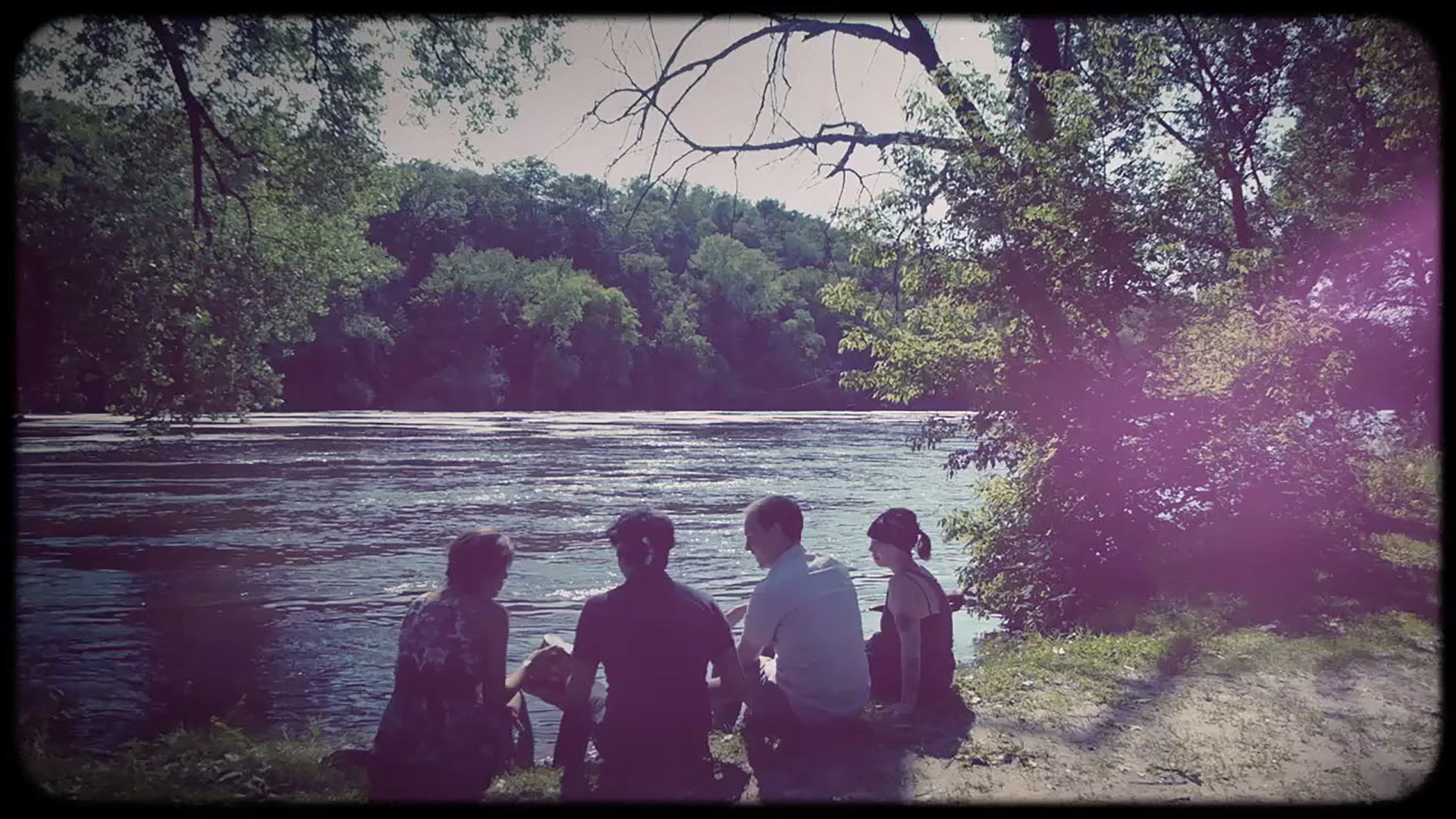
Universe Carousel captures the classic look of vintage color cross-processing, film fading, and vignettes.
Presets
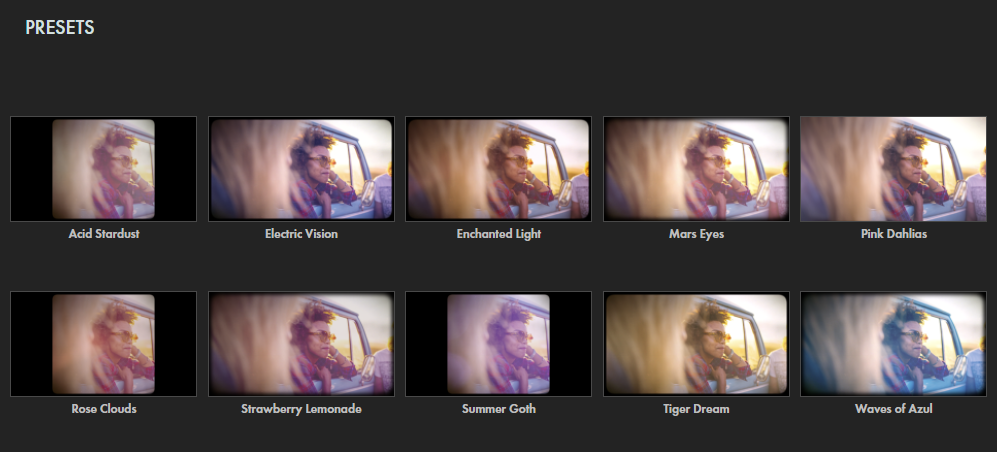
For a quick shortut to great results, try any of Carousel's 10 bundled presets. Find these in the Red Giant Universe Dashboard (accessible via the blue Open Dashboard... button or the Choose a Preset... button below it).
Modify the Effect
-
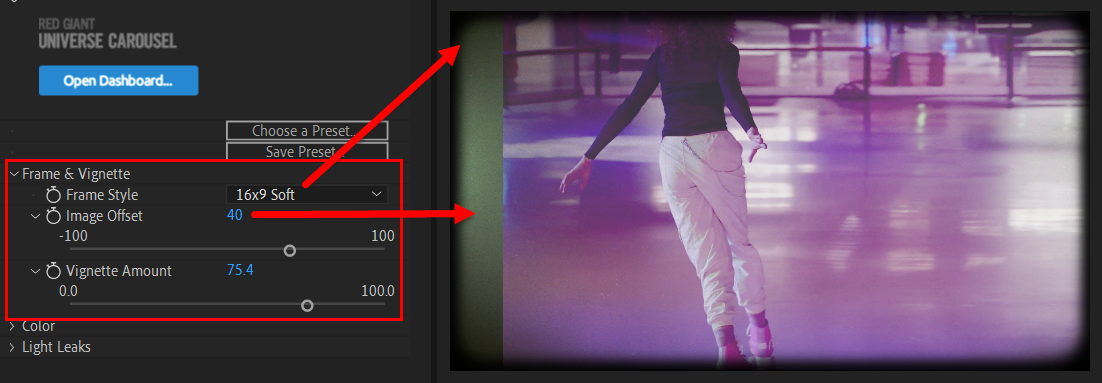
Frame & Vignette
- Frame Style sets the edges and aspect ratio of the effect's frame, with options for hard-edged 16x9, Square, soft-edged 16x9 Soft, Square Soft, or None, which disables the frame entirely.
- Image Offset moves the clip to which the effect is applied toward the left (negative values) or right (positive values).
-
Vignette Amount
adjusts the darkness around the clip's edges.
-
Color
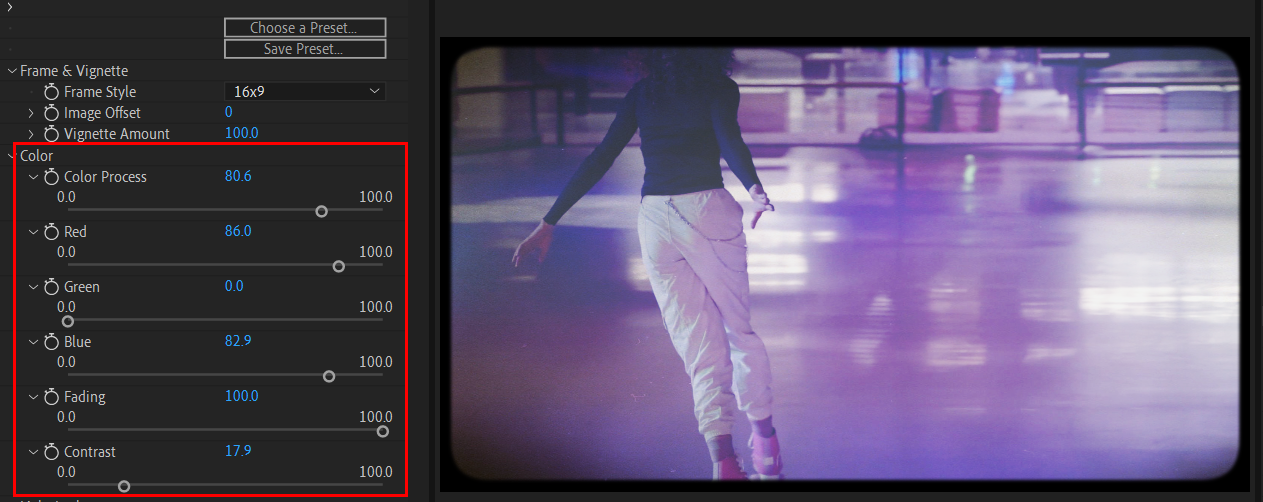
- Color Process adjusts the tint of the red, green, and blue color channels on the overall look.
- Red, Green, and Blue adds more or less mix of one color channel into the Color Process overlay.
- Fading flattens the image contrast, giving it a faded feel. Set the slider closer to zero to keep higher contrast between light and dark areas.
-
Contrast
controls the difference between the light and dark areas and brings out more detail from your video footage.
Note that increasing contrast in footage shot in low lighting can increase grain and texture.
-
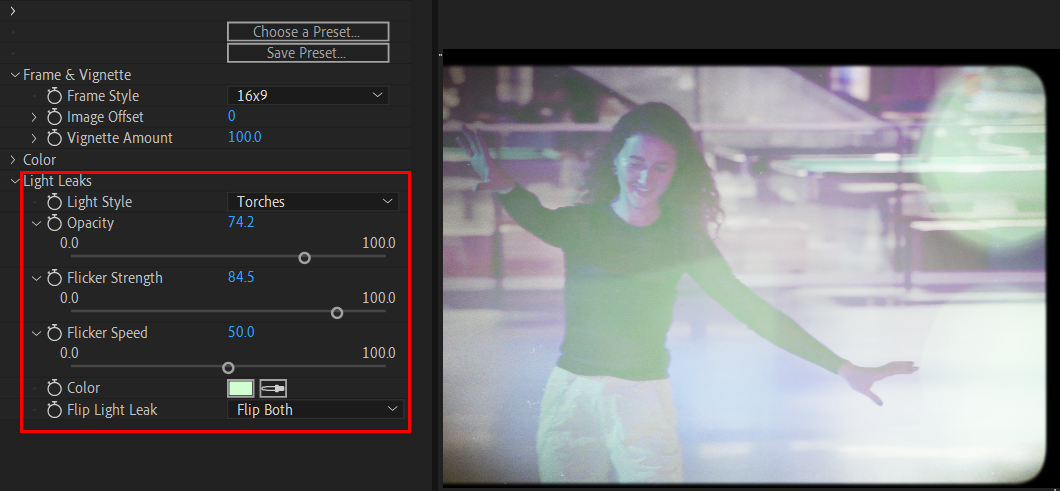
Light Leaks
- Light Style offers several orientation options for light leaks effects.
- Opacity adjusts the transparency of the light leak effect.
- Flicker Strength and Flicker Speed create an animated strobe effect for how light leaks on the film.
- Color adjusts the tint of the light leak effect.
-
Flip Light Leak
adjusts where light leaks appear in the frame.