
SCREEN TEXT
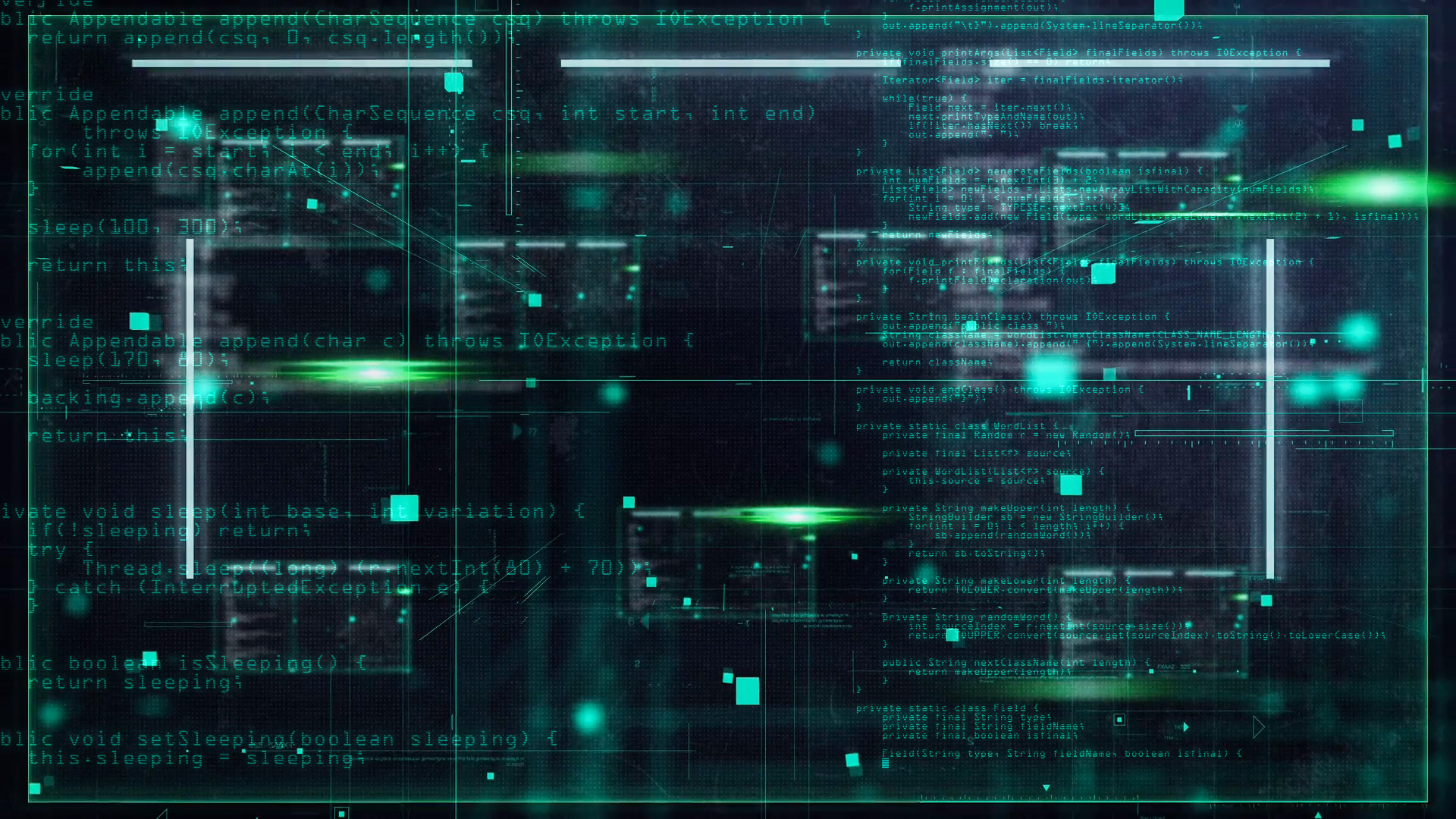
Universe Screen Text is designed to imitate text scrolling up a screen. The plugin can generate random text streams, or you can enter your own text and set up a text scroll. The scrolling text can slowly reveal itself as if it's being typed in. Alternatively, text lines can appear all at once, or one line can display at a time.
Presets & Video Walk-Through
Screen Text presets deliver one-click shortcuts to get you to a convincing scroll of text lines. Find our presets via the blue Open Dashboard... button or the Choose a Preset... button below it.
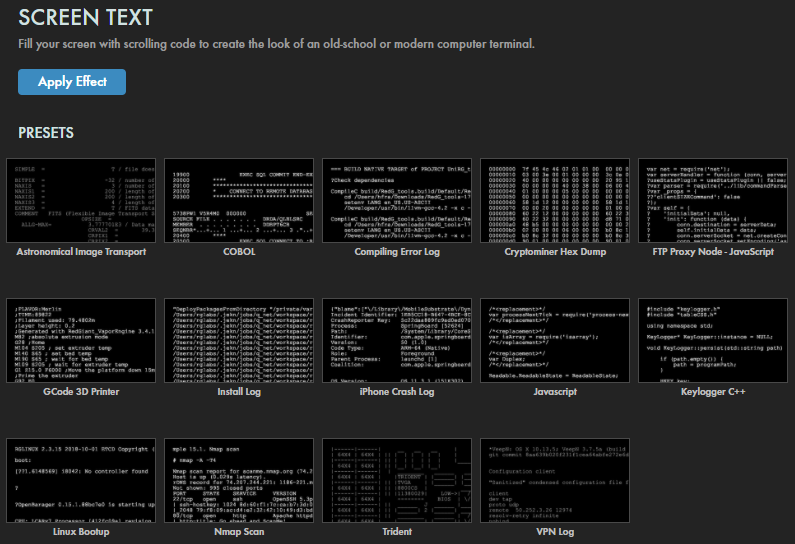
As with all other Universe tools, you can modify or create a Screen Text look and then save it under its own name by pressing the Save Preset... button.
If you'd like a visual overview of the plugin before diving into this guide, we recommend giving our Cineversity tutorial a watch.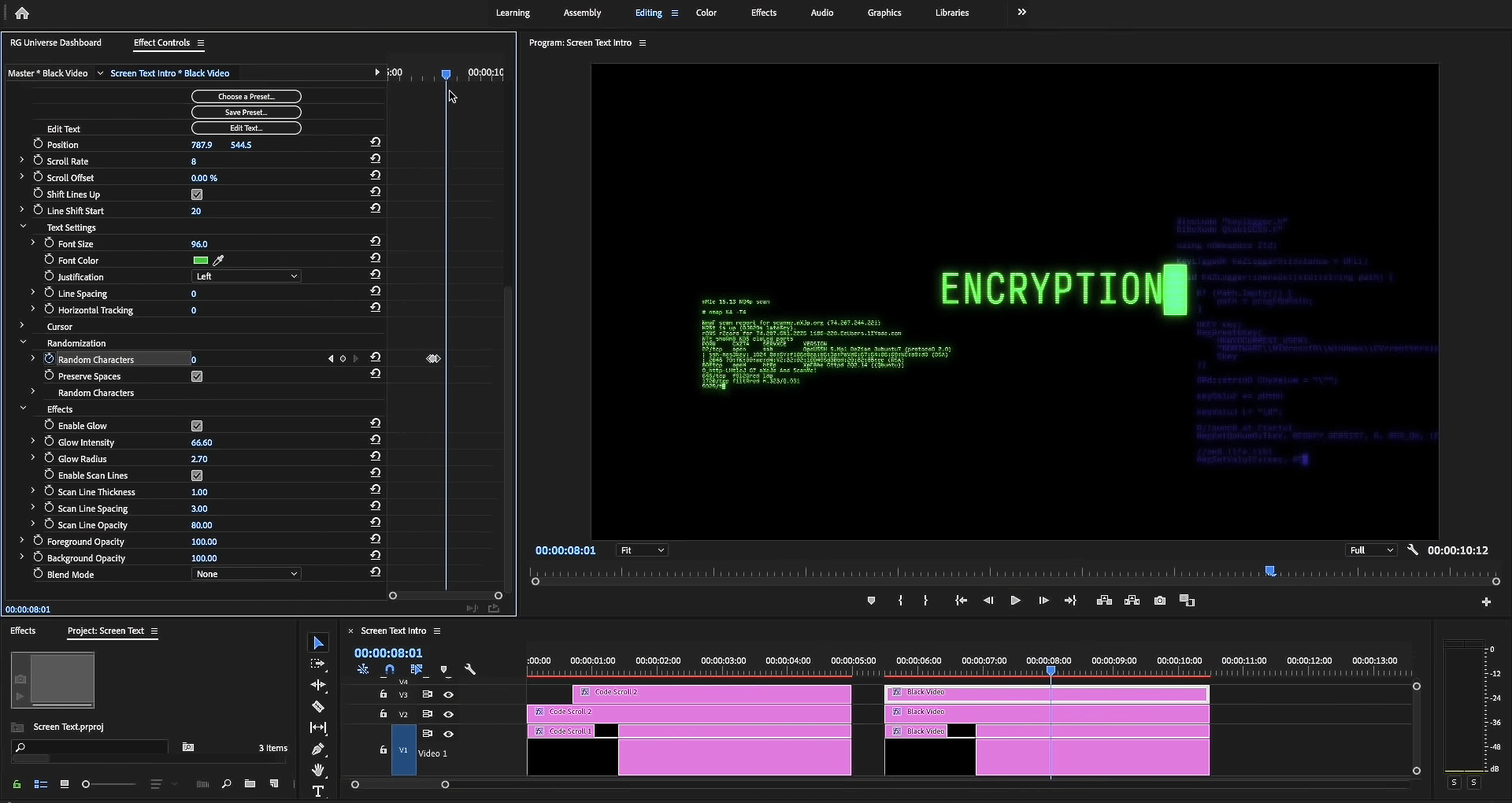
Modify the Effect
-
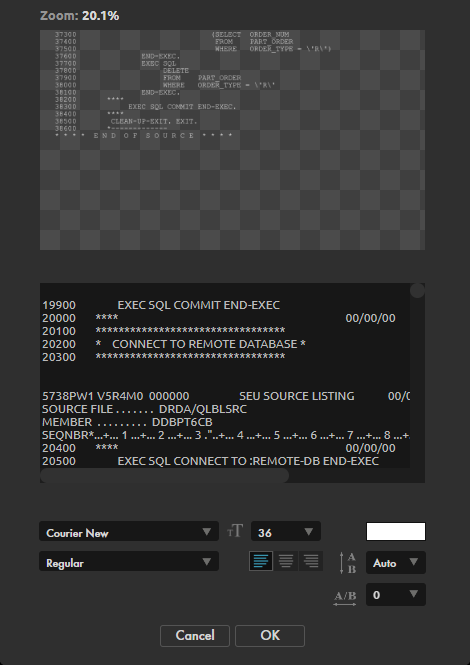
Edit Text
launches a modular window with options to customize the text input for the effect with standard alignment, font, font size, font style, color, line spacing, and character spacing options.
- Position controls the coordinates control point that sets where within the frame your text will appear.
- Scroll Rate adjusts the line-by-line speed at which text types onto the frame.
- Rate Random adds random variance to Screen Text's scroll rate. You may observe that higher values can slow text output.
- Scroll Offset determines how much text is already output prior to the animation's starting frame.
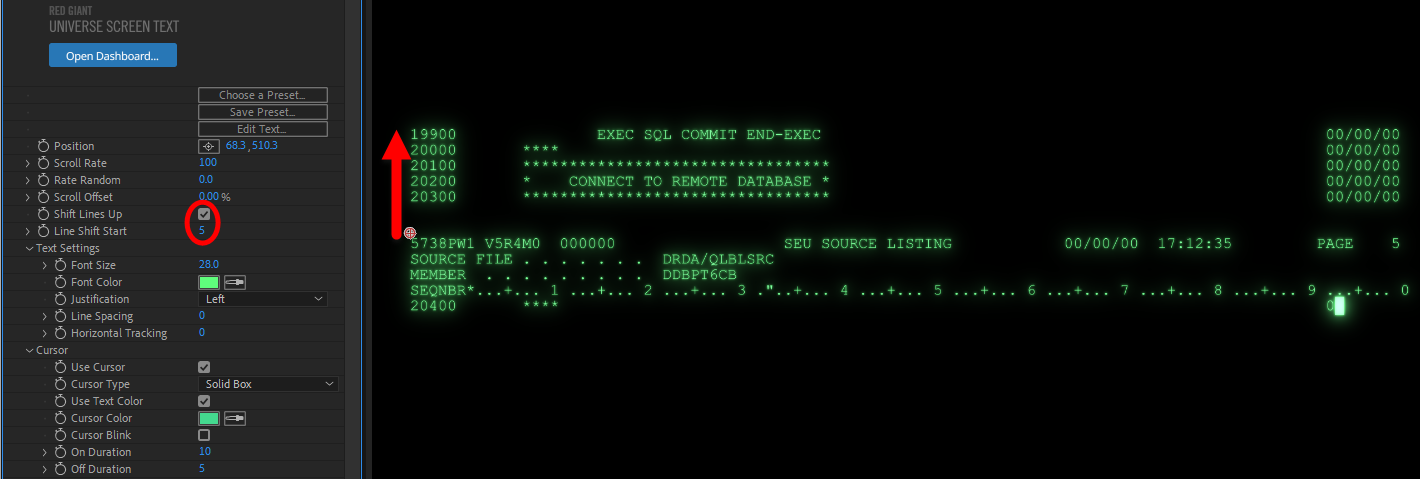
- Shift Lines Up toggles whether text moves upward as more lines appear, or if it stays in position as lines type downward.
-
Line Shift Start
controls which line (from the top of the source), once completed, begins the scrolling adjustment on the rest of the text block assuming that Shift Lines Up is enabled. For example, with a value of 5, scrolling would begin as the sixth line begins to display.
- The Text Settings controls — Font Size, Font Color, Justification, Line Spacing, and Horizontal Tracking — echo the same controls found in the Edit Text window.
-
Cursor
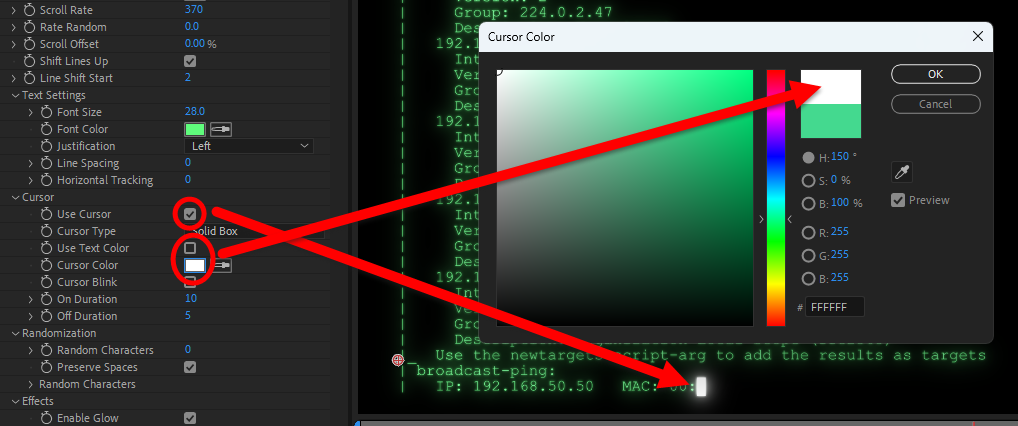
- Use Cursor toggles whether a cursor accompanies the reveal of text.
- Cursor Type provides four options for the cursor's appearance: Solid Box (the default), Inverted Square, Underline, and Vertical Bar.
- Use Text Color toggles whether the cursor is the same color as the text.
-
Cursor Color
provides a swatch that dictates the cursor color if
Use Text Color
is disabled.
- Cursor Blink controls whether the cursor alternates between visible and invisible as text displays.
- On Duration determines how many frames the cursor remains on screen when Cursor Blink is enabled.
- Off Duration determines how many frames the cursor is hidden when Cursor Blink is enabled.
-
Randomization
- Random Characters adjusts the amount of randomized lettering applied to the text input.
- Preserve Spaces toggles whether spaces in your text inputs are included in the randomized text animations.
- The
Random Characters
subgroup contains toggles that define which types of characters (upper/lower case, numbers, hexadecimal, etc.) appear within randomizations, as well as what
Number Limit
or
Character Limit
(A-Z) is in place.
- Random Seed adjusts the formula, and subsequently the variations, used to create the random effect.
-
Effects
-
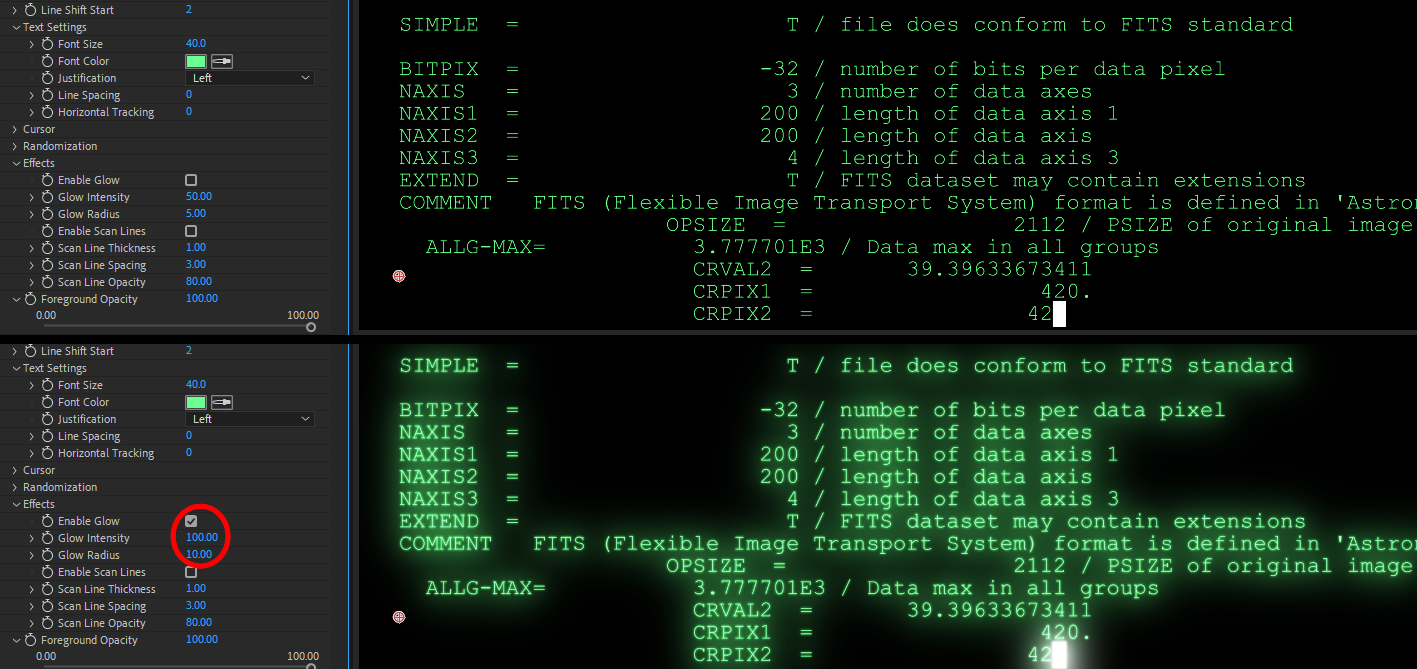
Enable Glow
toggles a glow around the text. You can also fine-tune the effect's brightness (Glow Intensity) and spread (Glow Radius), as shown below.
- The
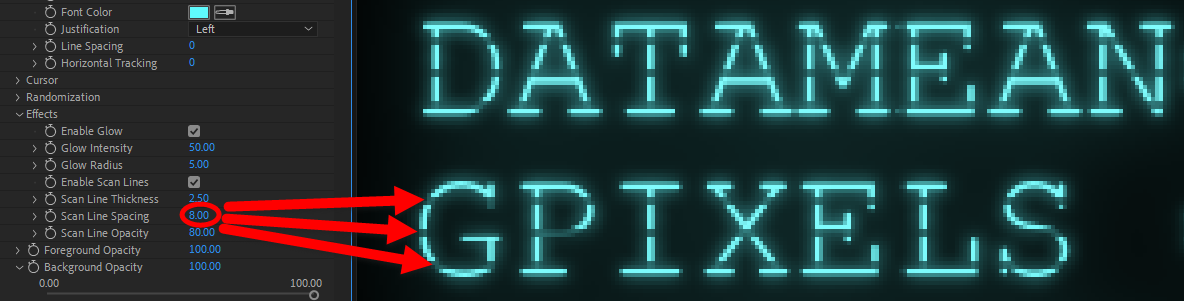
Enable Scan Lines
checkbox toggles an array of dark lines that overlay the text, mimicking the effect of scan lines in old CRT displays. You can adjust scan line width with
Scan Line Thickness, the spacing between lines (Scan Line Spacing), and Scan Line Opacity. Below, we zoomed in on our text to show how a Scan Line Spacing of 8 only leaves enough room for three scan lines per row at our current font size setting.
-
Enable Glow
toggles a glow around the text. You can also fine-tune the effect's brightness (Glow Intensity) and spread (Glow Radius), as shown below.
- Foreground Opacity and Background Opacity control the opacity of the text (the foreground) or the layer to which the text has been applied (background), complete with the standard Blend Mode options that adjust how the text overlay interacts with the underlying layer.