
Maxon Review button
A review is the stage where someone else looks at your work and tells you what to change. Feedback only helps when you can tell exactly what the reviewer meant. A note such as "make the ear bigger," sent by email or chat, leaves ambiguity and questions. Which ear? From which angle? How much bigger? Every guess means more revisions.
Maxon Review sends a model from ZBrush to the cloud, where your reviewers open it in a web browser, inspect it in 3D, and pin comments and sketches to its surface. Each comment returns to ZBrush attached to the spot on the model and the camera angle the reviewer was looking at, so you read and answer feedback without leaving ZBrush. To comment, your reviewers only need a free Maxon account. They do not need a license, nor even any 3D experience!
During its Public Preview phase (as of this writing), sending a model to Maxon Review requires a Maxon Plus subscription, and sharing a review and commenting do not cost Maxon Plus credits. Maxon may change these terms in the future.
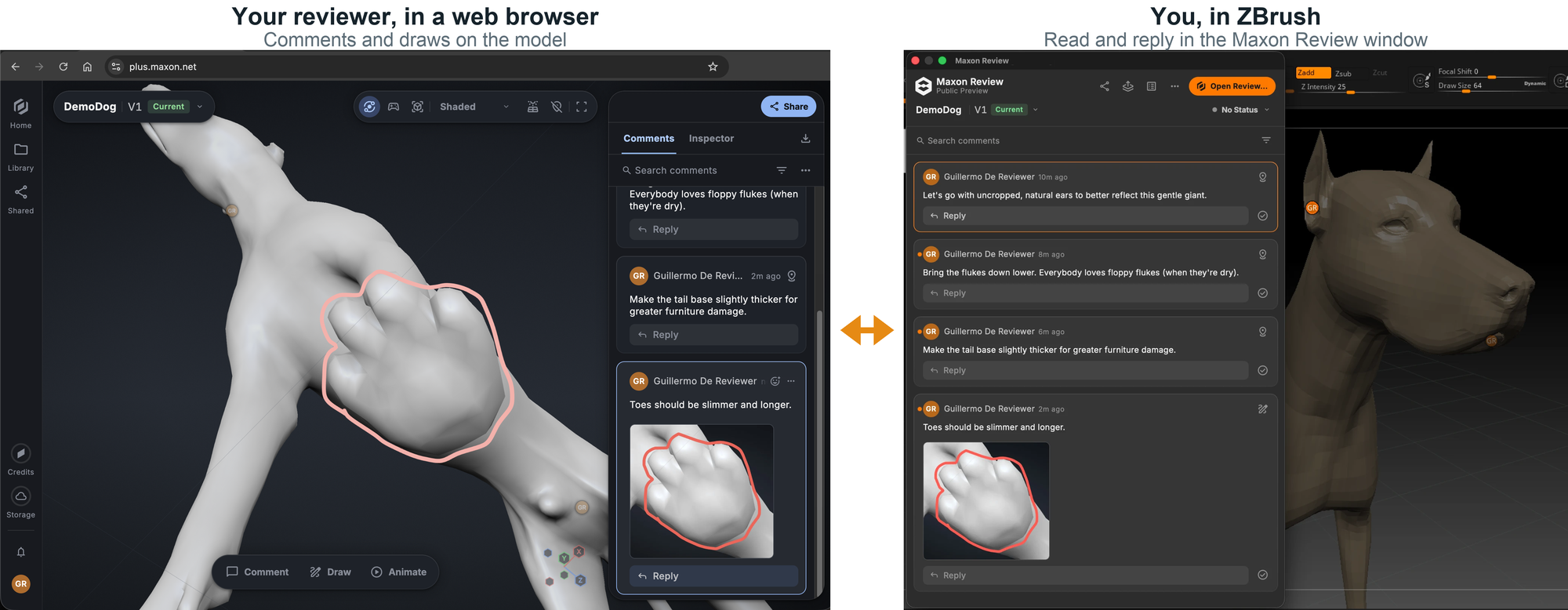
Maxon Review keeps comments in sync between you and your reviewers in real time. As the creator, you see the Maxon Review window inside ZBrush, where you send the model, read comments, and reply. Reviewers see the model in a web browser at plus.maxon.net, where they write comments and draw on the model. (Examine both views in the image above.)
For the reviewing side of Maxon Review, including the browser tools for commenting and drawing, see our Maxon Plus documentation.
Where to find it
The Maxon Review button sits near the top-left of the ZBrush interface, between the Home button and LightBox. The button opens the Maxon Review window (see below), a floating window you can move anywhere in your display, including a second monitor. The window is not a ZBrush palette and does not dock.
The button is grayed out until a model is in Edit mode, because until then ZBrush has nothing to send. A project you open is already in Edit mode. A tool you load is not. Draw the tool on the canvas, then turn on Edit.
Maxon Review also needs the following:
- You must be signed in to the Maxon App with a Maxon account that has a Maxon Plus subscription. ZBrush checks your sign-in through the Maxon App. Without that sign-in, ZBrush cannot send a model for review. If your account has no Maxon Plus subscription, the Maxon Review window shows a "Subscription required" message.
- The Global AI and Maxon Plus settings in the Maxon App are both on. Global AI controls access to AI features across Maxon products, and Maxon Plus controls access to all Maxon Plus products. If either is off, Maxon Review is not available. To find the settings, see Features the Switches Turn Off in the Maxon App documentation.
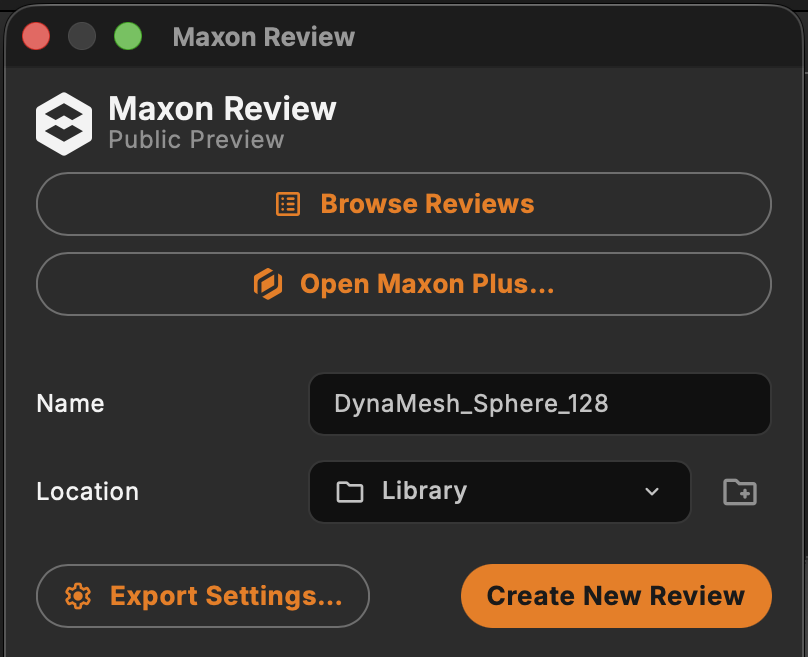
If ZBrush covers the Maxon Review window, click the Maxon Review button again to bring the window to the front.
Send a model for review
Load the project or tool you want reviewed and make sure the model is in Edit mode, then follow these steps.
- Click the Maxon Review button. The Maxon Review window opens with a name filled in.
- In Name, type a name for the review or keep the suggested name.
- In Location, choose the folder in your Maxon Plus library that holds the review. The default is the top level of your library.
- To change how ZBrush prepares the model, click Export Settings… (see Export settings below). Otherwise, ZBrush uses the default settings.
- Click Create New Review. ZBrush prepares the model according to the export settings and uploads it. A progress bar shows the upload.
- Wait for the upload to finish. The window then shows the review name, version number, and status menu.
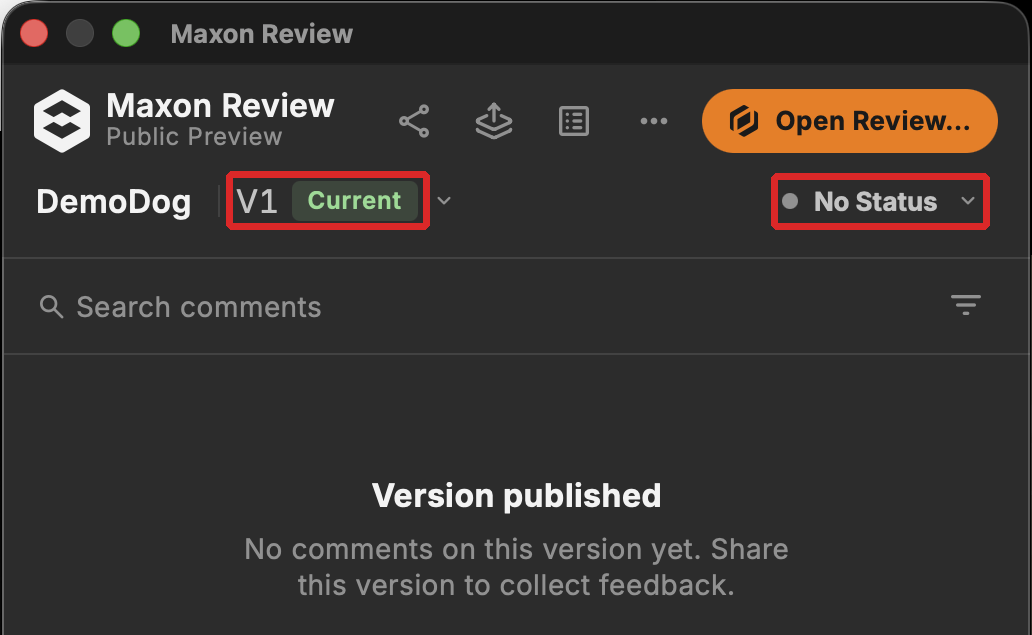
- To mark where the review stands, choose a status: In Progress, Changes Requested, or Approved.
- Click Open Review… to open the review in your browser.
A new review starts at No Status. Only the review owner and people you give the Editor role (see Share the review) can change the status. The review has one status, so a change made in ZBrush or on the review page in the browser shows in both places immediately. To see who set the status and when, point to the status menu.
Share the review
Click the Share icon at the top of the Maxon Review window to open the Share review dialog.
- Under Who can open this review, pick one. Only people you add (the default) lets in only the people on the list, and each one signs in with the email address you add. Anyone with the link lets anyone who has the link view the review, but they must sign in to comment.
- To add a person, type their email address under People with access, pick a role, and click Add. Commenter (the default) can comment and react. Viewer can only view. Editor can edit content, manage members, and change the status. You are listed as the Owner.
- The Show download button is on by default, so reviewers can download the model. Turn it off to keep them from downloading it.
- Click Copy review link and send the link to your reviewers.
The same Share button sits at the top-right of the review page in your browser.
What the reviewer does
The reviewer opens the link you sent in a web browser. Anyone can view a review set to Anyone with the link without signing in, but commenting requires a free Maxon account. The browser shows the model in a 3D viewer, where the reviewer orbits and zooms to a spot, writes a comment, and can draw on the model. Each comment stores the camera angle the reviewer was looking at, so you can later jump to the reviewer's exact perspective and focus area in ZBrush.
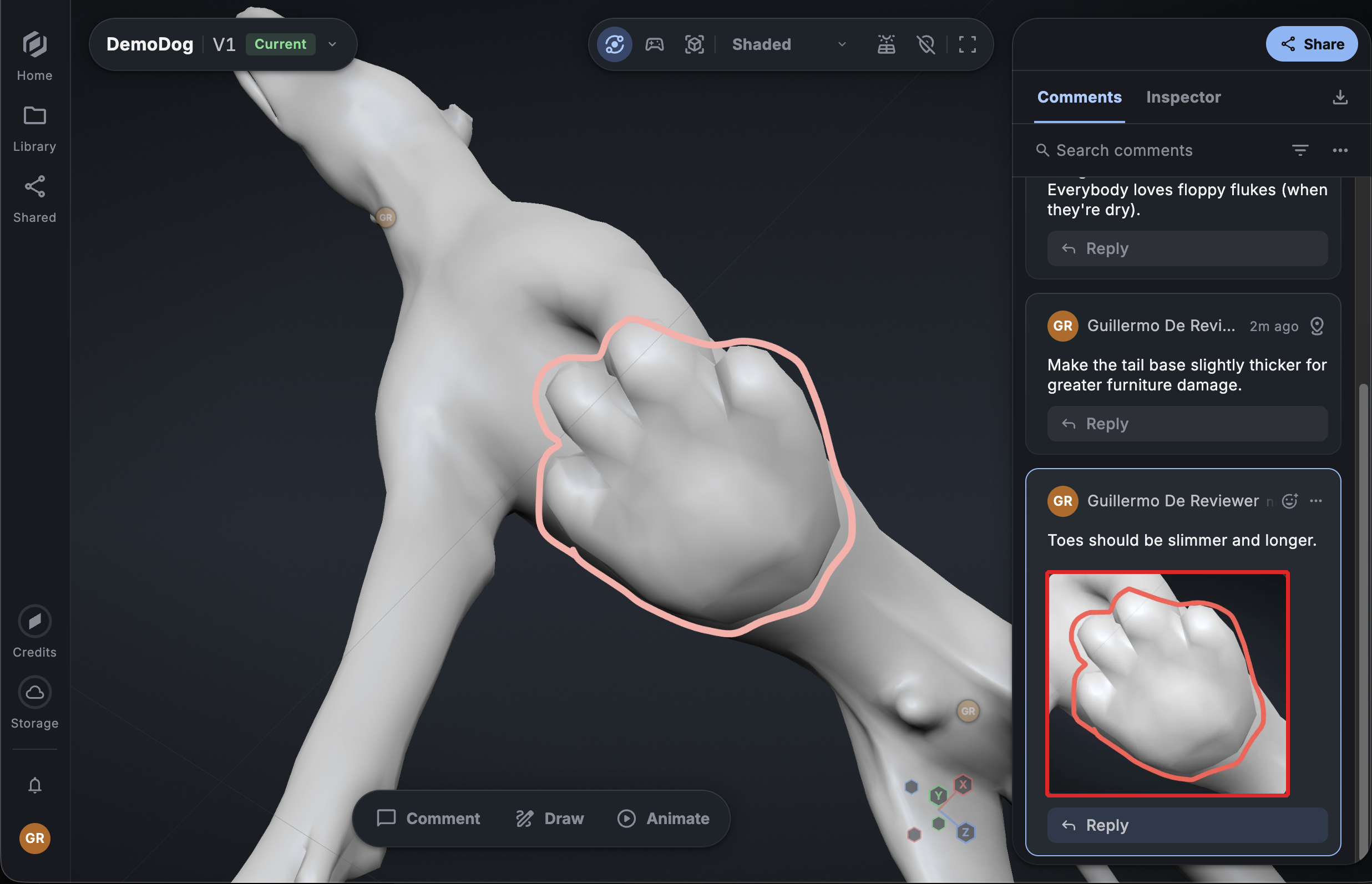
Only reviewers create comments, in the browser. In ZBrush, you read comments and reply to them.
Any number of reviewers can comment on one review. Add reviewers by email, or set the review to Anyone with the link and send the link. Reviewers can reply in any comment thread, including threads other reviewers started.
Read and answer comments in ZBrush
Comments appear in ZBrush's Maxon Review window as soon as the reviewer posts them in the cloud. A drawn annotation appears as a thumbnail under the comment. ZBrush also places a pin on the model in the viewport at each comment's location.
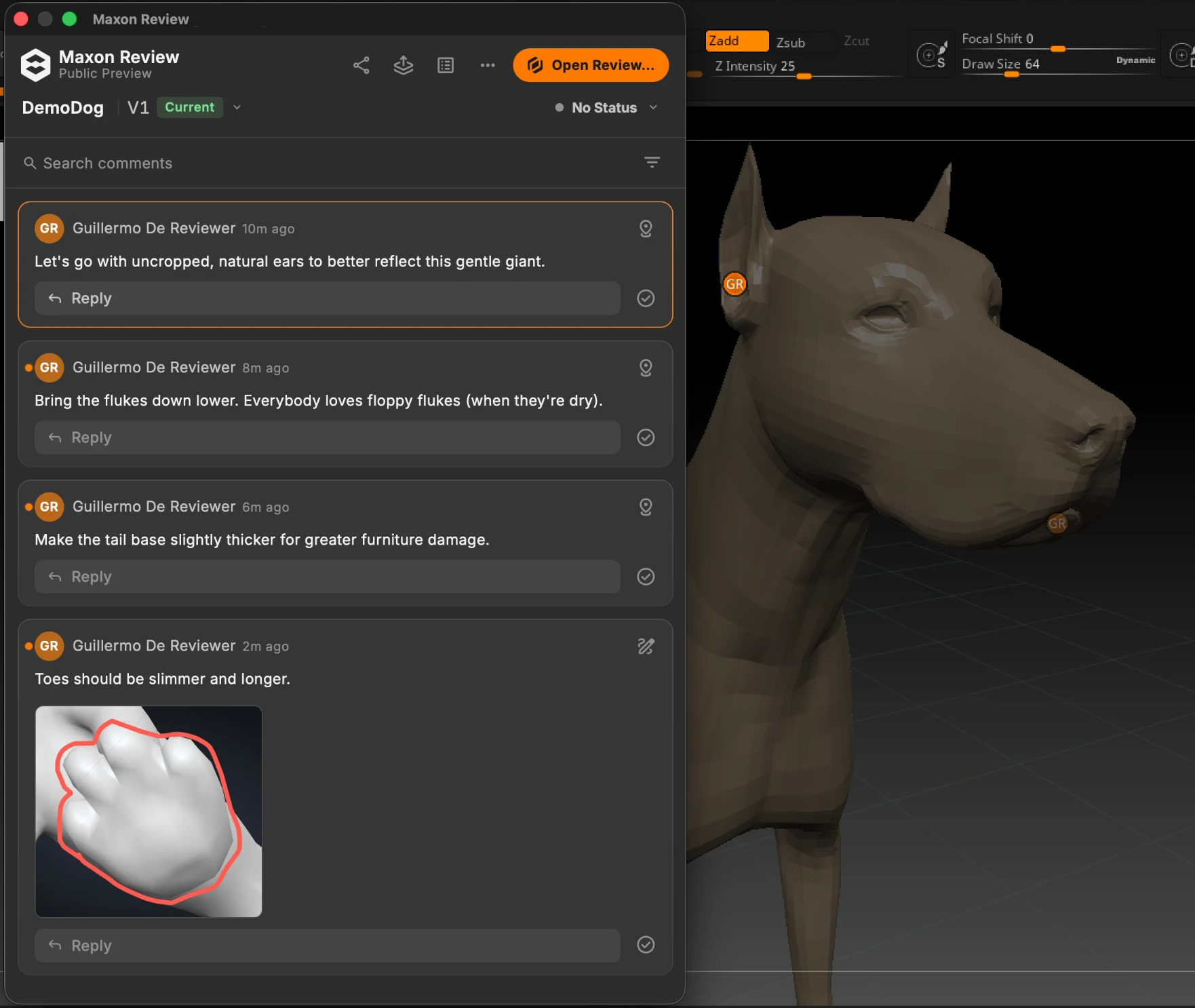
Click a comment in the window. ZBrush moves the camera to the view the reviewer had when they wrote the comment. Hover over a pin on the model to read the comment attached to that pin.
To answer a comment, click Reply under the comment, type your reply, and press Enter. To start a new line in the reply, press Shift+Enter. The reply immediately appears on the review page in the reviewer's browser.
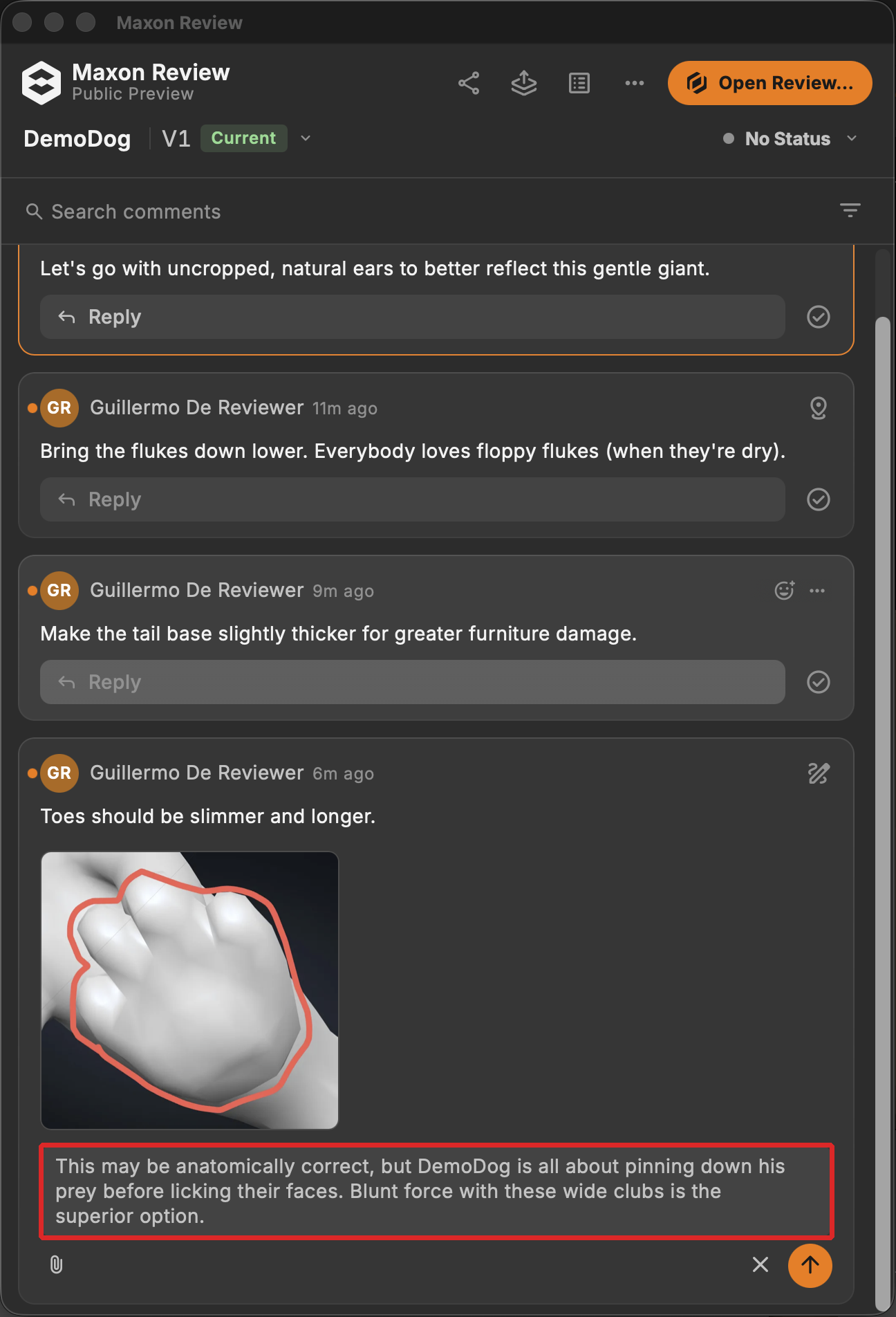
To mark a comment as resolved, click Resolve, the check mark next to Reply. In both ZBrush and the browser, a resolved comment turns green, its text dims, and its check mark turns green, which sets it apart from the open comments. Resolving changes only how the comment looks, so you and your reviewers can still reply to it.
To mark every comment as read, choose Mark all read from the three-dot menu at the top of the Maxon Review window.
You can also reply from the browser. Replies made in either place appear in both windows.
Send a new version
After you change the model, click the Create new version icon (an arrow over a stack) at the top of the Maxon Review window, next to Share. ZBrush uploads the model again as the next version of the same review, and the window shows an updated version number, which is also visible to browser-based reviewers. A review can have unlimited versions. ZBrush prepares each new version with the export settings you chose when you created the review. Export Settings… appears only on the form for creating a new review. To change the settings, start a new review. A new review has its own versions and comments.
A review works like a folder in your Maxon Plus library. It holds every model version you send to it, in order, no matter which model each version contains.
Start a review for a different model
While the Maxon Review window is connected to a review, it stays connected when you load a different tool or a project that has no review of its own. If you click Create new version now, ZBrush adds the new model to the old review. To give the new model its own review, note the following steps. The new review starts with the default export settings.
- From the three-dot menu at the top of the Maxon Review window, choose Disconnect review from project. The old review stays in your library with its versions and comments, and the window returns to the form for creating a new review.
- In Name, type a name for the new review. The suggested name may still be the old review's name.
- Continue from step 3 of Send a model for review. Check the export settings before you click Create New Review.
Reconnect to an earlier review
When you save a project as a ZPR file, ZBrush stores the link to the project's review inside the file. When you open that project again, the Maxon Review window reconnects to the review by itself, with its versions and comments. A tool saved as a ZTL file does not carry the link. After you load a tool, connect to its review from Browse Reviews, as described below.
You can also connect the current model to a review that already exists in your library. Connect to an existing review to go back to it after you worked on a different model, or when you sent the same model from another file or in an earlier session. The earlier versions and comments stay with the review.
If the Maxon Review window is connected to another review, choose Disconnect review from project from the three-dot menu first. Then:
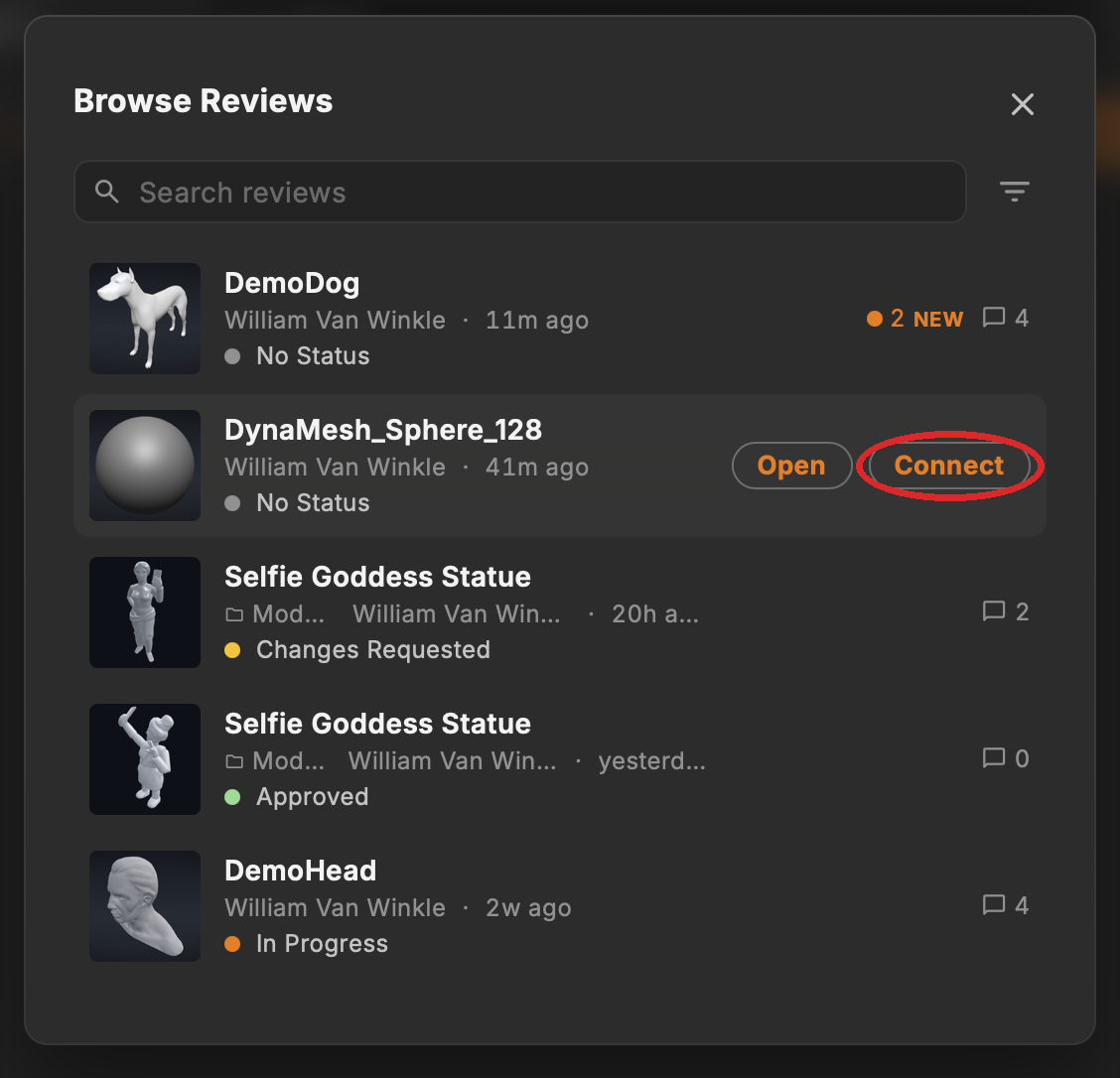
- Click Browse Reviews on the form for creating a new review.
- Point to the review in the list.
- Click Connect. The Maxon Review window switches to that review, including its comments. From then on, Create new version adds the next version to that review.
To view a review in your browser instead, click Open.
To narrow the list, type in Search reviews or click the filter icon and choose a status or owner (Owned by me or Shared with me).
Limits
Maxon Review does not upload your ZBrush file. Instead, ZBrush exports a copy of the model in USD format and uploads the copy. The copy includes the model's textures unless you turn off Export textures. By default, ZBrush decimates a scene with more than 5 million polygons to 5 million before the upload. To send more polygons, raise Polygon limit in the export settings, up to 150 million. If a model's textures are too large for the reviewer's browser, the review page shows the textures at a lower resolution.
How many polygons a reviewer can open depends on their computer and browser. For large models, we recommend Chrome, which can use more memory than other browsers.
ZBrush uploads only polygon geometry. A ZSphere or ZSketch model is not a mesh, so it has nothing to export. In these cases, the Maxon Review window shows "The exported scene can't be displayed, so nothing was uploaded. Check that it contains visible geometry, then push again." Convert the model to a polygon mesh before you send it for review.
Export settings
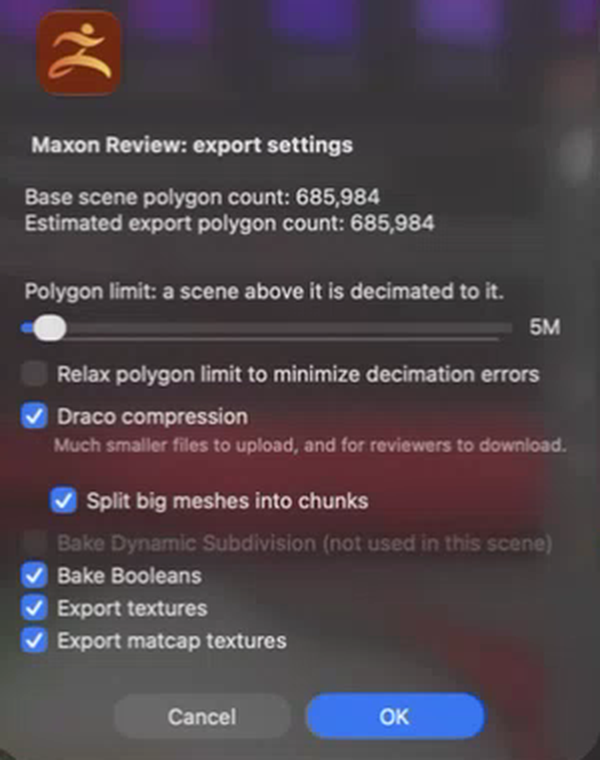
Click Export Settings… on the form for creating a new review to control how ZBrush prepares the model for upload. The top of the dialog shows the scene's polygon count and the export's estimated polygon count.
| Option | What it does | Default |
|---|---|---|
| Polygon limit | ZBrush reduces a scene above the limit to the limit's polygon count (decimation). A scene under the limit uploads in full. Drag the slider to set the limit (up to 150M). | 5M |
| Draco compression | Compresses the model, so the file is smaller to upload and for reviewers to download. | On |
| Split big meshes into chunks | Sends a large mesh in pieces, which uploads faster. The review page joins the pieces back together. | On |
| Bake Dynamic Subdivision | Uploads the model with its dynamic subdivision applied. Available only when the scene uses dynamic subdivision. | Off |
| Bake Booleans | Uploads a Live Boolean model as one final mesh, with every union, subtractive, and intersecting SubTool applied. Polypaint carries over. However, where shapes meet, colors can look blurred on a model with few polygons. Textures don't carry over because baking removes the model's UVs. | On |
| Export textures | Uploads the model's textures. | On |
Click OK to keep the settings for this review.