
Display
On this menu you will find display-related options such as the shading mode.
Shading modes
The shading modes described in these pages apply to inactive objects. You can also define these settings separately for each view using the viewport settings.
The modes:
- Gouraud Shading
- Gouraud Shading (Lines)
- Quick Shading
- Quick Shading (Lines)
- Constant Shading
- Hidden Line
- Lines
can be combined with the modes:
- Wireframe
- Isoparms
- Box
- Skeleton
Test the various combinations to discover a wealth of possibilities!

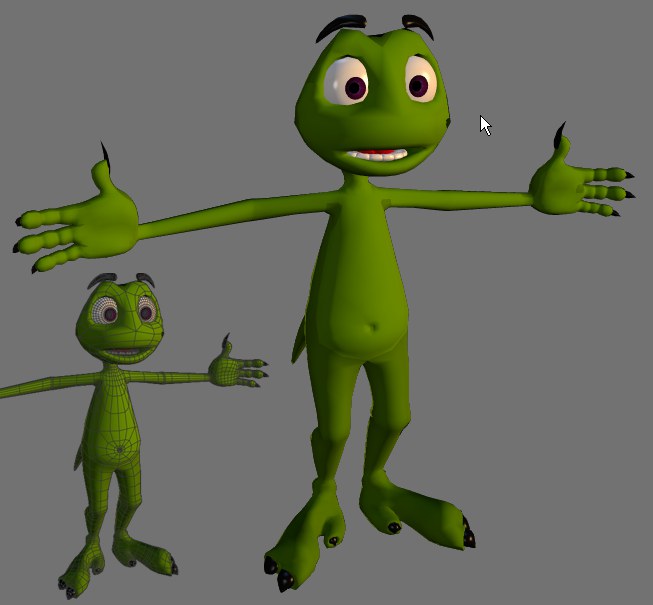
The highest quality display mode for Viewports. All objects are shaded with smoothing and light sources are taken into account. The redraw rate is affected most by processor speed and graphics card speed — the faster your CPU and graphics display card, the faster scenes will redraw. If the display update becomes too slow, try reducing the size of the viewport.

In this mode you can add wireframes or isoparms to the Gouraud shading by choosing Wireframe or Isoparms from the menu.

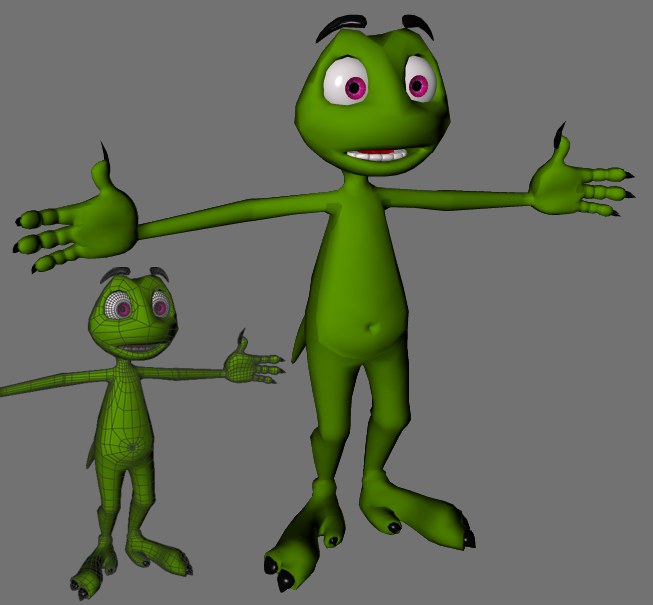
This is almost identical to Gouraud Shading. The difference is that the auto light is used instead of the scene's lights to calculate the shading. This can lead to a faster redraw rate.

In this mode you can add wireframes or isoparms to the Quick shading by choosing Wireframe or Isoparms from the menu.


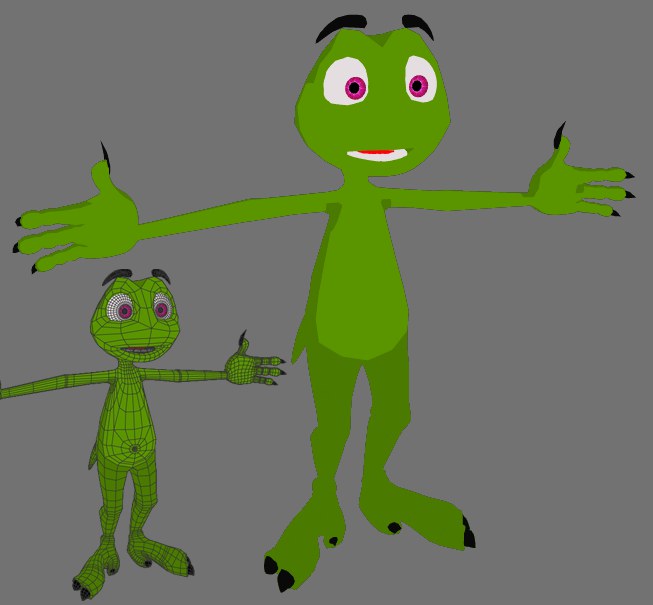
This option lets you display constant shading only or constant shading in conjunction with the wire frame.

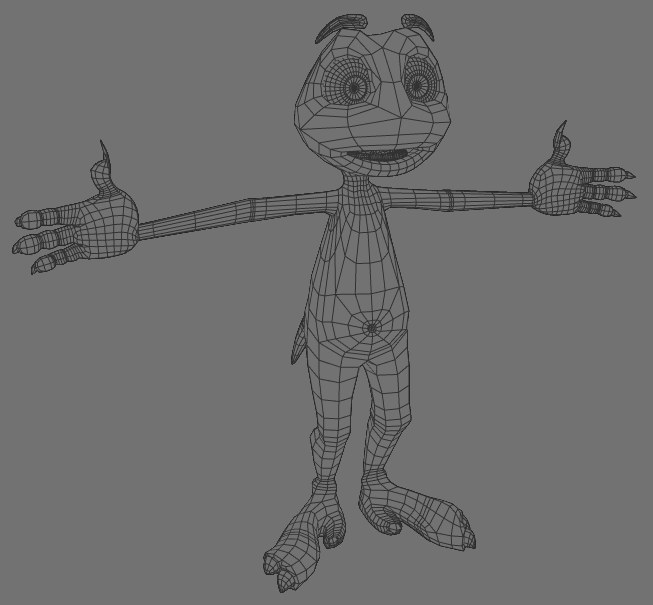
In contrast to Lines mode, hidden lines are not displayed.

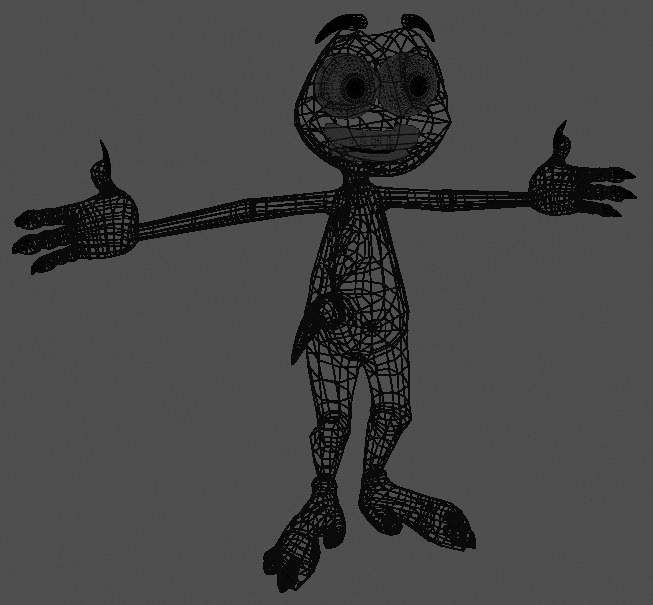
The Lines mode allows the complete display of the polygon mesh including hidden lines. The lines are colored by the textures.
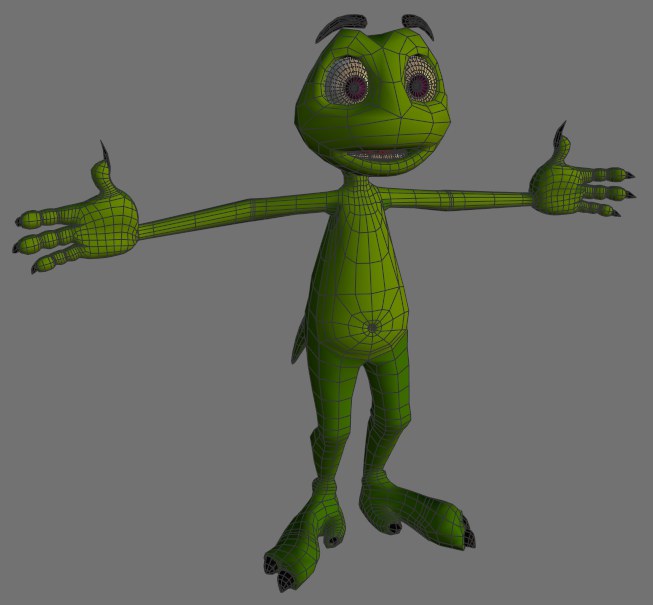
The wireframe mode draws lines on the objects if combined with a mode that allows this such as Gouraud Shading (Lines).
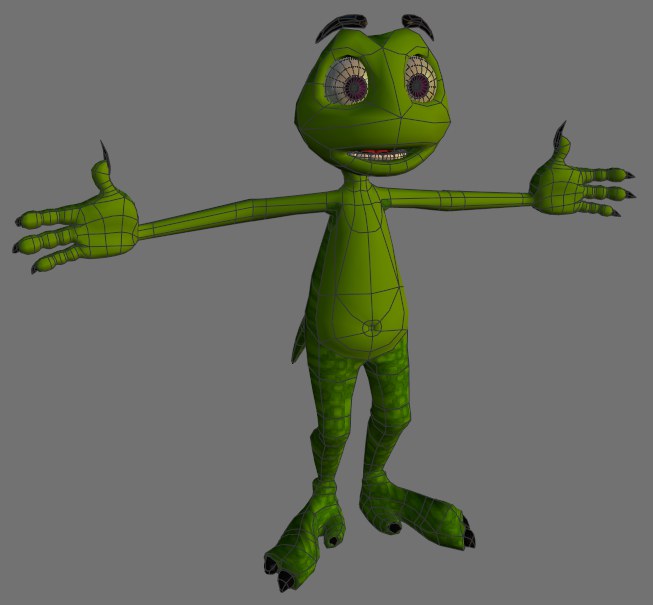
This mode displays isoparm lines for objects that use them such as Generator objects. Other objects such as polygon objects will be displayed in wireframe. This mode will only have an effect if used in combination with a mode that supports it such as Gouraud Shading (Lines).
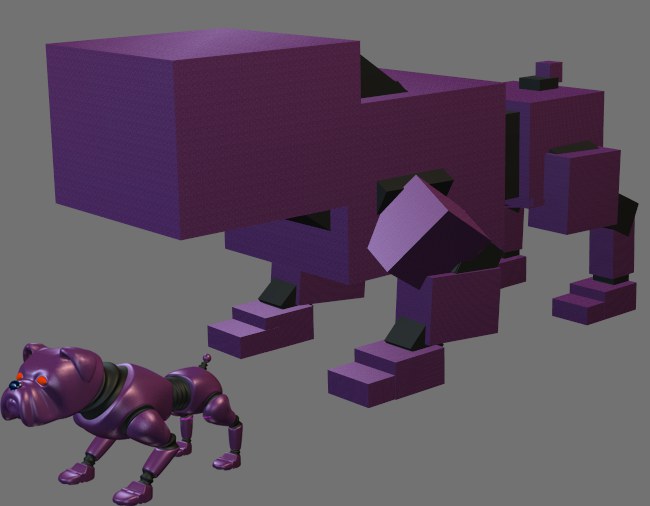
This mode displays each object as a box. Each box has the same dimensions as the object it represents. Box is the second fastest display mode available, making it useful for extremely demanding scenes.
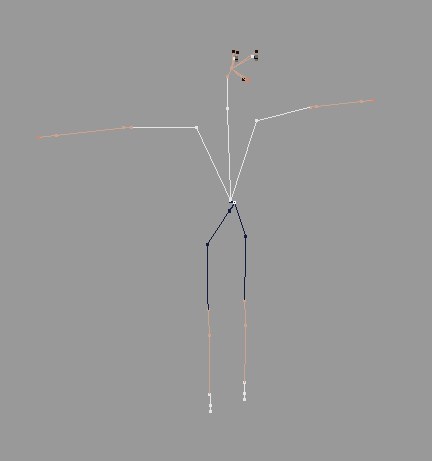
This is the fastest display mode of all. It is only suitable for hierarchical structures. Each object origin is shown as a small dot and the dots are connected according to the hierarchy. This mode can be useful for character animation. Not only is it extremely fast, it also removes all non-critical lines to expose the skeleton.
Color modes
These modes are relevant when no interactive or live rendering is running in the viewport. During rendering, the assigned materials—along with all lighting effects—are typically displayed. However, this isn’t always necessary, especially during modeling or when navigating with the camera to find suitable viewing angles. In these cases, Quick Shading, Gouraud Shading or Constant Shading of surfaces with simple surface colors or an abstracted material representation is sufficient. The following figure shows the Material mode on the left, the Object Colors in the center, and the Random coloring of all objects on the right.
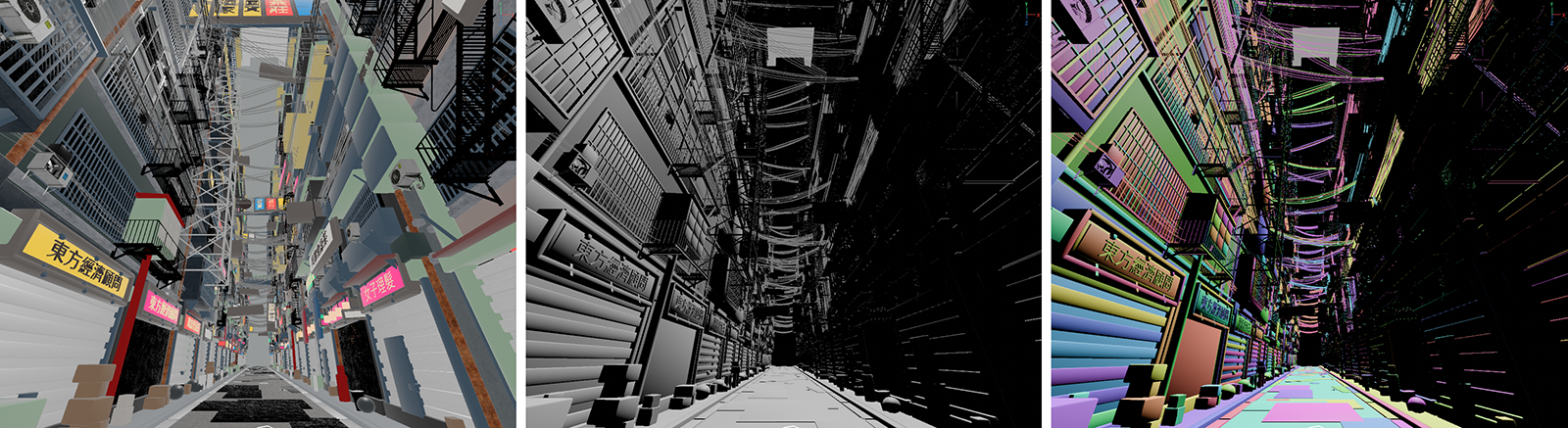

In the Basic settings for each object, you'll also find a Display Color option, which is gray by default but can be customized or, for example, set automatically when using MoGraph. In this mode, the objects are displayed according to the set display color.

This is the default setting. Objects use their display color or the simplified material rendering, provided a material has been assigned.

This mode uses a randomly selected color for each object. This immediately makes it clear how more complex scenes are composed and whether they consist of individual assemblies or geometry that has been merged into single objects.

Objects can be assigned to custom layers, which are also identified by colors. These colors can be edited using the Layer Manager. In this mode, these layer colors are used to display the objects in the viewport.