
The interactive Help Function
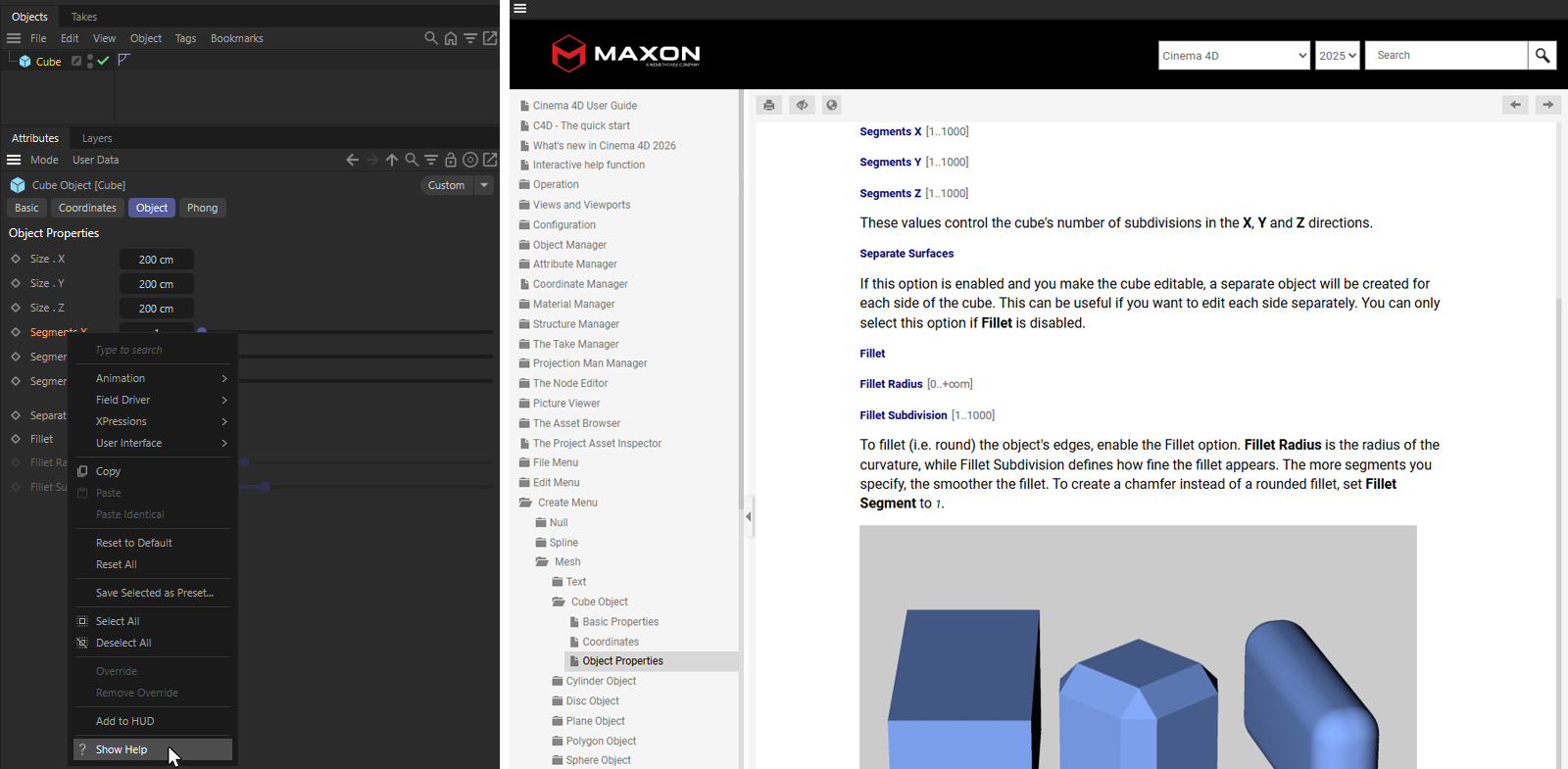 The interactive help is deeply integrated into the Cinema 4D interface. In many cases, you can right-click on a parameter, such as the Segments X setting of a cube in the example above, to call up the Help from the context menu, which then directly displays the explanations for this parameter (on the right in the image).
The Cinema 4D Help function contains - in addition to thematic introductions and short tutorials - above all the complete reference information for the software. The Help offers a context-sensitive link that can be used to jump directly to the appropriate page within the documentation at numerous points in the program. For example, you can often right-click directly on the name of a parameter in the managers and then select Show Help in the context menu to obtain an explanation of the corresponding setting.
This Help call is demonstrated in the illustration on the left for one of the Segments values of the Cube object.
By default, the Cinema 4D help is retrieved page by page from the Maxon servers as required. Of course, this only works if you have Internet access. If you would like to keep the Help locally instead, take a look at the option Online Content in the Preferences of C4D.
There you will also find a preference as to whether the Help is opened in a Cinema 4D window (can then be placed in the layout) or separate in your default web browser.
Calling up Help manually
The help can be opened at any time via the Cinema 4D menu . But even without Cinema 4D running, the Help for all Maxon One products can be accessed via the website http://help.maxon.net.
Load sample files

Sample scenes for direct loading are also provided at some places in the Help. You can recognize these by the icon shown above, which you can click on to load the corresponding file.
Context-sensitive call
The documentation can be activated directly from the program interface using keyboard shortcuts (the default is CMD+F1 for MacOS or Ctrl+F1 on Windows computers). In most cases, the Show Help command is also displayed in the context menu (right mouse button) when you are over a parameter. If you would like to use a different key combination, search for the Show Help command in the Command Manager. The first hit is the command you are looking for, which can be assigned a different key combination here.
Below you will find some examples of where the mouse could be placed in the interface to call up the correct help page directly:
- In the Attribute Manager
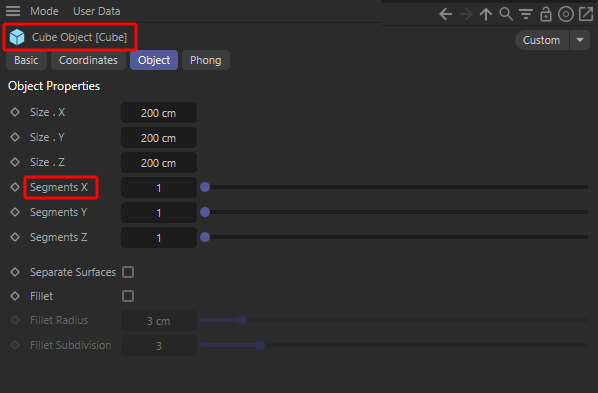 If the cursor is positioned over the object name or over a parameter name in the Attribute Manager
- Within menus
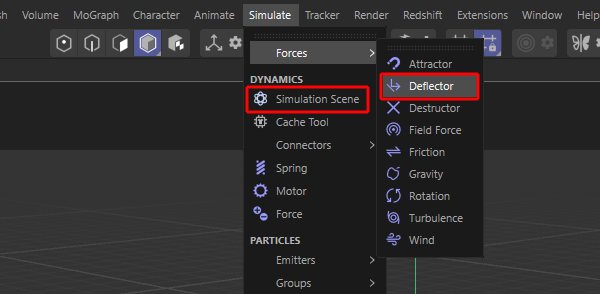 When the mouse pointer is positioned over the menu entry of an object, function or tool.
- Over icon bars
 When the mouse pointer is positioned over the icon of an object or tool, for example.
- In the Object Manager
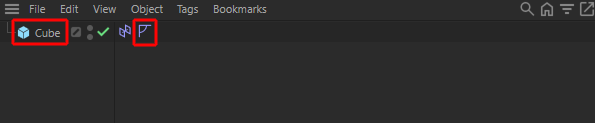 Depending on whether the cursor is positioned over objects or tags in the Object Manager, the respective description is called up
- Within many non-modal dialog boxes
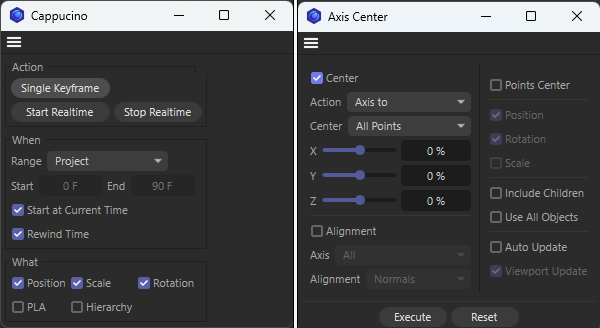 When the Help is called up in such dialog windows, it automatically jumps to the overview page of the corresponding dialogs.
If it is not possible to call up the Help directly by placing the mouse pointer and using CMD+F1 or Ctrl+F1 or selecting Show Help in the right-click context menu of a parameter, please use the search function directly within the Help. Help can be opened at any time via the menu.
How to use it
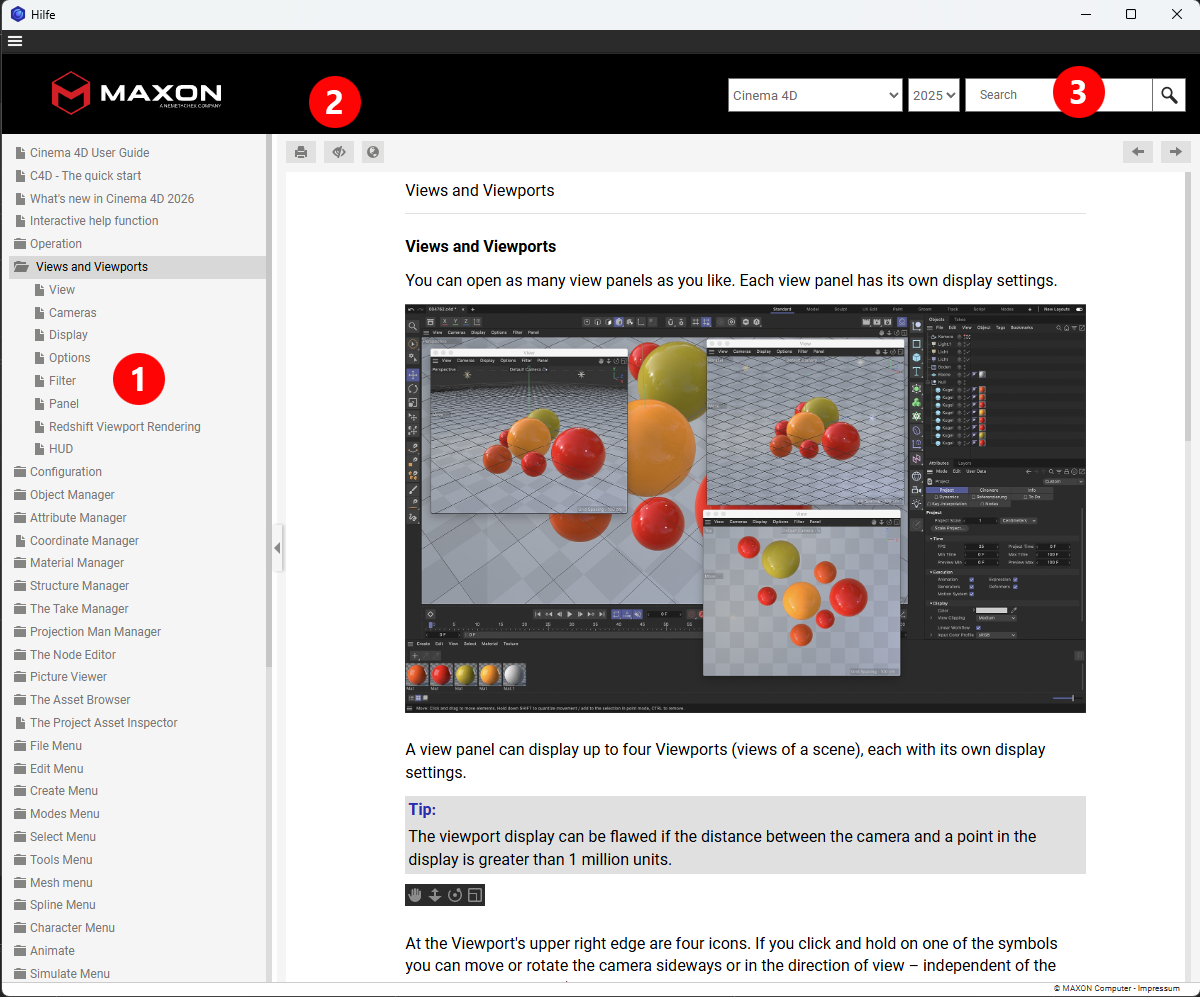 The jump to Help takes place on the general page of the corresponding dialogs
Navigation
You will find the table of contents on the left-hand side, which you can easily navigate by mouse (see point 1 in the above illustration). The topics tree can be expanded and collapsed by clicking on the entries.
The three icons
At the top right next to the table of contents you will find three icons with the function described below (see also point 2 in the figure above).
- Print: This can be used to print the current page.
- Remove Highlights: If the results page of a search is displayed and you click on a result, the search terms are highlighted in color. These markers can be switched off by clicking on this icon.
- Language Selection: Switch between the different language versions offered here. For example, Spanish or Italian help can also be displayed, even if it was called up from a German or English Cinema 4D version. Please note, however, that the English and German language versions are always slightly more up-to-date than the other languages.
The Search Function
The Search Dialog
You will find a search field at the top right where you can enter any search terms (see point 3 in the figure above). Simply type in the words that must be contained on the page in order to be listed as a hit. Multiple search terms are a logical and, i.e. all words must be on the page for it to be listed as a hit.
The Hit List
After a successful search, the pages found are displayed in a hit list. Clicking on the links marked in blue opens the corresponding page, with the search terms in the page content highlighted in color.