

Pyro Advect
- None: In this mode, the particles will react to all aspects of the Pyro simulation that have to do with velocities. No distinction will be made between the intensities of density or temperature within the Pyro simulation.
- Density: The particles will only be affected in the areas of the Pyro simulation in which the density is above 0.
- Temperature: The particles will only be affected in the areas of the Pyro simulation where the temperature is above 0.
- Both: The particles will only ve affected in the areas of the Pyro simulation in which the density or temperature is above 0.
Here you can select how the particles should be affected by the active Pyro simulations in the scene (or simulation scene). In any case, it is advisable that the particles do not already have their own velocity, at least at the beginning, in order to provide as accurate an image as possible of the Pyro movements. In principle, the particles can also have their own movements, which can then overlap with the Pyro movements. In any case, the particles must be within the volume of the Pyro simulation in order to be affected by it.
You can choose from these modes:
- Set Absolute Velocity: The flight direction and flight speed at the position of the particle will be taken from the movement vector of the Pyro simulation. This replaces any inherent speed of the particle. This is the right mode if the particles are created directly within the Pyro simulation and should only be moved through it.
- Add to Velocity: The velocity from the Pyro simulation will be added to the particle's own velocity. This is the right mode if the particles initially move through the room at their own speed and, for example, pass through a cloud or flame of the Pyro simulation.
- Change Direction: In this mode, only the flight direction of the particles will be changed by the currents within a Pyro simulation. The velocity values of the particles will remain unchanged.
This is a multiplier for the transfer of flow directions and velocities from the Pyro simulation. Values below 1 will attenuate the effect of the Pyro simulation on the particles and values above 1 will increase the Pyro effect on the particles. This lets you simulate different particle inertias, for example, if you want different Particle Groups to react differently to the same Pyro simulation.
Use this setting to transfer the properties of the Pyro simulation to the particles as colors. The following options are available:
- Without: No color information is transferred to the particles.
- Color: The colors from the Pyro simulation are transferred to the particles. Please note that colors must be activated separately on the Pyro Emitter tag and also on the Pyro output object for the calculation and output.
- Temperature: The temperatures within the Pyro simulation are converted into corresponding black body colors and can then be transferred to the particles. The temperature can be individually scaled via the Temperature Set value and thus the color display can also be adjusted for the color calculation even in cool or very hot simulations. Hot areas often appear whitish or bluish, whereas cooler areas appear yellowish, reddish or even just black. The principle corresponds to the blackbody color calculation from the Redshift Volume Material.
With the Multiply by Radiance option, the determined color values can also be multiplied by the luminosity of the temperatures. Hot areas then also appear brighter than cool areas.
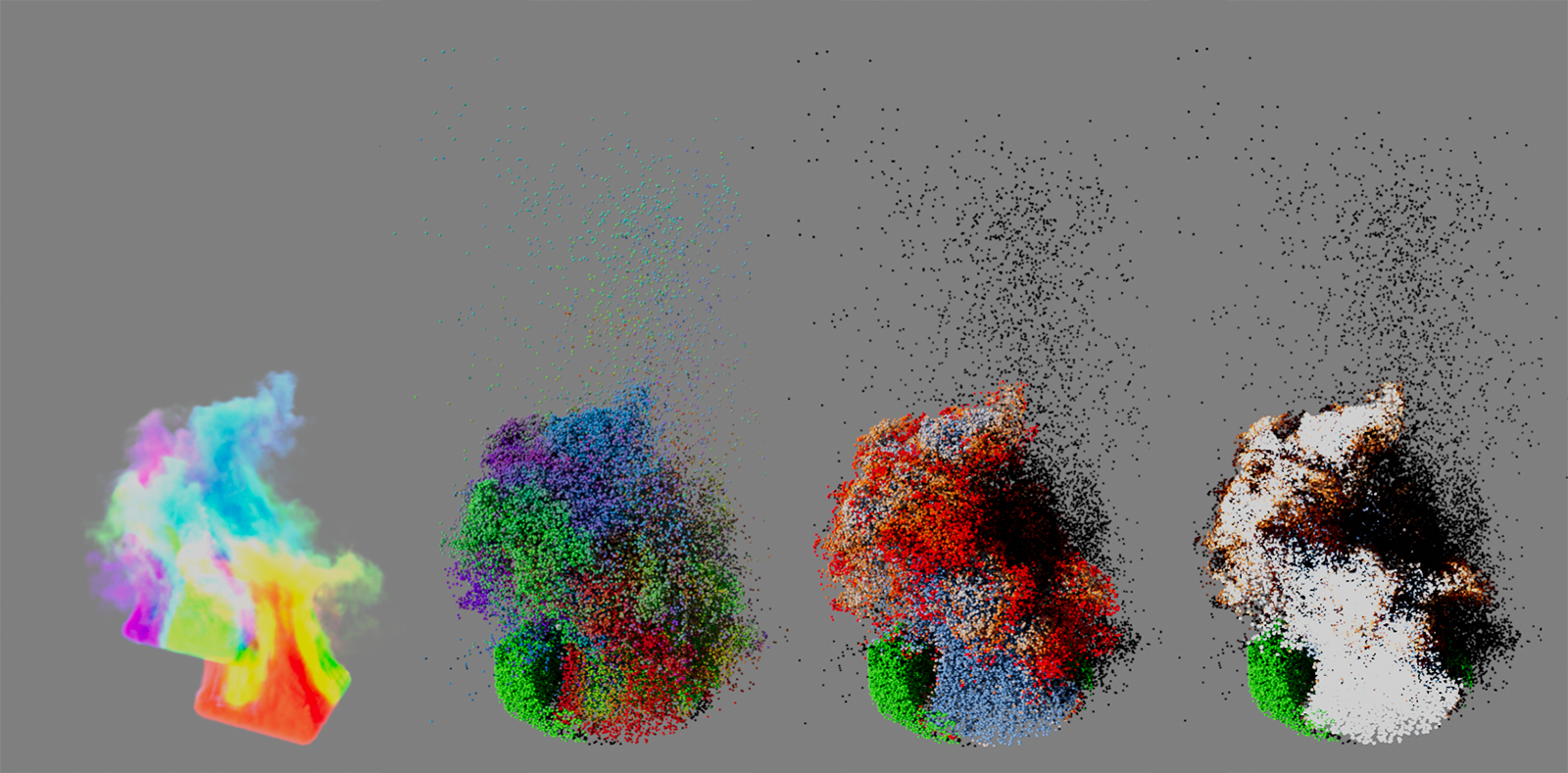 The original Pyro simulation with differently colored emitter surfaces can be seen on the left. To the right, particles were sent into the simulation from below and colored using the Color, Temperature and Temperature with active multiply with radiance option modes.
This percentage value determines the strength of the color admixture. At 0%, the original color of the particles is always retained; at 100%, the particle colors are completely replaced by the modifier. Intermediate values lead to a corresponding fade between the original particle color and the color transfer from the Pyro simulation.
This value is only available for Color mode Temperature for the coloring of the particles and is multiplied by the temperatures of the Pyro simulation in order to subsequently determine the blackbody colors. In this way, white or light blue colors can also be output with large values, for example, even if only low temperatures are used in the simulation. By using smaller values, it is also possible to represent hot simulations on the particles only by yellow and reddish colorations.
This option is only available when using the Temperature Color mode and activates an additional multiplication of the blackbody color values with the luminosity of a blackbody at these temperatures. Hot areas are therefore displayed brighter than cool ones.
This setting allows the axis systems of the particles to be aligned with the acceleration structure of the Pyro simulation. The following options are available:
- None: The alignment of the particles is not changed.
- Density Gradient: The Z-axis of the particles points in the direction of the density gradient in the neighborhood of the particle position. Since the density is normally highest at the emitter and then decreases with increasing distance from the emitter, the Z-axis points upwards near the emitter and then changes in other directions in the outer area of the simulation, depending on the directions in which the density swirls and dissolves.
- Temperature Curve: The Z-axis of the particles points in the direction of the temperature decrease in the vicinity of each particle. The temperature is normally highest at the emitter and then decreases with increasing distance from the emitter. Accordingly, the Z-axis often points upwards near the emitter and then swirls in the outer area of the simulation.
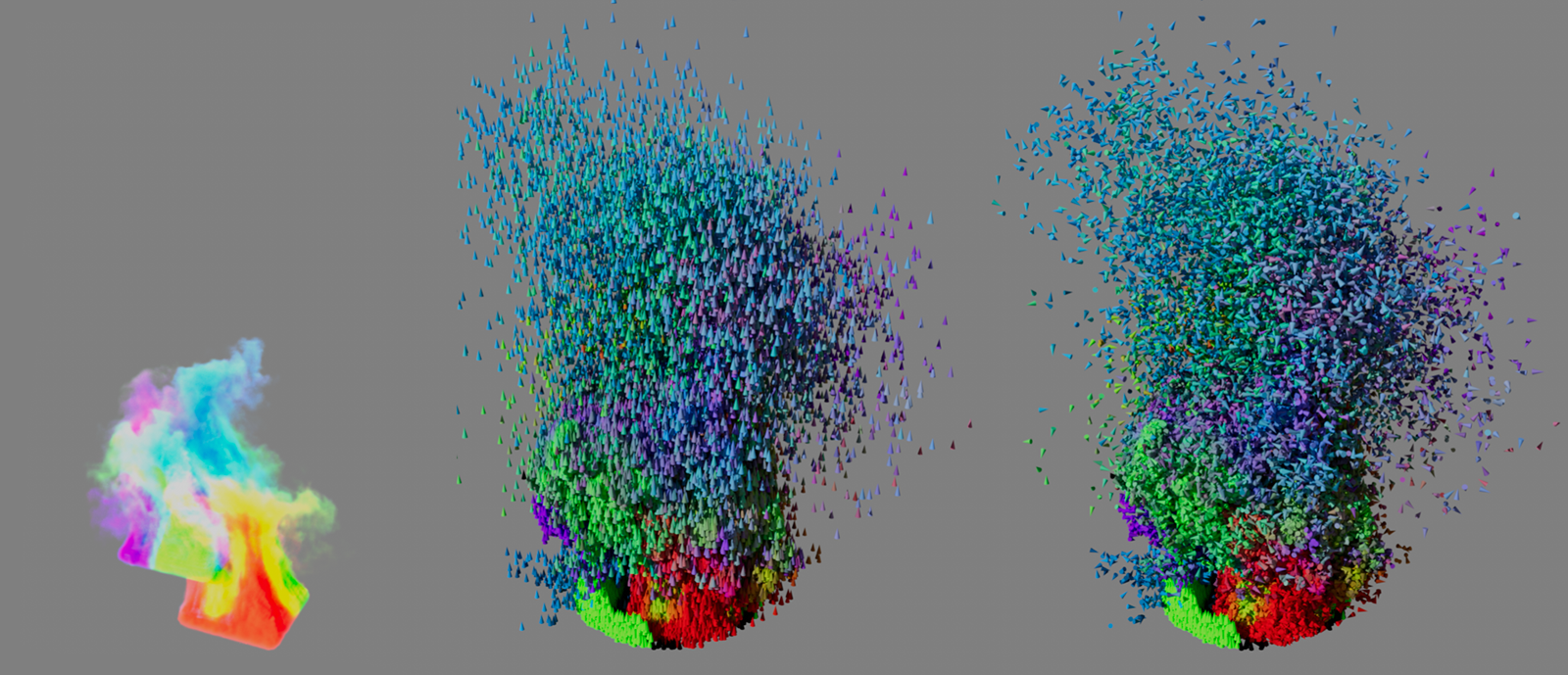 The original Pyro simulation with differently colored emitter surfaces can be seen on the left. Small cones were used as particles in the middle and colored using the modifier. The orientation initially remained unchanged. On the right, the alignment along the density curve was then activated for the particles. The cones are now aligned accordingly within the simulation.
This percentage value controls how quickly the particle alignments update per simulation image according to the Alignment mode setting. At a value of 0%, the orientation of the particles remains unchanged in any case, whereas at 100% the orientation always corresponds to the current density or temperature curve evaluation. With intermediate values, the alignments are blended more smoothly and may take longer to react to changes in direction.
With these settings, the turbulence within the Pyro simulation can also be transferred to the particle rotation. The following modes are available:
- None: The particle rotation is not influenced by the Pyro simulation.
- Set Absolute Rotation: The turbulence within the Pyro simulation is transferred directly to the particles. The intensity of this rotation can be individually adjusted using the Rotation Strength Multiplier.
- Add to Rotation: The rotation caused by turbulence within the Pyro simulation is added to any rotation already present on the particles. The strength of the added rotation can be influenced via the rotation strength multiplier.
If you transfer rotations to the particles, you can use this value as a multiplier for the rotation speed.