

Stick
Here you can select how the holding force of the particles on a dynamic surface is to be set:
- Stick on Collision: In this mode, particles are checked for a collision with dynamic objects. In the event of a collision, these particles are assigned an adhesive force via the Strength value. The greater this adhesive force, the less the particles react to other forces, such as Gravity, and remain immovably attached to the colliding surface. In this context, dynamic objects are those objects in the scene that have Simulation Tags, such as Collider Tags or Rigid Body Tags.
- Change Strength: With this setting, you can assign new Strength values to all particles for their holding force. There is therefore no collision detection here. For this reason, it makes sense to only use this mode on particles that are already stuck to a surface.
- Unstick: This setting removes any adhesive force from the particles. This allows the particles to react to forces as usual. No further settings are possible in this mode.
Here you can define when a collision should be detected. This setting is only relevant for the Stick on Collision Mode.
- Intersection: A collision occurs when a particle comes into direct contact with a dynamic surface. This is the most accurate method, but with very fast-flying particles it may also be necessary to adjust the intermediate steps so that all collisions are reliably detected. You can find this setting in the Scene Settings under Simulation/Particles.
- Radius: A distance to the surfaces can be defined via a Radius value. If a particle comes closer to a surface than this Radius distance allows, a collision is detected for the particle. This method can often also reliably check faster particles for collisions, but close-up images may show that the particles bounce off a little before the actual surface.
- Both: Both methods are combined, i.e., both a safety radius in front of the surface and the surface itself are checked for collisions.
This is the holding force of the particles. The smaller this value is, the more susceptible the particles are to external forces and can move independently of dynamic surfaces.
For the Radius and Both Stick settings, the safety distance in front of the surface that is already used for collision detection can be defined here. The greater this distance, the more reliably fast particles can be intercepted in front of a surface. Where the particles are actually stopped and stuck is determined by the following option.
If this option is switched off, the particles are held exactly on the surface of the collision object. The radii of the particles are only taken into account if the option is activated. The particles are stopped when they are already at a distance corresponding to the particle radius.
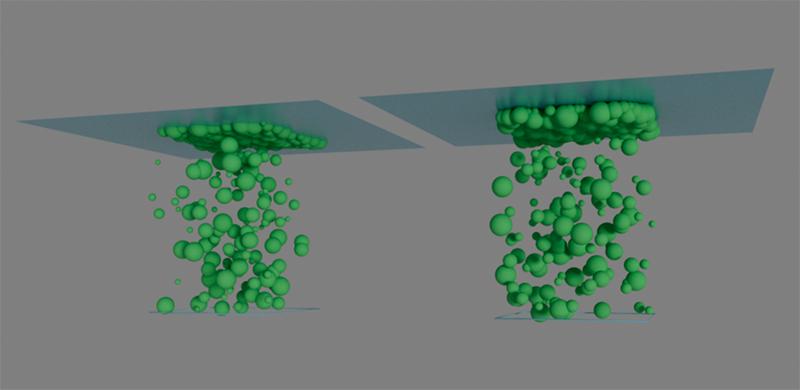 Here, particles with variable radii hit a plane from below. On the left the result with the radii switched off, on the right with.
Particles can be automatically routed to a new group when contact with the collision object is detected. This particle group can be specified in the Target group field below.
This field is available if you activate Switch on Contact. The main function of the Modifier is to set the holding force property for particles and to detect collisions in order to assign a holding force. In many cases, you can proceed in such a way that you first use the Stick on Collision setting, e.g., to assign an adhesive strength of 100% and then possibly remove these particles from this surface again at a later time. It is helpful to be able to automatically transfer the corresponding particles to a new group after the collision. This is exactly what you achieve by assigning a Particle Group as a Target Group.
This button can be used to create a new Particle group that is automatically used as a Target group.
By default, all objects that have one of the dynamic Simulation tags (such as a Collider or Rigid Body Tag) are evaluated for the particle collision calculation. This is because the list of Simulation Tags in the Stick Modifier is empty and the Exclude Mode is active. This means that no objects are excluded for the collision calculation. Alternatively, you can also drag individual dynamic objects into the list of Simulation Tags. In Exclude Mode, the surfaces of the corresponding objects would then be ignored for the collision calculation.
You can reverse the effect with Include Mode. In this case, only the objects that have been linked in the list of Simulation Tags are taken into account for the collision calculation.
The objects with dynamic tags can be dragged from the Object Manager into this list. Depending on the selected Mode, these objects are then excluded from the collision calculation or only the listed objects are taken into account.
As is usual with such link fields, you will also find a pipette symbol to the right. Clicking on it activates a selection mode that allows you to click directly in the Object Manager on the objects that you want to add to the list. This selection mode remains active until you click on the pipette again or press Esc.
A small context menu also opens after right-clicking on the link list or any existing entries. There you will find commands for removing all entries or only for removing the clicked list entry. You can also start the selection mode for additional dynamic objects or select the objects of individual entries.
There is also a switch symbol behind each list entry that can be used to temporarily deactivate individual objects for the collision calculation.
Clicking on this button selects all objects in the list for the Simulation Tags.