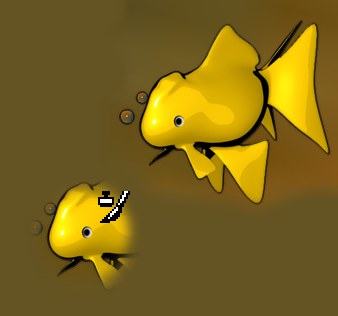
Clone Tool

Use this tool to clone parts of your texture. When you select the tool, the mouse pointer changes to a pipette (press the Ctrl/Cmd key if it does not). Move the pipette to the region you want to clone and click the mouse button. The pipette changes to a brush and stamp. Drag to paint the clone.
To clone a new region, Ctrl-click. Otherwise the clone tool works in the same way as the brush tool.
In the Attributes Manager, you will find all the brush settings that are described in Brushes. Brush effects such as Spacing and Jitter are evaluated — you will probably want to disable these effects when cloning.
Attribute Manager Options
All Visible Layers
If this option is enabled, the composite image (i.e. the image you see in the UV Editor) is cloned; otherwise, only the pixels in the active layer are cloned.
Relative
This option corresponds to the Painting Mode setting in the Color manager (see Painting Mode). In short, it defines whether each new brushstroke is cloned from the same source position.
Scale, Rotation
These settings control the scale and rotation of the cloned texture areas.