

Soft Selection
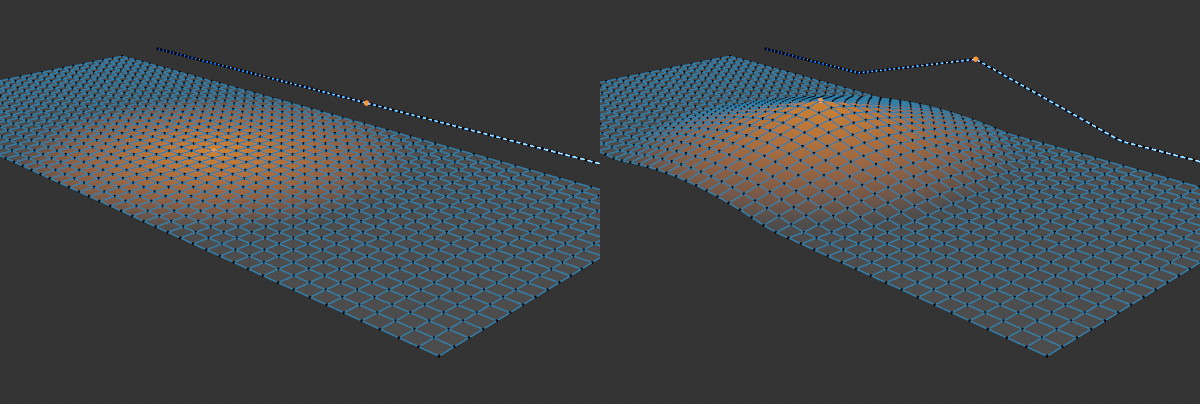 Point selected with soft selection on a polygonal object and a spline are moved upwards.
The soft selection works for polygonal objects as well as splines. However, the preview mentioned below only works for polygonal objects.
This setting activates the function.
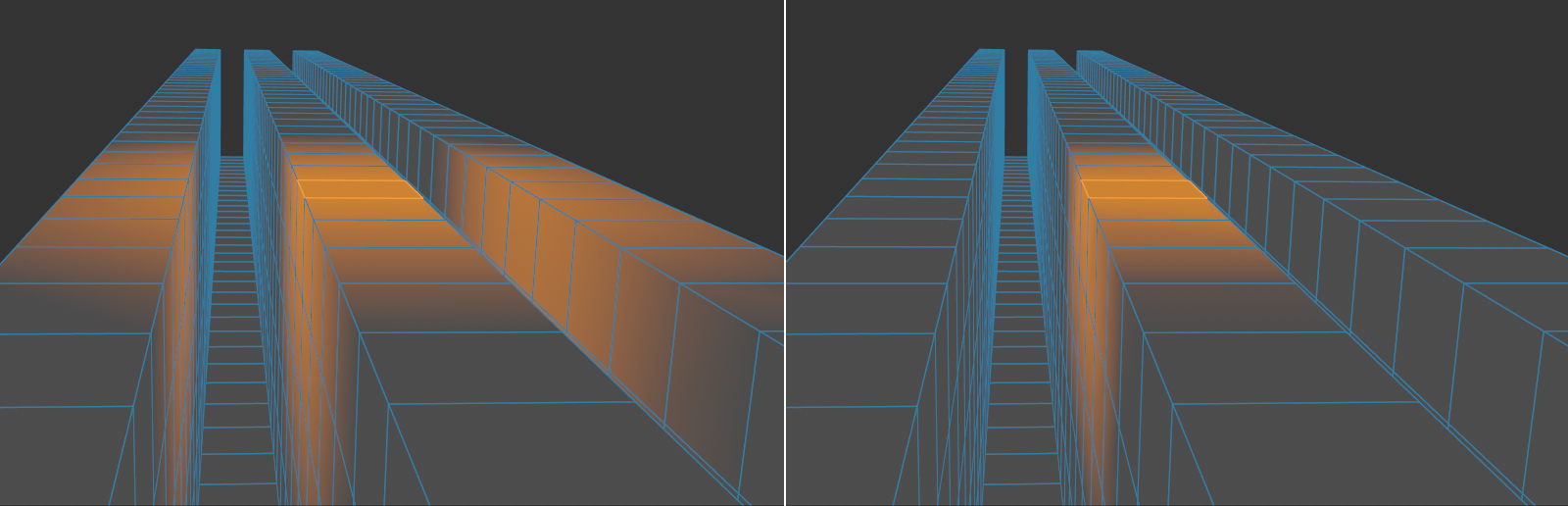 Surface deactivated on the left, activated on the right.
If you have activated this option, the entire 3D space of the area defined under Radius is not affected, but only a surface-oriented area, which makes it much easier to edit filigree object areas.
The soft selected elements will behave more like rubber when moved, scaled or rotated if this option is enabled. Rubber mode tends to work best with low Strength values.
This setting turns off the soft selection (when activated). The selection will then only affect the selected elements.
The soft selection is displayed with an orange preview, which makes it much easier to select correctly. The Strength parameter is symbolized by the saturation of the orange color. This preview can be switched on and off here.
This is used to define a falloff function that works up to the defined radius depending on the positions defined under Mode.
 The Falloff functions Linear, Dome, Bell, Circle, Needle, Vertex Map (here with Box Field) and Spline (spline preset "Triangle").
If you have created a Vertex Map, you can also define the acceptance via this (it is then advisable to select all components). If there are several Vertex Maps, the corresponding Vertex Map tag must be selected.
Please note that fields can be used in Vertex Maps that greatly extend the functionality.
If you define Spline here, you can define any falloff curve with the function graph (for details, see Function Graphs).
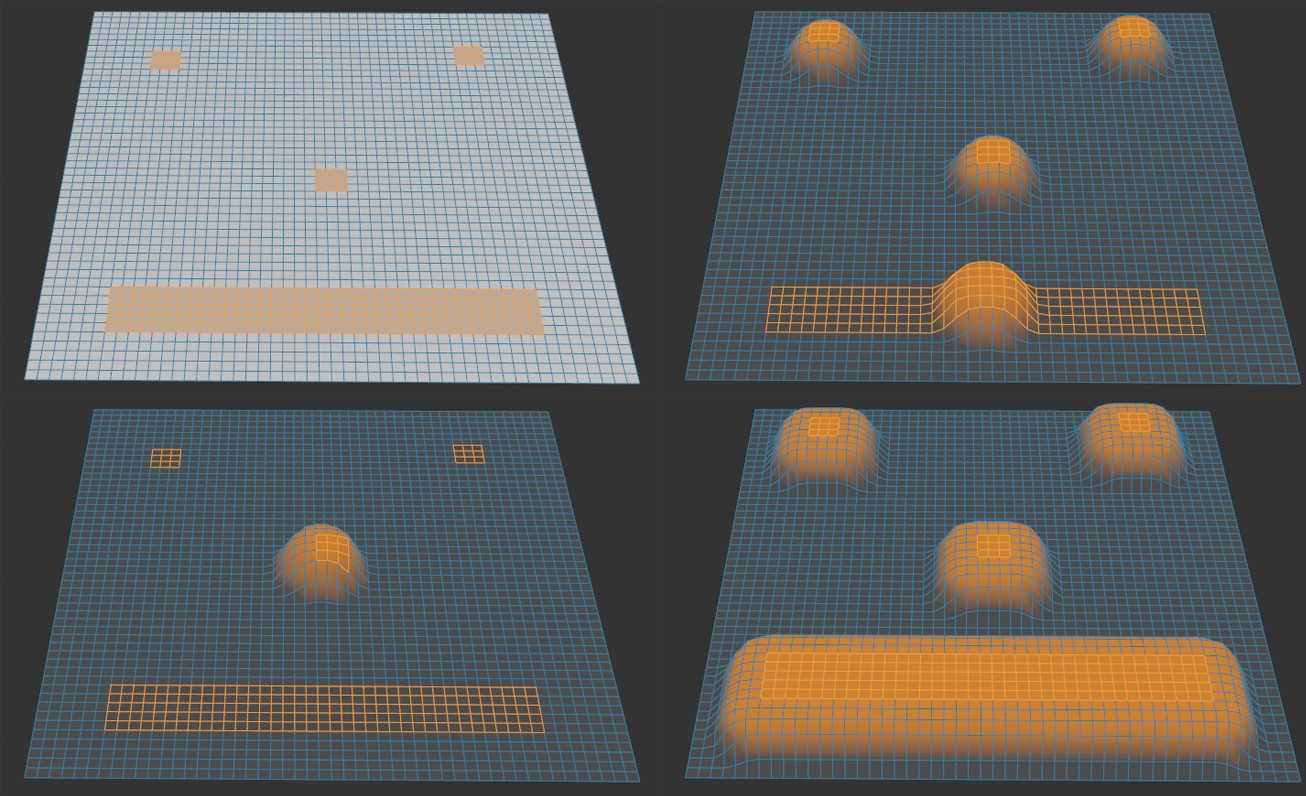 In clockwise direction starting from top left: the selected surfaces, Group mode, All mode, Center mode.
The Mode defines where the radius starts. Choose from the following:
The radius starts from the center of each selected element group.
The radius starts from the common center of all selections.
The radius starts from the edges of the selection.
Use this setting to define the soft selection’s radius.
Use this setting to define the influence of a given tool on the soft selection. This strength is visually represented by the saturation of the orange-colored selection preview.
Use this setting to define how hard or soft the effect of a soft selection should abate within a given radius.