

Intel Open Image Denoise
As you probably already know, the longer path tracers render, the clearer the noise effect gradually becomes. The key word here is ,gradually’: it can take very long until noise is reduced enough to achieve a useable image. It would be great if this noise can be removed or at least reduce with a method that makes rendering faster.
This is where Denoiser comes in: this function attempts to reduce the noise via blurring. Blurring is an effect that generates an average color for an individual pixel using pixel colors that lie a certain distance away. This process is pretty fast, as you might know from Photoshop (Gaussian Blur). Does this make it ideal for reducing noise here? Not quite:
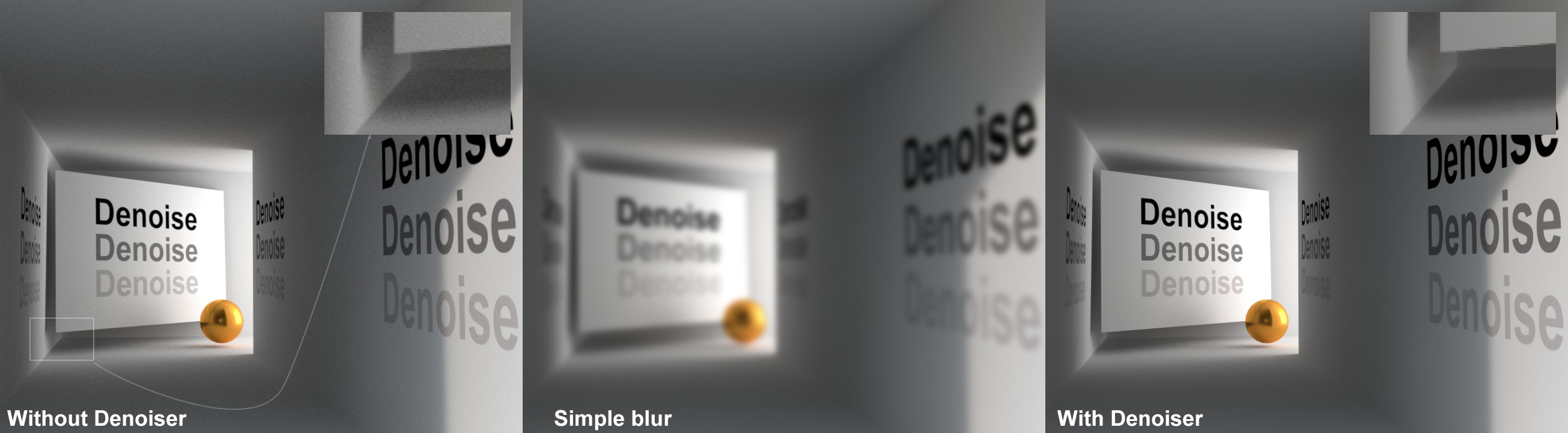
As you can see at the center of the image, this works on surfaces that are practically homogenous but not at all at spatial edges or on textures since these are also blurred. This is why a Denoiser must restrict its blurring: it has to stop at edges or where there are large differences in contrast (at right of image).
The Denoiser algorithms have to restrict their efforts to regions outside of any edges. Blur limits are openly visible edges, which can be geometry edges or texture edges.
Contrary to simple 2D filters, Denoiser can also use other criteria that can help it recognize edges. Multi-passes such as Albedo, for example, can be evaluated, i.e., 3D information that is not necessarily visible in the final image.
General Information
- Denoiser works best with grainy results as is the case with the Physical Renderer in general or with area shadows and the Quasi Monte Carlo GI type in particular.
- The Intel Open Image Denoiser works best with stills. Flickering can occur with animations, which can be compensated for by adding iterations (=less noise).
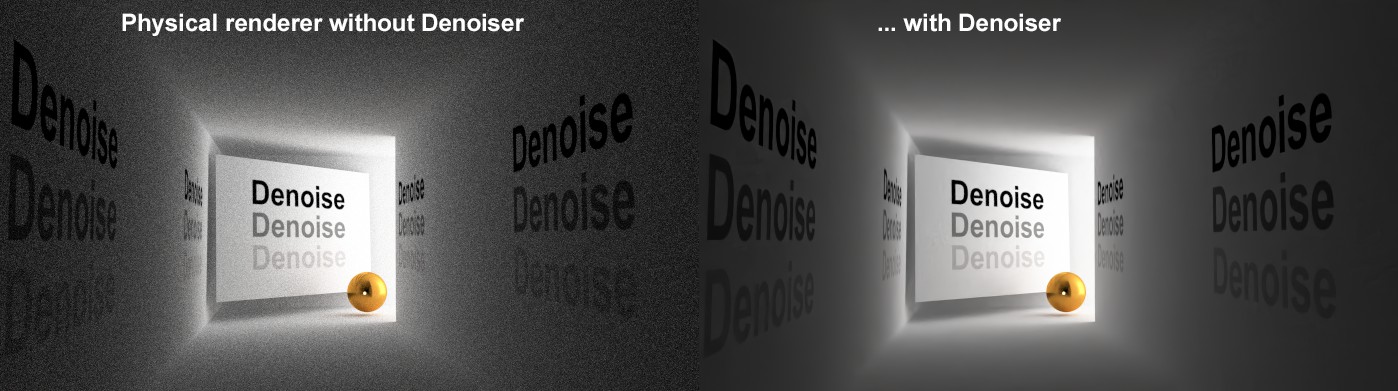 Example using the Physical Renderer.
Save the raw image on a separate layer
If enabled, the unsmoothed image (as if no Denoiser were applied) will be output as a Multi-Pass raw image. Otherwise the unsmoothed image will be lost.
Depending if you want to have physically correct results - also applies to node-based materials - or if you want to work with the old material channel (see PBR approach), you have to select either Abedo or Material Color and enable the corresponding multi-pass.
You should also select Material Color if you have enabled the option in the Project Settings menu.
Don't forget the Material Normal pass, which will also be evaluated.
The Denoiser uses these multi-passes internally to ascertain where the borders limits are.