

Options
When a polygon hole is closed, new polygons are created. How this is done is defined here:
You can select from the following options:
-
Basic: This type makes triangles, quads or N-gons available for selection.
-
Grid: The curvature and topology of neighboring polygons will be used to create a fitting surface curvature to fill the polygon hole.
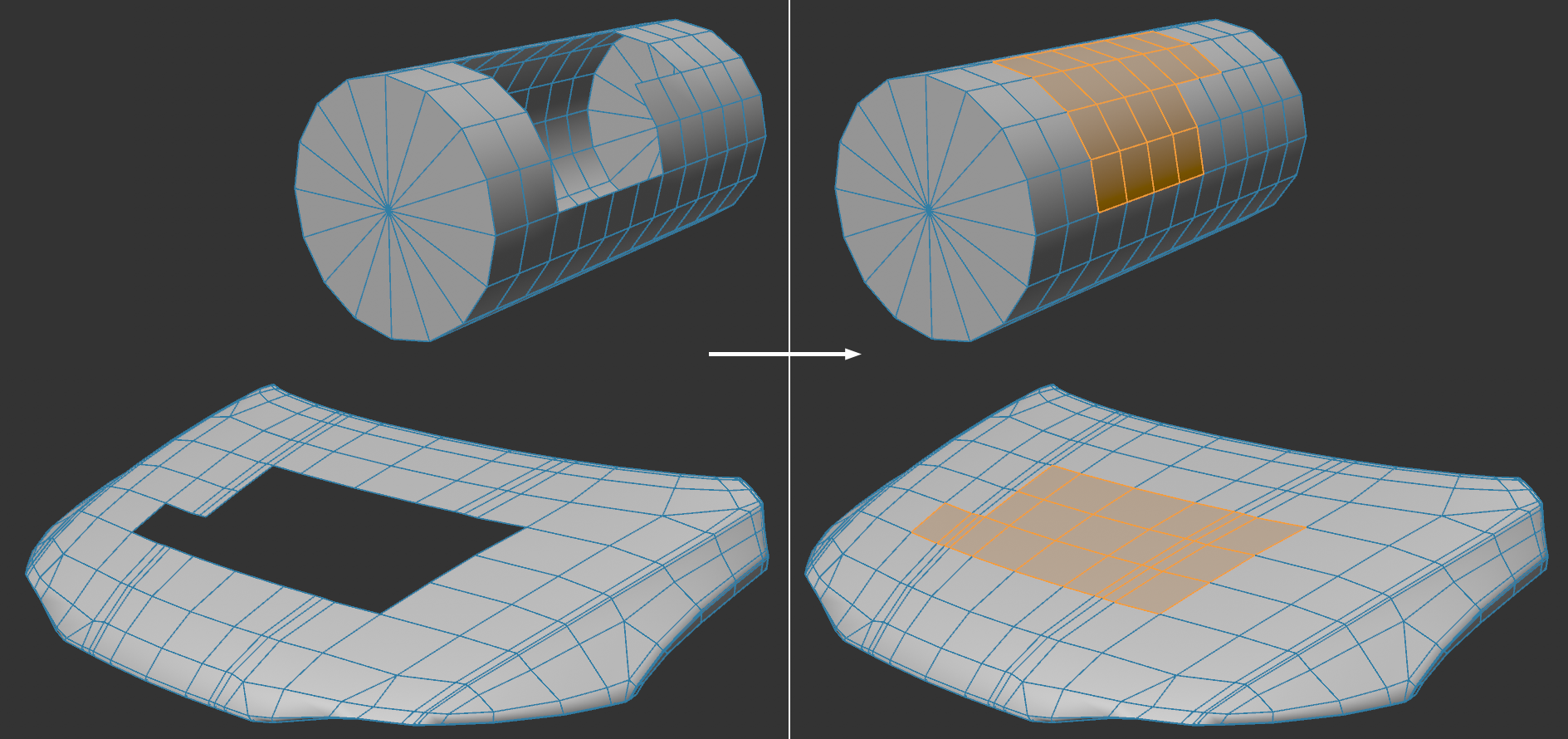
This option closes holes in consideration of the neighboring surface curvature/topology using quads - as much as possible. This works best with relatively clean, homogenous topology and right-angles within the hole's border, if possible, as shown in the image above.
For very complex hole borders, this command can lead to unwanted results. In such cases you can, for example, apply the Bridge tool for better results. This tool uses similar techniques but can also be controlled more precisely using edge selections.
 -
Patch: This mode works best with smooth, flat contours such as cylinder caps or round holes and you want to rotate the patch mesh or affect its topology:
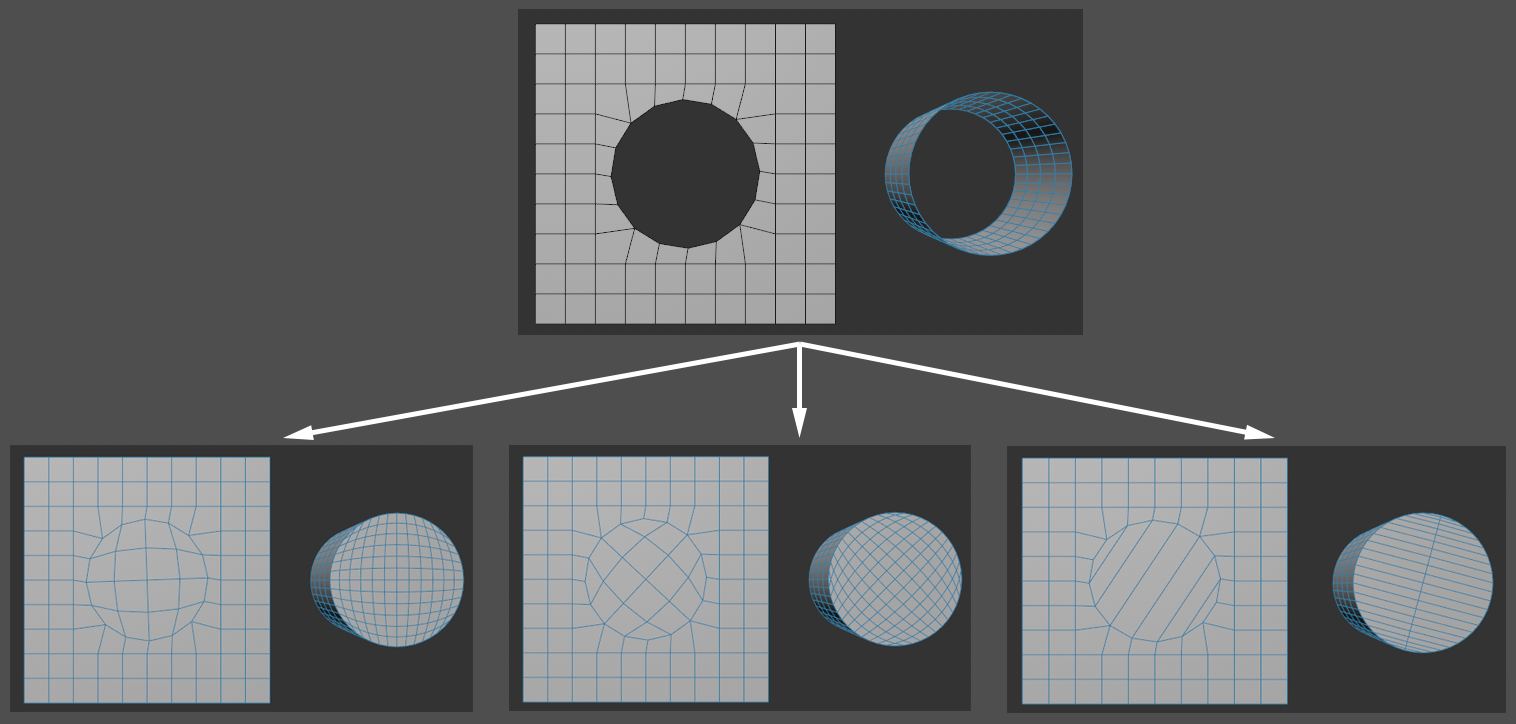 Initial length at top: bottom from left to right: Patch Rotation/Patch Width 0:0; different values for Patch Rotation; different values for Patch Width
Patch Rotation[-2147483648..2147483647]
Here you can rotate the Patch Mesh per neighboring value around a poing. The direction of rotation results from the increase - or decrease of the value.
Patch Width[-2147483648..2147483647]
A value of 0 will produce a more uniform, homogenous mesh while an increase in the value - or decrease - will reduce the subdivision between the opposing hole areas down to a non-subdivided polygon stripe.
If Polygon Type is set to Basic you can select from the following options:
-
N-Gon: The hole will be closed using an N-gon, no new edges will be created.
-
Tris: The polygons created will only be made up of triangles.
-
Quads: The newly created polygons will - if possible - be quads. They will not necessarily be flat.
When a polygon hole is closed, the newly created polygons will be selected, e.g., so thy can be modified right away.
When a polygon hole is closed, the edges of the newly created polygon will be selected, e.g., so they can be modified right away.
The edges of the polygon hole will be generated with a Phong break outline, which will in most cases result in visible edges.