

Layer Controls
You can select from these modes, which span their fields of effect as follows:
- Points: Around each object point within a defined Radius
- Surface: Over and under each surface within a defined Radius. You can also define if the volume limits should be trimmed on the inside or outside - or not at all.
- Volume: The Field will have a maximum strength within the volume.
- Curvature: Depending on the degree of surface curvature, effects such as the weighting of Vertex maps on concave curvatures can be created.
A depiction of the Fields’ effects can be seen here.
Use this setting to define the radius around object points or polygon surfaces within which the Field effect strength fall off from 1 to 0.
If Mode is set to Surface, this setting defines if the effect should be maintained up to the radius or if it should be clipped at the surface while ignoring the Radius setting:
- None: No effect clipping will take place.
- Inside: The inside of the volume will have no effect.
- Outside: The outside of the volume will have no effect.
- Inner and Invert: Effect is disabled on the outside; effect on the inside works within the defined Radius starting from the surface with a similar increase in value.
Curvature
The following explanations refer to the Curvature mode.
A curvature will be created depending on the surface curvature of a given object. The effect can be best observed using a Vertex map on the object itself.
In the following example, a Vertex map was assigned to a Landscape object, the Field function was activated and then the landscape was dragged into the field list.
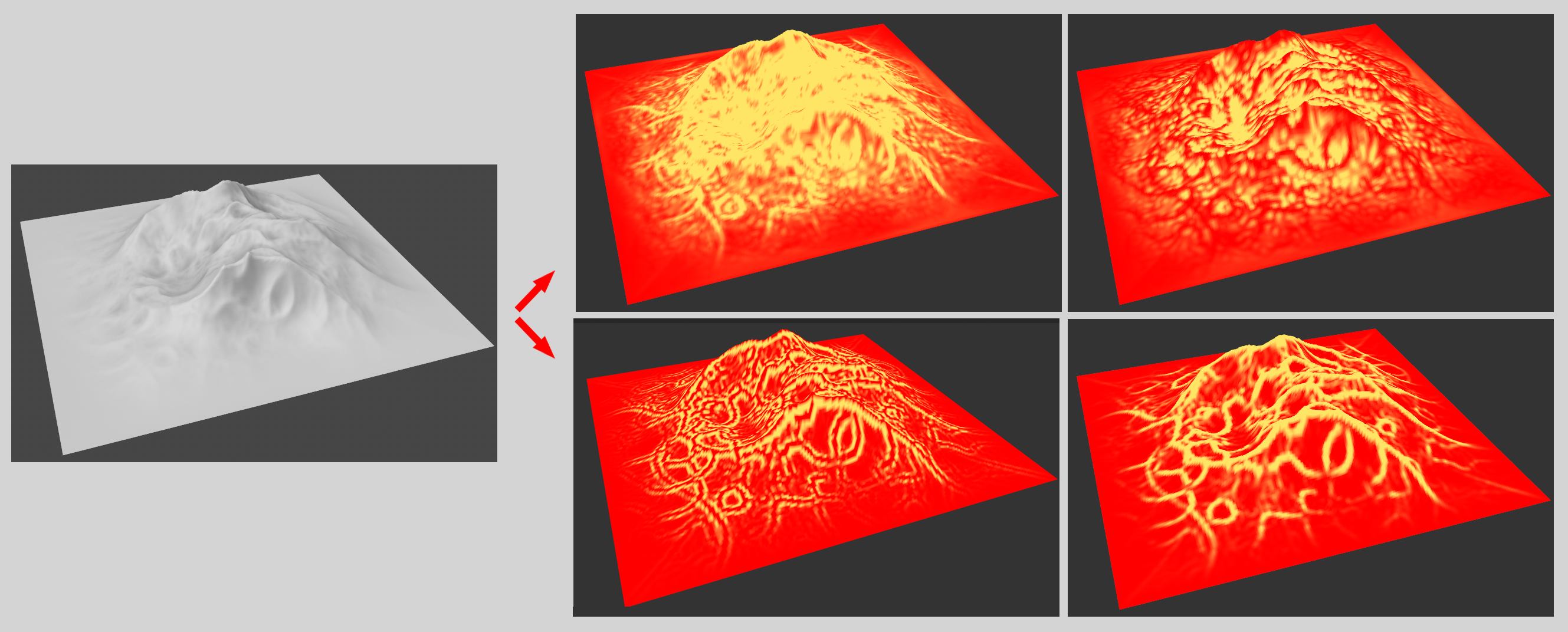 Left the geometry and clockwise Curvature Mode Both, Convex, Concave and Concave with Increasing Curvature option enabled..
You can select from the following:
- Both: Weighting will be added to both convex and concave regions
- Convex: Weighting will be added to convex regions.
- Concave: Weighting will be added to concave regions.
- Direct: Values between -100% (concave) and +100% (convex) will be assigned. This will not be noticeable on Vertex maps but will be noticeable on colors.
This setting is a multiplier for the effect.
Weighting will be assigned to regions in which flat areas converge into the respective curved areas.
The Curvature mode also affects the following two channels:
- Color: In the point object field layer's Color Temperature tab, Color Mode should be set to No Remapping. The flat surfaces will be colored red, convex green and concave red (Curvature Mode should be set to Direct).
- Direction: If you're using a point object field layer in a Target Effector, it can also be used to define a field direction using its surface curvature, e.g., run from convex to concave.
This function is often required for spaces that have an inside and an outside. This is entirely logical for the shape Fields (e.g., Spherical Field) but less obvious for particle, spline and volume objects, etc. Volume objects often have settings such as radius, with which a space can also be placed around a point or they define the space themselves. There is always an inside and an outside. This function defines how the inside should be treated. If nothing should happen (option enabled) or should null values, for example, be applied (option disabled), which will hide Fields below it if Blending Mode is set to Normal.