

Group
This page describes the Group node of the Scene Nodes system in Cinema 4D. It bundles nodes like an XPresso XGroup or a folder — structure and reusability for complex graphs, and the basis of capsules.
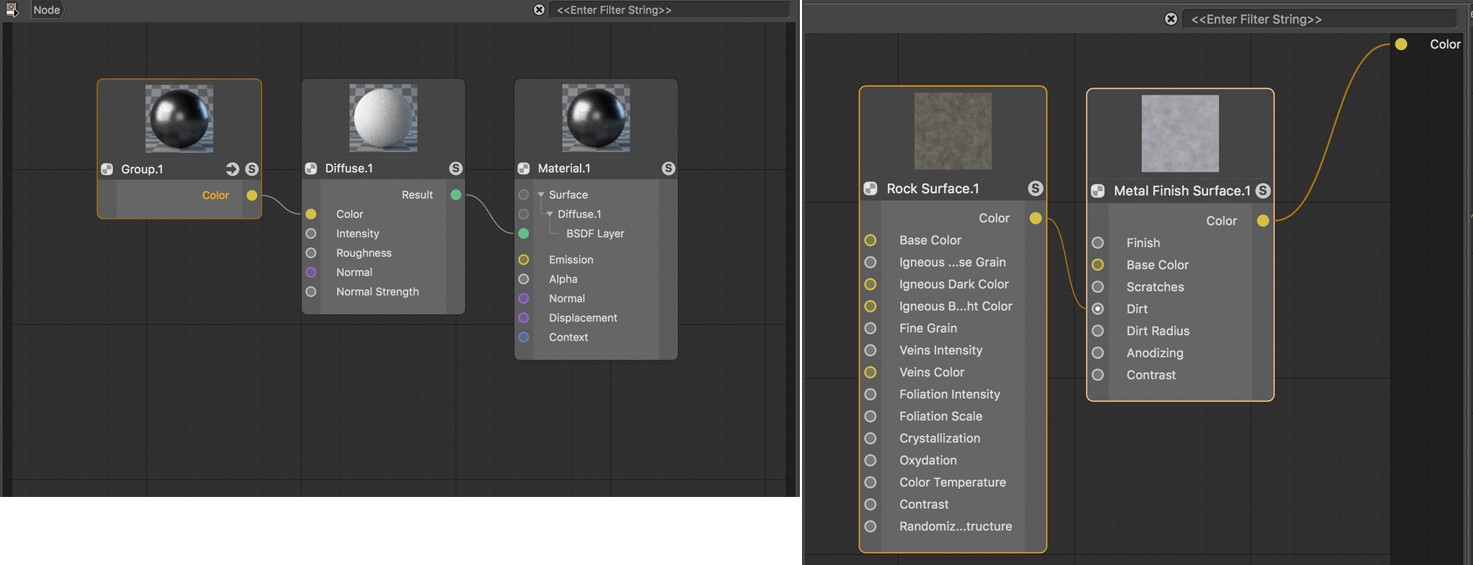 Grouping Nodes makes it easier to recycle parts of a material or circuit and generally provides a better overview. Elements of a group can be added or edited at any time.
This Node does not provide any function itself but is provided as a container for other Nodes that can be grouped within it. The principle corresponds to an XGroup from the XPresso system or a directory in the file system and enables, for example, the space-saving combination of closed function groups within a Node circuit.
Create a group
To group existing Nodes, select the relevant Nodes, e.g., by dragging a selection frame around them and then selecting Group Nodes from the context menu by right-clicking in the Node Editor. The same command can also be found in the Create menu of the Node Editor. Alternatively, the keyboard shortcut Alt+G can be used.
If you want to fill an empty group with new Nodes, call up a Group Node from the Asset Browser or from the Create menu of the Node Editor and click on its folder button in the Node's title bar. This way you can navigate to the content of the group and can create new Nodes or edit existing Nodes.
Create inputs and outputs
If you want to feed the Nodes of a group with values from outside the group, both input ports and outputs can be added to the group. To do this, right-click the Group Node and select Add Input / Add New Input or Add Output / Add New Output.
Or you can simply drag the desired user interface from the group of the same name in the Asset Browser directly into the open group. You will find examples and descriptions here.
Use an outline
If you want to group Nodes visually without needing the group function of opening and closing, you should take a look at the Scaffold function of the Node Editor. To do this, simply select the corresponding Nodes and right-click on the selected Nodes to call up Group in Scaffold. If necessary, a Scaffold can also be converted to a group. You can find more information about Scaffolds here.
Remove a group
To remove a group without also deleting the Nodes contained in the group, use Shift+G or the Unpack Node Group command, which can be found by right-clicking on the group or in the Create menu of the Node Editor.
Change group types
Within the Node system there are different types of groups specialized for different functions. For example, you can use a Geometry Modifier group to combine and create commands that can then be used to modify objects directly in the Object Manager. Such special group types can also be converted directly into assets, which can then be dropped directly into the Asset Browser as a new feature.
If you already have a normal group with such a setup and want to change it, for example, to a Geometry Modifier group, select the group and select change group type to. in the Node Editor's Createmenu.
A list with all group types will appear from which you can select.